Text on a path
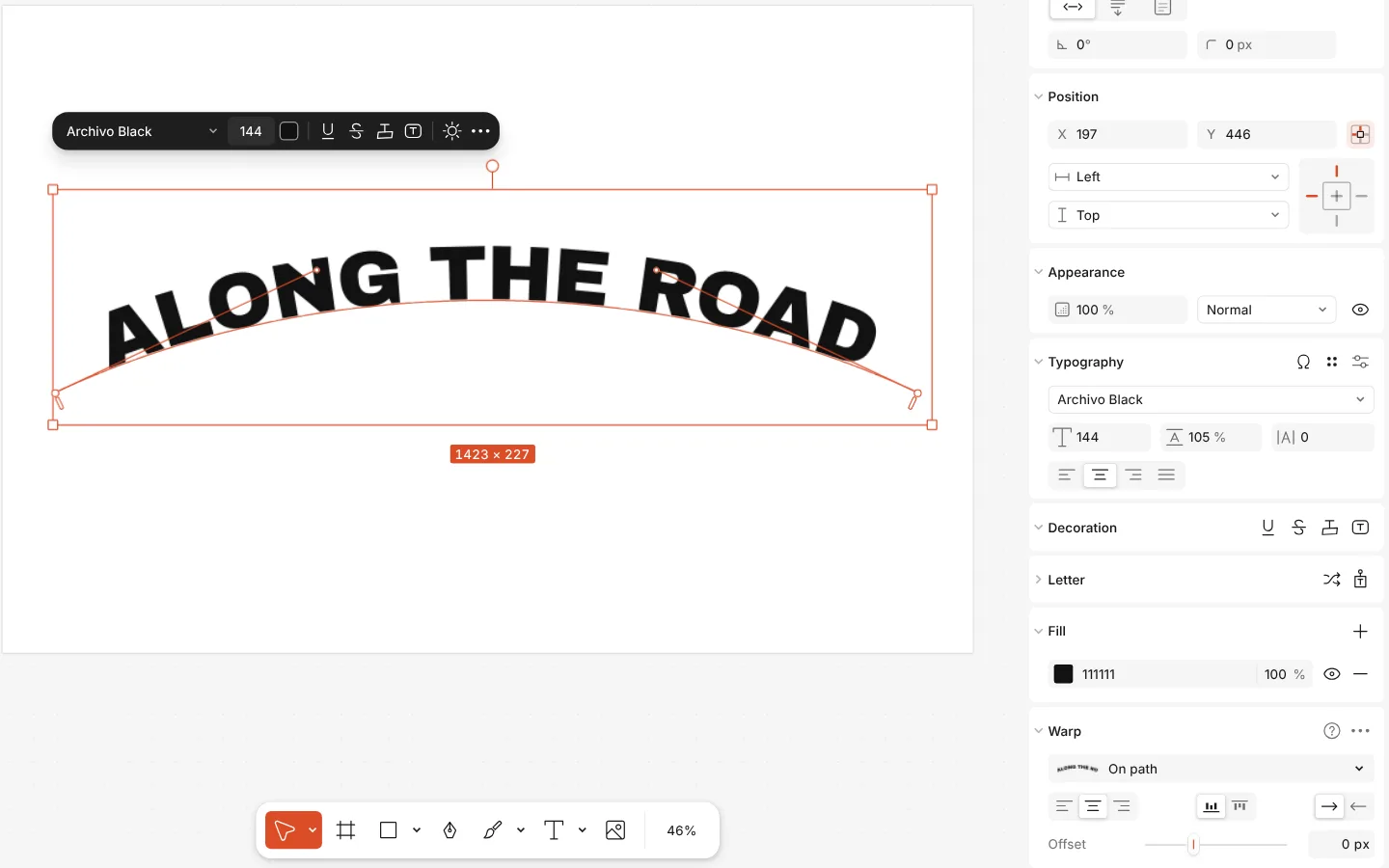
Any text in Paletoo can follow a curve. Choose On path in the Warp section, then drag the curve’s points on the canvas; the letters follow, and the words stay editable.
For a circle, use the Arc warp at 360°. To fill a shape with text instead, use Flow text into shape.
How to do it
- Select a text layer.
- On the Design tab, open the list in the Warp section and choose On path.
- Drag the points and handles of the curve on the canvas until the line sits where you want it.
- Optionally, add Path decorations to draw the path itself under the letters.
The path is an open curve that belongs to the text. Text can’t yet be attached to the outline of a shape that is already on the canvas.