How to vectorize an image
Vectorize traces a picture into vector shapes you can recolour, edit point by point and export as SVG or PDF. It runs on your device: the picture isn’t uploaded and it costs nothing.
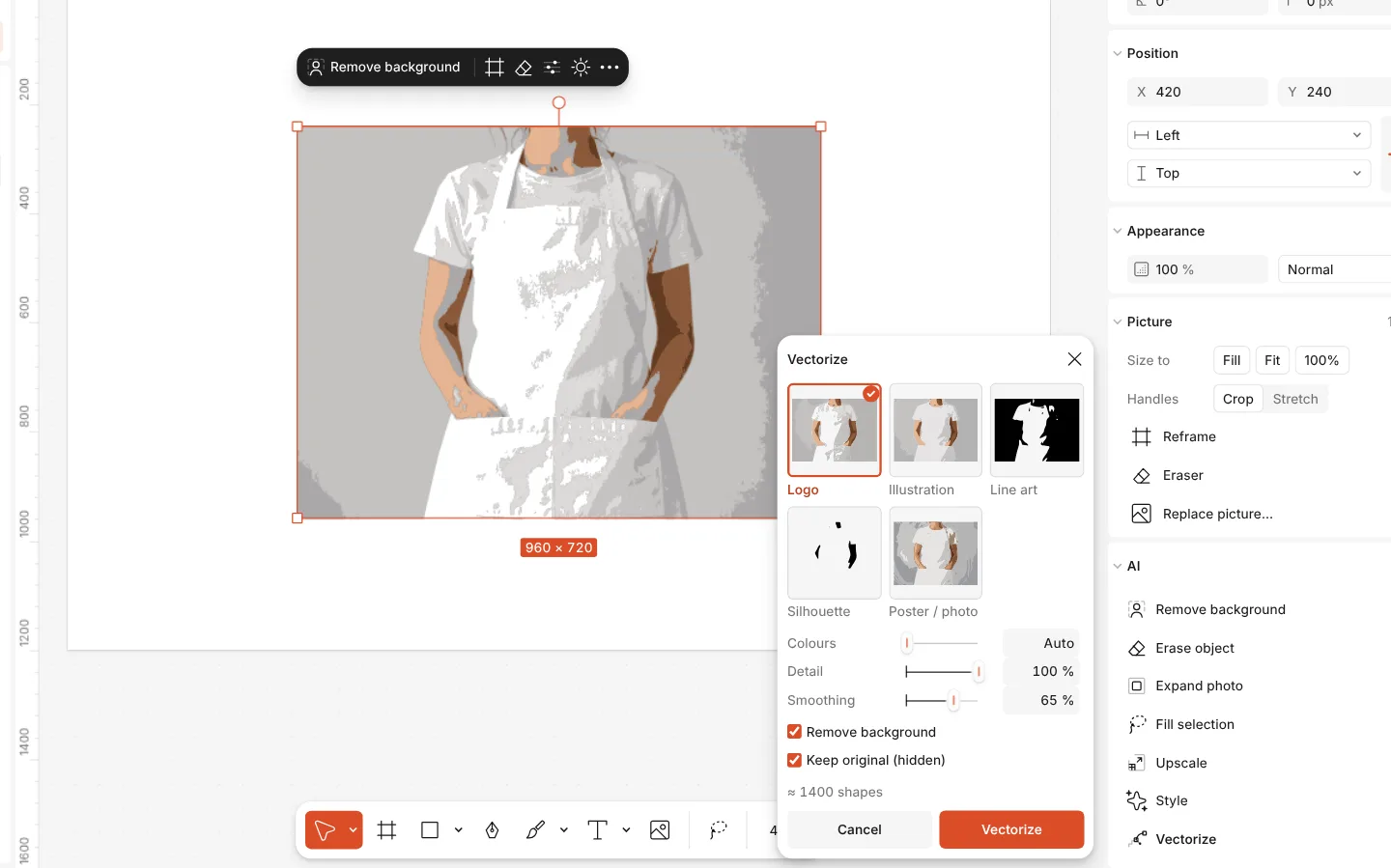
Pick a look that suits the picture, such as a logo, line art or a poster, and adjust the number of colours and the detail before you apply it.
How to do it
- Select a picture.
- On the Design tab, in the AI section, press Vectorize (also in the right-click menu and in Ctrl K).
- Choose a look and adjust the colours, the detail and the smoothing; the window shows how many shapes it will make.
- Press Vectorize. The result replaces the picture in one step, and you can keep the original hidden underneath.