New · a connector for AI assistants
Design with Claude and ChatGPT
Ask your assistant for a post or a story. It appears right in the chat — swipe it, export it, ask for variants — and lands in your Paletoo files as real layers.
 Coffee shop opening
How it works
Three steps, and the second one is just a sentence.
- 1
Add Paletoo
Paste one URL into Claude or ChatGPT and sign in with your Paletoo account. Free.
- 2
Ask for a design
Say what it is for and the mood. Your words, your brand, your dates.
- 3
Watch it being built
Open the link: the assistant’s cursor places every layer, live. Take over any time.
What you can ask
Click a request to copy it.
What you get
Not a picture of a design: the design itself, ready for your hands.
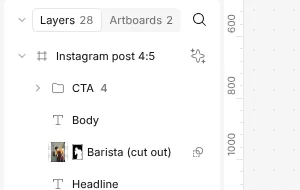
Editable layers
Text, photos, shapes and effects. Change anything by hand or by asking.
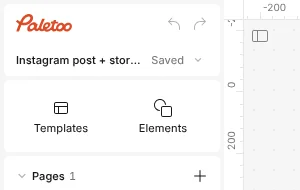
In your cloud
Every design is saved to your Paletoo files, on every device.
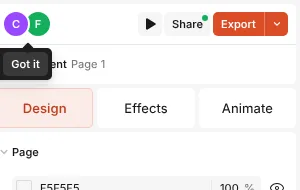
A live cursor
Open the link once: each change arrives as it is made, by Claude’s cursor.
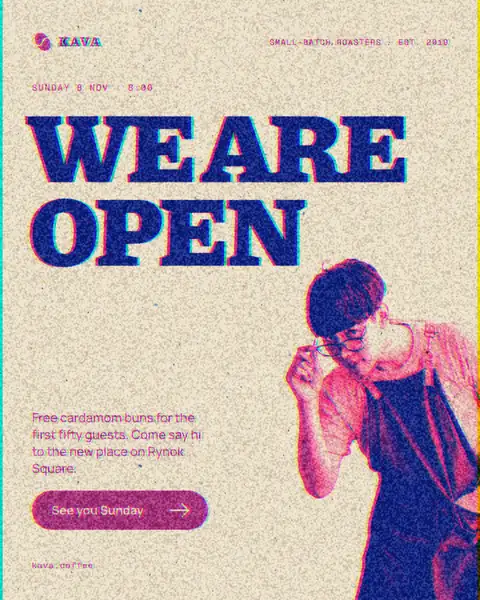
Looks and mixes
Risograph, halftone, film and more, as real effect stacks you can tune.
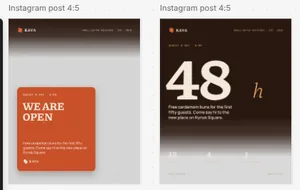
Variants
Ask for three layouts of the same words and pick the one you like.
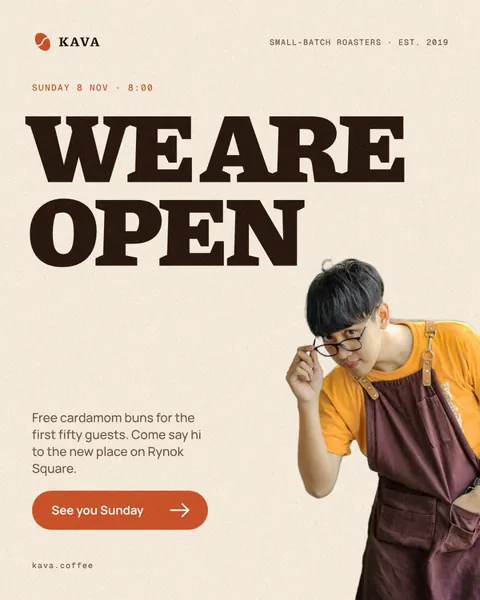
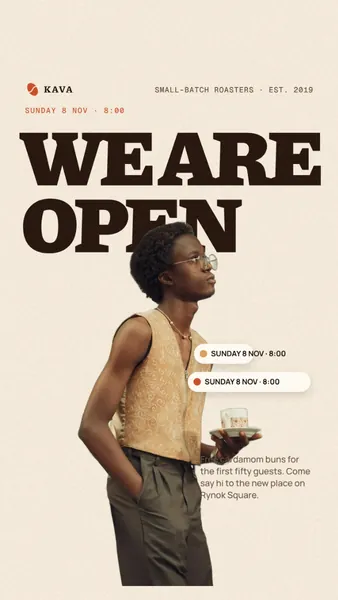
Every format
Post, story and square: one request, every size you need.
Export
Download as PNG, JPG, WebP, PDF, SVG, MP4 or GIF, or share a link.
Connect in a minute
The same URL everywhere. You sign in with your Paletoo account once; nothing to install.
claude.ai
- Open Settings → ConnectorsOn claude.ai, from the menu under your name.
- Add custom connectorName Paletoo, URL https://paletoo.com/mcp. Then Add.
- Connect and allowPress Connect, sign in to Paletoo and press Allow.
- Ask for a designIn a new chat, turn Paletoo on in the tools menu and ask.
ChatGPT
- Turn on Developer modeSettings → Apps & Connectors → Advanced settings → Developer mode.
- Create a connectorName Paletoo, URL https://paletoo.com/mcp, authentication OAuth. Then Create.
- Sign in and allowSign in to Paletoo and press Allow.
- Ask for a designIn a new chat, add Paletoo from the + menu and ask.
Claude Desktop
- Open Settings → ConnectorsIn the Claude app on Mac or Windows. Connectors you add on claude.ai are already here.
- Add custom connectorName Paletoo, URL https://paletoo.com/mcp. Then Add.
- Connect and allowPress Connect, sign in to Paletoo in the browser and press Allow.
Claude Code
- Add the serverRun
claude mcp add --transport http paletoo https://paletoo.com/mcp - Sign inIn Claude Code, type
/mcp, pick paletoo and sign in to Paletoo. - Ask for a designAsk in your session, then open the link it gives you.
Codex
- Add the serverRun
codex mcp add paletoo --url https://paletoo.com/mcp - Sign inRun
codex mcp login paletooand sign in to Paletoo. - Ask for a designAsk in Codex, then open the link it gives you.
These are the steps to follow, written out; the menus are the assistants’ own and may move.
Yours, and in your hands
- Only your filesThe assistant works in your Paletoo files and nowhere else.
- You approve accessNothing happens until you sign in and press Allow.
- Disconnect any timeAccount settings → Connected apps → Disconnect. It stops at once.
- Free: 10 designs a dayPaletoo Pro: up to 200 a day. Edits to a design do not count.
Questions
Which assistants work with Paletoo?
Any assistant that can add a remote MCP connector: claude.ai, the Claude apps, ChatGPT with Developer mode, Claude Code and Codex. They all use the same URL.
Do I need a paid plan?
Not on Paletoo: the free plan makes 10 designs a day, and Paletoo Pro up to 200. Custom connectors may need a paid plan of the assistant itself.
What can the assistant see?
Only the Paletoo designs it makes or you point it to, through the access you allowed. It never sees your other files or your password.
Is the result a flat picture?
No. It is an ordinary Paletoo design made from our designers’ templates: text, photos, shapes and effects as separate layers you can change.
How do I disconnect it?
In Paletoo, Account settings → Connected apps → Disconnect. Its access stops at once; you can also remove the connector in the assistant.
Does it work in Ukrainian?
Yes. Ask in Ukrainian or English; your words go into the design as you write them.
Your next post is one sentence away
Add Paletoo to your assistant and ask.