Auto layout: a button or a card that grows with its text
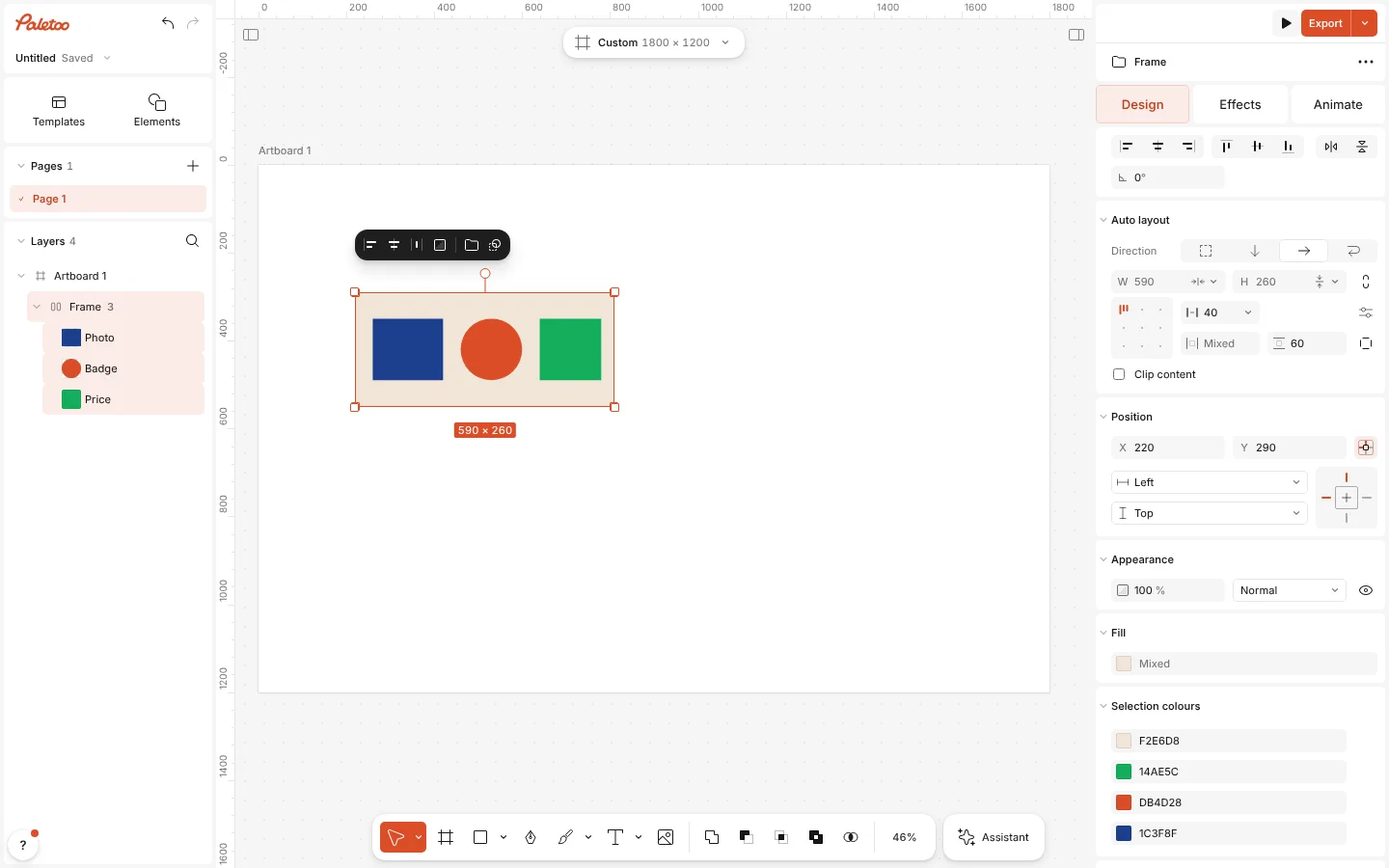
Auto layout turns a few objects into a frame that places them for you: in a row or a column, the same gap between them, the same padding around them. Make a word longer and the button grows; delete an item and the rest close up.
Paletoo guesses the direction, the gap and the alignment from where things already stand, so pressing the key moves nothing. A rectangle behind the rest becomes the frame itself: its fill, corners and stroke are the card’s look, and its distance to the content is the padding.
How to do it
- Select the objects that belong together, for example a rectangle and the words on it, and press Shift A (Add auto layout in Ctrl K). With an artboard selected, its whole content is wrapped.
- Edit the words: the frame grows and the items after it move along. A hidden item takes no room, a deleted one leaves no gap.
- In Layers the frame is one row with the auto layout icon; drag its rows to change the order of the items. Select an item and press Shift A again to wrap it in a frame of its own inside.
- Paste or duplicate (Ctrl D) with an item selected: the copy lands right after it, inside the frame. Alt Shift A (Remove auto layout) takes the layout off and leaves everything where it is.
Exports (PNG, SVG, PDF, PowerPoint) get the layers exactly where the frame put them. A component made of a frame keeps it: text changed in one instance grows that instance only.