How to make an emboss effect: press text into metal or stone
The design pressed into a plate of metal or stone, its own colour gone.
What it is
An emboss effect presses a design into a surface. The letters lose their own colour: what you see is the material itself — brushed aluminium, a slab of slate, crumpled foil — with one wall of each letter catching the light, the opposite wall in shade and the pressed face a touch darker than the sheet around it. In Photoshop this takes a layer at zero fill with Bevel & Emboss, Inner shadow and Satin stacked over a photo of metal. In Paletoo it is one step, Emboss, and it can bring its own plate of metal or stone.
It is not the same as our embossed metal guide. There, Relief and Metal turn the letters themselves into chrome: the type is the shiny object. Here the letters go into the plate — the metal or stone is around and under them, and the type is a dent in it. The result is quieter and more physical, like an engraved nameplate, a stamped aluminium tag or a word cut into stone.
Where it is used
Use it for big statistics and anniversary numbers, product and hardware launches, award and partner posts, architecture and interior studios, premium packaging and invitations on kraft. It is at its best on large, heavy shapes — numbers, bold sans-serifs, logos — where the walls have room to catch the light.
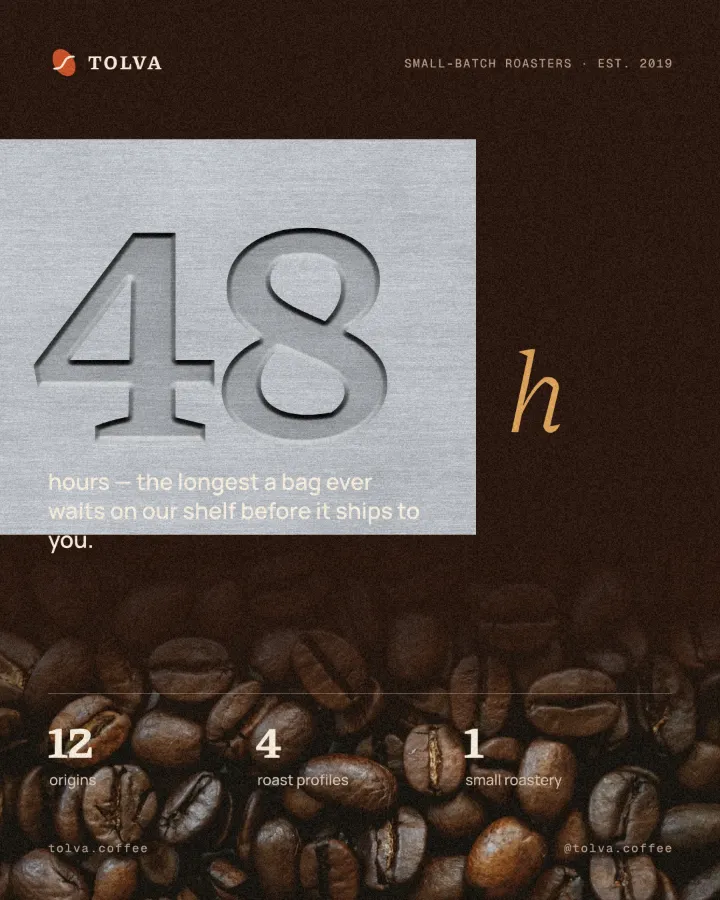
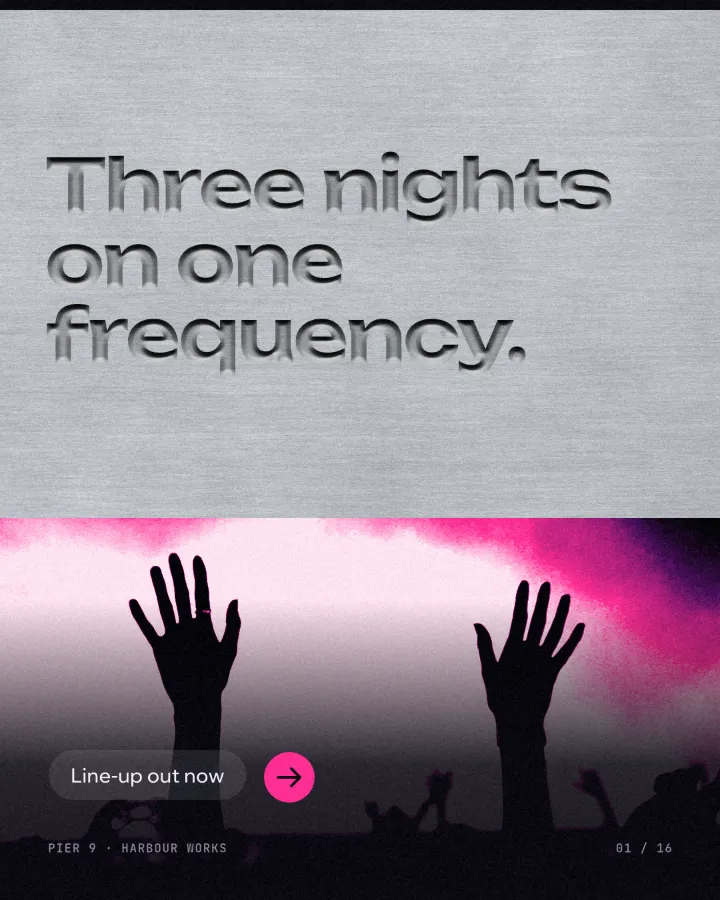
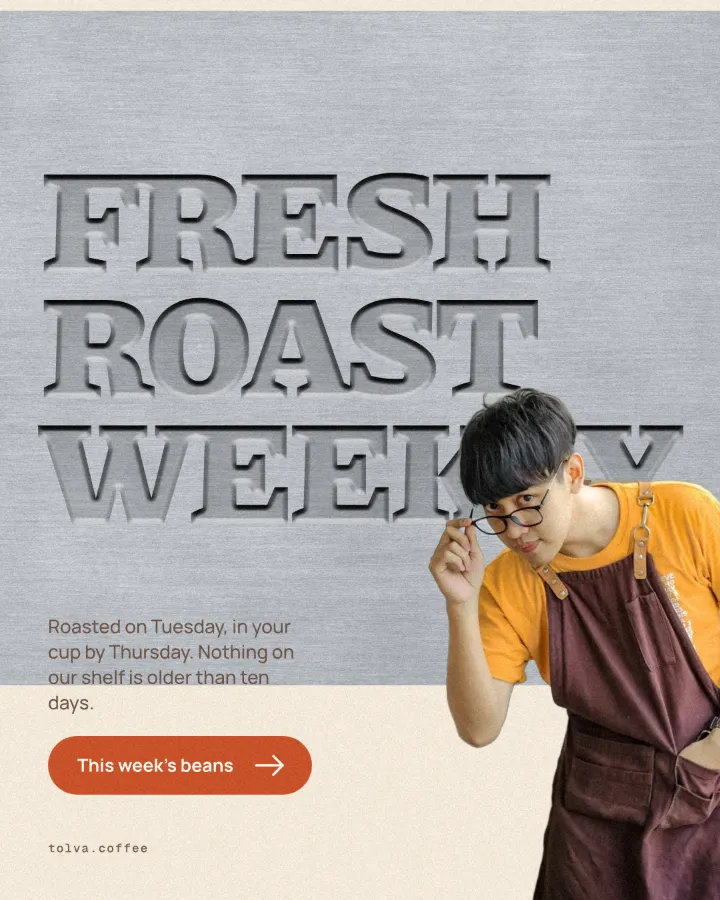
Made in Paletoo with this mix:
How to make it, step by step
Open your design and select the text, number or logo to press. Heavy weights work best: a thin stroke has no room for two walls and a face.
Open the Effects tab and go to Mixes; press All if Pressed metal is not in the first row.
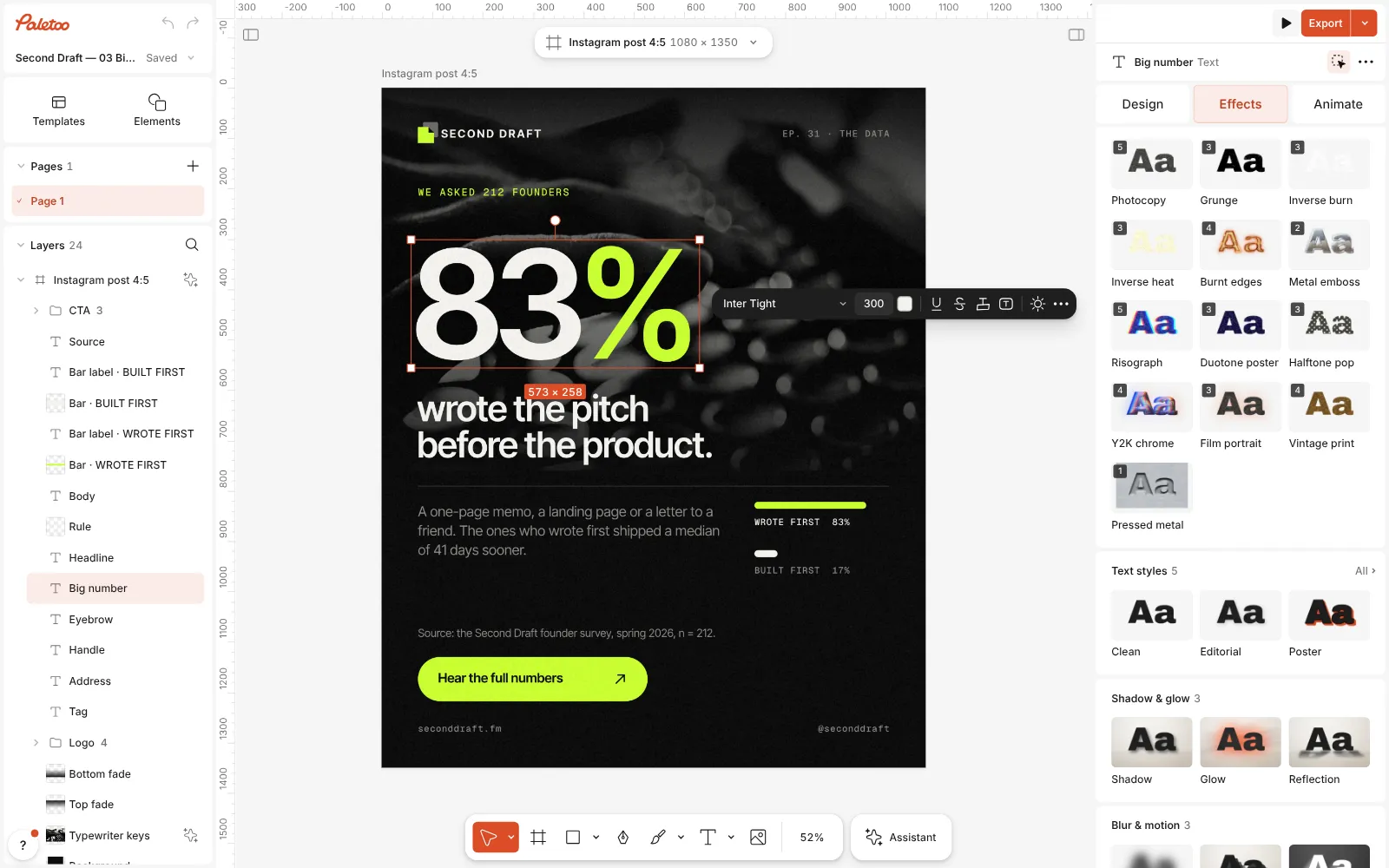
A podcast post open in Paletoo, the big 83% selected and the Mixes open Press Pressed metal. One step goes on under Applied: Emboss on its Aluminium preset. A plate of brushed aluminium appears round the selection and the shape is pressed into it — its colour is gone, only the relief shows.
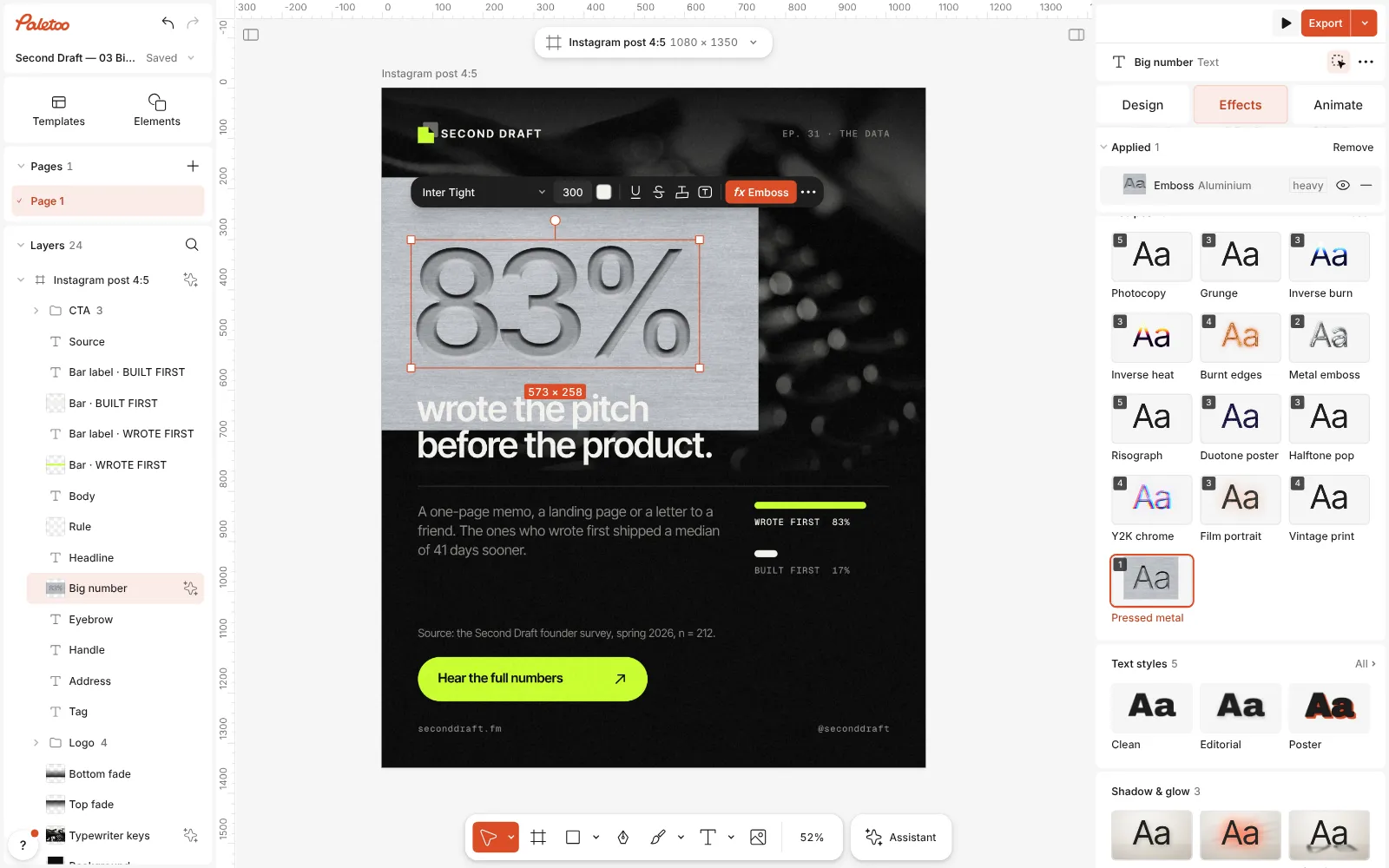
Pressed metal pressed: one Emboss step under Applied, the 83% pressed into brushed aluminium Click the Emboss row to open it. The presets at the top are Aluminium, Slate, Foil, Blind and Raised. Surface picks the material: Aluminium, Silver foil, Steel, Slate, Dark concrete, Kraft paper, or Beneath — whatever layers are under the object. Direction is Down to press in, Up to raise.
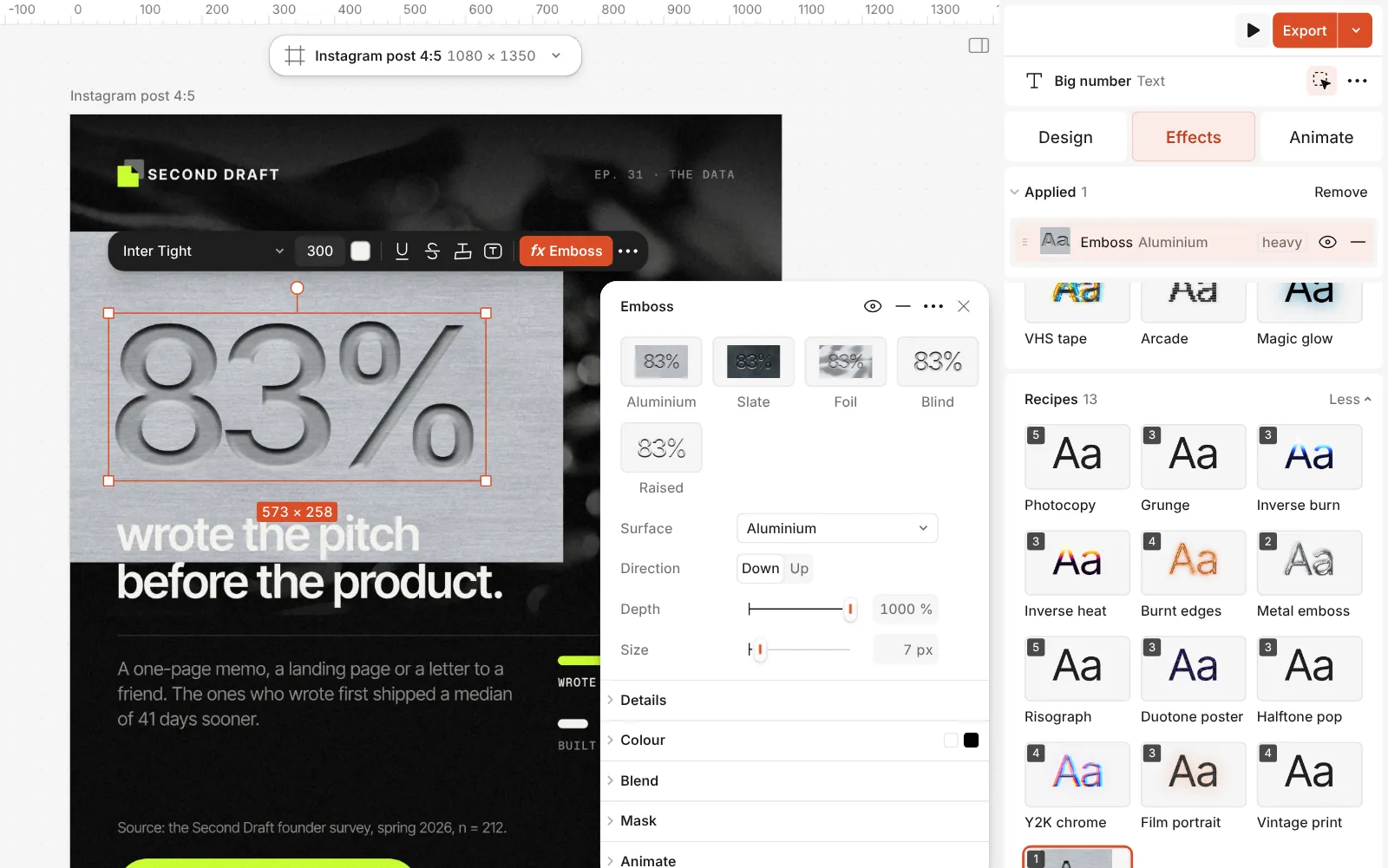
The Emboss step open: its presets and the Surface choice Shape the pressing with Depth (how steep the walls stand), Size (how wide they are) and Soften. Further down, Light and Altitude place the light, and Inner shadow and Satin darken the pressed face.
Double-click the text to change the words — the relief is redrawn for every letter. Then press Export.
Watch it
The one-click mix
In Paletoo the whole stack is one mix, Pressed metal. One click puts every step on the selected object, one undo takes them all off, and each step stays an ordinary effect you can change, reorder or remove.
Its steps: Emboss · Aluminium
Open this mix in PaletooMake it your own
Set Size against the type, not on its own: it is the width of the walls in pixels, so on a bold headline keep it under half the thickness of the letters’ strokes, or the walls meet in the middle and the face disappears. Depth then decides how hard the walls read; Soften rounds a crisp machine stamp into a worn, cast look.
Light is what sells it. Light turns the light round the letters — match it to the photo’s light. Altitude sets how high it stands: lower gives long, raking shading that suits dark stone (the Slate preset lowers it and brightens the lit rims), higher gives a flatter, gentler pressing. If the dent looks too dark, lower Inner shadow or Satin; Pressed metal sets Satin to 35 %.
Choose Beneath under Surface (or the Blind preset) to press the design into the photo or background itself, with no plate. With a surface, Plate sets how far the plate reaches past the object; lower it for a tight tag, raise it for a wide panel. Fill brings back the letters’ own colour inside the relief.
Questions
How is this different from the embossed metal guide?
Embossed metal turns the letters into chrome with Relief and Metal. Emboss presses the letters into a plate of metal or stone, or into whatever is beneath them; the letters themselves have no colour.
Can I press text into my own photo?
Yes. Pick the Blind preset, or set Surface to Beneath: the relief is laid over the photo, the background or any layers under the text.
Is the text still editable?
Yes. Emboss is a live effect on the text layer: change the words, font or size and the walls are drawn again for the new letters.
Can the letters stand out instead of sinking in?
Pick the Raised preset or set Direction to Up. The same light then falls on the opposite walls, so the shape rises out of the plate.
More effects
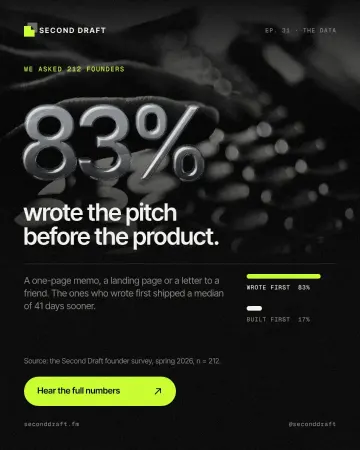
How to make an embossed metal effect
Live text pressed into the sheet and turned to chrome.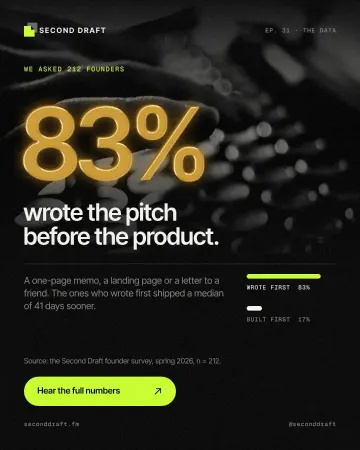
How to make a gold foil text effect
Stamped gold leaf: a pressed edge, warm metal bands and a soft shine.
How to make a Y2K chrome text effect
Fat liquid chrome in pearly pastels, with a soft glow.
Read the overview: graphic design trends 2026
Make it online: Business card maker · Contact and call-to-action templates
Try it on your own design
Paletoo opens in your browser, with no sign-up. Every effect here is live: change the picture or the words and the effect follows.
Open in Paletoo