How to make a pixel sorting effect
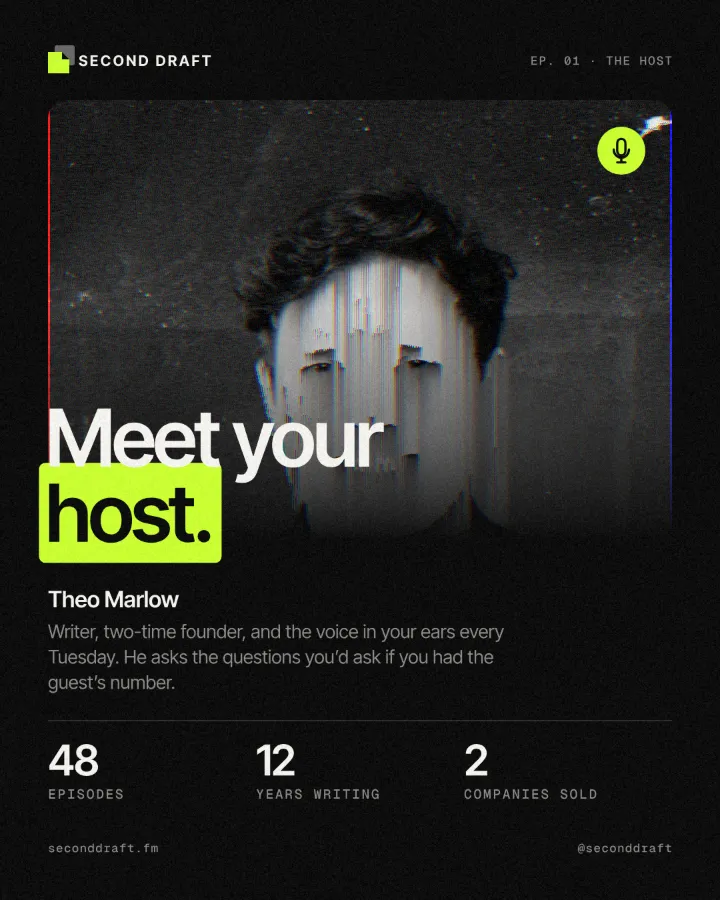
Mid-tones and lights sorted by brightness into falling streaks.
What it is
Pixel sorting is a glitch-art technique that rearranges a picture instead of breaking it. Along every column (or row), it finds the runs of pixels whose brightness falls between two limits and sorts each run from dark to light. Each run becomes a smooth ramp of its own colours, while the darker and lighter pixels outside the limits stay where they are and cut the runs apart. The result is a photo that seems to melt downwards in long, clean streaks, with the face or the outline still there between them.
Artists made it famous with scripts and Photoshop actions in the 2010s, and it is back in 2025–2026 on album covers, gig posters and fashion campaigns, because it looks digital and handmade at the same time. Nothing is added — every pixel in the result was already in the photo, just in a different place — which is why it keeps the photo’s palette and never looks like a filter pasted on top.
Where it is used
Pixel sort suits electronic and experimental music, club nights and festival line-ups, tech and gaming promos, fashion lookbooks and editorial covers about speed, data or change. It is strongest on a portrait or a figure with bright highlights against darker areas: the lights streak, the shadows hold the shape. As a quieter move, keep it to one band of the photo with a narrow range.
Made in Paletoo with this mix:


How to make it, step by step
Open your design and select the photo. A picture with a clear subject, bright highlights and darker areas sorts best; here it is the cut-out portrait standing in front of the tall STAY letters on a summer magazine cover.
Open the Effects tab and find Mixes; press All if Pixel sort is not in the first row.
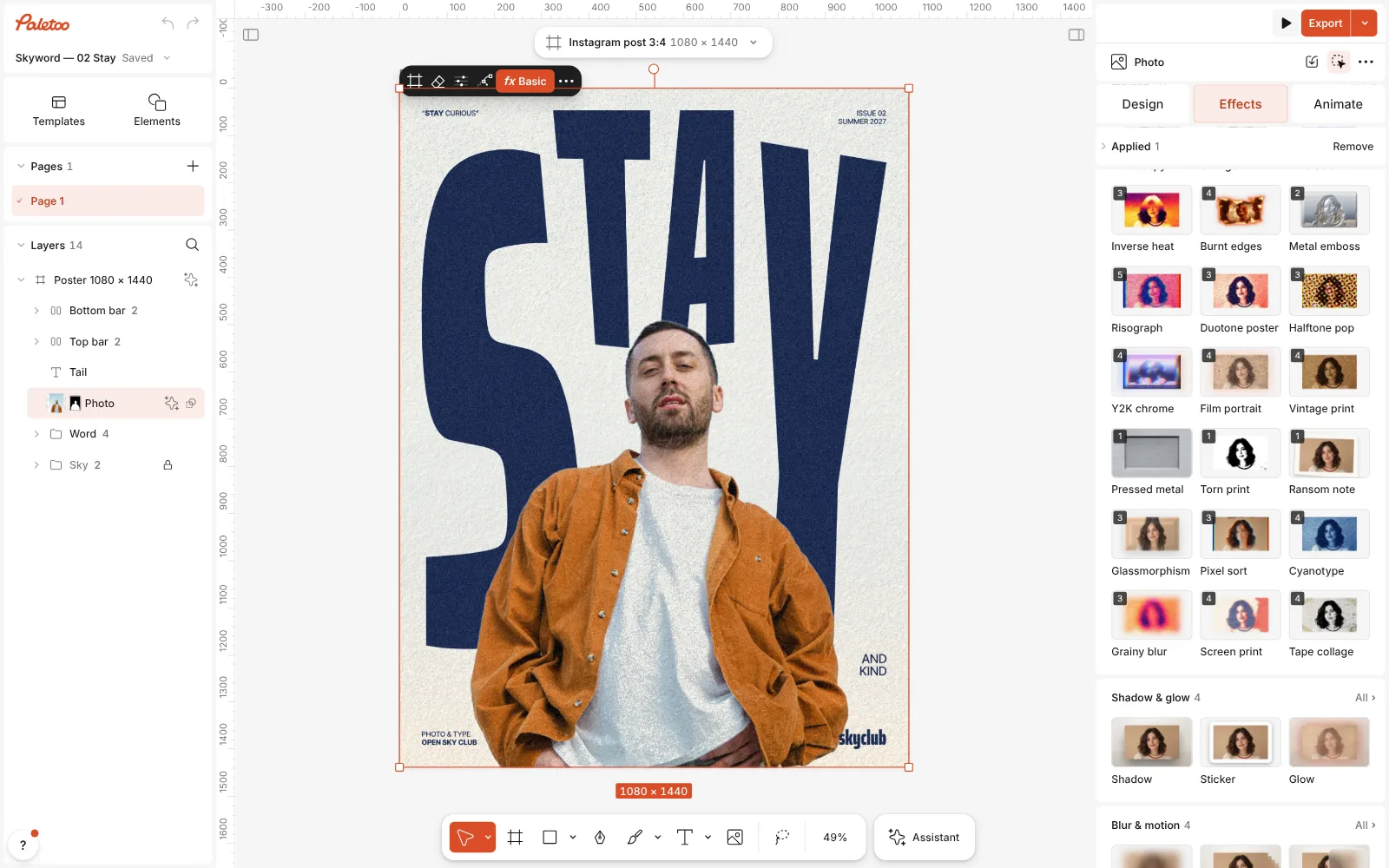
The magazine cover open in Paletoo, the photo selected and the Mixes open Press Pixel sort. Three steps go on under Applied: a faint Grain gives the sort a little texture to work with, Pixel sort sorts the mid-tones and lights down every column, and Colour split pulls the colours a few pixels apart for a digital fringe.
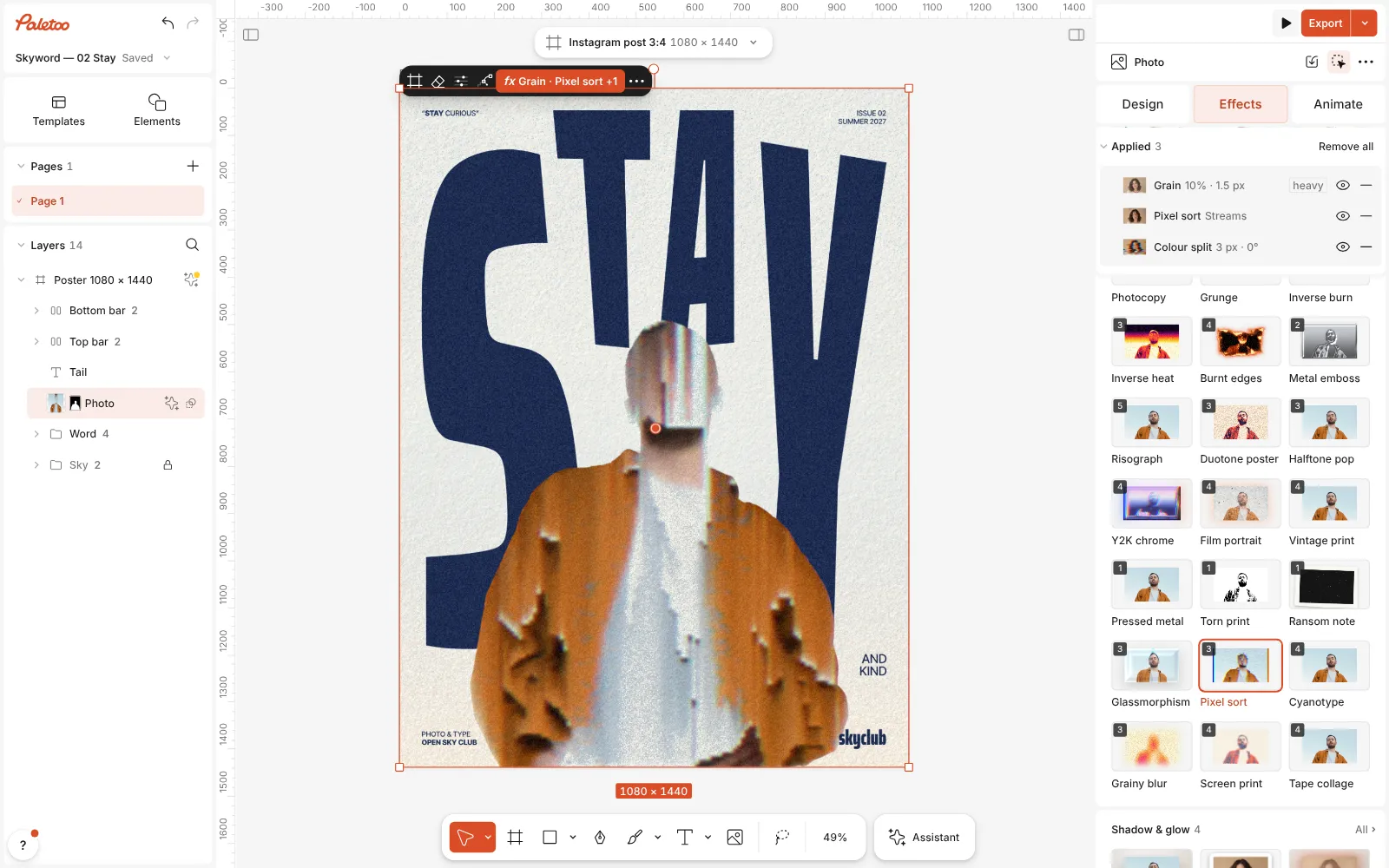
Pixel sort pressed: Grain, Pixel sort and Colour split under Applied, the photo melting into sorted streaks Click the Pixel sort row to open the step. The presets are at the top — Streams (the mix’s), Highlights, Shadows and Bands — and under them Low and High, the range of tones that streak, and Length, which cuts long runs into pieces.
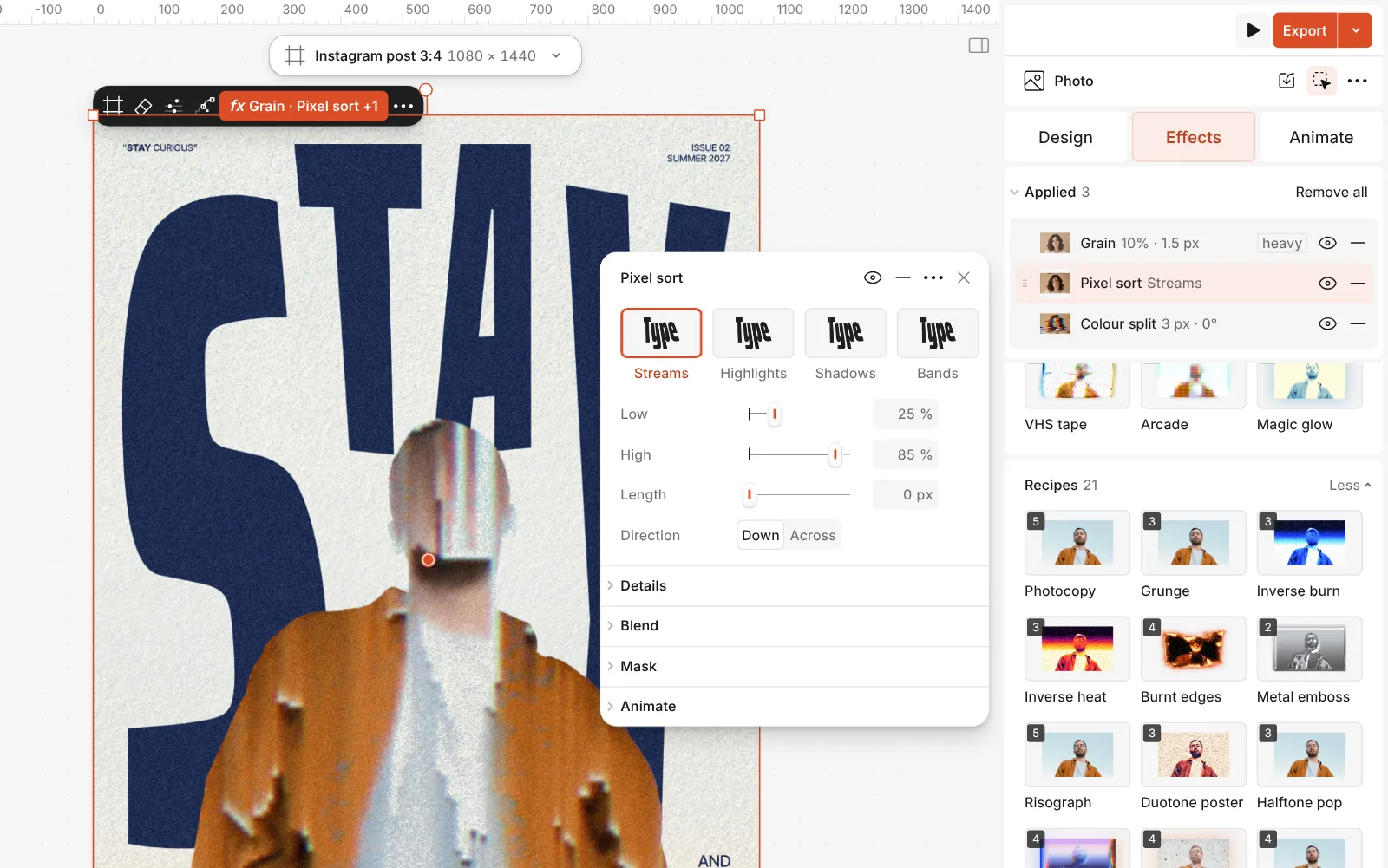
The Pixel sort step open: the Streams, Highlights, Shadows and Bands presets and its controls Direction chooses Down (columns) or Across (rows), and under Details, Light first turns each ramp the other way, from light to dark.
Press Export. The sort is redrawn at the export’s size from the full-resolution photo, so the streaks stay sharp in a large PNG or a PDF.
The one-click mix
In Paletoo the whole stack is one mix, Pixel sort. One click puts every step on the selected object, one undo takes them all off, and each step stays an ordinary effect you can change, reorder or remove.
Its steps: Grain · colour noise Pixel sort · Streams Colour split
Open this mix in PaletooMake it your own
Everything depends on Low and High. Only pixels whose brightness lies between them are sorted, so a narrow range touches only a few areas and a wide range sorts nearly everything. Start from the preset that matches your photo — Highlights for a dark picture with a few bright spots, Shadows for a bright one — and then move Low up until the face or the main shape stops dissolving.
Length is in document pixels. At 0, each run streaks as far as the tones allow, which gives long drips; a value of 40–120 cuts them into even pieces, the blocky look of Bands. Because it is measured on the document, the streaks look the same at every zoom and in the export. Sorting Across instead of Down turns the drips into horizontal speed lines, which suits sport and motion.
On a photo the mix keeps the Grain faint and mono, so the photo’s own tones do the streaking. On a word or a flat shape there are no tones to sort, so the mix puts on colour grain first and sorts the whole letter, turning each column into a ramp of the grain’s colours. If the fringe from Colour split looks too loud, lower its Distance, or switch the step off with its eye.
Questions
Is this real pixel sorting or a stretch?
Real sorting. Along each line, the runs of pixels within the tone range are sorted by brightness, as the classic scripts and actions do, so every pixel in the result comes from the photo. The older Pixel stretch smears from one line instead.
Why does nothing happen on my text?
A one-colour word has nothing to sort: every pixel is the same tone. Press the mix rather than the single step — it adds colour grain first, so the letters get tones to sort.
How is it different from the glitch effect?
The Datamosh glitch breaks the picture into blocks, trails and colour shifts. Pixel sort keeps the picture whole and reorders its pixels into smooth streaks — calmer, and closer to an art print.
Can I keep the face clean?
Raise Low so the darker skin tones stay out of the range, or use the Mask on the Pixel sort step to keep the sort away from the face.
More effects

How to make a glitch effect
Blocky pixels, torn colour channels and a smeared trail.
How to make a grainy gradient, the grainy blur look
Melted into a violet-to-peach gradient under heavy grain.
How to make a risograph effect
Two riso inks out of register, a coarse screen, riso paper.
Read the overview: graphic design trends 2026
Make it online: Photo effects online · Poster templates
Try it on your own design
Paletoo opens in your browser, with no sign-up. Every effect here is live: change the picture or the words and the effect follows.
Open in Paletoo