How to make a glitch effect
Blocky pixels, torn colour channels and a smeared trail.
What it is
A glitch effect imitates digital failure: a video file that lost a frame, a stream that dropped packets, a screen with a loose cable. The picture breaks into blocks, the red, green and blue channels slide apart, slices of the image jump sideways and trails of colour smear across it. “Datamoshing” is the name for doing this on purpose to video, by deleting the frames a compressed file uses to reset itself.
Glitch reads instantly as digital, fast and slightly dangerous, which is why it keeps coming back in music, gaming and tech visuals. Used with restraint — a broken edge on an otherwise clean portrait — it suggests energy and motion; used heavily, it becomes an aesthetic of its own.
Where it is used
Glitch fits electronic and hyperpop music artwork, game and esports announcements, tech launches and countdowns, cyber and security topics, fashion editorials with a digital edge and any reel or story that needs a jolt. It also makes a strong transition when animated: a clean frame breaks for a moment and snaps back.
Made in Paletoo with this mix:
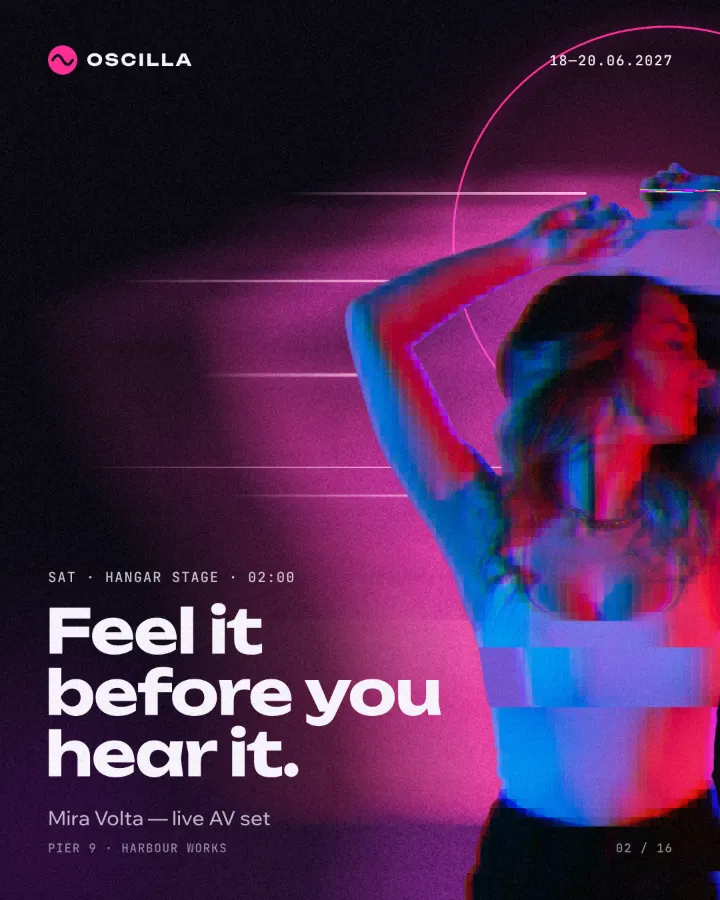
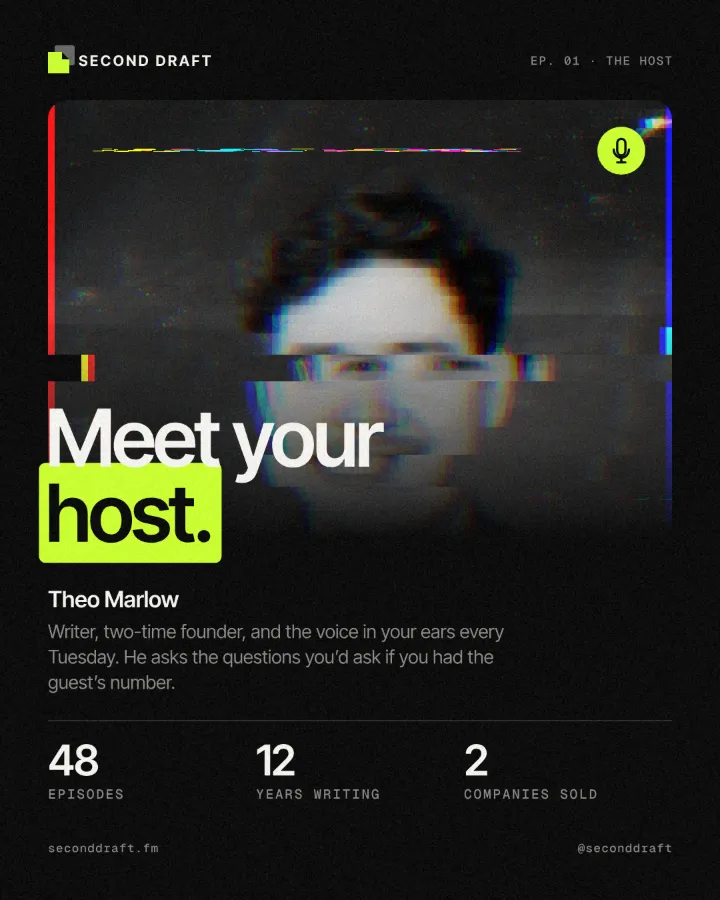
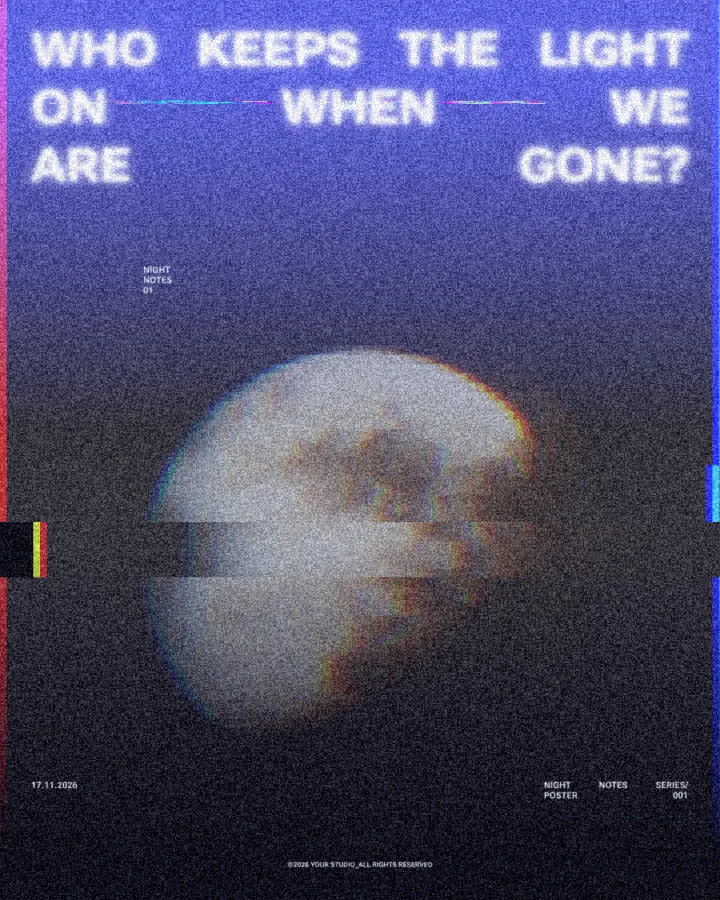
How to make it, step by step
Open your design and select the photo. Faces and figures make the most striking glitches, because the eye notices exactly where they break.
Open the Effects tab. Glitch looks live in two places: the Datamosh mix in Mixes and the single glitch steps under Glitch & glass. Press All next to Mixes to see every mix.
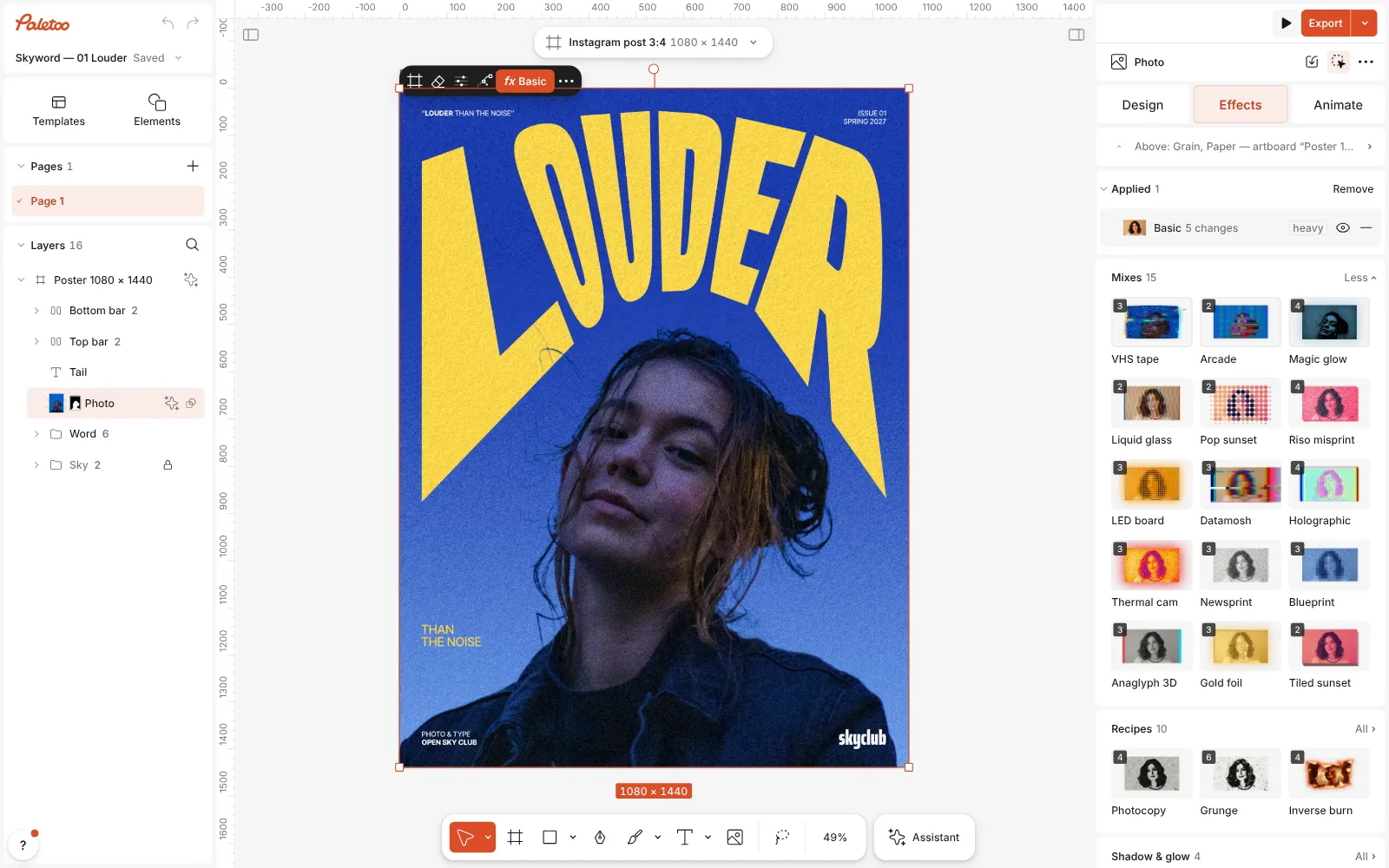
A magazine cover open in Paletoo, the portrait selected and the Mixes open in the Effects tab Press Datamosh. Three steps go on: Pixel blocks part of the picture, Colour split on its Broken signal preset tears the colour channels and slices the image, and Echo drags a red-to-cyan trail behind it.
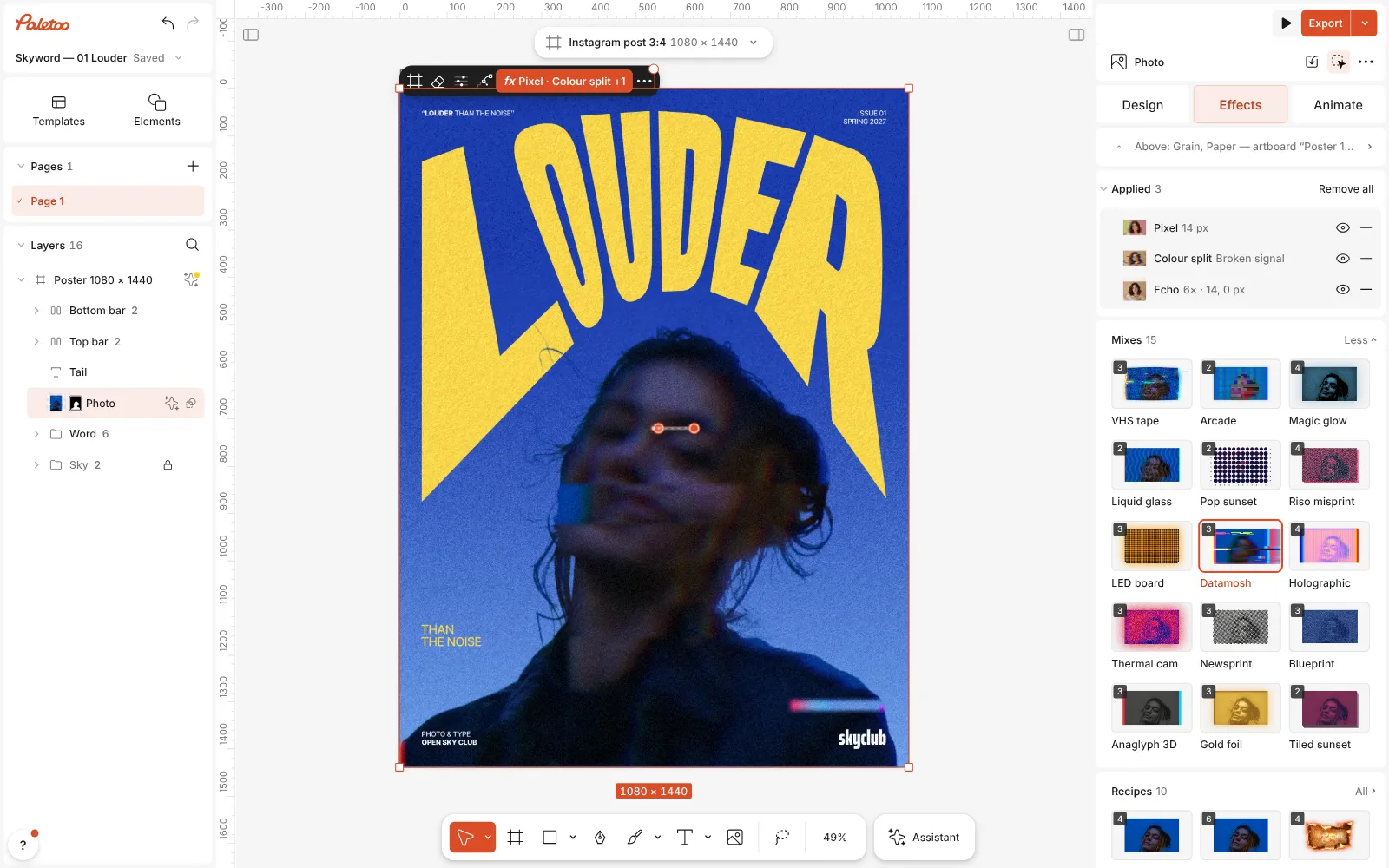
Datamosh pressed: Pixel, Colour split and Echo listed under Applied, the portrait broken into blocks and trails Open Colour split to set the damage: Distance pulls the channels apart, Glitch sets how broken the slices are, Slices how many there are and Slice shift how far they jump.
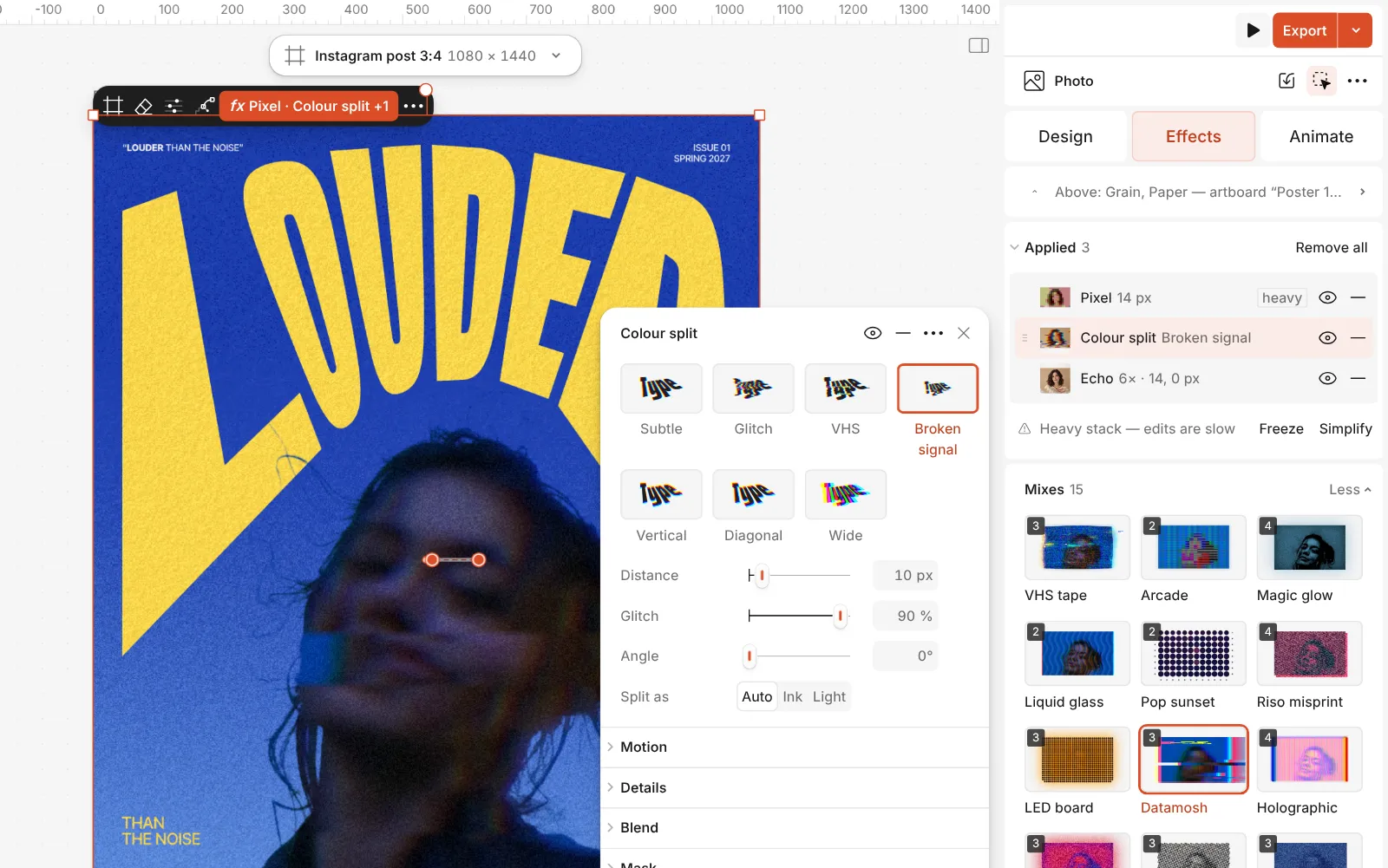
The Colour split step open: its presets and the Distance, Angle, Glitch and Slices controls Change Seed for a different break with the same settings, until the cuts fall where you want them — not across the eyes, unless that is the point.
Press Export. For a moving glitch, key the Colour split in the Animate tab, or start from the VHS tape mix for a softer, analogue version.
Watch it
The one-click mix
In Paletoo the whole stack is one mix, Datamosh. One click puts every step on the selected object, one undo takes them all off, and each step stays an ordinary effect you can change, reorder or remove.
Its steps: Pixel · Blocky Colour split · Broken signal Echo · trail
Open this mix in PaletooMake it your own
Glitch looks best when part of the image stays intact. Lower the Amount of the Pixel step so only some blocks show, or mask the effect to one side of the picture: the contrast between clean and broken is what makes it read as a glitch rather than noise.
For a clean, modern look, keep only Colour split and set its Glitch to zero: you get a crisp RGB shift with no slices, the look of a print slightly out of register. For a dirtier one, add Grain on its Colour noise preset at the end of the stack.
Match the trail to the design’s colours. The Echo step’s two colours run from one end of the trail to the other; your brand’s accent and its opposite on the colour wheel usually work better than the default pink and cyan.
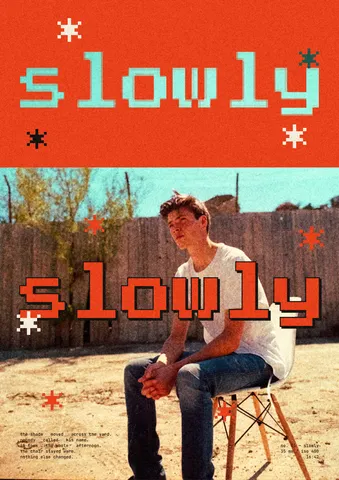
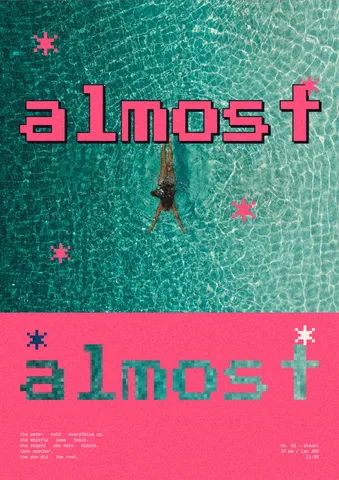
Templates with this look
Questions
Can I animate the glitch for a reel?
Yes. In the Animate tab every value of every step can move: key the Colour split’s Distance from 0 up and back, and export a video or a GIF.
What is the difference between Datamosh and VHS tape?
Datamosh is a digital break — blocks, torn channels, smears. VHS tape is analogue — wobbling colour, scanlines and noise of an old TV. Both are one click and fully editable.
Can I glitch text?
Yes. Select the text and press the same mix. The letters stay live: change the words and the glitch is redrawn.
How do I make the glitch always look the same?
Set the Seed of the Colour split step to a fixed number instead of Auto; the slices then fall in the same place every time.
More effects
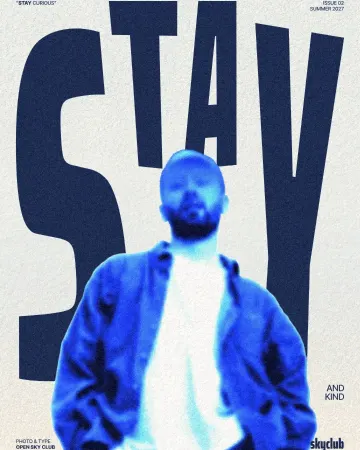
How to make an inverse burn effect
Half negative, half positive, in electric blue.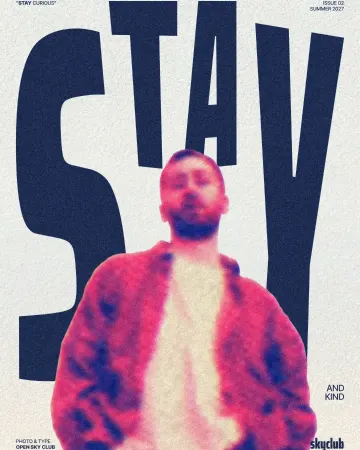
How to make a risograph effect
Two riso inks out of register, a coarse screen, riso paper.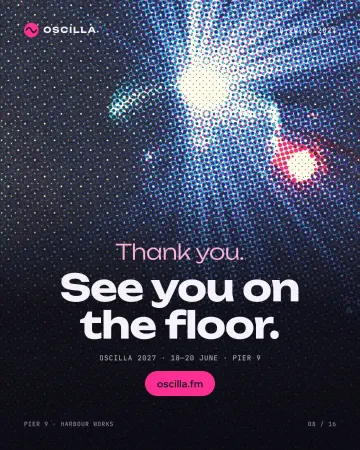
How to make a halftone effect
Comic-book CMYK dots, newspaper screens or one ink.
Read the overview: graphic design trends 2026
Make it online: Instagram story maker · Remove background online · Duotone, halftone and glitch photo effects online · Animated text maker · Story and Reels templates · Team and speaker templates · Poster templates
Try it on your own design
Paletoo opens in your browser, with no sign-up. Every effect here is live: change the picture or the words and the effect follows.
Open in Paletoo