QR code design: how to style a QR code that still scans
Colours, shapes and a logo — inside the few rules that keep a phone reading it.
QR code design is a balancing act. A plain black square of modules looks like a parking ticket on an otherwise careful layout, so designers recolour it, round its dots, put a logo in the middle — and now and then print a thousand menus with a code no phone will read. The rules that decide whether a code scans are few and mechanical; once you know them, you can style it quite boldly.
There is a second, quieter pain. Many online generators make “dynamic” codes by default: the printed code points at the generator’s own short link, which forwards to your site. That is handy for counting scans, until the free trial ends and the forwarding stops. A thread on r/graphic_design about codes switched off after a trial filled up with designers telling the same story; the top reply simply pointed out that InDesign has a built-in generator.
This guide covers those rules — contrast, the quiet zone, size, error correction, logos — and the tools people use, then the way in Paletoo: a business card with a code that is read back as you design it.
Why styled codes stop scanning
A phone finds a QR code by its three big corner squares — the finder patterns, usually called the eyes — and then reads the grid of small modules between them. Anything that makes those shapes hard to tell from the background hurts: low contrast, a light code on a dark ground (some readers never try reading it inverted), modules so round or thin that neighbours no longer touch, a logo that covers more than the code can rebuild.
The empty margin round the code matters as much. The standard asks for a quiet zone four modules wide on every side; when text, a border or the edge of the card creeps into it, the reader cannot find where the code begins. And the more data you encode, the more modules there are: a long tracking link or a full contact card makes a dense grid that needs a bigger print.
What people use
Free web generators are the usual start: paste a link, pick colours, download. Check two things before you use one — whether the code is static, holding your link itself, or dynamic, going through their server; and whether you get a vector file, because a small PNG enlarged for print turns soft at the edges. InDesign makes a static, vector code under Object › Generate QR Code; in Figma people use a plugin; Canva and Adobe Express have QR tools of their own.
None of these is wrong, and dynamic codes have honest uses: a link you can change after printing, scan counts for a campaign. Just know which one you are making. Whatever the tool, the safe workflow is the same — style it, then print a proof at real size and scan it with more than one phone before the run.
The rules that keep it scanning
Contrast first: a dark code on a light ground, at least 3 : 1 and ideally far more. Colour is fine when it is dark enough — navy, deep green or a strong brand orange on white usually work, pastels on white do not. With a gradient, the lightest stop is the one that counts. Keep the quiet zone at four modules, clear of text and of the trim.
Size follows distance and data. A short link on a card held in the hand scans at about 2 × 2 cm; a rule of thumb for posters is a tenth of the scanning distance, so a code read from 2 m wants about 20 cm. Error correction comes in four levels — L, M, Q and H, rebuilding about 7, 15, 25 and 30 % of the code. A logo over the code needs H, and it has to stay within what H carries.
Made in Paletoo
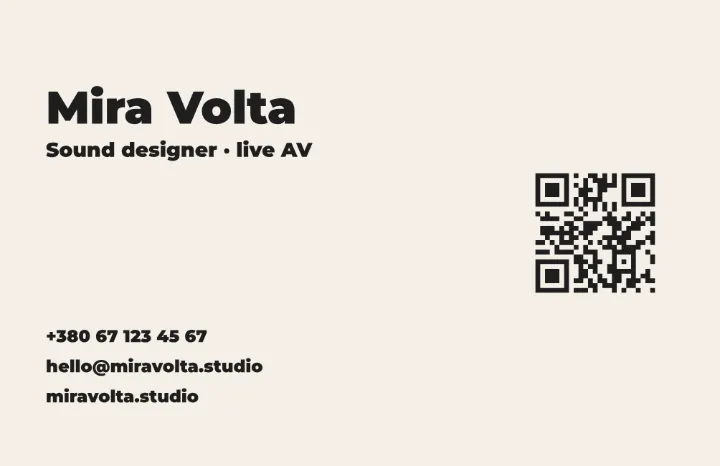
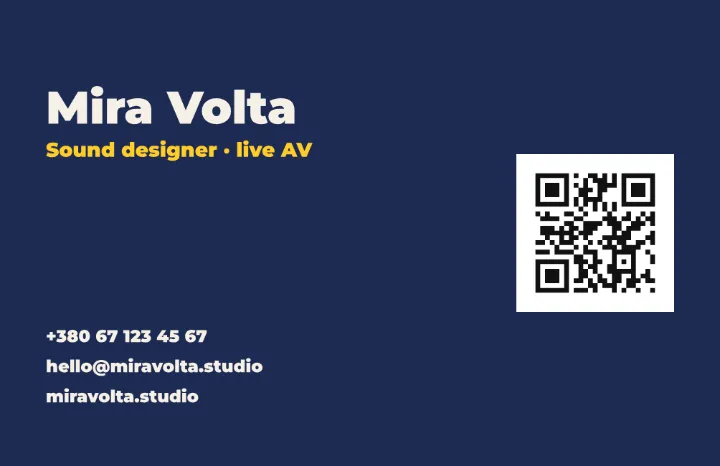
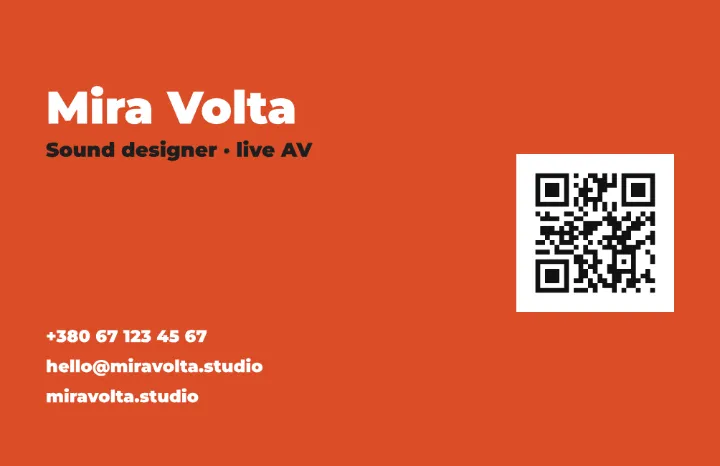
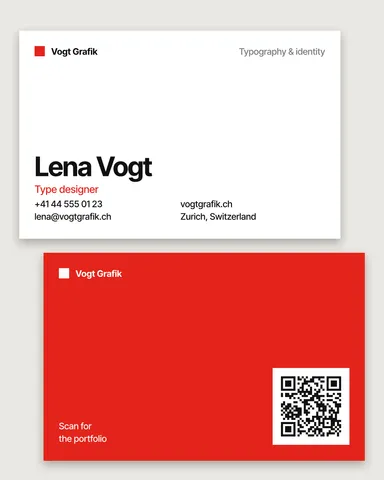
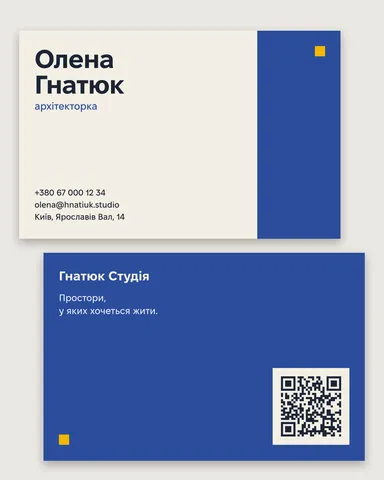
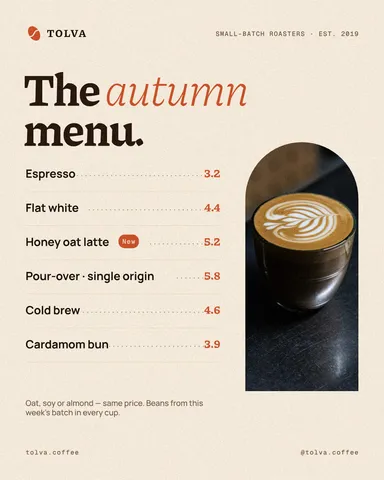
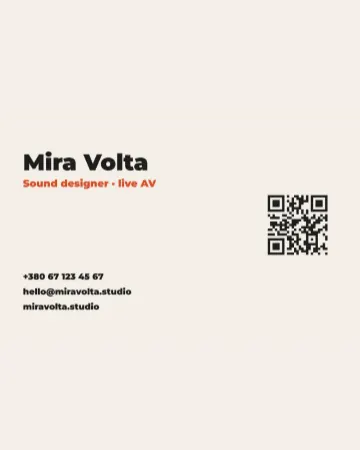
Every picture on this page was made in Paletoo — these three with the same steps on other templates:
How to do it in Paletoo
Start a new document, click the format button above the canvas and, under Resize this artboard, choose Business card, EU: 1004 × 650 px, which is 85 × 55 mm at 300 dpi. «Open in Paletoo» opens the finished card from this guide instead.
Press T for Text and type the name, then the role and the contacts as separate text layers, all on the left of the card; the right side is for the code. The Design tab shows each one’s font, size and colour.
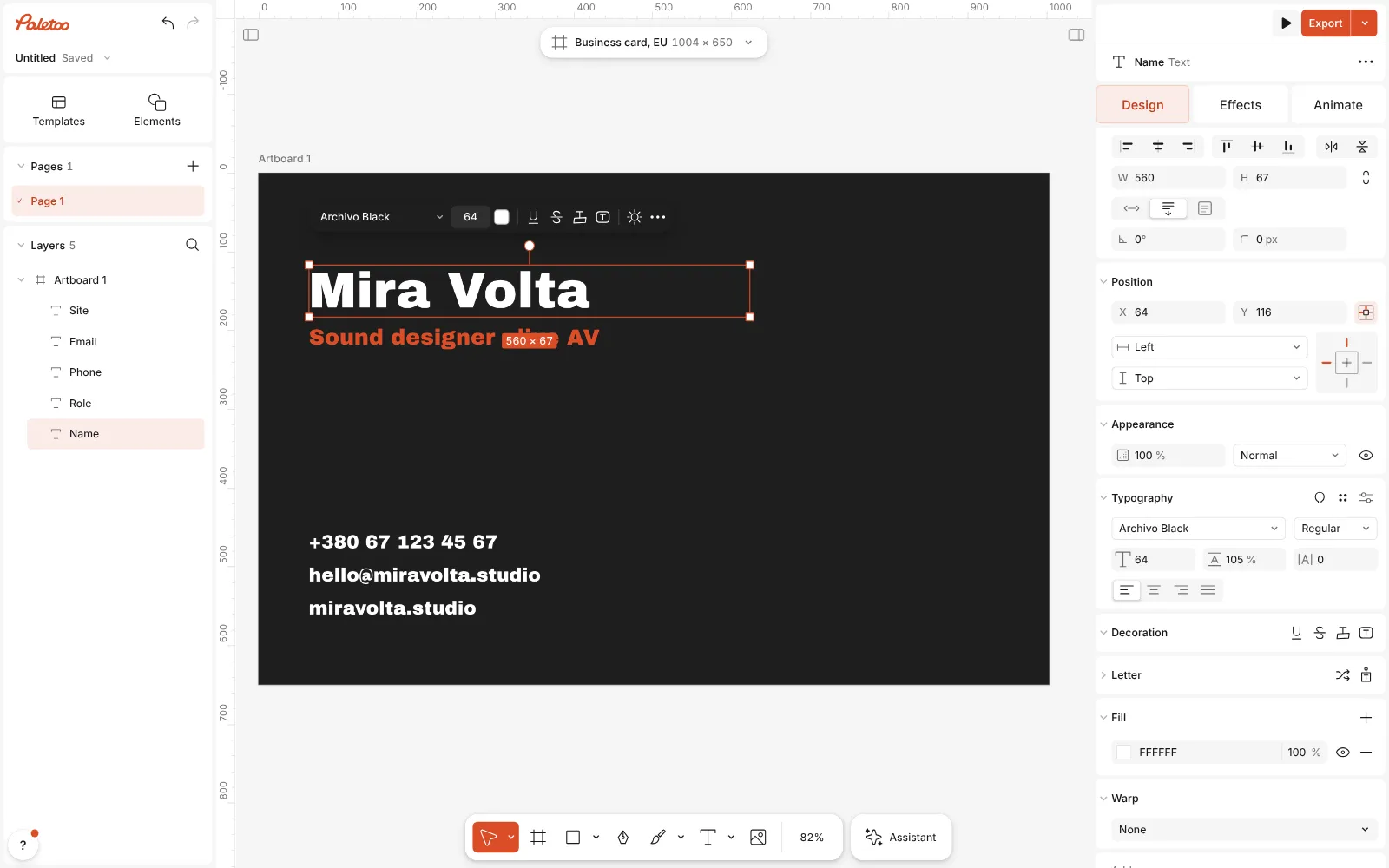
A new business card in Paletoo: the name, the role and the contacts typed in, the Design tab on the right Press ⌘ K and run QR code, or pick one from Elements › Codes. The code lands selected, and the Design tab opens on its QR code section. Move it to the right of the card and make it about 2 cm across.
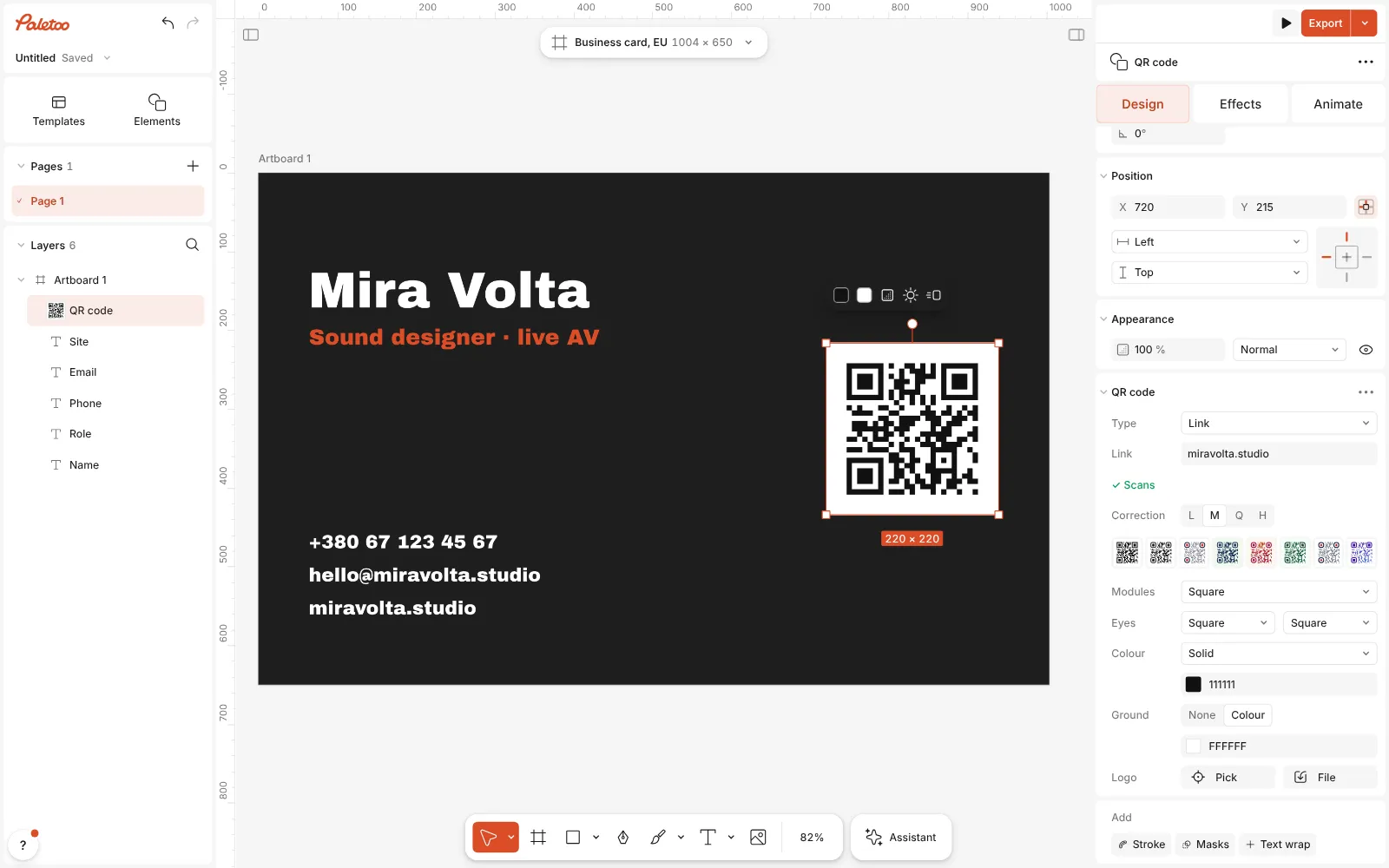
The QR code added on the right of the card, selected, its QR code section in view Set Type to Link and type your site. Under the field the code is read back as you type: ✓ Scans, or ⚠ May not scan with the reason in its tooltip — contrast, a light code on a dark ground, or a reader that could not read it back.
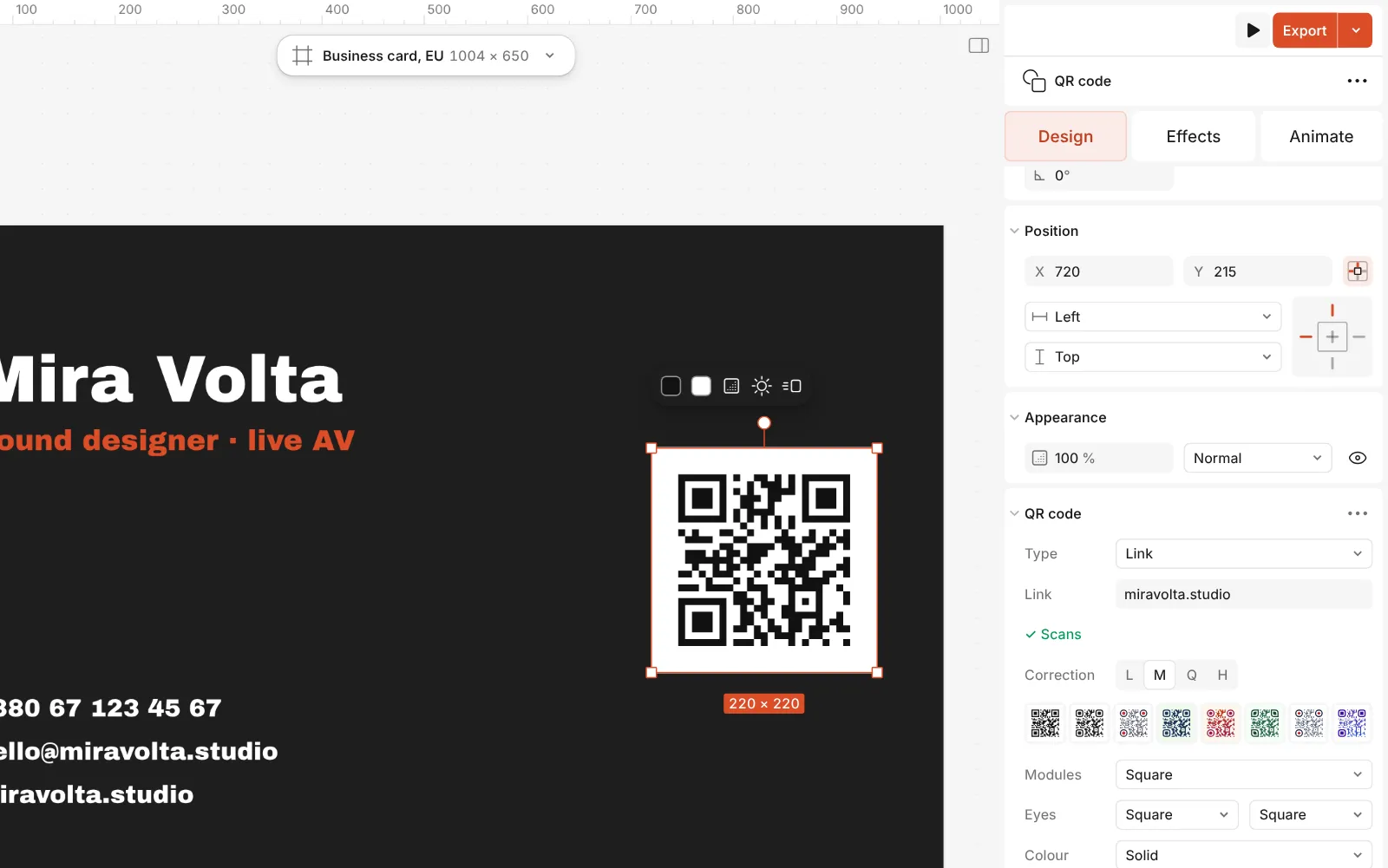
Close up: the QR code section — the Link type, the address and the scan check Style it. Style has eight ready looks, among them Classic, Soft, Dots and Fluid. Modules sets the shape of the dots, Eyes the corner squares’ Frame and Pupil, Colour the code — solid or a gradient — and Ground the tile behind it.
For a logo, press Pick in the Logo row and click a layer, or upload a File: it becomes part of the code, which clears its modules behind it and raises its correction. The ⋯ in the section’s header opens QR code settings: the Quiet zone, and colours of their own for the Eye frames and Pupils.
Press Export: a PDF with Include bleed and Crop marks for the printer, or an SVG for the code alone. The code is drawn as shapes, so it stays sharp at any size.
Make it your own
Match the brand without losing contrast. Pick a dark brand colour for Colour and keep the Ground light; on a dark card, give the code a light tile of its own rather than turning it light. A new code starts at M in Correction, which suits a plain one; raise it only for a logo or a rough effect, because more correction also means more, smaller modules.
Shapes are where codes break. Classic and Soft read almost anywhere; Dots and thin bars look lighter and need more size and contrast. Keep the eyes simple when the modules are fancy — a Circle frame with a plain pupil reads better than every part decorated. Watch the scan line after every change; its tooltip on success gives the module count and the contrast ratio.
The check reads the code’s own drawing, not effects you lay on top, so after a halftone or a grain on the code, test with a phone. Keep the Quiet zone at 4 unless the card is truly tight, size the code by what it holds — a short link about 2 cm, a contact card 2.5–3 cm — and scan a home print at 100 % with two phones before the order.
Templates with this look
Questions
Will my QR code stop working one day?
Not if it is static. A code made in Paletoo holds your link or details itself and scans are not routed through our servers, so there is nothing to expire. A printed code cannot be redirected later, so encode a page you can update.
Can a QR code be coloured?
Yes, as long as it stays dark on a light ground with enough contrast, at least 3 : 1. Light codes on dark grounds and pale colours are what make readers fail.
How big should a printed QR code be?
About 2 × 2 cm for a short link on a card held in the hand, more for a contact card or a long link. For posters, plan on roughly a tenth of the scanning distance.
Can I put my logo in the middle?
Yes. Use the Logo row: the code raises its correction and clears the modules behind the logo, and the scan check tells you if the logo has grown too big.
Is the QR code generator free?
Yes. Making, styling and exporting codes costs nothing, needs no account and adds no watermark.
Make it online
- QR code generatorMake a QR code in your own colours and shapes, with a logo in the middle, and see that it scans before you print.
- Business card makerDesign a business card at the exact print size, add a QR code that really scans, and export a PDF the printer accepts.
Free design templates: Contact and call-to-action templates
Read next
How to make a business card with a QR code
The right size, your details, a QR code that scans and a PDF for the printer.
How to keep brand fonts and colours consistent across every design
Name the colours and the type once, link every layer to them, and change them in one place.
A Canva alternative for designers who need real type and print files
Keep the speed of templates, and get back the controls a designer expects.
Try it on your own design
Paletoo opens in your browser, with no sign-up. Every effect here is live: change the picture or the words and the effect follows.
Open in Paletoo