How to make a business card with a QR code
The right size, your details, a QR code that scans and a PDF for the printer.
What it is
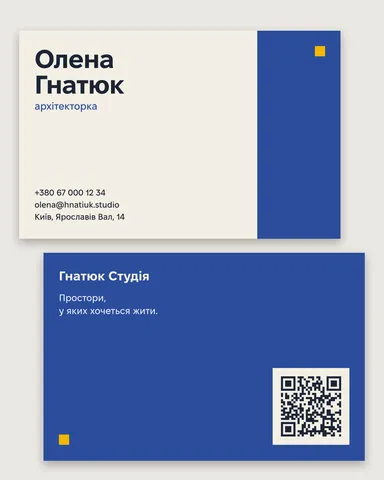
A business card is a small, strict layout: 85 × 55 mm in most of Europe, 3.5 × 2 in (about 89 × 51 mm) in the US and Canada. On that space a good card holds a name that is clearly the largest line, a role under it and two or three ways to reach you — rarely more. Everything important sits inside a safe margin of 3–5 mm, because the guillotine never cuts exactly on the line, and the background runs 3 mm past the edge as bleed.
A QR code turns the card into a shortcut: one scan opens your portfolio or saves your contact straight into the phone, with nothing to type. It only helps if it scans, and that depends on its size, its contrast, the empty margin around it and how much data it holds — all things you control while you design.
Where it is used
Freelancers, designers, photographers, shop owners, conference speakers and anyone who hands out their details at a meeting or a fair. The same card often turns into a sticker on packaging, a table card in a café or the last slide of a talk, where the QR code does most of the work.
Made in Paletoo with this mix:
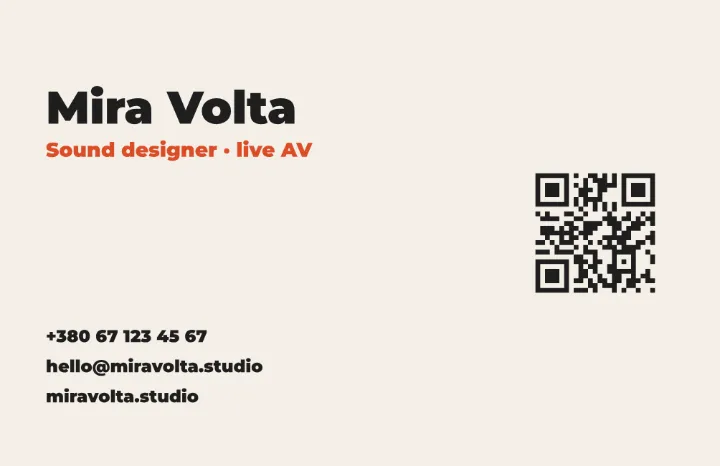
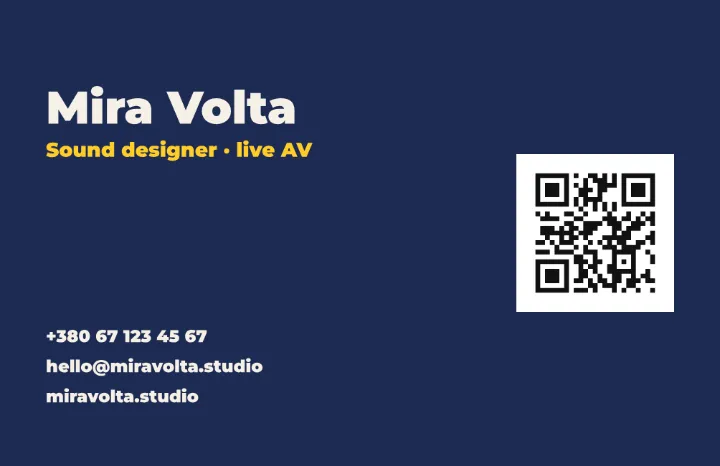
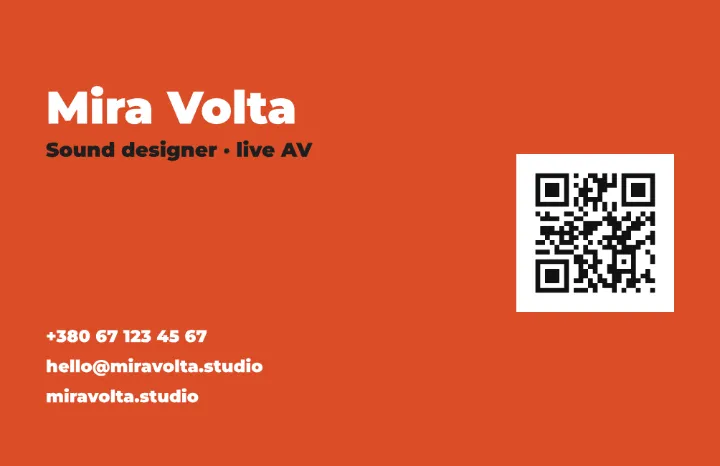
How to make it, step by step
Start a new document, then click the format button above the canvas — it shows the artboard’s name and size. Under Resize this artboard, in Print, choose Business card, EU, or Business card, US for the American size.
The artboard becomes 1004 × 650 px, which is 85 × 55 mm at 300 dpi. Press T for Text, click the card and type your name; add your role and your contacts as separate text layers, so each can be moved and sized on its own.
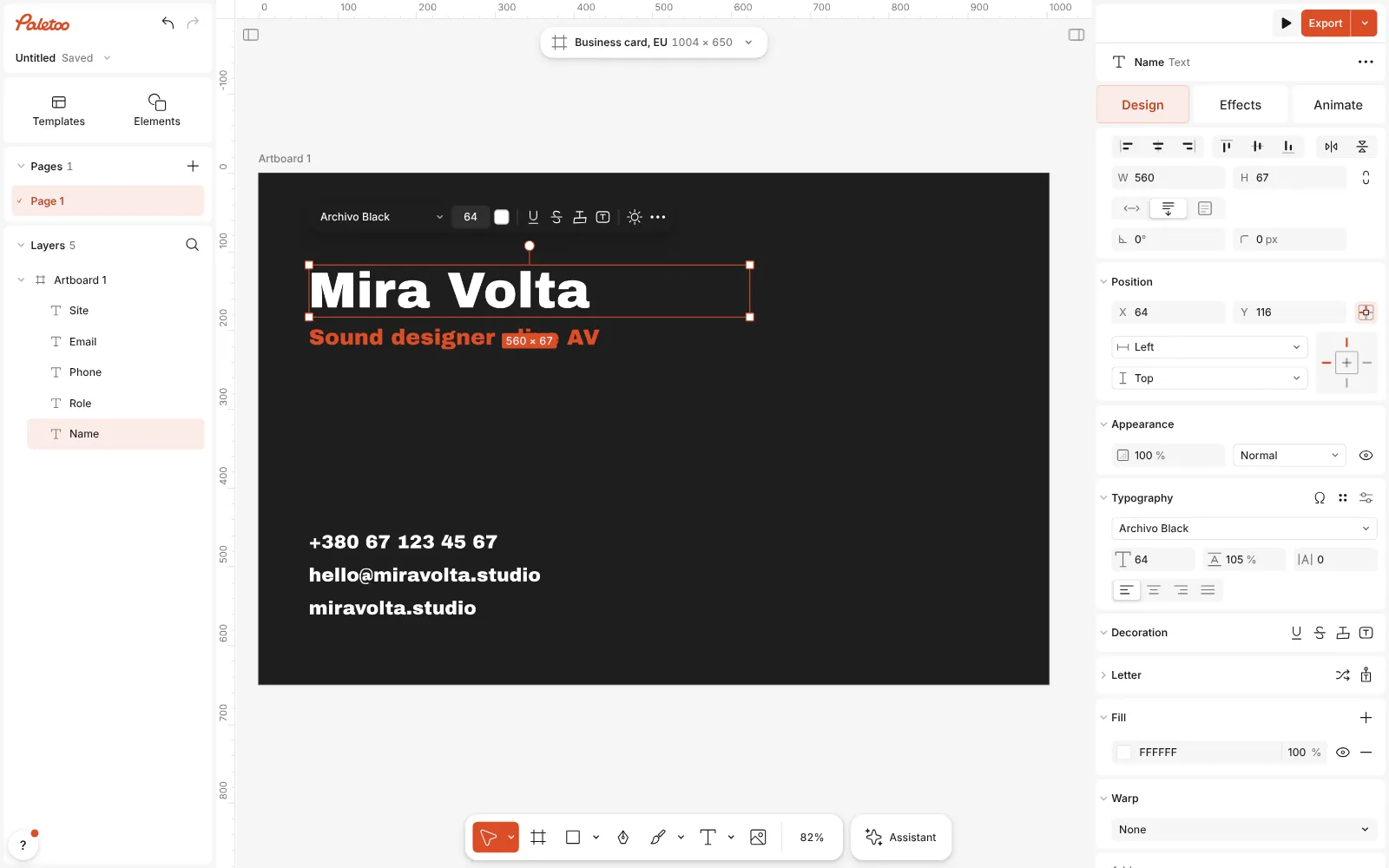
A new card-size design with the name, the role and the contacts typed in Add the code: press ⌘ K and run QR code, or open Elements and pick one from Codes. The code lands on the card already selected, and the Design tab opens on its QR code section.
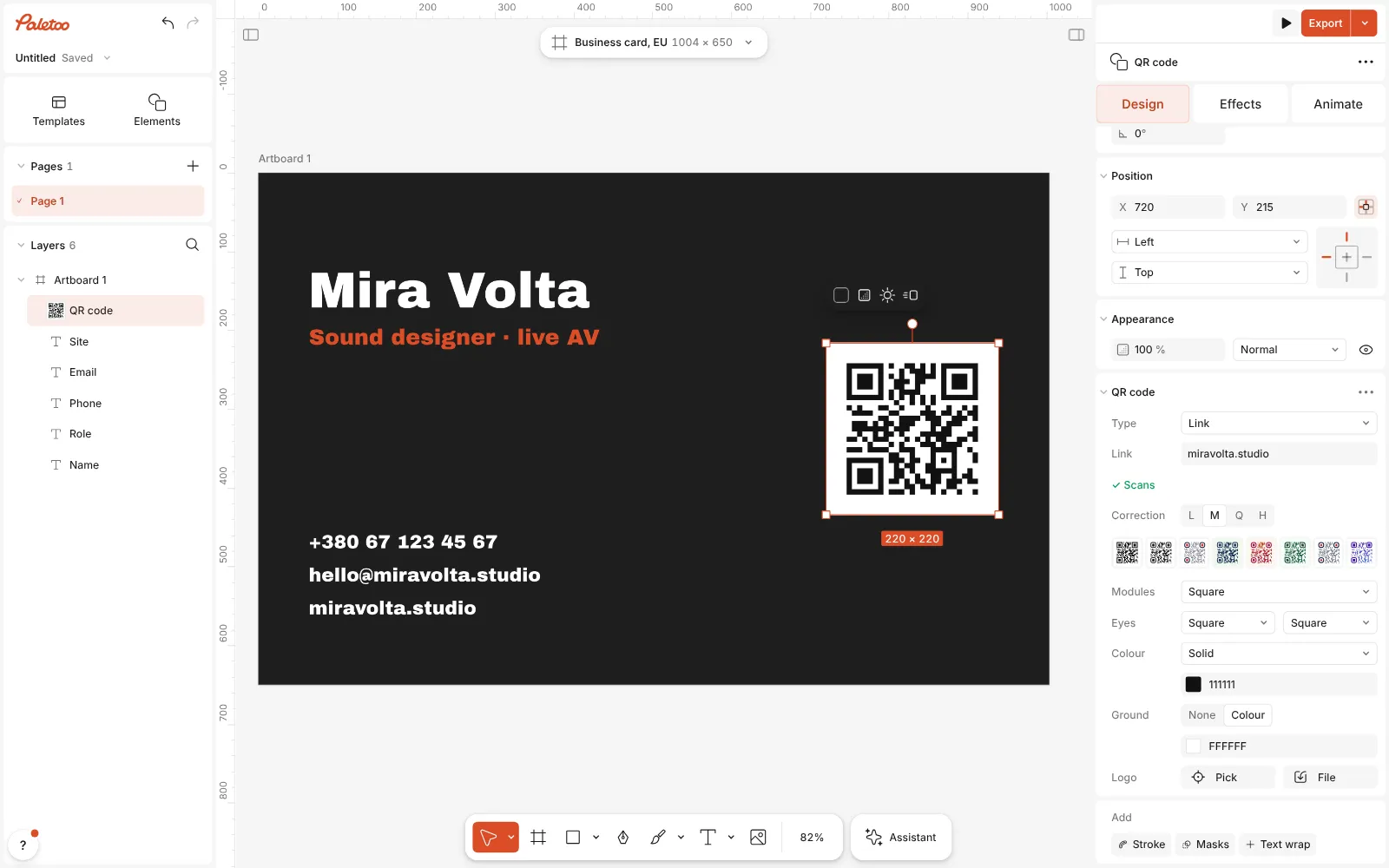
The QR code placed on the card and selected, its QR code section open in the Design tab Set what it holds in Type: Link for your site or portfolio, or Contact card to fill in First name, Company, Phone, Email and Website. Under the fields the code is read back as you type: ✓ Scans, or ⚠ May not scan with the reason in its tooltip.
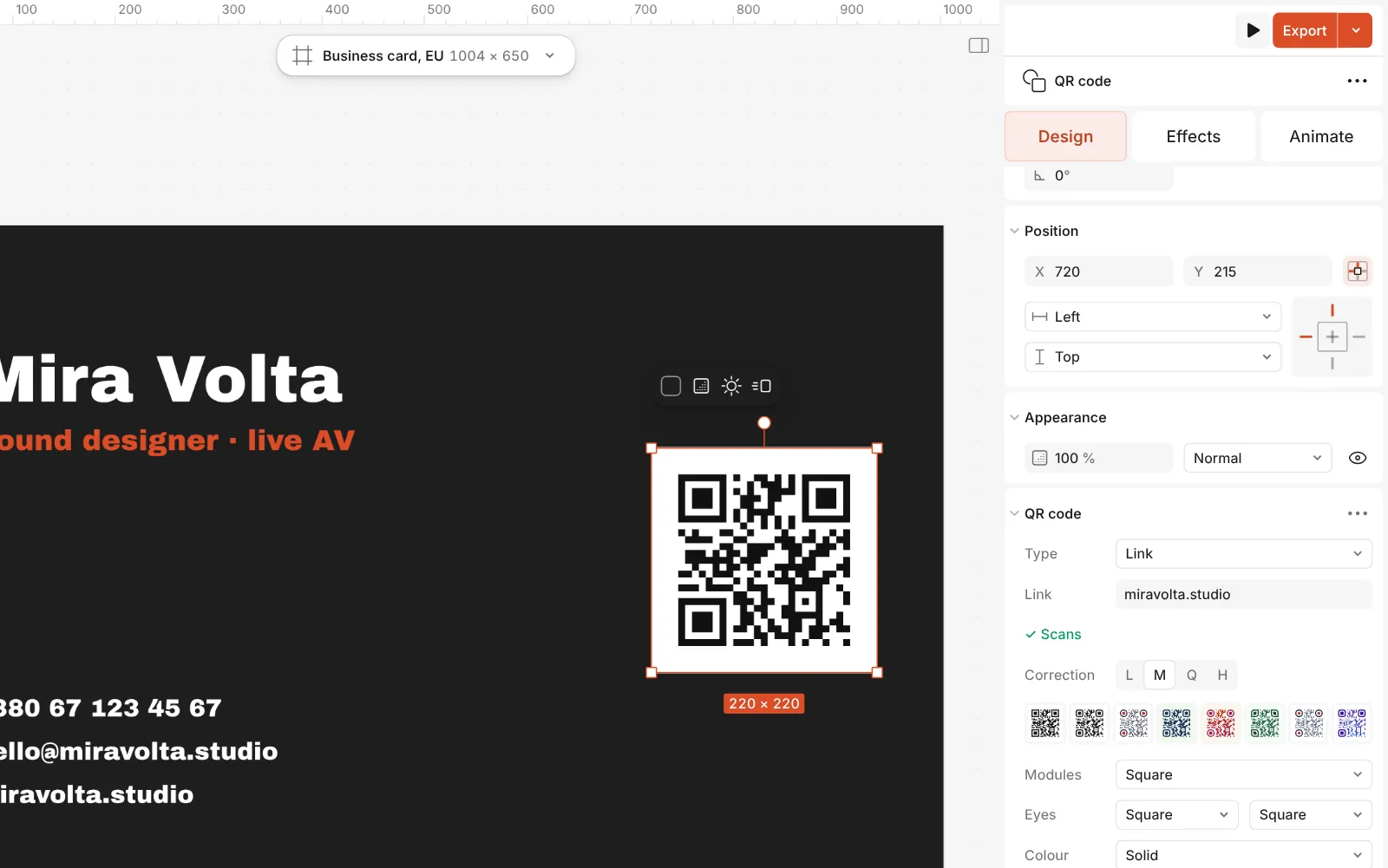
Close up: the QR code section — its Type set to Link, the address and the scan check Style it to match the card: Style offers ready-made looks, Colour sets the code and Ground the tile behind it. The ⋯ in the section’s header opens QR code settings, where Quiet zone sets the empty margin round the code; keep it at 4.
Press Export, choose PDF, and in the row’s ⋯ tick Include bleed and Crop marks. The Print check under the row can add a 3 mm bleed if the card has none, and CMYK print makes a PDF/X-4 file when your printer asks for one.
Watch it
Make it your own
Size the code by what it holds. A short link makes a sparse code that scans at about 2 × 2 cm, roughly 240 px on this card. A Contact card carries far more data and makes a denser code, so give it 2.5–3 cm, or put your details on a page and encode its link instead. Raising Correction makes the code tougher but denser too; keep it low unless a logo sits on top.
Contrast and margin decide whether it scans. Keep a dark code on a light ground: the scan check warns when the contrast falls under 3 : 1, or when the code is lighter than its ground, which some readers refuse. Leave the Quiet zone clear of text and of the card’s edge, and keep the whole code at least 3 mm inside the trim.
Before you order five hundred cards, print one page at home at 100 % and scan it with two different phones in ordinary room light. Keep the name the largest line, set the contacts no smaller than 7–8 pt, and keep the back simple — or give it to the code alone, big and easy to scan.
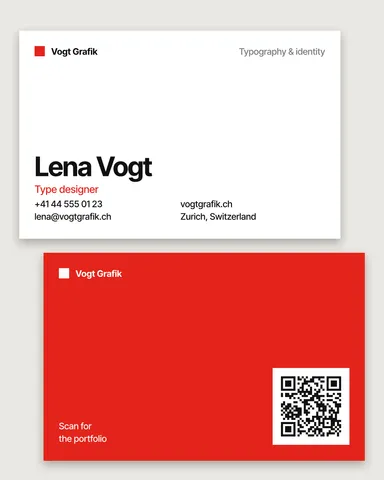
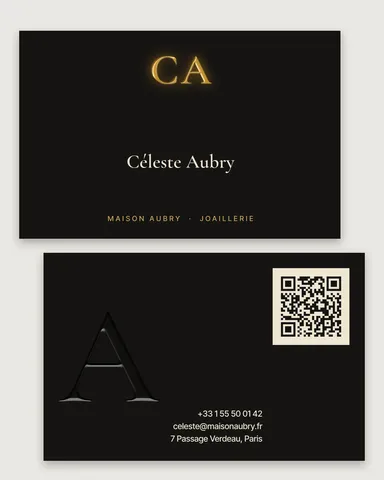
Templates with this look
Questions
Should the code hold a link or a contact card?
A link makes a smaller code and can lead to a page you update later. A contact card saves your details straight into the phone’s contacts, but it cannot change once printed, and it has no field for your job title.
Why does it say “May not scan”?
Point at the line to read why: low contrast, a light code on a dark ground, a logo that is too big or shapes too fancy for a reader. Plainer modules, a darker colour or a higher correction usually fix it.
Will the code stay sharp in print?
Yes. The code is drawn as shapes rather than a picture, so it stays sharp at any size in the PDF, and you can resize it freely on the card.
Can I make a card in another size?
Yes. Pick Business card, US in the same menu, or choose Custom and type the size in millimetres. Print sizes in Paletoo are set up at 300 dpi.
More effects
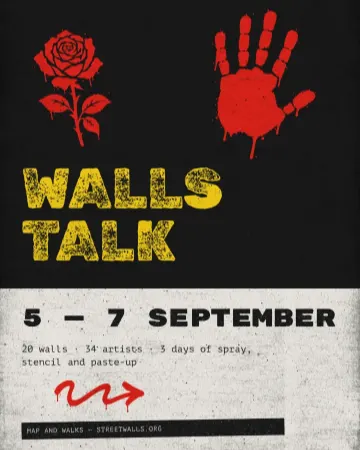
How to make a concert poster from a template
A ready-made gig flyer, your bands and your date, a file for print and one for social.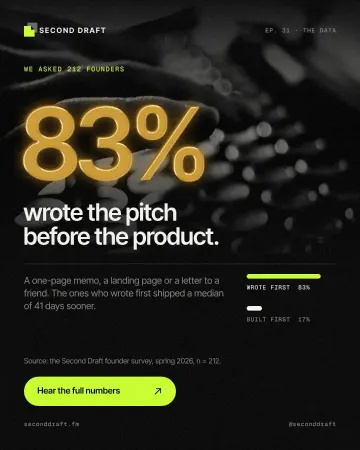
How to make a gold foil text effect
Stamped gold leaf: a pressed edge, warm metal bands and a soft shine.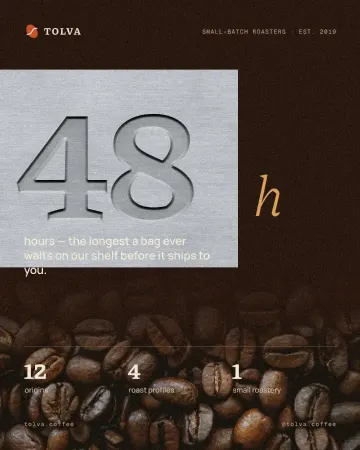
How to make an emboss effect: press text into metal or stone
The design pressed into a plate of metal or stone, its own colour gone.
Read the overview: graphic design trends 2026
Make it online: Business card maker · QR code generator · Presentation maker · Contact and call-to-action templates · Presentation templates
Try it on your own design
Paletoo opens in your browser, with no sign-up. Every effect here is live: change the picture or the words and the effect follows.
Open in Paletoo