A Canva alternative for designers who need real type and print files
Keep the speed of templates, and get back the controls a designer expects.
If you are looking for a Canva alternative for designers, the reason is rarely that Canva is bad. It made design fast for everyone: pick a template, change the words, download. For a great deal of work that is exactly right. But people who design every day tend to hit the same ceiling — the moment they want to kern one pair of letters, stack two outlines on a headline, keep an effect editable for later or send a printer a PDF it will accept.
This guide is for that moment. It looks at what designers say they miss, the tools they move to and what each of them is good at, and what to check before you switch. Then it shows the same jobs done in Paletoo, an editor in the browser that keeps templates but adds a designer’s controls, on a running-app post that gets an analog film look in one press.
Where template-first tools start to pinch
The complaints are specific. On the Canva subreddit, recurring threads ask for finer type control — kerning a single pair, changing the font of one word inside a text box. In Canva’s reviews on Product Hunt, “limited advanced features” is a con people tag again and again. In other design communities the requests are several strokes on one object, effects that can be tweaked later instead of baked in, and PDFs a printer accepts without a detour through another program.
The other worry is not a feature at all but ownership: where the file lives, whether you need an account to open it, and what happens to your work if you stop paying. Across design forums that has been one of the loudest topics of the last two years, ahead of any single tool.
What designers use instead — and what each is good at
Canva itself remains the fastest way to turn out on-brand social posts with a team of non-designers, with an enormous template and stock library and very little to learn. Many studios keep it for exactly that, and finish the demanding pieces somewhere else.
Adobe Illustrator, Photoshop and InDesign are still the deepest set of tools for type, image and print, at the price of a subscription and a long learning curve. Figma is superb for interfaces, components and working together live; print is not its focus, and a request for CMYK export has been open on its forum since 2021. Affinity, now free with a Canva account, offers desktop vector, photo and layout tools, and Penpot is an open-source choice for interface work.
What to look for in a Canva alternative for designers
Check five things. Type: kerning of single pairs, variable font axes, OpenType features, text on a path. Structure: a real layer list, masks, several fills and strokes on one object. Effects: live and stackable, so a look can be changed or removed at any time without touching the photo. Output: PNG and JPG for the feed, PDF with bleed and crop marks for print, video when the design moves. Ownership: can you start without an account, and keep the file on your own disk?
Paletoo answers all five in the browser. Text is set with HarfBuzz, with pair kerning, variable axes, a glyph browser and text on any path; texts, pictures and shapes take several strokes; effects are a stack of live steps on each layer; the PDF export embeds fonts and adds bleed and crop marks, with a CMYK PDF/X-4 option; and the editor opens without an account and saves your work as a .paletoo file on your computer. It has templates as well, so the fast start stays.
Made in Paletoo
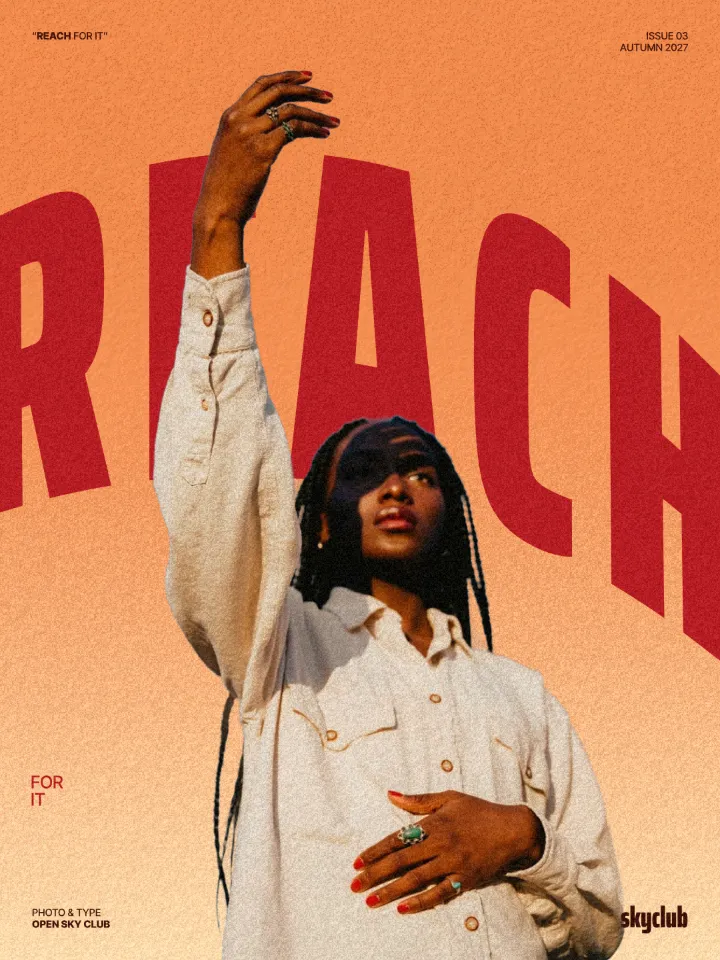
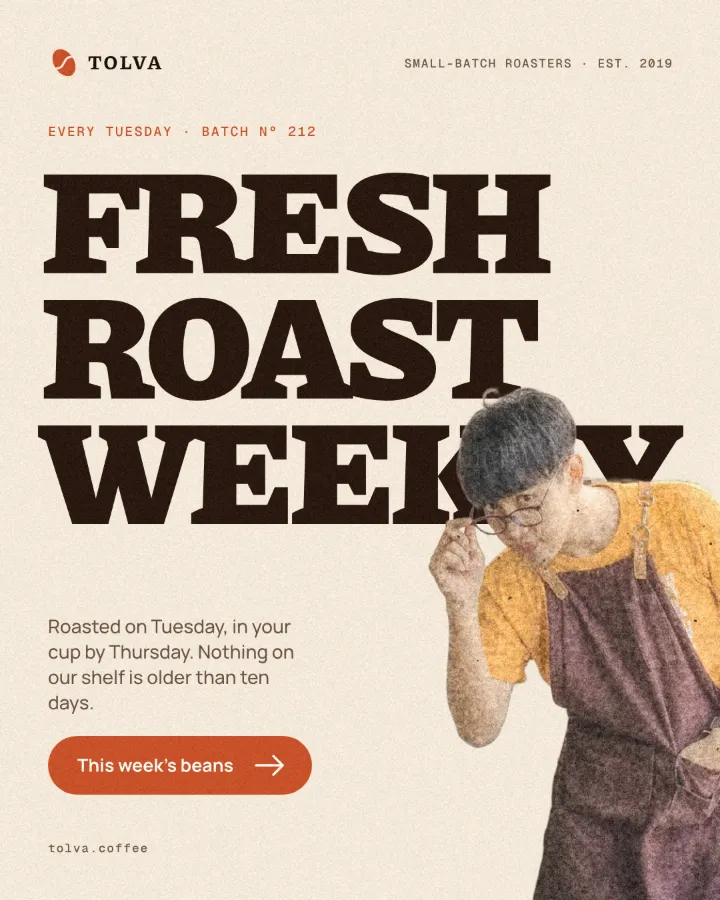
Every picture on this page was made in Paletoo — these three with the same steps on other templates:

How to do it in Paletoo
Press “Open in Paletoo” to open the running-app post as your own document, or open a design of yours. Click the coach — a cut-out photo — to select it, or pick it in the Layers list.
Open the Effects tab on the right and look under Mixes; press All to see every card and find Film portrait.
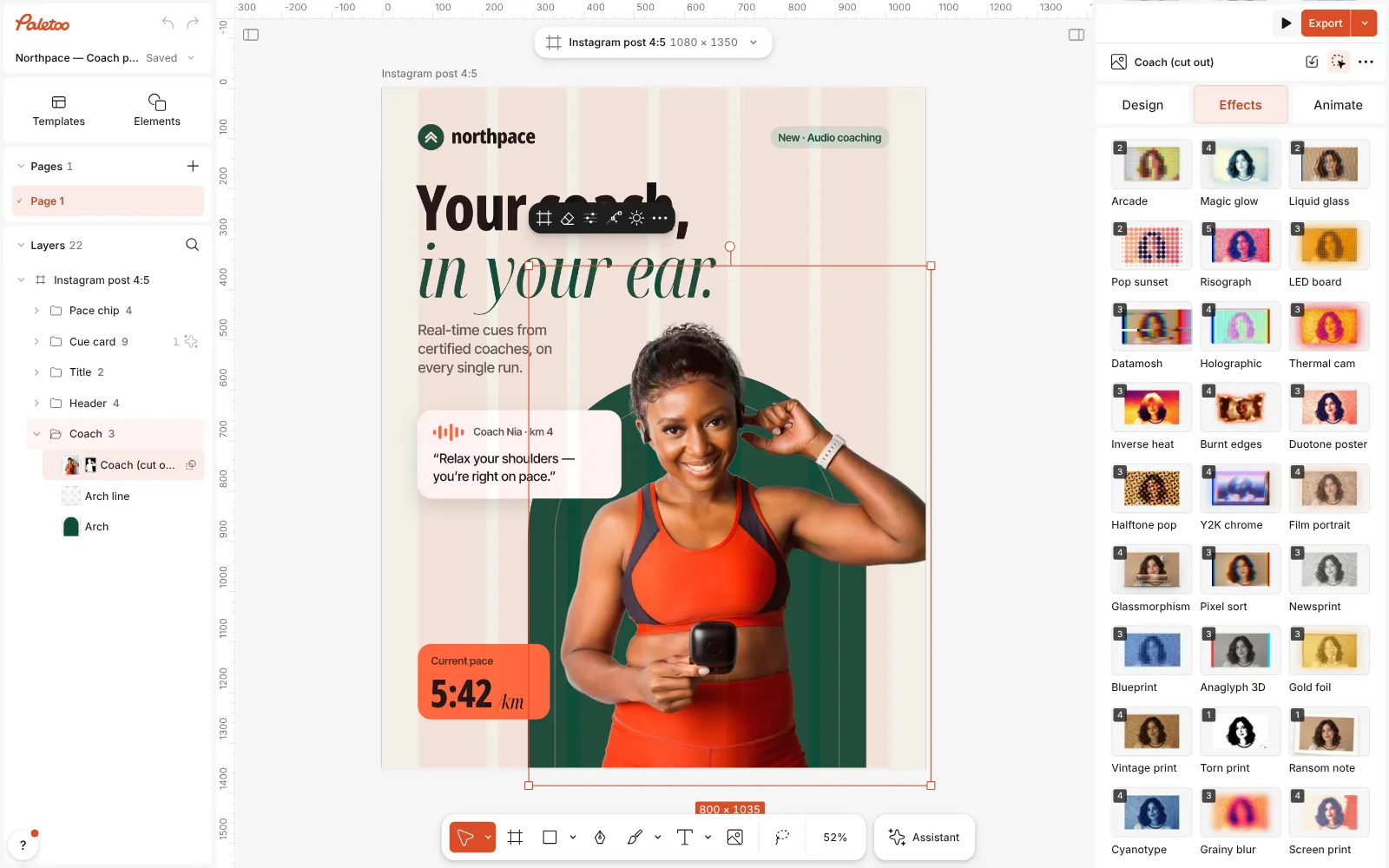
The running-app post open in Paletoo, the coach photo selected and the Mixes open in the Effects tab, Film portrait among the cards Press Film portrait. Four steps go on under Applied: Basic, Glow with its Bloom preset, Grain with Film, and Dust & scuffs with Scan. None of them changes the photo itself: each is a live step you can switch off with its eye or remove.
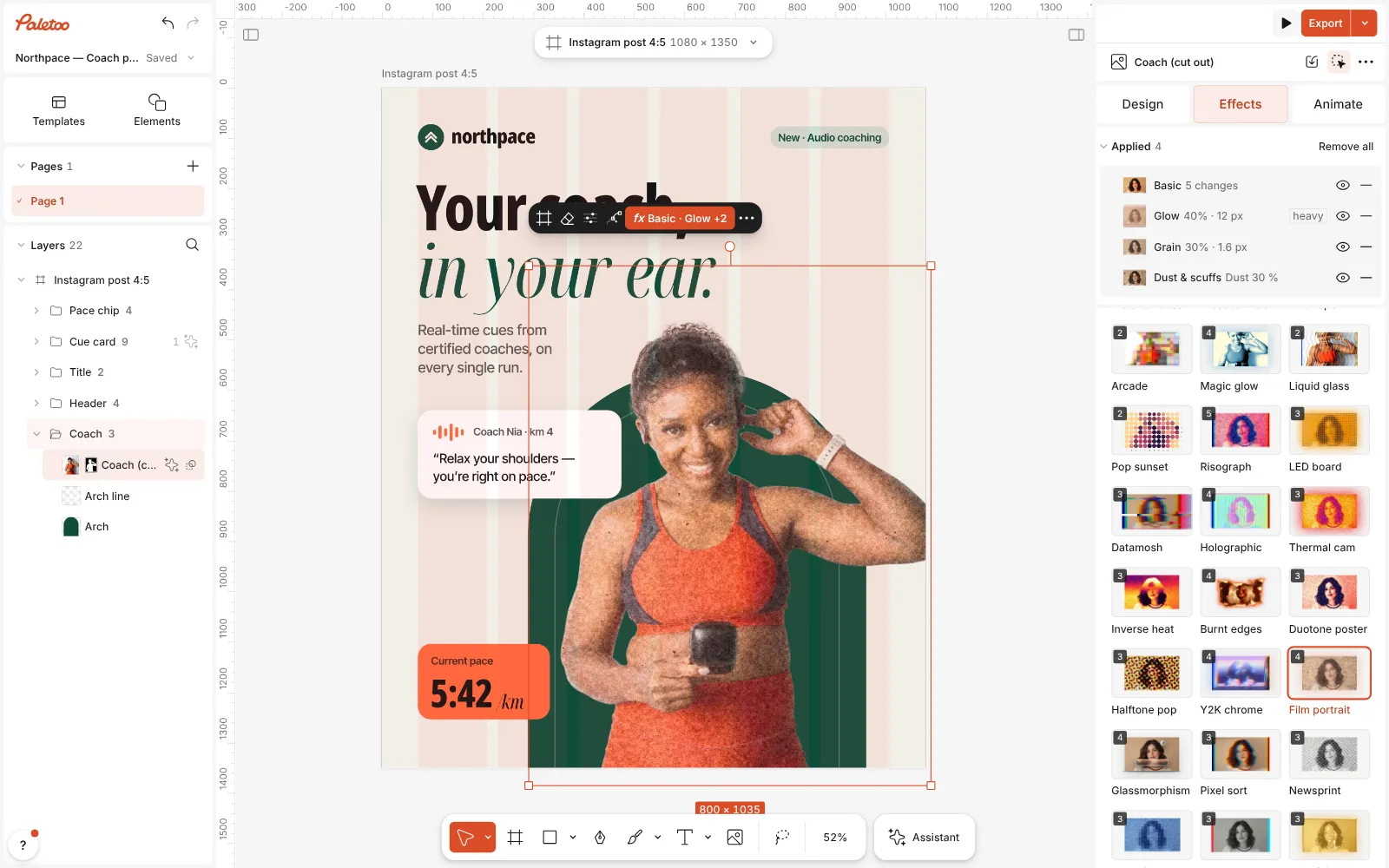
Film portrait pressed: Basic, Glow, Grain and Dust & scuffs under Applied, the coach warm and faded with a soft halo Click the Basic row to open it. The mix set five sliders: Temperature 18, Contrast −10, Saturation −12, Highlights −15 and Fade 22. Drag any of them and the photo follows as you move.
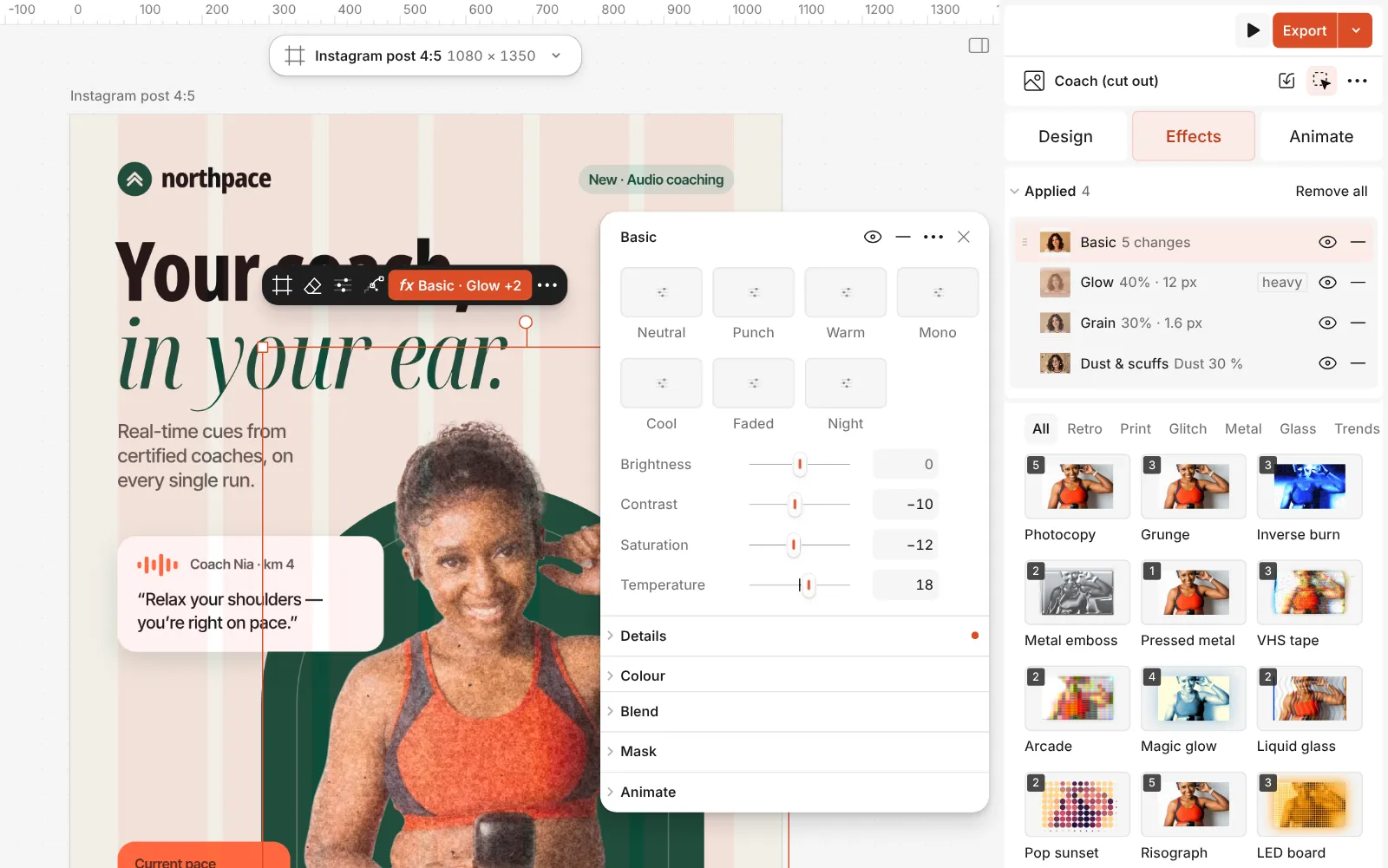
The Basic step open: Temperature, Contrast, Saturation, Highlights and Fade as the mix set them Now the parts a template tool tends to leave out. Select the headline and open Typography in the Design tab: double-click into the text and put the caret between two letters to kern that pair, or open Type settings for a variable font’s axes. On path under Warp sets a line along a curve, and Stroke takes several outlines, each with its own colour and weight.
Press Export: PNG or JPG for the feed, PDF for print, with Include bleed and Crop marks in the row’s Export settings. To keep the working file, choose Save to file… in the documents menu — a .paletoo file with every layer and effect still editable.
The one-click mix
Its steps: Basic Glow · Bloom Grain · Film Dust & scuffs · Scan
Open this mix in PaletooMake it your own
Fade and Temperature carry most of the look. Temperature runs from −100 to 100 and the mix uses 18, enough for sunlit skin; Fade runs from 0 to 100 and the mix uses 22, which lifts the blacks into a soft matte grey. On a photo with deep shadows that is going to print, keep Fade lower, or the darks turn milky on paper.
The halo comes from Glow: Brightness is its strength, Spread how far it reaches and Colour its tint. Grain chooses the film stock with Density and Size, and the specks of Dust & scuffs should stay few. Every step has its own eye, so you can compare with and without at any moment; the photo under the stack never changes.
Here the look sits on the cut-out coach alone, so the green arch, the cards and the words stay crisp — effects belong to the layer they are on. To grade the whole post instead, select the artboard and press the same mix in its Effects tab. Swap the photo with Replace picture and the new one takes the same film.
Questions
Is Paletoo a full replacement for Canva?
For some work yes, for some no. If your team mostly fills templates with stock photos and plans posts in one place, Canva is built for that. Paletoo is for when you want a designer’s control — type, layers, live effects, print files — without leaving the browser.
Is it free?
Yes. The editor, the templates, the effects and every export are free, with no watermark. Credits are only for AI image generation and materials.
Do I need an account?
No. Open the editor and start; your work is saved in the browser, and you can keep it as a .paletoo file on your computer. A free account adds cloud storage, share links and comments.
Can I bring my Canva designs over?
If you download a design as a PDF, Import PDF… brings its pages in, ready to edit. How much of it stays live text depends on how the PDF was written, so check the type after importing.
Can I use my own fonts?
Yes. Add TTF, OTF, WOFF or WOFF2 files you hold a licence for. They are kept in your browser rather than uploaded, and they travel inside a .paletoo file you save.
Will the PDF be right for my printer?
Export a PDF with bleed and crop marks, and the fonts are embedded. For a CMYK file there is a PDF/X-4 option; its profile is approximate, so ask your printer for theirs.
Make it online
- Instagram post makerDesign a post at the right size from a real template, then export a sharp PNG or JPG — free, in your browser.
- Poster makerMake a poster from a template that already has the layout right, then export a print-ready PDF or an image for screens.
- Photo effects onlineGive a photo a film, print or glitch look in one click — and keep every step editable afterwards.
Free design templates: Social media post templates · Poster templates
Read next
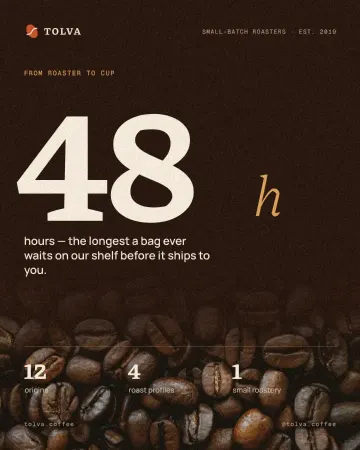
How to keep brand fonts and colours consistent across every design
Name the colours and the type once, link every layer to them, and change them in one place.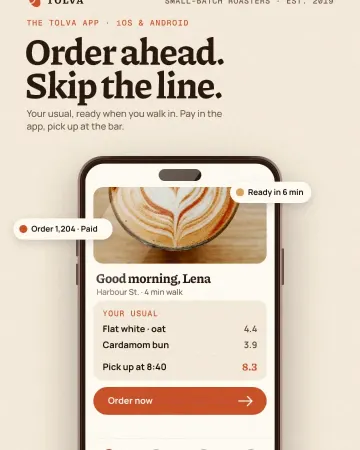
Mockups without Photoshop: show a design on a real object
Phones, posters, clothing and packaging — your design laid on in perspective and light, with no PSD to open.
How to give a portrait an analog film look
Warm, faded, a soft halo round the lights, grain and dust.
Try it on your own design
Paletoo opens in your browser, with no sign-up. Every effect here is live: change the picture or the words and the effect follows.
Open in Paletoo