How to export an animation with a transparent background
Animated type with nothing behind it: WebM with real alpha for video, Lottie for websites and apps.
Exporting an animation with a transparent background sounds like it should be one checkbox. It rarely is. You animate a title, a logo sting or a sticker, export it, drop it over your footage — and it arrives on a solid black or white box. The format you picked simply had nowhere to keep the empty parts.
The request comes up again and again on design-tool forums. On Adobe Express’s feedback board, transparent video export has been a standing request for years, and on Figma’s forum the idea of exporting a prototype as a video or a GIF at all is one of the most viewed. People want lower thirds for YouTube, animated stickers for stories, a moving logo for a website header — things that only work on top of something else.
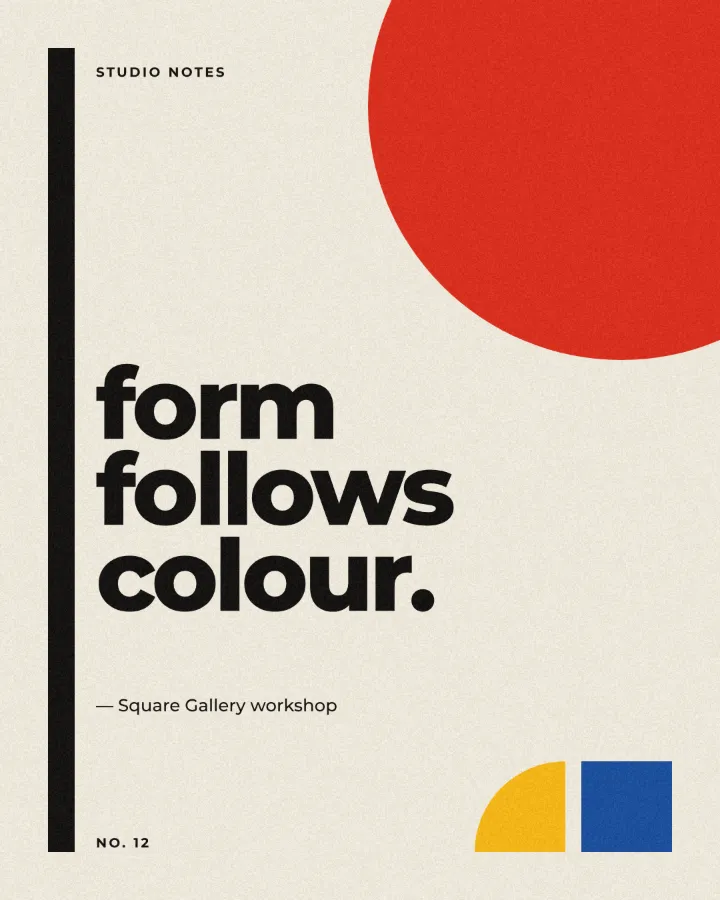
This guide explains which formats really carry transparency, what designers use today and where each falls short, and then the way in Paletoo: a Bauhaus-style poster whose quote rises in letter by letter, exported as a transparent WebM and as a Lottie file.
Why the background keeps coming back
Transparency in a video is an alpha channel: a fourth value for every pixel that says how see-through it is. The format almost everyone uses does not have one. An MP4 with H.264 — the file every phone and social network plays — stores colour only, so whatever was transparent is filled with a solid colour on export. GIF can mark one colour as clear, but only fully on or fully off: no soft edges, no shadows, and a light halo round anti-aliased type.
The formats that keep alpha are a short list. ProRes 4444 in a MOV file is what video editors expect: excellent, and very large. WebM with the VP9 codec keeps alpha at a size fit for the web; Chrome, Edge and Firefox play it transparent, while Safari and many video editors show a black background instead. HEVC with alpha is Apple’s own route for Safari. And Lottie is not a video at all: a small JSON file of vector shapes and keyframes that a player draws live, transparent by nature.
What people use today, fairly
After Effects is the standard route, and for good reason: render ProRes 4444 with RGB plus alpha and any editor takes it, or export Lottie for apps through the Bodymovin plug-in. It is precise and it is proven. It is also a lot of machinery for a ten-second title — a subscription, a render queue, and files of hundreds of megabytes at full HD.
The workarounds are familiar. Rendering on flat green and keying it out in the editor leaves a coloured fringe on soft edges and shadows. A PNG sequence — one picture per frame, each with real alpha — is reliable, but it is a folder of hundreds of files. Dedicated motion tools such as Jitter, Lottielab and SVGator export Lottie directly and do it well. In many browser-based design tools, video export means MP4 or GIF, so check whether yours offers a transparent format before you build an animation in it.
How to do it right
Decide where the file is going before you export. Over web pages and in browser-based editors, WebM with alpha works as it is. For a desktop editor that will not read WebM’s alpha, convert it to ProRes 4444 with a converter that keeps alpha. For an app or a website animation that must stay sharp at any size, export Lottie. For Instagram, TikTok or YouTube Shorts, transparency does not matter: the platform flattens everything, so export MP4.
Then design for a background you have not seen. A title that will sit over footage has to read on light and dark alike: give dark type a light outline or a soft shadow, and test the file over both. Keep the animation short and finished — an entrance that lands and holds is easier to cut into a timeline than one that never settles.
Made in Paletoo
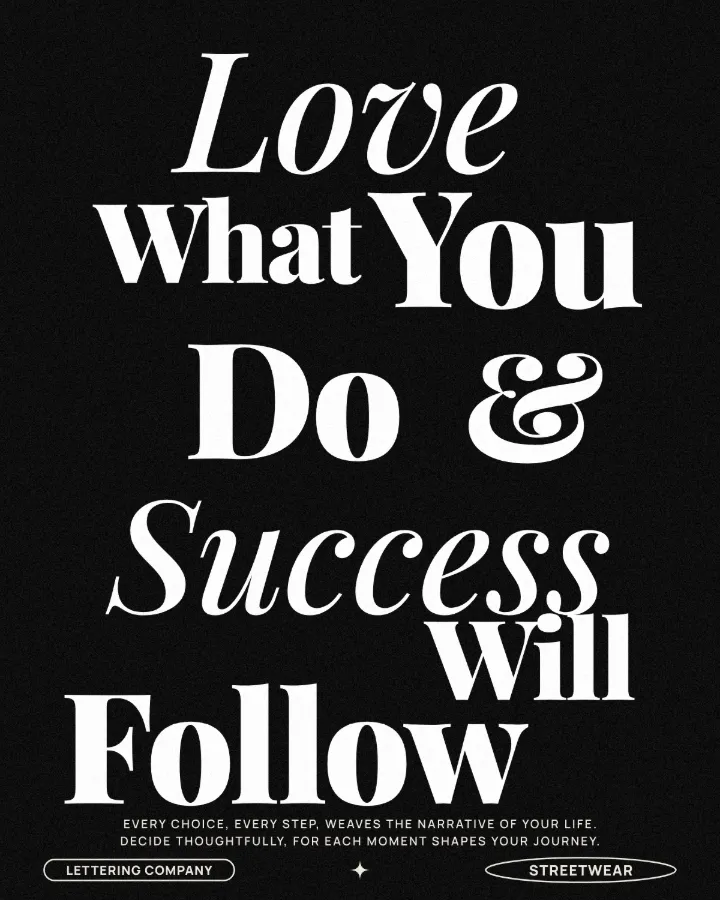
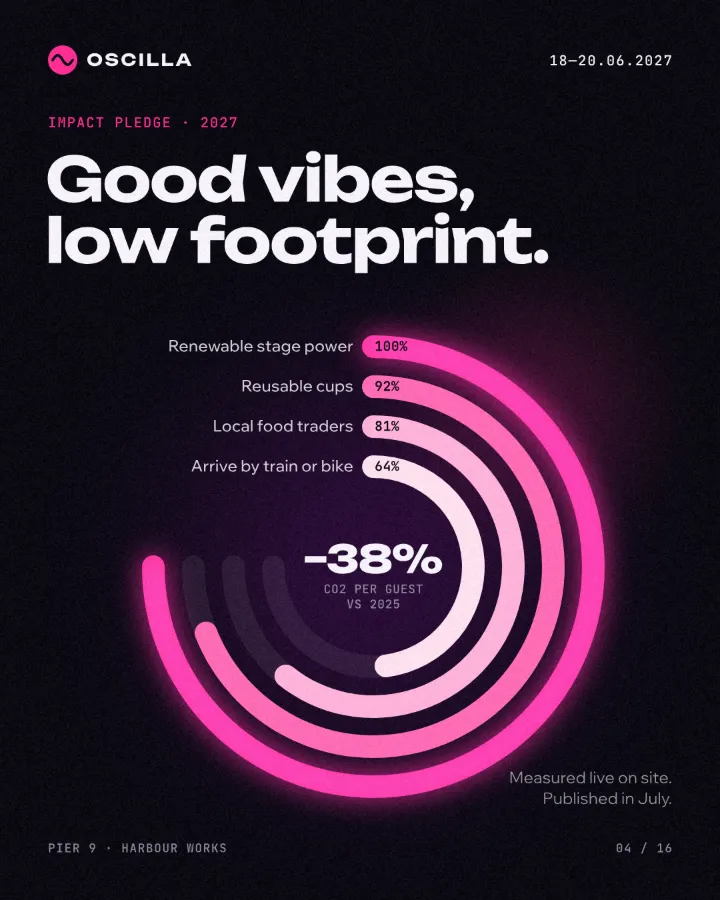
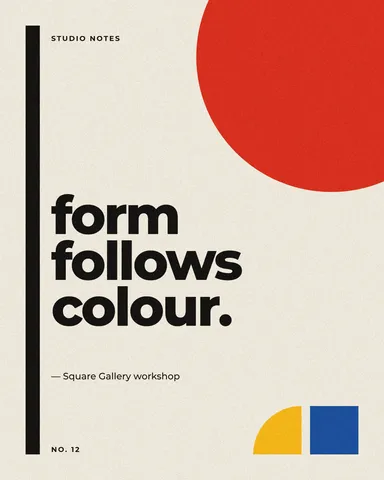
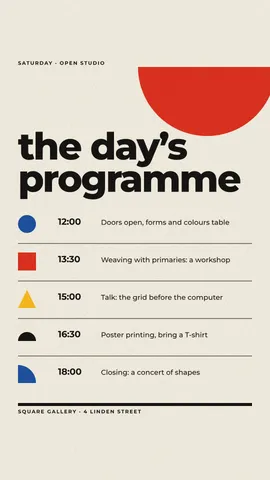
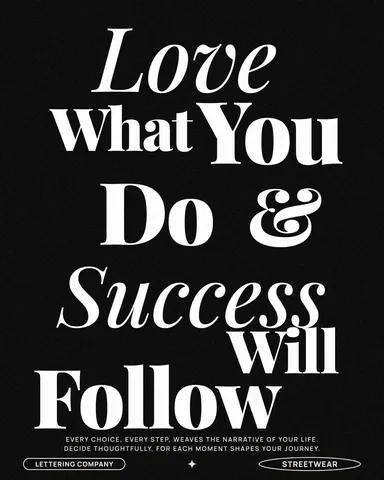
Every picture on this page was made in Paletoo — these three with the same steps on other templates:
How to do it in Paletoo
«Open in Paletoo» opens this guide’s example, the “form follows colour.” poster, as a new document of your own. Your own design works the same way: anything on an artboard can move, and the formats below appear in Export as soon as something does.
Click the quote to select it. The Design tab on the right shows its font — a heavy geometric sans — its size and its colour. Motion belongs to each object, so the shapes, the kicker and the issue number stay still unless you animate them too.
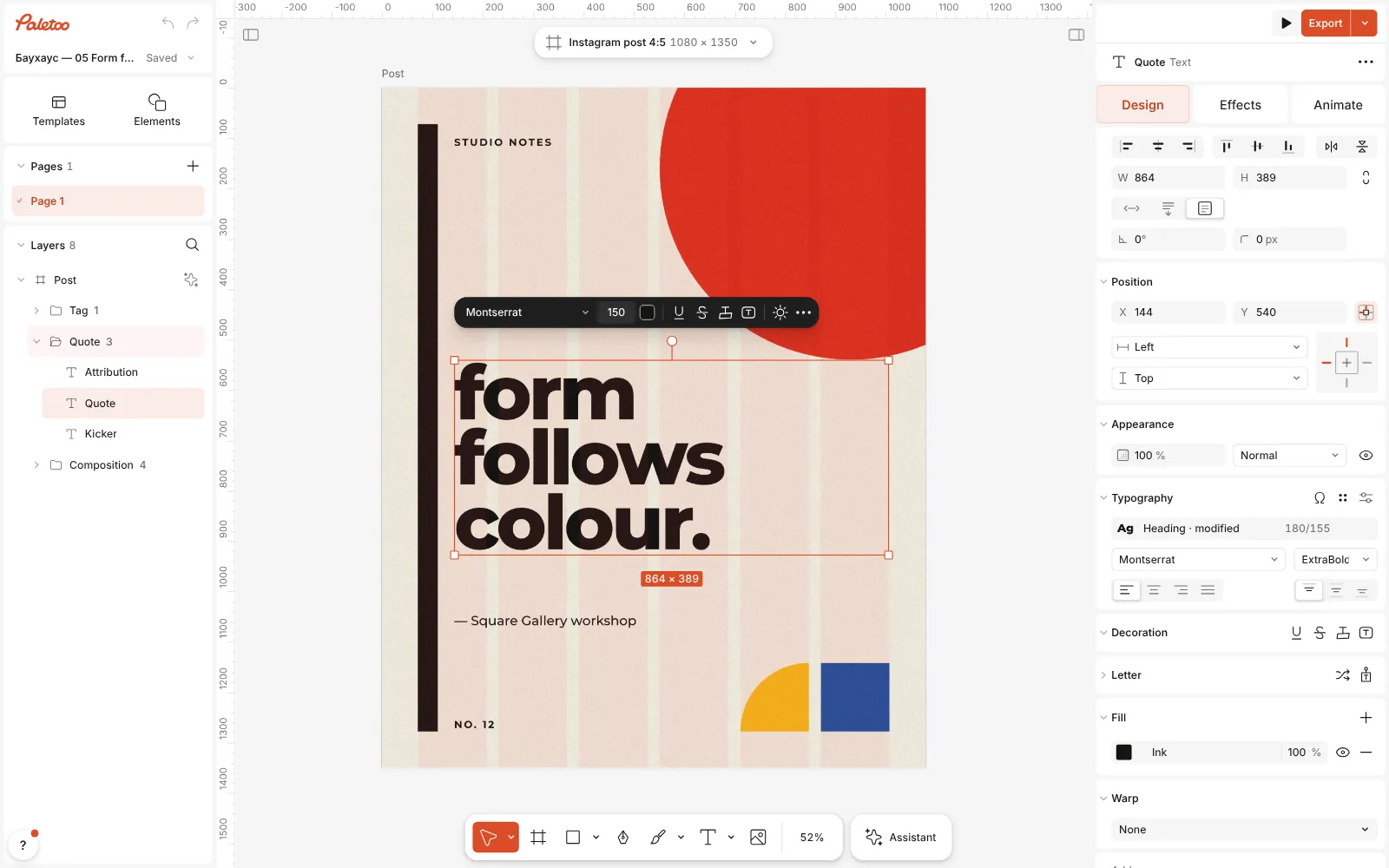
The Bauhaus poster open in Paletoo, the quote selected, the Design tab on the right Open the Animate tab and press Rise; every tile plays on your own words as you hover. Rise moves word by word at first: open More options, set Split to Letters, then press Play under the canvas and watch the quote come up letter by letter.
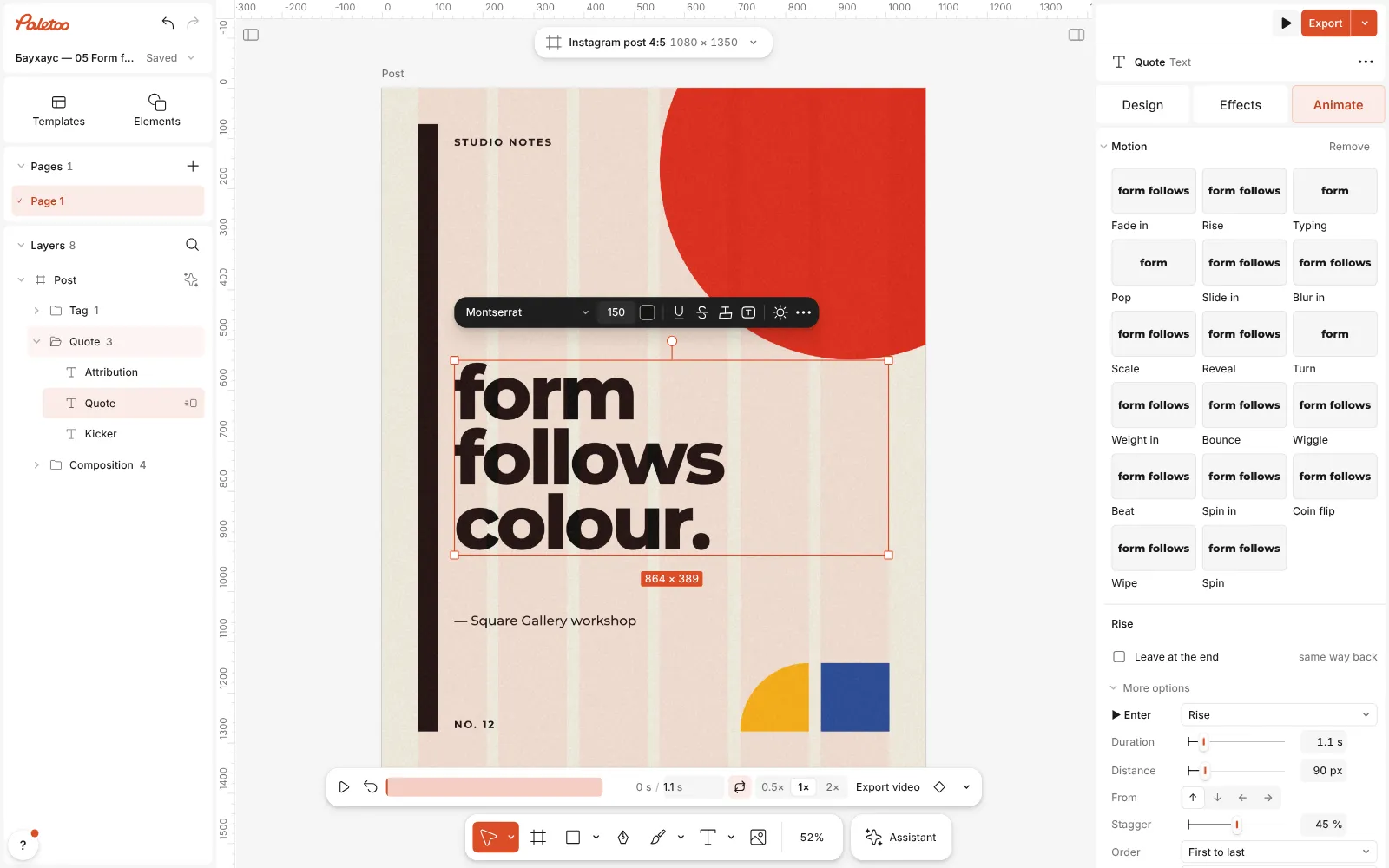
The quote animated with Rise, letter by letter, in the Animate tab Press Export (⇧ ⌘ E). Because something moves, the window opens on the animation formats: choose WebM, “VP9 video, can be transparent”. Open the row’s Export settings and set Background to Transparent.
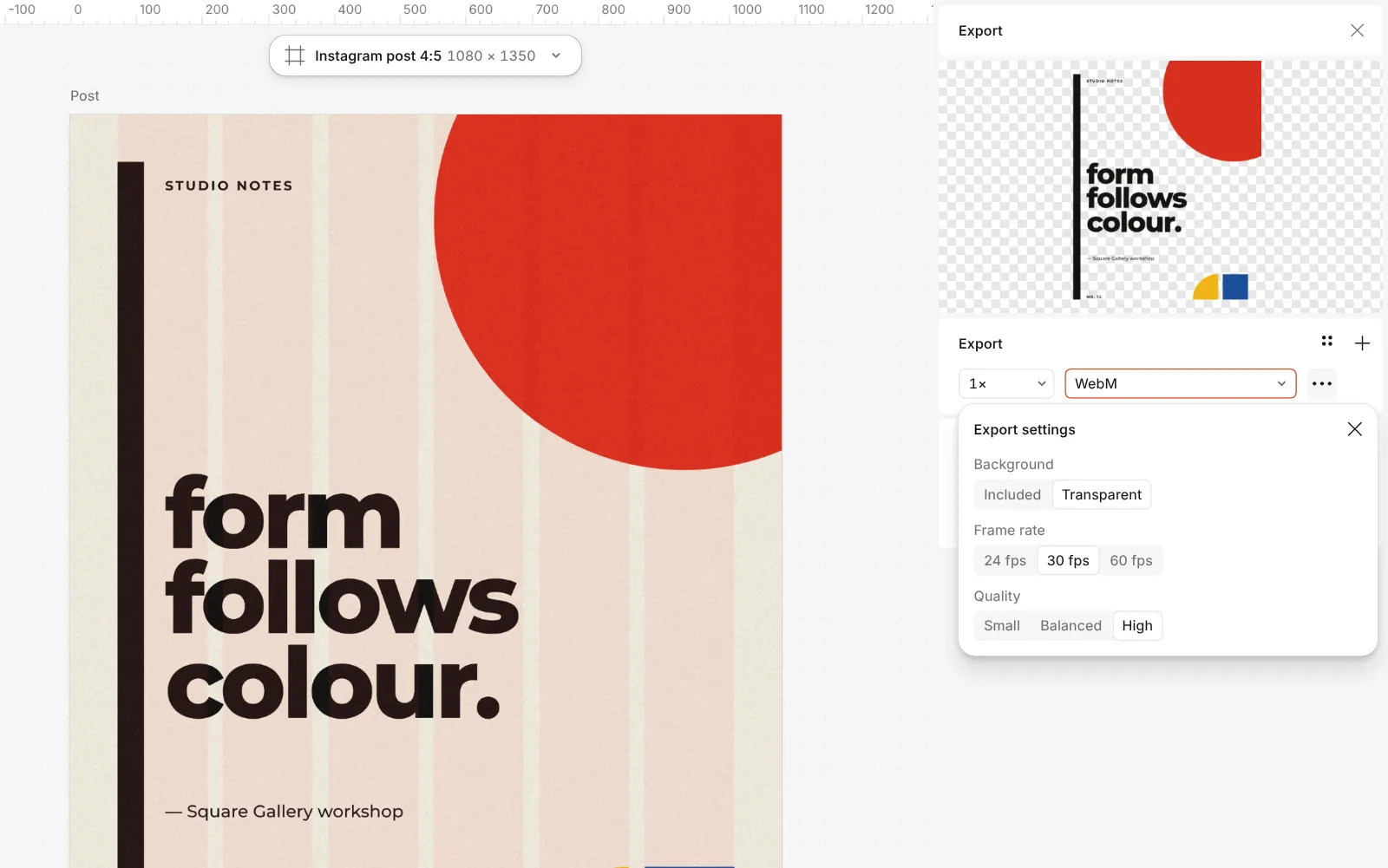
The Export window: WebM chosen and the Background set to Transparent Export. The cream paper is left out of the file; the black letters and the coloured shapes keep their soft edges, because the alpha is real. Writing a transparent WebM needs Chrome, Edge or Firefox 130 or newer — in another browser the option is greyed out, with the reason in its tooltip.
For a website or an app, export the same work as Lottie, “Vector animation for apps and websites”. Under Text choose Outlines, letters as shapes that need no fonts, or Text layers; pick JSON or dotLottie as the file; and press Preview to watch it play in lottie-web before you hand it over.
For a social feed, choose MP4 or GIF instead. They always keep the background, which is what a feed wants anyway, and nothing you export carries a watermark.
Make it your own
Get the timing right first. Speed sets the pace — Calm, Normal or Quick — and Stagger, under More options, how far apart the letters start. A title over video reads best at Normal with a short stagger; a three-word quote can afford Calm. Keep the whole entrance under two seconds and let it hold, so an editor has a clean, still tail to cut on.
Check the file over a light picture and a dark one before you send it. Black type on a transparent background disappears over a night shot; a light outline or a soft shadow on the text fixes that, and in a WebM the shadow’s soft edge survives, because every pixel keeps its own transparency. In a GIF it would not.
Keep a Lottie lean. Plain text, shapes and gradients go in as vectors; photos, effects and styles go in as pictures, and the Export window lists each one with the reason before you export. This poster has a fine grain on its artboard, which Lottie cannot describe, so the window lists the whole artboard as a picture per frame. Switch the grain off on the artboard for a small vector file, and choose Outlines unless a developer needs to edit the words.
Templates with this look
Questions
Does MP4 support a transparent background?
Not in practice. The H.264 MP4 that phones and social networks play has no alpha channel, so transparent areas become a solid colour. For transparency use WebM, a ProRes 4444 MOV or Lottie.
Why does my transparent WebM show a black background?
The player is not reading the WebM’s alpha. Chrome, Edge and Firefox play it with transparency; Safari and many video editors show black instead. For a desktop editor, convert the file to ProRes 4444 with a converter that keeps alpha.
Is Lottie better than a video?
For websites and apps, usually: it is vector, so it stays sharp at any size, weighs far less than a video and is transparent by nature. For photos and heavy effects a video is simpler, because those parts go into a Lottie as pictures.
Can I make a transparent GIF?
GIF can only make a pixel fully clear or fully solid, so soft edges get a halo, and Paletoo’s GIF keeps its background. For transparency choose WebM or Lottie.
Is exporting free?
Yes. Animating and exporting Lottie, MP4, GIF and WebM cost nothing and carry no watermark. Credits are only for AI image generation and materials.
Make it online
- Lottie animation makerAnimate type and shapes in one click each and export a light Lottie file for websites and apps.
- Instagram story makerMake a full-screen 9:16 story from a template, add motion if you like, and export it as an image or a video.
Free design templates: Story and Reels templates
Read next

Kinetic typography trend 2027: bold type that moves, even on a poster
Big, bold type that moves — or looks as if it just did.
How to make a seamless Instagram carousel that lines up at every cut
One wide artboard, a picture that runs across the cuts, and a file for every slide.
Mockups without Photoshop: show a design on a real object
Phones, posters, clothing and packaging — your design laid on in perspective and light, with no PSD to open.
Try it on your own design
Paletoo opens in your browser, with no sign-up. Every effect here is live: change the picture or the words and the effect follows.
Open in Paletoo