Y2K pixel art trend 2027: 8-bit, LED boards and CRT screens
Chunky pixels, a few hard colours and the glow of an old screen.
The Y2K pixel revival brings back the look of screens from the 1980s to the early 2000s: chunky 8-bit pixels, dot-matrix LED signs, dithered one-bit pictures and the scan lines and glow of a CRT television. Heading into 2027 it shows up on album covers, game and tech launches, club nights, fashion drops and brand refreshes that trade smooth gradients for a pixel font and a hard grid.
The appeal is part nostalgia and part contrast. Hardware that had to draw a face from a few hundred blocks made bold, graphic pictures, and a pixelated photo reads as made on purpose, not generated. A hard grid also stays crisp at small sizes, where a soft gradient turns to mush.
This guide covers where the look comes from, how to keep a pixelated photo readable, what to pair it with and the common mistakes, then the quick way in Paletoo: one mix that turns a photo into 8-bit pixels on a clean CRT screen.
Where the Y2K pixel revival comes from
Pixel art began as a limitation. Early consoles and home computers had a few colours and a coarse grid, so artists placed every block by hand; handheld game screens showed four shades of green; the first Macintosh drew in pure black and white, with dithering patterns standing in for grey. Scoreboards and departure boards spelled words in round amber lamps, and everything was watched through the curved glass of a cathode-ray tube, with its scan lines and soft bloom.
Designers who grew up with those screens now run studios, and a younger audience meets them through retro games, emulators and pixel fonts. The look keeps spreading because it is easy to recognise at a glance and stays graphic at small sizes: a pixel portrait on a phone reads as a bold shape before anyone sees the details.
How to use pixel art well
Size the pixels to the subject, not the canvas. A face needs roughly 20 to 40 blocks across to stay recognisable; fewer turns it into an abstract pattern, which is fine for a background but not for a portrait. Keep the palette short: a few hard colours read as 8-bit, while hundreds of smooth tones just look like a low-resolution photo.
Pair the pixels with type from the same world — a pixel or monospaced font for small text, a heavy clean grotesque for the headline — and keep the type sharp. The contrast between a crisp headline and a blocky picture is what makes the page look designed. Old-screen effects such as scan lines and glow look best on dark grounds, where the light has something to bloom into.
Pairings and pitfalls
Paletoo has more ways into the same era: the LED board mix for round amber lamps with a warm glow, VHS tape for a worn tape on an old TV, the Dither effect for one-bit pictures made of dot patterns, with presets such as Game Boy and Atkinson Mac, and Datamosh when the screen should look broken. A Y2K chrome headline over a pixel photo completes the period.
The common mistakes: pixels so large that the face disappears, two different pixel sizes on one page, and a grid laid over type too small to read. Upscaling a small pixelated picture blurs its edges; a live effect avoids that, because the grid is measured in document pixels and drawn at the export’s own size. Heavy scan lines also darken a picture — on a light layout, lower them or skip the screen and keep only the pixels.
Made in Paletoo
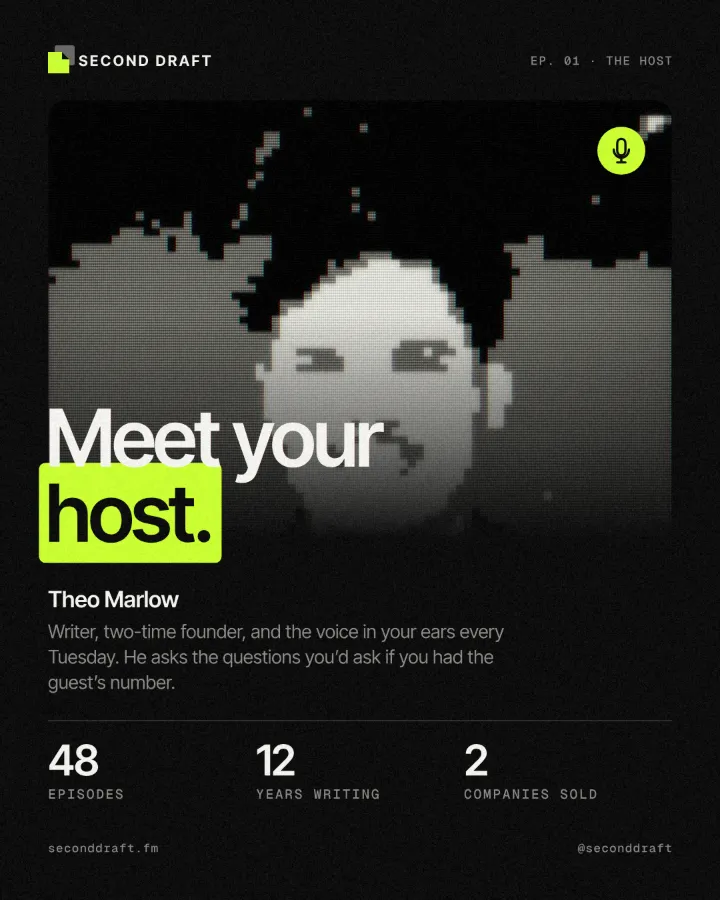
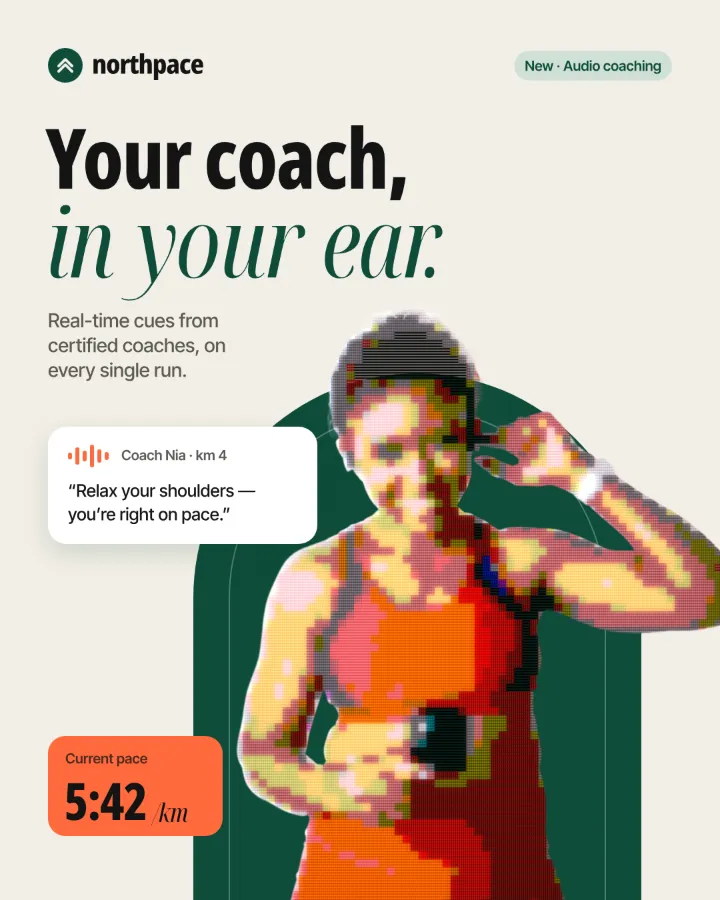
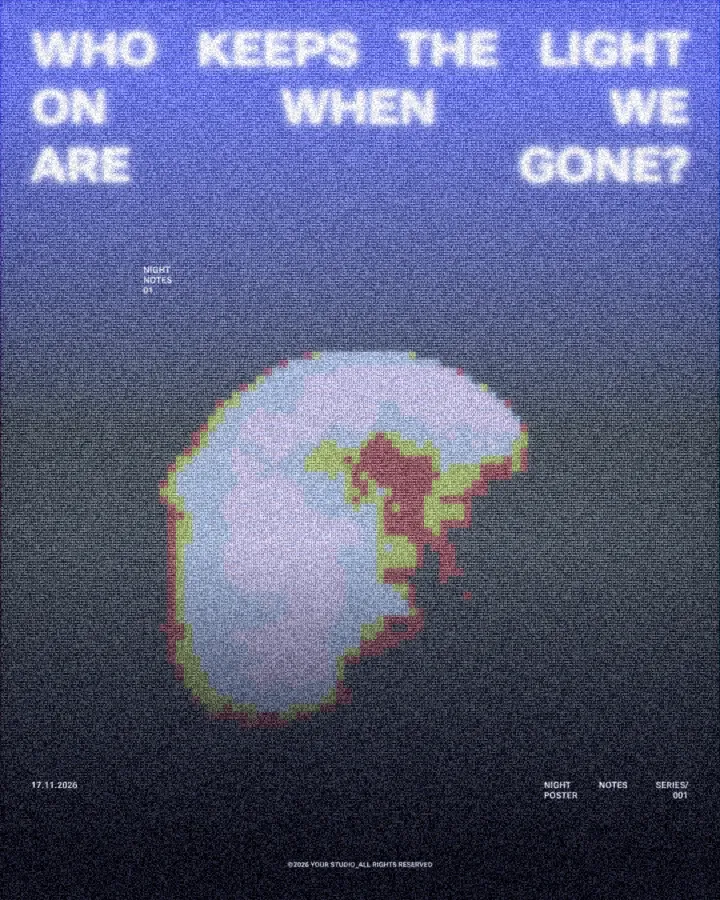
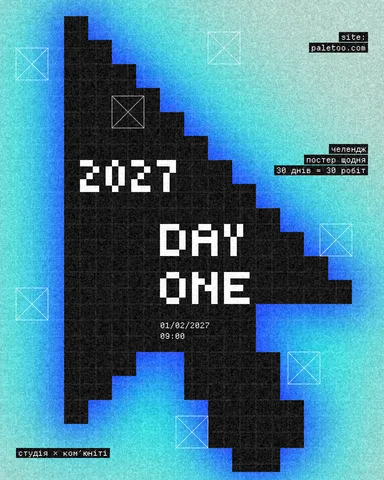
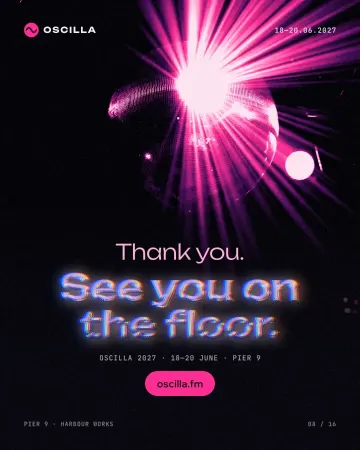
Every picture on this page was made in Paletoo — these three with the same steps on other templates:
How to make it in Paletoo
Open your design and select the photo. A portrait with a clear face and strong light pixelates best; here it is the girl under the yellow LOUDER on a magazine cover.
Open the Effects tab and find Mixes; press All if Arcade is not in the first row.
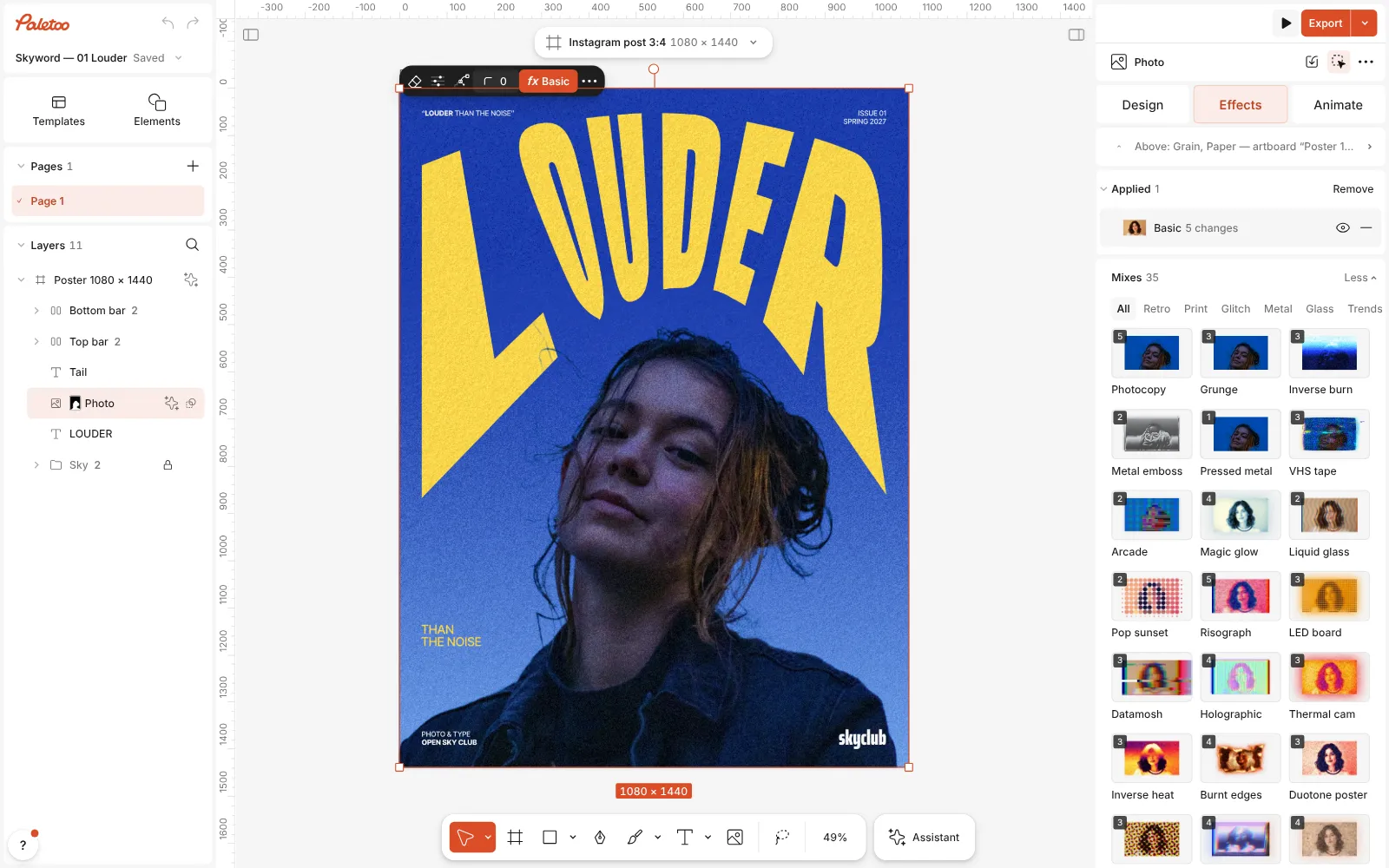
The magazine cover open in Paletoo, the portrait selected and the Mixes open in the Effects tab, the Arcade card in view Press Arcade. Two steps go on under Applied: Pixel with its 8-bit preset breaks the photo into 12 px squares in a few hard colours, and CRT with its Clean screen preset lays the vertical stripes, scan lines and soft glow of a flat picture tube over them.
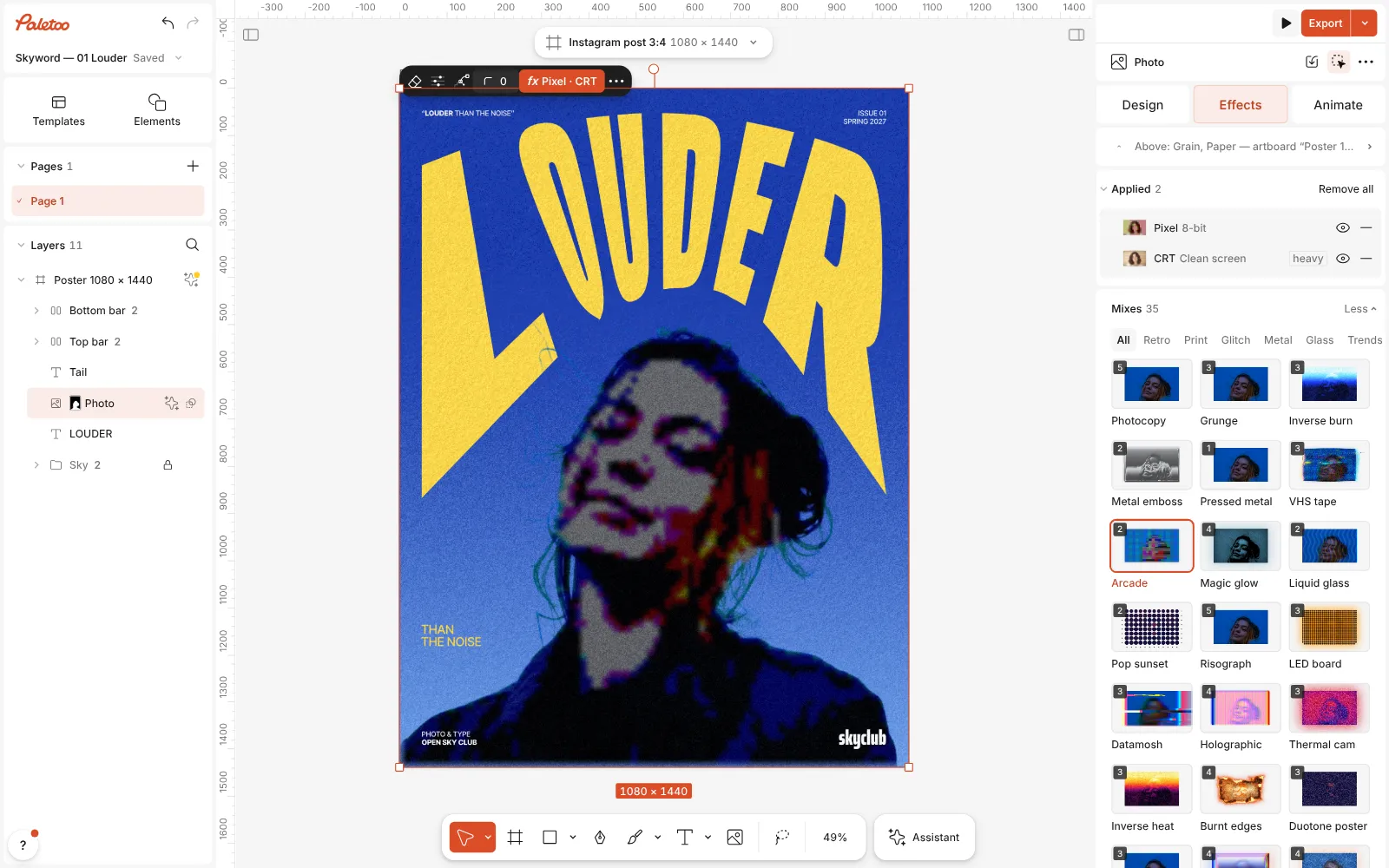
Arcade pressed: Pixel and CRT under Applied, the portrait in 8-bit blocks behind screen stripes Click the Pixel row to open it. The presets are at the top — 8-bit, Blocky, LED, Bricks and Fine — and under them Size (2 to 120 px), Shape (Square, Round or Tile) and Colours, how many tone steps the blocks are cut to.
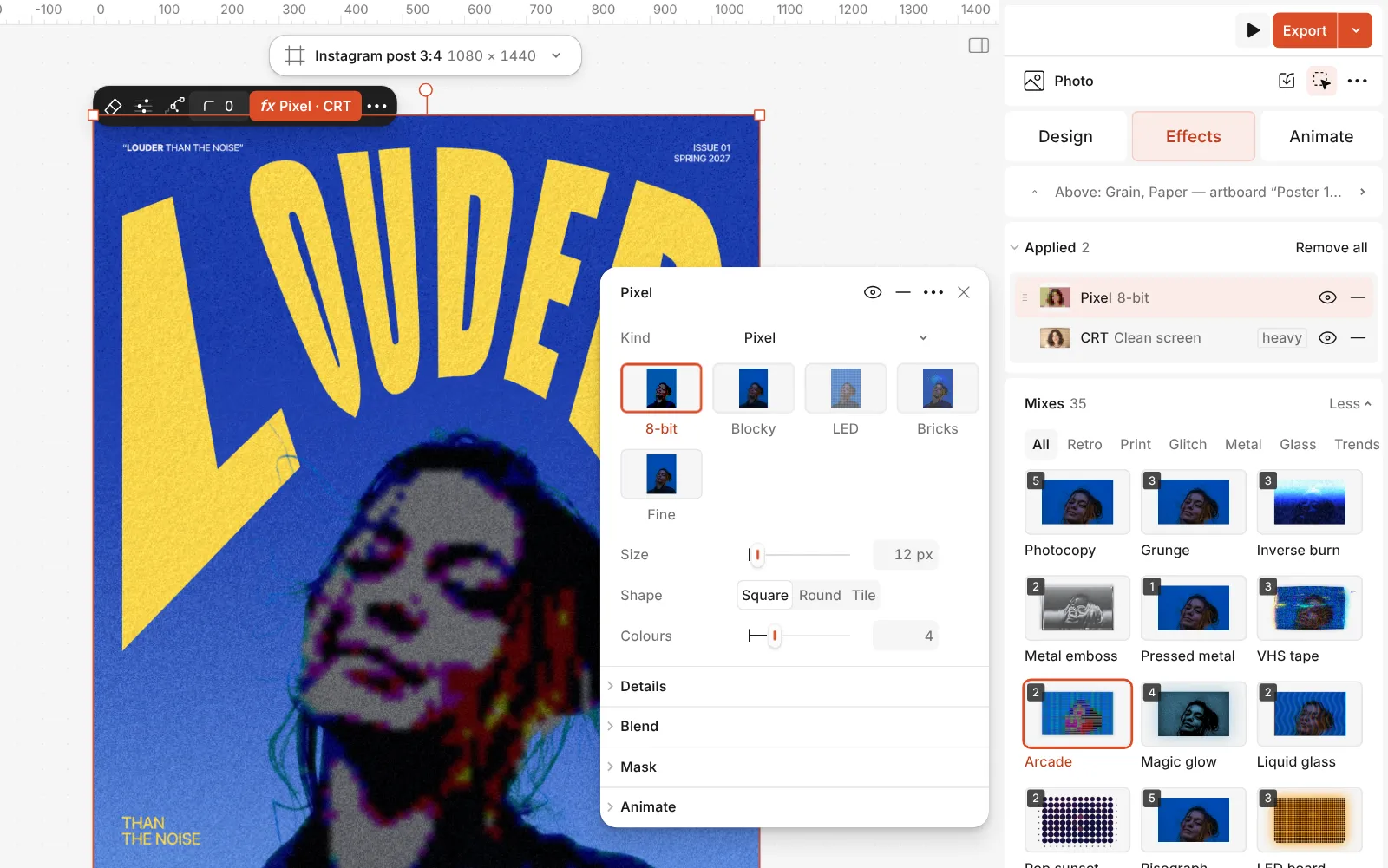
The Pixel step open: the 8-bit, Blocky, LED, Bricks and Fine presets and its Size, Shape and Colours controls Under Details, Edges switches between Hard and Soft blocks and Gap opens a space between them. Then open the CRT row for Scanlines, Curvature, Mask and Glow.
Press Export. The grid is measured in document pixels, so the blocks keep their size at every zoom and stay sharp in a large PNG.
The one-click mix
Its steps: Pixel · 8-bit CRT · Clean screen
Open this mix in PaletooMake it your own
Start with Size. At 12 px (the preset) a post-sized portrait keeps its eyes and mouth; at 24–30 px it becomes a bold pattern that reads only from a distance; below 8 px it starts to look like a low-resolution photo instead of pixel art. The grid starts at the photo’s corner and is measured on the document, so the blocks stay put when you move the picture and look the same in every export.
Colours sets how many tone steps each block can take: the preset’s 4 gives the flat, posterised steps of an old console, and 0 keeps every colour. Round with a little Gap turns the grid into lamps, the start of an LED sign — the LED preset does exactly that — and Tile lays the blocks like bricks.
Then the screen. In the CRT step, Scanlines darkens the lines between rows, Curvature bulges the glass (the preset keeps it flat, at 0 %), Mask chooses the pattern of the phosphors and Glow lets the bright parts bleed past them. On a light layout, lower Scanlines or switch the step off with its eye; for a heavier retro TV, press the Broadcast or Green mono preset.
Templates with this look
Questions
How do I turn a photo into pixel art?
Select the photo, open the Effects tab and press the Arcade mix: the photo becomes 8-bit blocks on a CRT screen. Change the Pixel step’s Size for bigger or smaller blocks.
Why is everyone using pixel art again?
It is nostalgic for people who grew up with old consoles and screens, and it reads as deliberately made next to smooth, generated images. A hard grid also stays bold and readable at phone size.
Can I pixelate text?
Yes. The Pixel step works on text, shapes and pictures, and its presets keep small letters readable. The text stays editable underneath.
How do I get the round LED dot look?
Press the LED board mix for amber lamps with a glow, or open the Pixel step and choose the LED preset: round blocks with a gap between them.
Does it stay sharp when I export large?
Yes. The effect is live, so the grid is drawn at the export’s size rather than stretched from a small picture, and the block edges stay crisp.
Is it free?
Yes. Effects, templates and export cost nothing and carry no watermark. Credits are only for AI image generation and materials.
Make it online
- Photo effects onlineGive a photo a film, print or glitch look in one click — and keep every step editable afterwards.
- Duotone, halftone and glitch photo effects onlineThree of the strongest looks for a photo, each one click away and every step still yours to tune.
Free design templates: Poster templates
Read next
How to make a Y2K chrome text effect
Fat liquid chrome in pearly pastels, with a soft glow.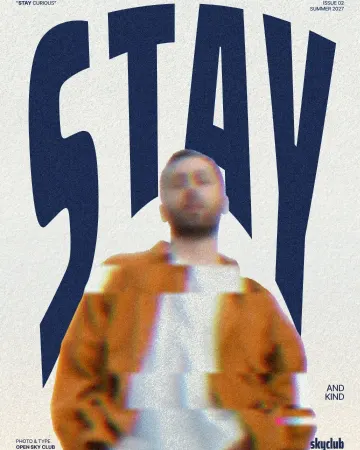
How to make a glitch effect in Photoshop — and in one minute
Split RGB channels, sideways slices and broken blocks — then the same break as one live mix.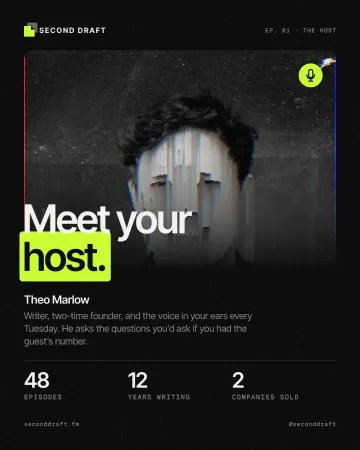
How to make a pixel sorting effect
Mid-tones and lights sorted by brightness into falling streaks.
Try it on your own design
Paletoo opens in your browser, with no sign-up. Every effect here is live: change the picture or the words and the effect follows.
Open in Paletoo