Duotone, halftone and glitch photo effects online
Three of the strongest looks for a photo, each one click away and every step still yours to tune.
Start freeOpens in your browser · no sign-up · no watermark
Start from one of these
Real Paletoo documents and results — open one and change everything.
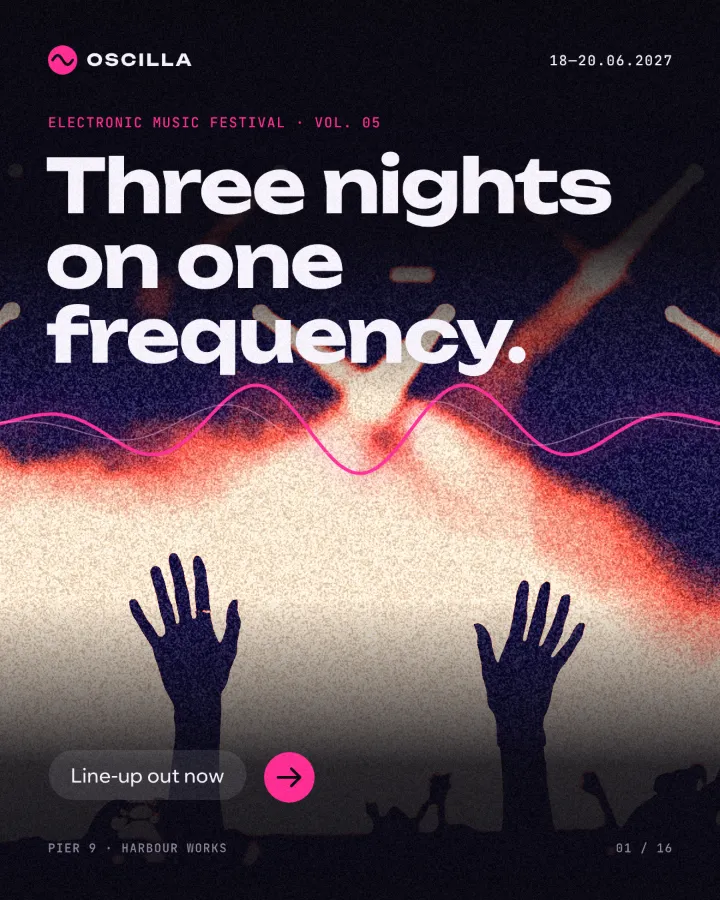
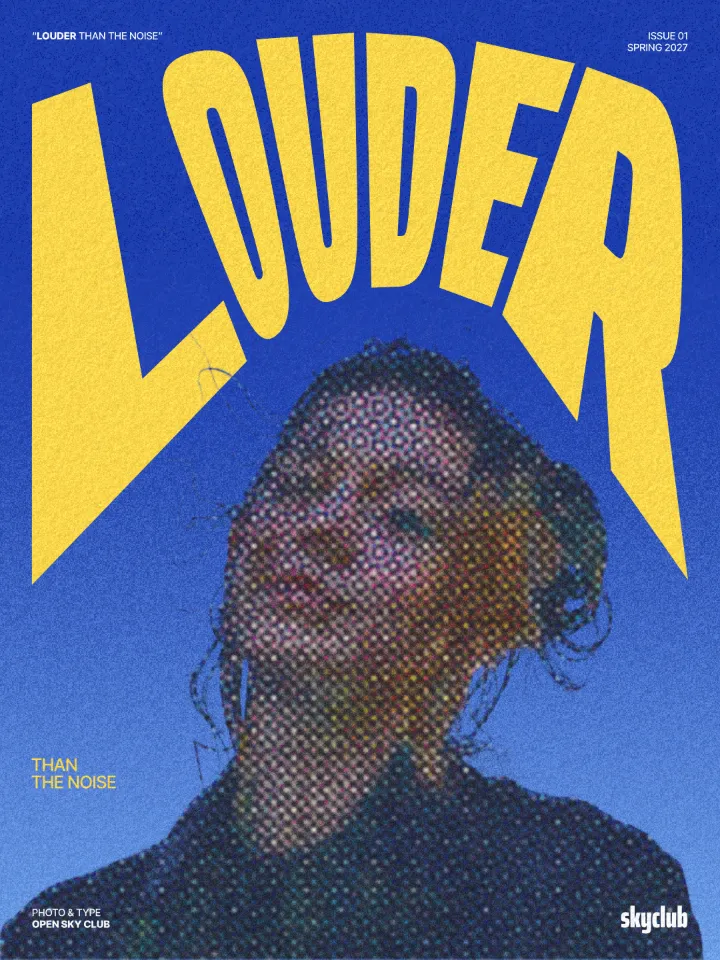
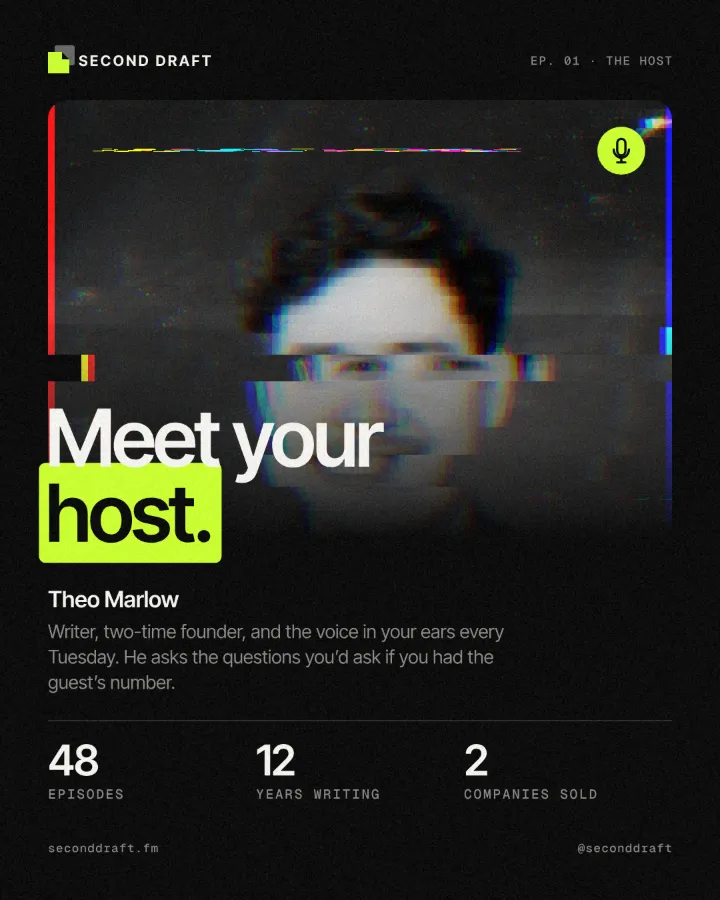
How it works
-
Select the photo
Open your design, select the photo and open the Effects tab. The looks are in Mixes: Duotone poster, Halftone pop and Datamosh.
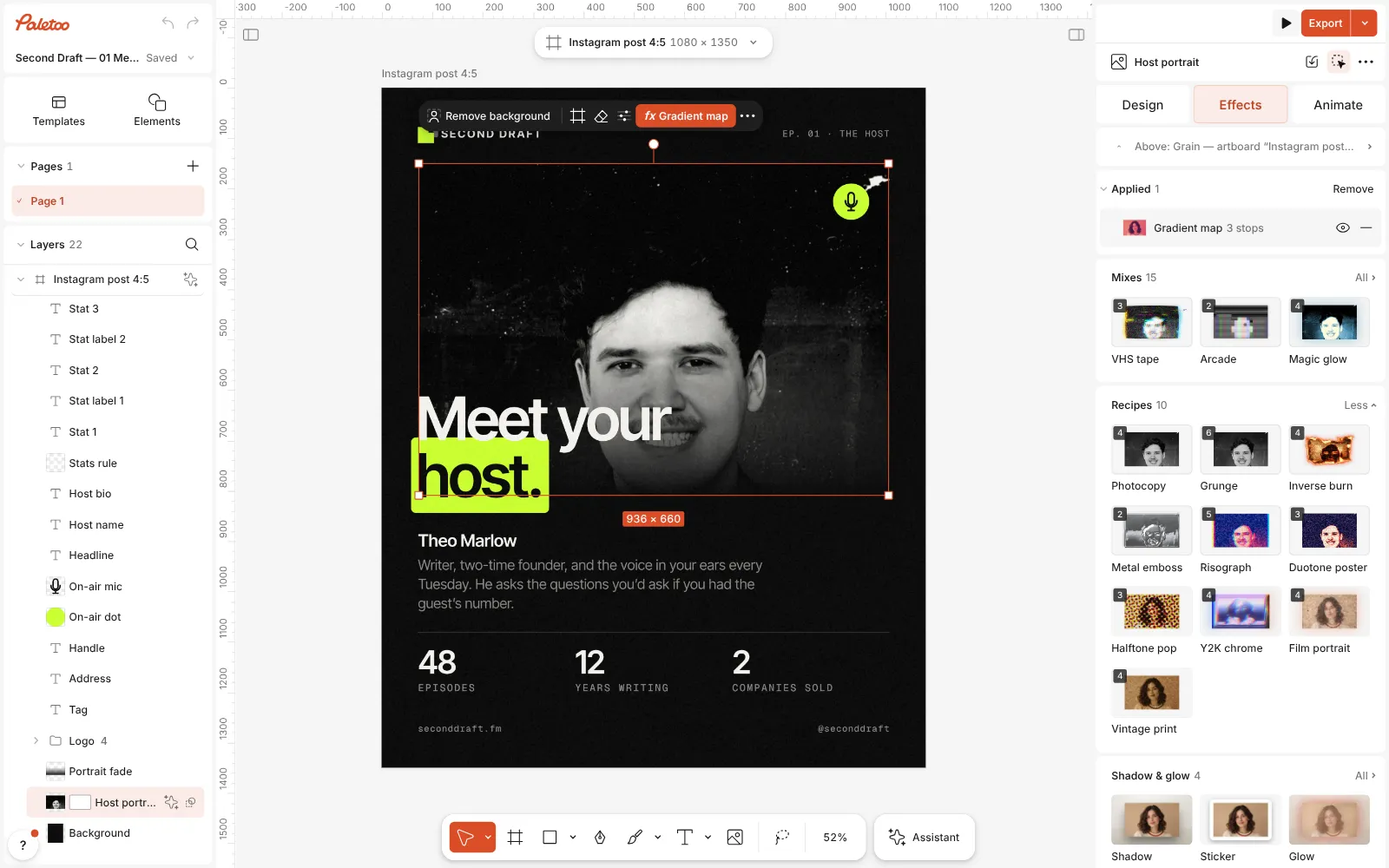
A podcast post open in Paletoo, the host’s portrait selected and the Mixes open -
Press the look
Press one — say Halftone pop. Its steps go on together and appear under Applied; the photo turns into CMYK dots straight away. One undo takes the whole look off again.
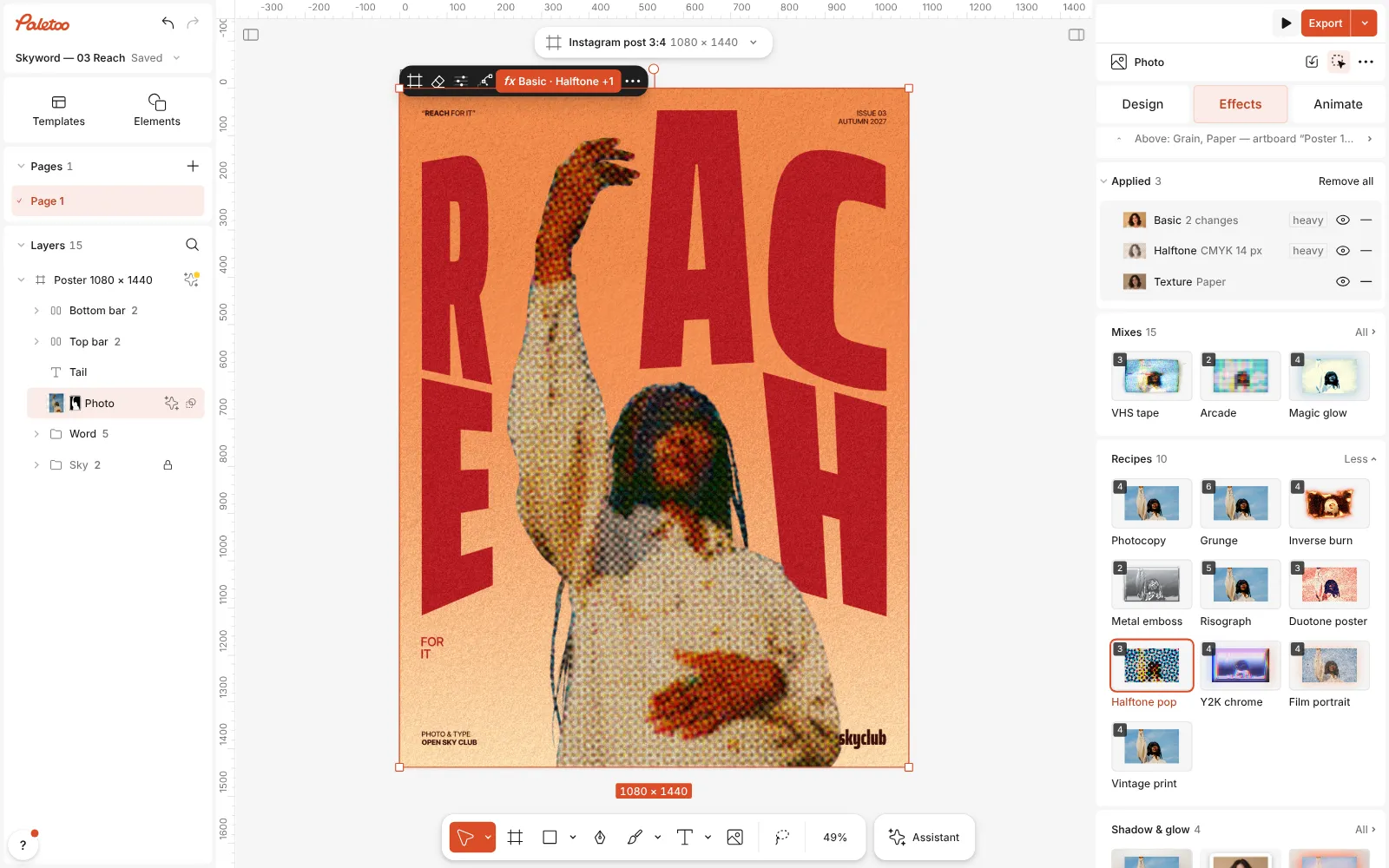
Halftone pop pressed: Basic, Halftone and Texture under Applied, the portrait printed in CMYK dots -
Tune any step
Open a step to make the look yours: in Datamosh, Colour split sets how far the colour channels tear and how many slices break off. A duotone’s two inks are the stops of its Gradient map step.
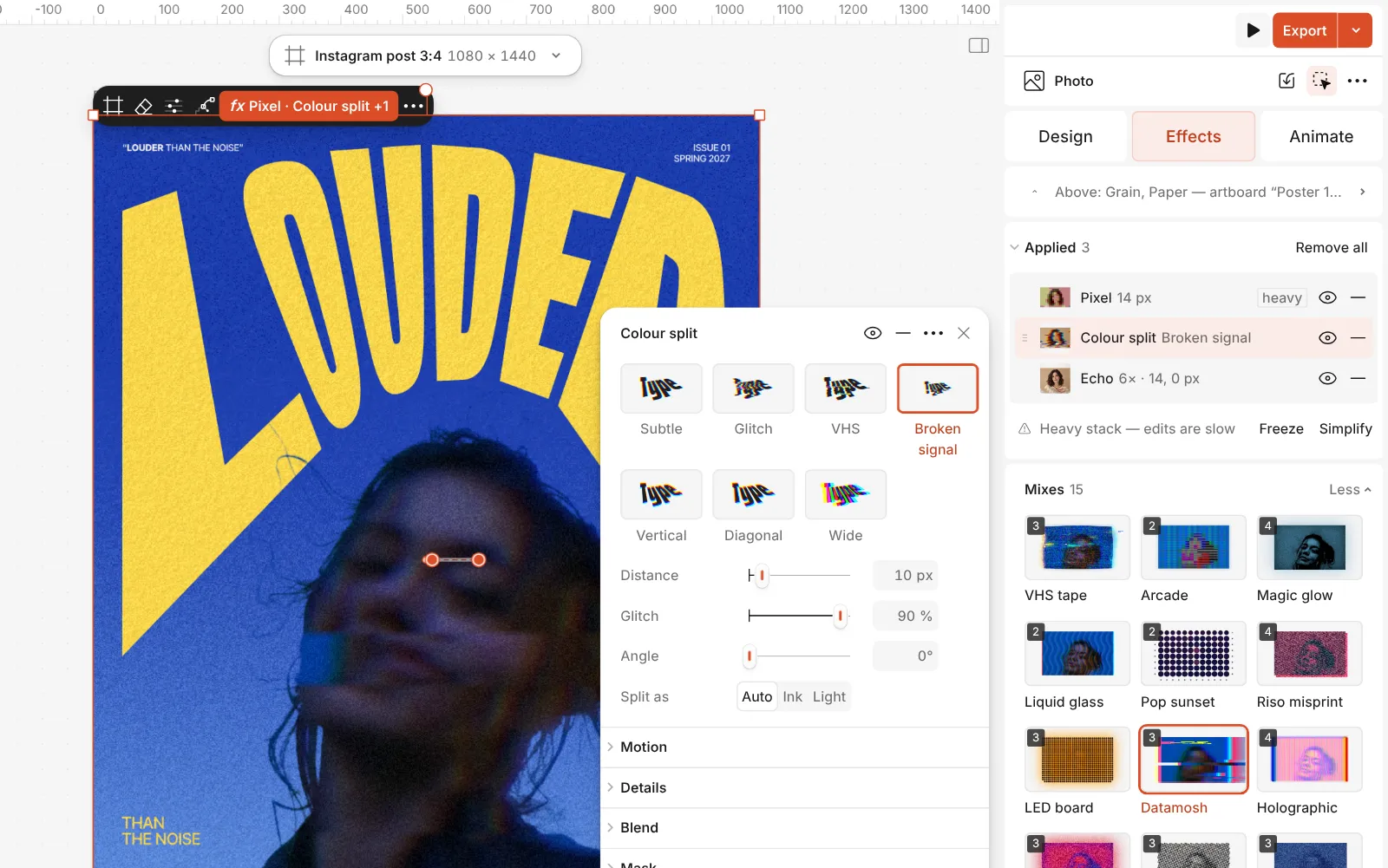
The Colour split step open: its presets and the Distance, Angle, Glitch and Slices controls
What you get
Duotone
Two inks with punchy contrast and a fine grain — your brand colours work as the inks. Read the duotone guide.
Halftone
Comic-book CMYK dots, a newspaper line screen or a single ink, with the size, angle and shape of the dots in your hands. Read the halftone guide.
Glitch
Blocky pixels, torn colour channels and a smeared trail, for covers and posts that look like a broken signal. Read the glitch guide.
Live, not baked
Swap the photo and the effect follows. Change or remove any step at any time; the original photo is never touched.
On text and shapes too
The same effects work on a headline or a shape, not only on photos.
Questions
Are these effects free?
Yes. Every effect and mix, and exporting the result as PNG, JPG, WebP or PDF, is free with no watermark.
What is the difference between duotone and halftone?
Duotone recolours a photo in two inks, one for the shadows and one for the lights. Halftone keeps the tones but prints them as dots or lines, like a newspaper or a comic. They combine well: a duotone with a halftone screen is a classic risograph look.
Can I use my brand colours for the duotone?
Yes. Open the Gradient map step and set its stops to your colours: the left stop is for the shadows, the right one for the highlights.
Can I get the original photo back?
Always. The effects sit on top of the photo; turn a step off, delete it, or undo the whole mix, and the original is still there untouched.
Can I apply a glitch to text?
Yes. Select the text instead of a photo and press the same mix. The words stay live text you can still edit.
Can the glitch move?
Yes. On the Animate tab every value of every step can move — key the Colour split’s Distance up and back, and the glitch flickers in a reel or a story. Export it as MP4 or GIF.
Will the effect look the same on every photo?
The mix is the same, the result depends on the picture. Photos with a good range from deep shadow to bright light give the richest duotones; faces and figures make the most striking glitches.
Where can I learn each look in detail?
Each one has its own step-by-step guide with screenshots and examples: the duotone, halftone and glitch guides linked on this page, and a risograph guide that builds on the first two.
Learn more
Step-by-step guides

How to make a duotone effect
Two bold inks, punchy contrast and a fine poster grain.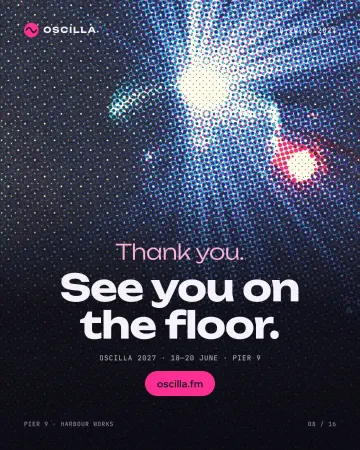
How to make a halftone effect
Comic-book CMYK dots, newspaper screens or one ink.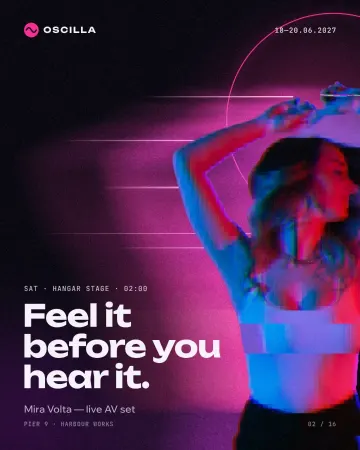
How to make a glitch effect
Blocky pixels, torn colour channels and a smeared trail.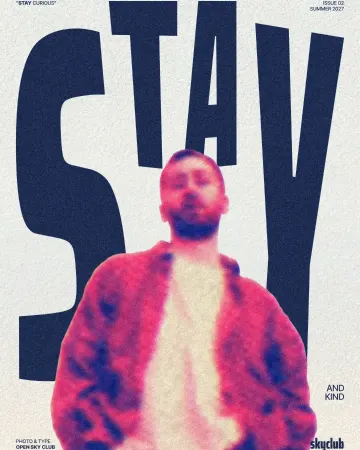
How to make a risograph effect
Two riso inks out of register, a coarse screen, riso paper.
In the help centre
More tools
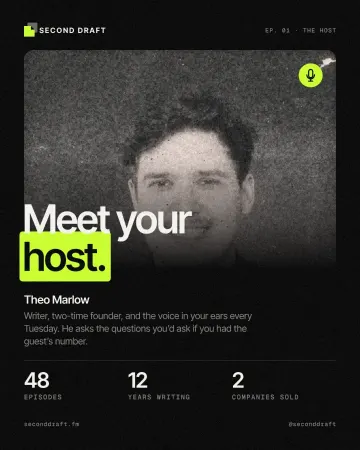
Photo effects online
Give a photo a film, print or glitch look in one click — and keep every step editable afterwards.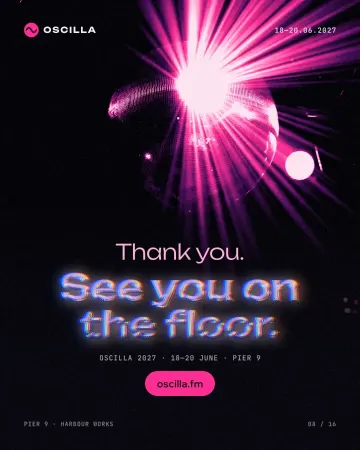
Text effects online
Chrome, gold foil, emboss, cut-out letters, outlines and warps — and the words stay editable text.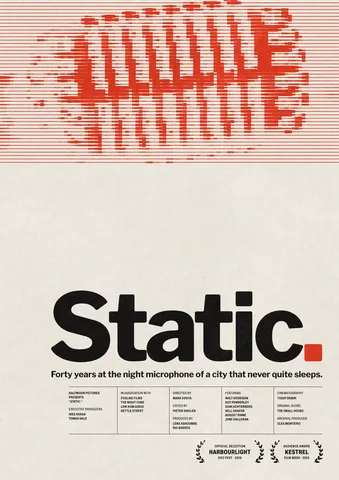
Poster maker
Make a poster from a template that already has the layout right, then export a print-ready PDF or an image for screens.
Make it now
Paletoo opens in your browser. Start from the template above or a blank page, and export when you are happy.
Start free