QR codes5 min readFreeUpdated 2026-11-06
vCard QR code: put your contact on a business card, free
One scan saves your name, number, email and site to their contacts — no typing, no app, nothing that expires.

A business card is a promise that someone will type your details into their phone later. Most of them never do. A contact QR code on the back keeps that promise for them: they scan it, the phone offers to create a contact with your name, company, number, email and site, and one tap saves it.
That kind of code is called a vCard QR code, after the contact format phones have shared for decades. It is static — the details are written into the code itself — so it works offline, needs no app and never expires. The trade-off is that it is fixed: when your number changes, you print a new card, as you would anyway.
This guide explains what goes into a vCard code and what to leave out, how a link code differs, and how to make one for free in Paletoo on a real business card design, read back as you type and exported for the printer with bleed and crop marks.
vCard or link: which code for a card
A link code opens a page — your site, a portfolio, a profile. It is short, so the code stays open and small, and you can change the page whenever you like. A vCard code saves a contact. It skips the step where someone finds your phone number on a page, which is exactly what a card is for.
Pick by what you want them to do next. Designers and studios often want the portfolio: a link. Sales, agents, freelancers and anyone who expects a call want to be in the contacts: a vCard. Many cards carry the link in print and the vCard in the code, so both are covered. The business card guide shows the link version.
What to put in it
Every field adds to the code: more data means more, smaller modules and a bigger print for the same reliability. Keep it to what you would want saved — first and last name, company, one phone, one email, one site. Leave out the second number, the street address and the long job title unless they really matter.
Write the phone in international form, with the country code: +380 67 000 00 00, not 067 000 00 00. Phones file it correctly that way wherever the card ends up. And type the email and site exactly — a vCard code reads back whatever it holds, typos included.
Designing the card around it
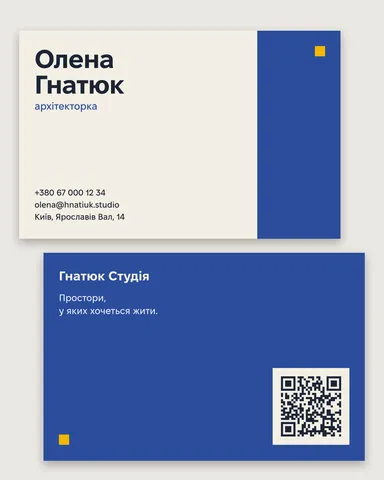
A vCard with six fields makes a denser code than a short link, so give it room: about 2.5–3 cm on a standard 85 × 55 mm card, which usually means the back of the card. A big code on its own side, with a few words such as “scan to save my contact”, reads as a deliberate part of the design rather than an afterthought.
Keep the usual rules for print: a dark code on a light ground, four modules of quiet margin, nothing within the trim, and a proof scanned at real size. Our size and print checklist walks through them.
Made in Paletoo
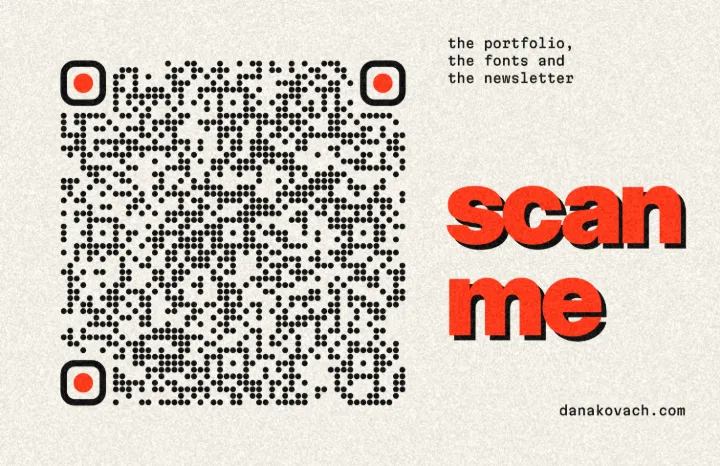
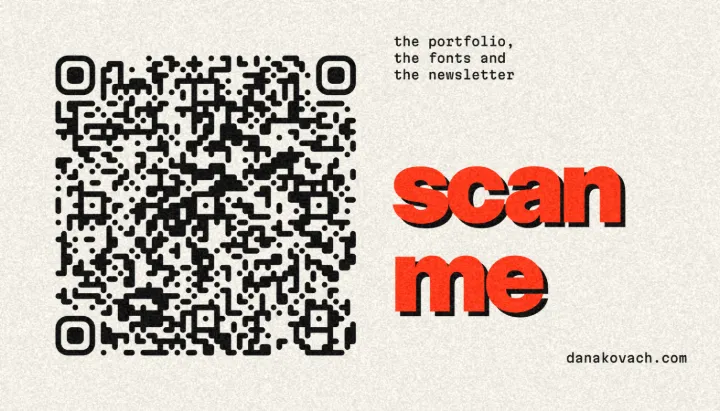
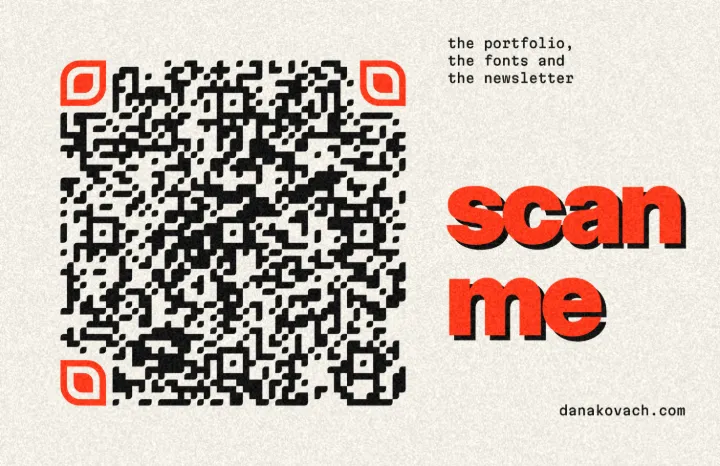
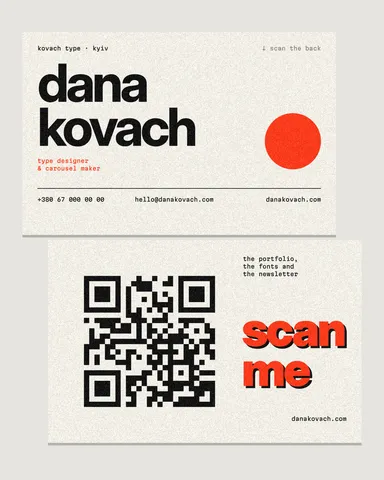
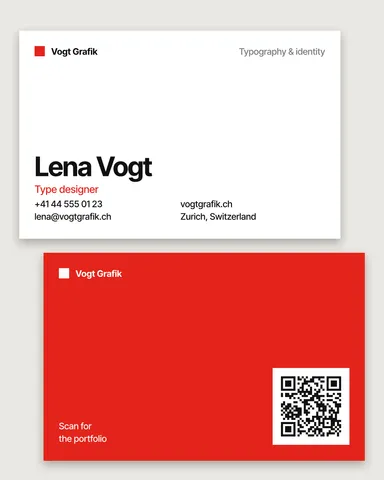
Every picture on this page was made in Paletoo — these three with the same steps on other templates:
Make it in Paletoo, free
Open a business card in Paletoo — this guide uses «Scan me» from the Slow scroll pack, a card with a big code on its back — or press ⌘ K and run QR code on a card of your own.
Select the code and open its QR code section in the Design tab. Set Type to Contact card; whatever the code held carries over where it can — a link becomes the card’s Website.
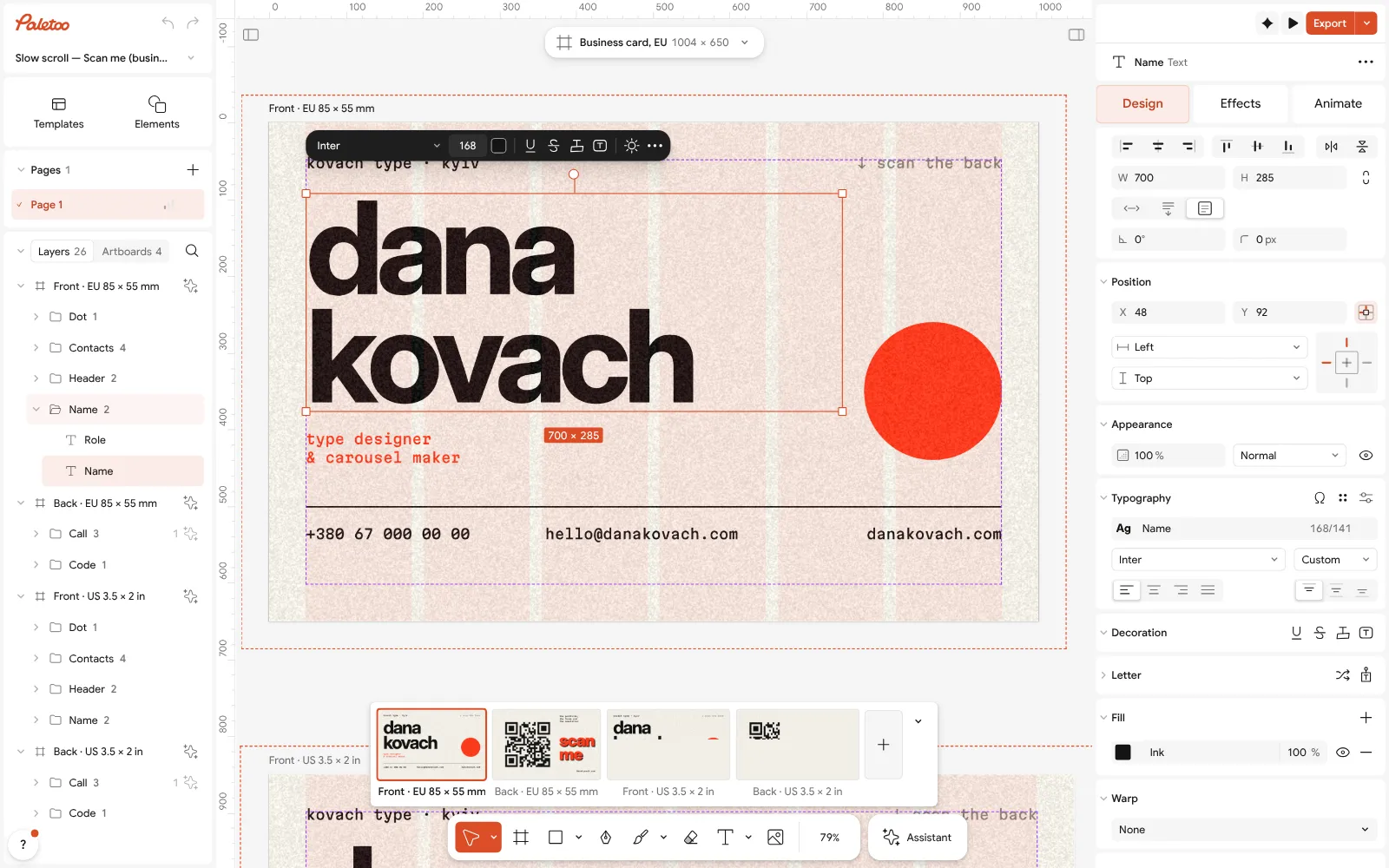
The «Scan me» business card from the Slow scroll pack open in Paletoo, the name selected on its front Fill in First name, Last name, Company, Phone, Email and Website. Fill only what you want saved; empty fields are left out of the code.
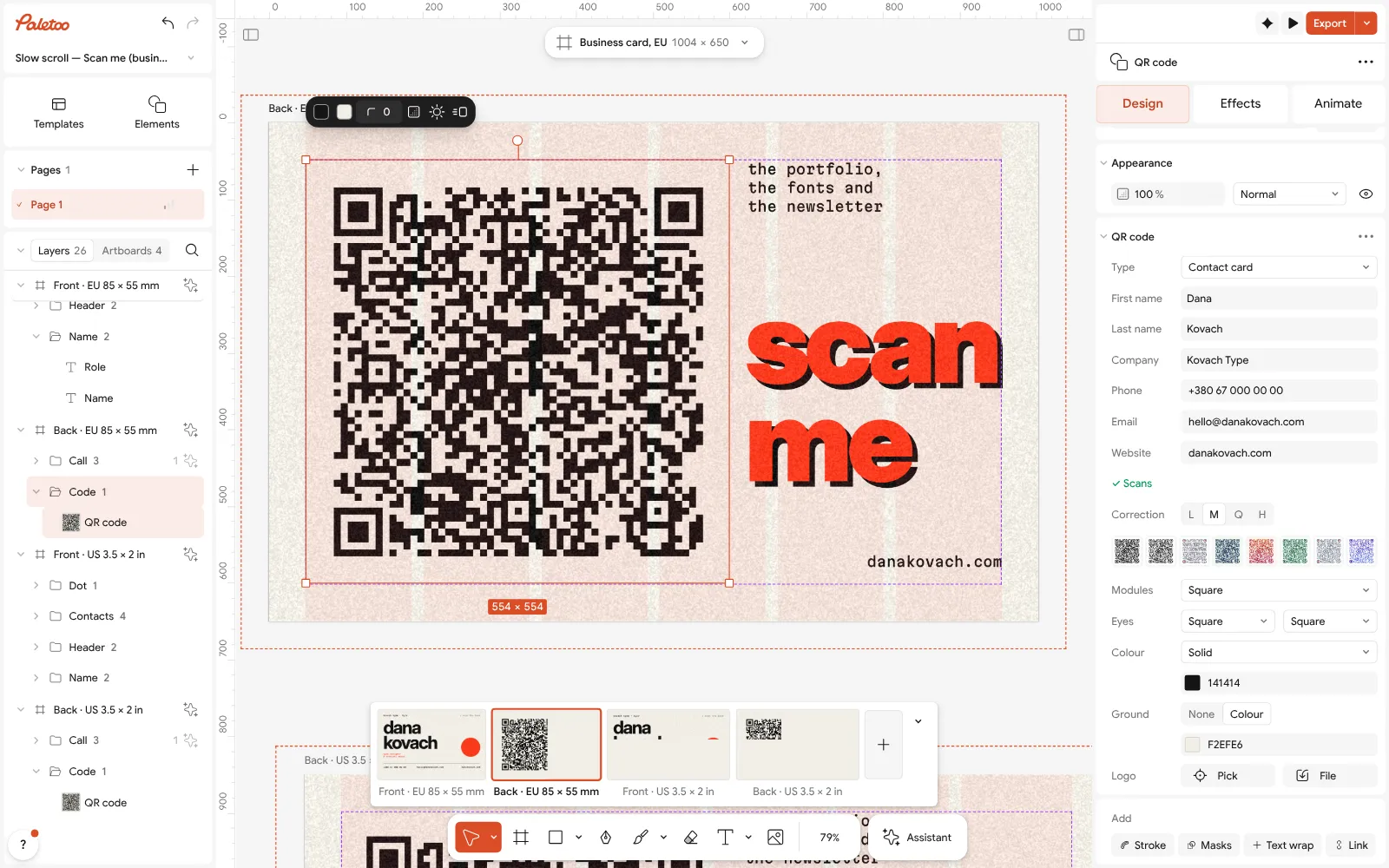
The code on the card’s back selected, its QR code section set to a contact card Check the scan line: ✓ Scans means a phone-like reader read the whole contact back. Its tooltip gives the module count — a full card is denser than a link, so keep an eye on it as you add fields.
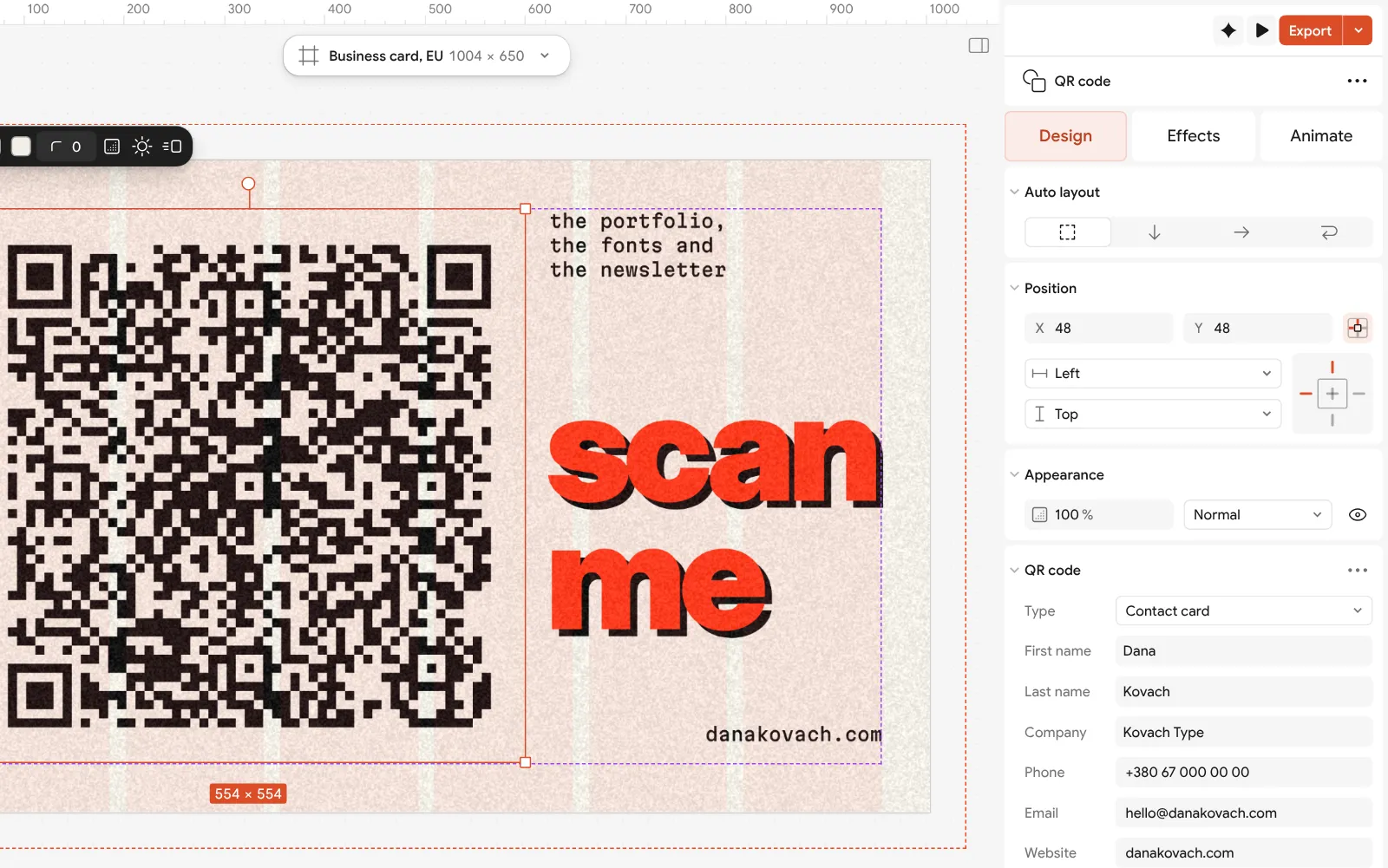
Close up: the contact card’s fields — first and last name, company, phone, email and website Style it with the card: a look from Style, or your own Modules, Eyes and Colour. On «Scan me» the code keeps the card’s ink on its chalk Ground.
Press Export and choose PDF with Include bleed and Crop marks for the printer. The code is drawn as shapes, so it is as crisp as the type.
Make it your own
Fewer fields, calmer code. Every field you fill adds modules; a code with a name, a phone and an email reads more easily at 2.5 cm than one with all six. If the card is small, leave Company or Website to the printed side.
Keep Correction at M for a plain contact code — it is already dense, and higher correction adds modules. Raise it to H only if you add a Logo, and then make the code bigger.
Proof it on the phones people carry: scan a printed card at 100 % with an iPhone and an Android phone, and check that the contact they offer to save has your name, number and email the way you want them shown.
Templates with this look
Questions
What is a vCard QR code?
A QR code that holds a contact card in the vCard format — name, company, phone, email, site. Scanning it offers to save you as a contact, with no typing and no app.
Does a vCard QR code work on iPhone and Android?
Yes. The iPhone camera and recent Android cameras or Google Lens recognise a vCard code and offer to add the contact.
Can I update a vCard QR code after printing?
No. The details are in the code itself, so a new number means a new code. If your details change often, print a link to a page you control instead.
How big should a vCard QR code be on a business card?
About 2.5–3 cm across on a standard card, more if you fill every field. Keep four modules of empty margin round it and test a real-size print.
Is it free?
Yes. Making a contact code in Paletoo, designing the card and exporting a print-ready PDF are free, with no account and no watermark, and the code never expires.
Make it online
- Business card makerDesign a business card at the exact print size, add a QR code that really scans, and export a PDF the printer accepts.
- QR code generatorMake a QR code in your own colours and shapes, with a logo in the middle, and see that it scans before you print.
Free design templates: Contact and call-to-action templates
Try it on your own design
Paletoo opens in your browser, with no sign-up. Every effect here is live: change the picture or the words and the effect follows.
Open in PaletooRead next
- 01
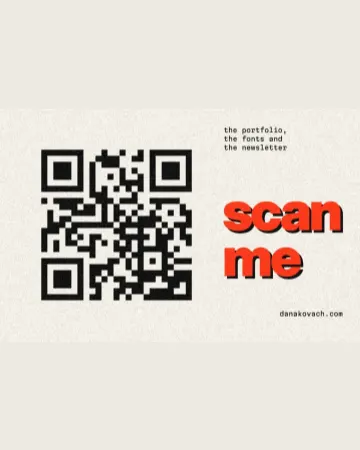 How to make a business card with a QR codeThe right size, your details, a QR code that scans and a PDF for the printer.
- 02
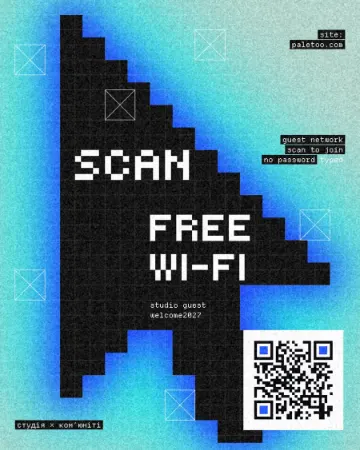 How to make a Wi-Fi QR code for guests, freeOne scan and your guests are on the network: no spelling out passwords, and a card that looks like your place.
- 03
 QR code size for print: the «will it scan» checklistSize, quiet zone, contrast, correction and a proof: the five checks that decide whether a printed code scans.