QR codes5 min readFreeUpdated 2026-11-06
How to make a Wi-Fi QR code for guests, free
One scan and your guests are on the network: no spelling out passwords, and a card that looks like your place.

Spelling out a Wi-Fi password — capital W, the number zero, not the letter — is a small ritual every café, office, rental flat and studio could do without. A Wi-Fi QR code ends it: a guest points the camera at a card, taps the prompt, and the phone joins the network.
It works on current iPhones and Android phones with the built-in camera, needs no app and no internet to read, and keeps working for as long as the network name and password stay the same. It is also a static code by nature: the network details are written into it, and nothing passes through any server.
This guide explains what a Wi-Fi code holds, how to keep it safe, and how to make one for free in Paletoo, on a card or poster that belongs to your place, checked as you design and exported for print.
What a Wi-Fi QR code holds
A Wi-Fi code is a short line of text in a format phones recognise: the security type, the network name and the password, for example WIFI:T:WPA;S:Studio Guest;P:welcome2027;; — plus a flag for a hidden network. Characters with a special meaning there, such as semicolons and colons in a password, have to be escaped with a backslash; a good generator does that for you.
Phones read it with the camera app: iPhones since iOS 11 and Android phones with Google Lens or a recent camera show a “Join network” prompt. Older phones may need a QR app. Either way the password is never shown on screen, which is a small bonus at a front desk.
Keep the guest network separate
Anyone who can see the card can join, so the code belongs to a guest network, not the one your till, printers or office computers are on. Most routers have a guest network setting that keeps visitors off your own devices; turn it on and put that network’s name and password in the code.
If you change the password regularly, you will need a new code each time — the details are in the code itself — so plan the card as something you reprint, or use a password you only change when you have to. A code that holds the old password is the most common reason a Wi-Fi card “stops working”.
A card people notice
Say what it is in words — “Free Wi-Fi, scan to join” — and print the network name under the code for people who prefer to join by hand. Put it where people look when they sit down: on the table, at the counter, by the door of a rental flat, inside a welcome folder.
Size and contrast follow the usual rules: about 3 cm across for a card read in the hand, dark modules on a light ground, a quiet margin round the code. The print checklist has the details, and if the same card should also open your menu, see QR codes for menus.
Made in Paletoo
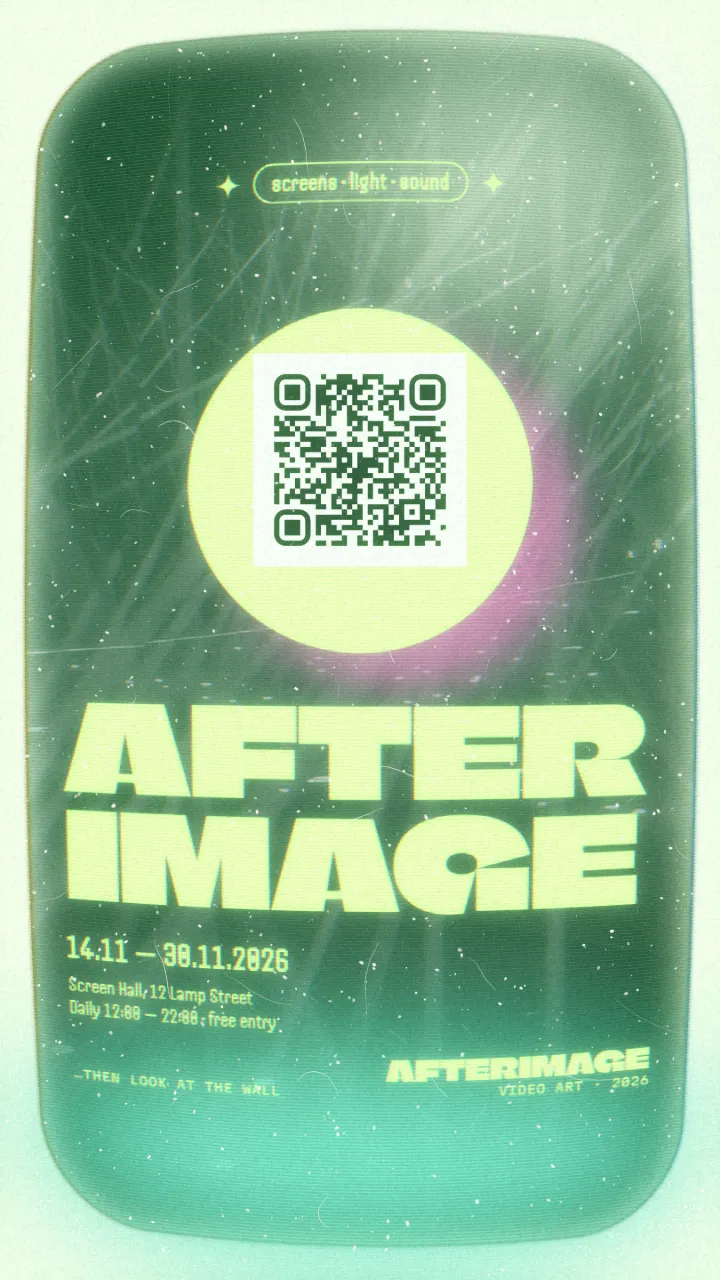
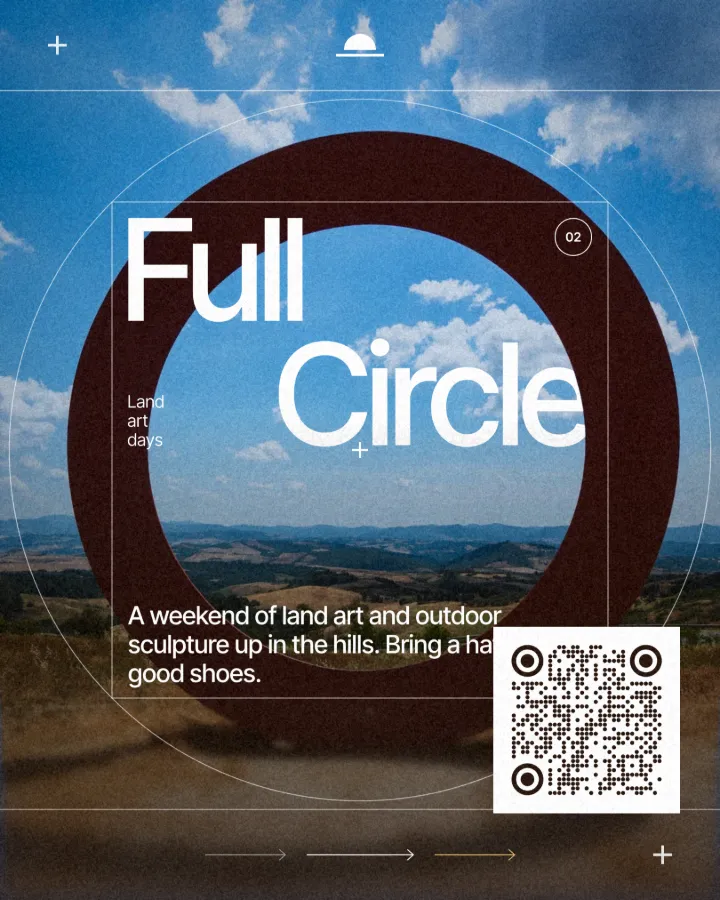
Every picture on this page was made in Paletoo — these three with the same steps on other templates:

Make it in Paletoo, free
Open a poster or a card in Paletoo — this guide uses «Day one» from the Pixel glow series, its words rewritten to «Free Wi-Fi» — and press ⌘ K, then run QR code. In Elements › Codes there is also a ready Wi-Fi code to start from.
In the QR code section of the Design tab set Type to Wi-Fi. Type the Network name exactly as your router shows it — capitals and spaces matter — and the Password.
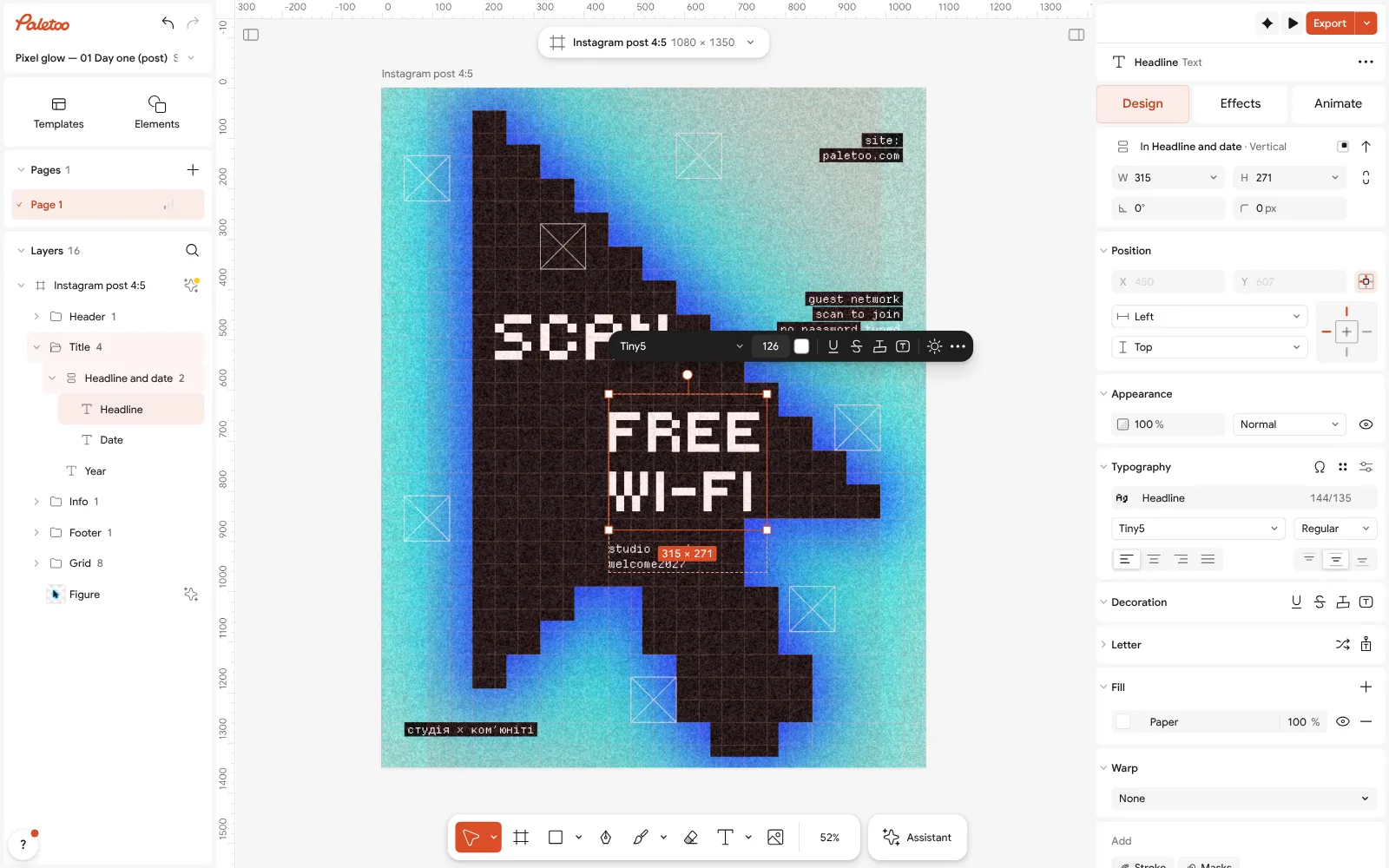
«Day one» from the Pixel glow series, rewritten as a free Wi-Fi card, open in Paletoo with its headline selected Leave Security on WPA, which covers WPA2 and WPA3 too; choose WEP only for a very old router, or None for an open network. Tick Hidden network only if the network does not broadcast its name.
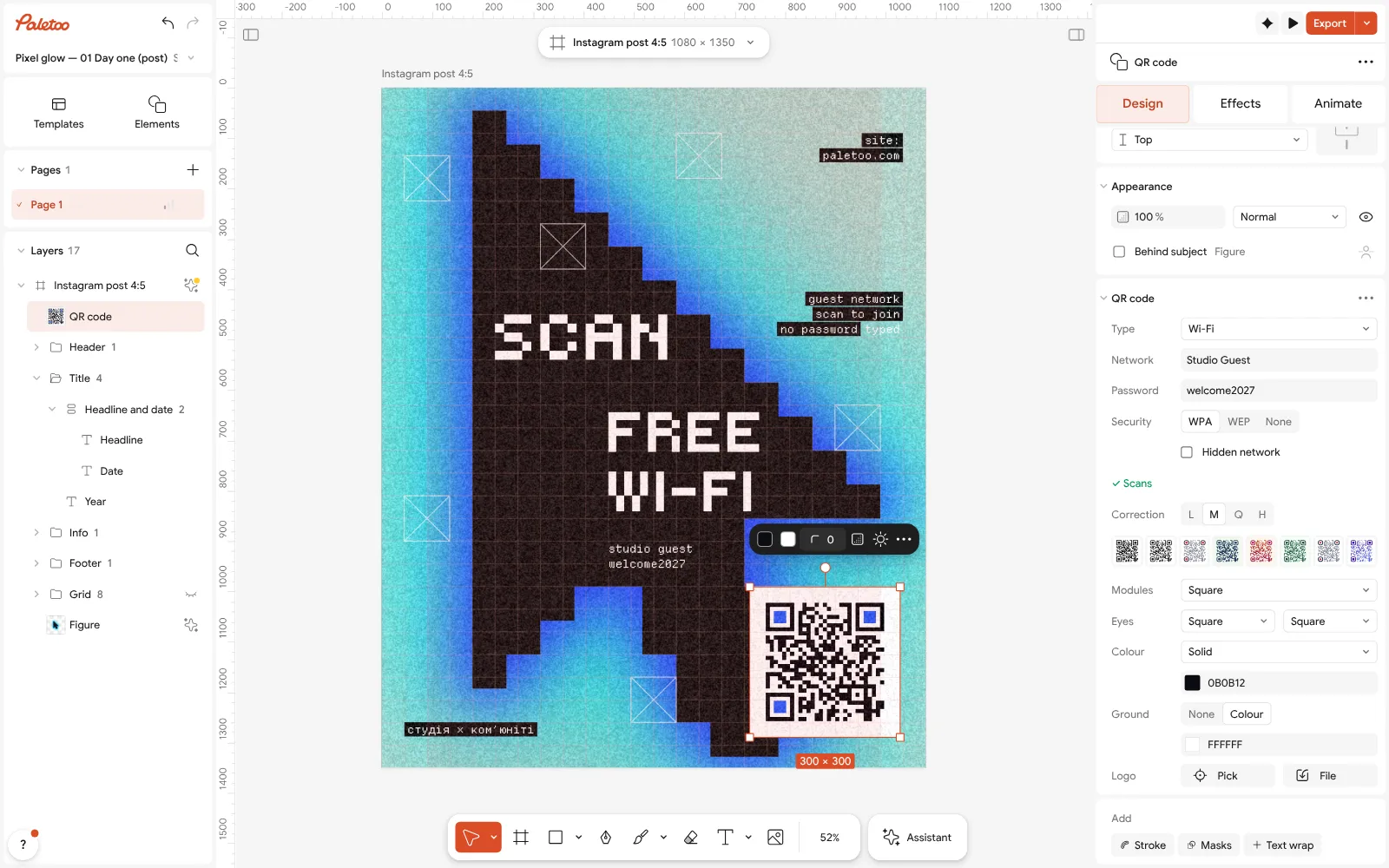
The Wi-Fi code in the corner selected, its QR code section open with the network and the scan check Check the scan line: ✓ Scans means the code reads back with exactly the details you typed. Paletoo writes the special characters in a password correctly, so you do not have to.
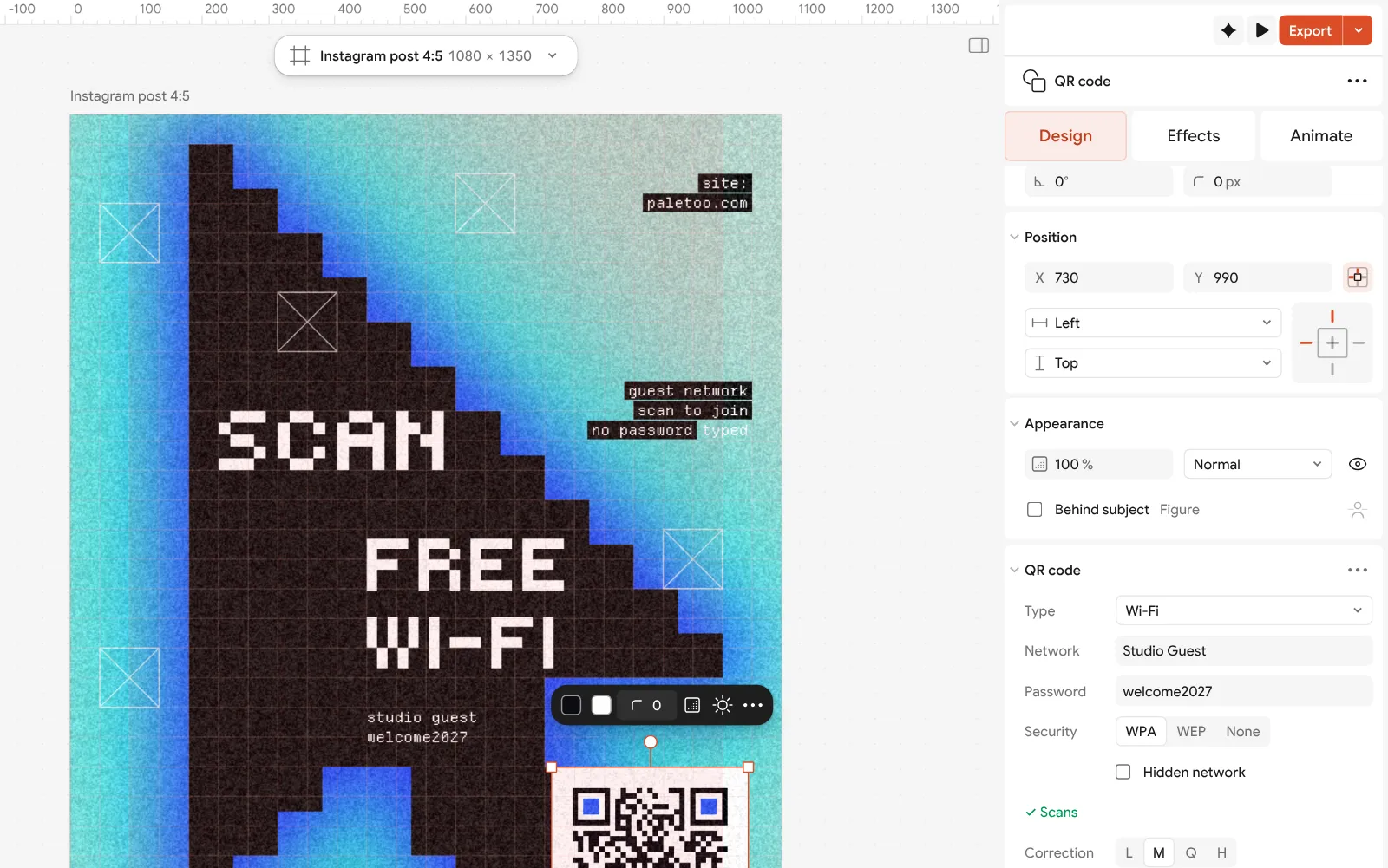
Close up: the Wi-Fi fields — Network, Password, Security and Hidden network Style it to the card: a look from Style, or Modules, Colour and a light Ground so it reads on a dark or busy design. Place it at about 3 cm across with the network’s name beside it.
Press Export and save a PDF for print — with Include bleed and Crop marks if it goes to a printer — or a PNG for a screen or a digital welcome guide.
Make it your own
Type the details exactly. Network is case-sensitive and must match the name your router broadcasts; a wrong letter gives a code that scans perfectly and joins nothing. Test by joining with your own phone before printing a batch.
Keep it legible on dark designs. A light code on a dark ground is the most common reason a Wi-Fi card fails on some phones; give the code a light Ground instead, as the cards above do, and keep Correction at M unless you add a logo.
Plan for the password changing. If you rotate it, keep the card’s design and replace only the code’s Password, then export again — the card, its type and colours stay as they are.
Templates with this look


Questions
How do I make a QR code for my Wi-Fi?
Choose the Wi-Fi type in a QR generator, enter the network name, the password and the security type (usually WPA), and print the code. In Paletoo it is free and the code is checked as you type.
Do Wi-Fi QR codes work on iPhone?
Yes. The iPhone camera has read Wi-Fi codes since iOS 11 and shows a prompt to join; recent Android phones do the same through the camera or Google Lens.
Is it safe to put my Wi-Fi password in a QR code?
It is as safe as writing it on the card, since anyone who scans it can join. Use a separate guest network so visitors cannot reach your own devices.
Does a Wi-Fi QR code expire?
No. It holds the network details itself and works until you change the network name or password. Then make a new code with the new details.
Can one QR code hold both the Wi-Fi and the menu?
No, a code holds one thing. Put two codes on the card, each with a word or two above it — “Wi-Fi” and “Menu” — so guests know which is which.
Make it online
- QR code generatorMake a QR code in your own colours and shapes, with a logo in the middle, and see that it scans before you print.
- Poster makerMake a poster from a template that already has the layout right, then export a print-ready PDF or an image for screens.
Free design templates: Contact and call-to-action templates · Poster templates
Try it on your own design
Paletoo opens in your browser, with no sign-up. Every effect here is live: change the picture or the words and the effect follows.
Open in PaletooRead next
- 01
 How to make a QR code for a restaurant menu, freeA menu code that never expires, a table card people actually scan, and a menu you can change without reprinting.
- 02
 vCard QR code: put your contact on a business card, freeOne scan saves your name, number, email and site to their contacts — no typing, no app, nothing that expires.
- 03
 How to make a custom QR code with a logo, freeYour logo in the middle, your colours and shapes, a code that still scans — and nothing to pay, now or later.