Free tools6 min readFreeUpdated 2026-11-12
How to edit an SVG online for free — on a computer or a phone
Open the file, recolour it, retype it, move the parts — and save it back as an SVG, with nothing to install.
By the Paletoo team · steps tested in Paletoo on

To edit an SVG online for free, open the file in Paletoo — File or PDF on the Home screen (Ctrl O), or drop it on the canvas — and it becomes ordinary layers: shapes you can recolour and reshape, and words you can retype. Change what you need, then press Export and save it as SVG again, or as PNG or PDF; it works the same in a phone’s browser, with no account.
This guide edits a real SVG: a round coffee-shop badge, written as SVG code with a ring, a leaf and two lines of text, read into the editor exactly as your file would be. It shows how to change its colours all at once, retype its words, edit a shape’s points, and what to choose at export so the file opens the same everywhere. Every step was run in Paletoo on 11 November 2026, on a laptop and on a phone; the pictures are the editor itself.
What is inside an SVG file
SVG (Scalable Vector Graphics) is a W3C format that describes a picture as drawing instructions — «a circle here, this path, filled with this colour, these words in this font» — instead of a grid of pixels. That is why it stays sharp at any size and why a logo, an icon, a cutting file for Cricut or a chart is so often an SVG. It is also plain text: open one in a code editor and you see tags like
Editing an SVG means changing those instructions. A code editor lets you change a colour by hand if you can read the tags; a vector editor reads them into layers so you can click a shape and pick a colour. Paletoo reads paths, rectangles, circles, lines and polygons, fills and strokes with their dashes, linear and radial gradients, clip paths, groups, embedded pictures and text — which stays live text where the font is one the editor has. A few filter effects beyond shadows and blur are not carried, and the editor tells you which.
Free SVG editors compared
The honest short list, as of November 2026. Inkscape is the best free desktop editor, but there is nothing to run on a phone. Canva opens SVG files for placing, but saving an SVG is on its paid plans. A code editor is free and exact, if you can read the tags. Paletoo runs in any browser, a phone’s included, and saves SVG for free.
| Tool | On a phone | Account to start | Saves SVG free |
|---|---|---|---|
| Paletoo | Yes, in the browser | No | Yes, plus PNG and PDF |
| Inkscape | No (Windows, macOS, Linux) | No | Yes (its own format) |
| Canva Free | Yes, app or browser | Yes | No — SVG download is a paid-plan file type |
| A code editor | Possible, by hand | No | Yes, if you know the tags |
Editing an SVG on a phone
Neither iPhone nor Android has an SVG editor built in: the Files app and the browser show an SVG but cannot change it. In Paletoo on a phone, open the editor in Safari or Chrome, tap File or PDF on the Home screen and pick the SVG from Files, Downloads or iCloud Drive. Tap a shape to select it, and the Design panel slides up from the bottom with its colour and size. When you export, the phone offers to share or save the file; choose Save to Files to keep it as an SVG. Large files with thousands of paths are slower on a phone than on a laptop, but logos, icons and cutting files open in a second or two.
Made in Paletoo
Every picture on this page was made in Paletoo — these three with the same steps on other templates:
Make it free in Paletoo
Open your SVG: on the Home screen press File or PDF (Ctrl O) and pick the .svg, or drop it on the canvas; on a phone, pick it from Files. To follow along on our badge, press “Open in Paletoo” on this page. The Layers panel lists the parts by the names the file gave them — here Ring, Disc, Leaf, Leaf vein and the two lines of text, on an artboard named after the file’s frame.
Click a word and type: the SVG’s text is live text. Its font, size and spacing are under Typography in the Design tab. If the file names a font the editor does not have, pick a close one there.
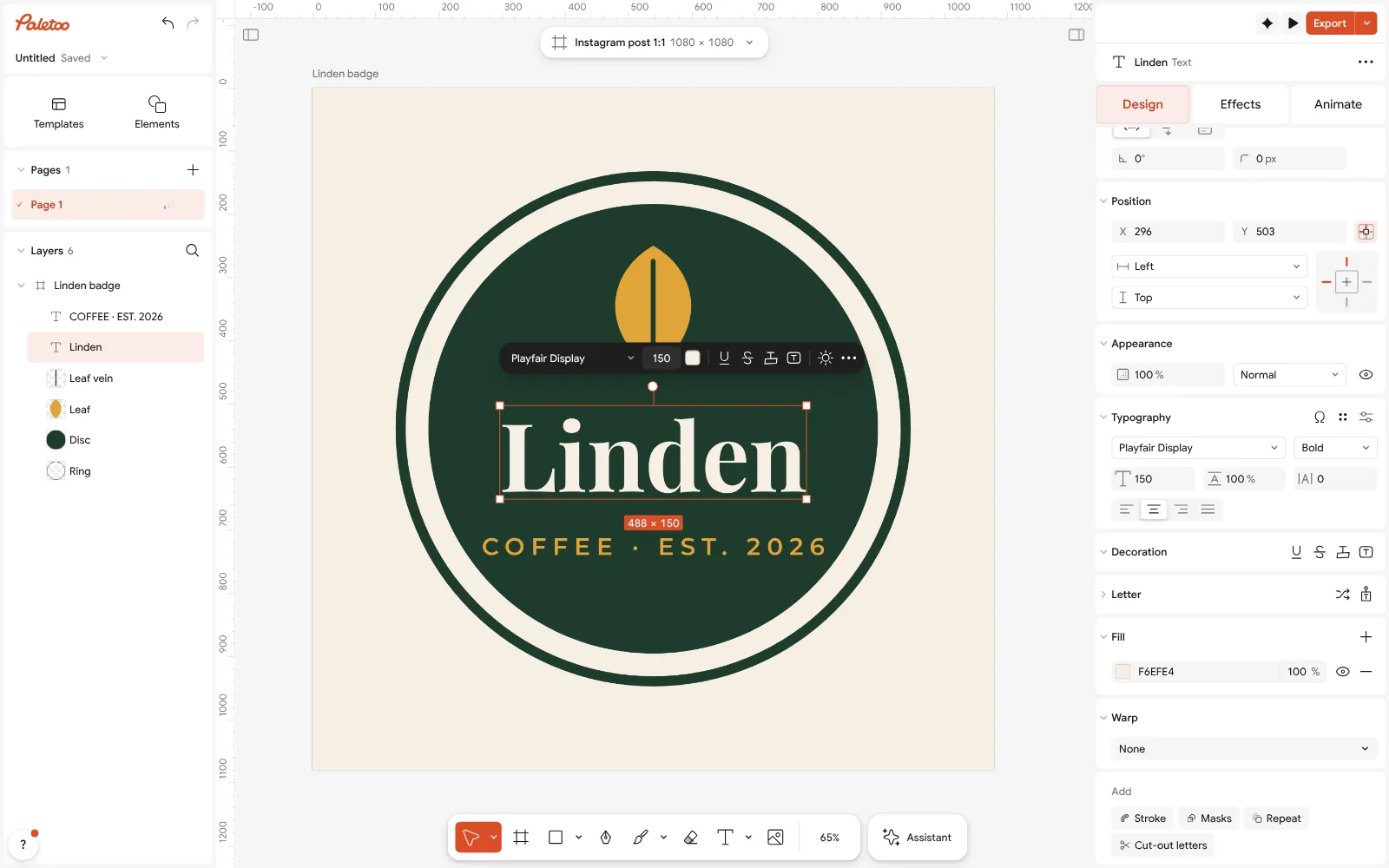
An SVG badge read into Paletoo: its name is live text, selected, with its font under Typography To recolour the whole drawing at once, select everything (Ctrl A) and look at Selection colours in Design: every colour in the file is listed once. Change one and every shape that uses it changes with it.
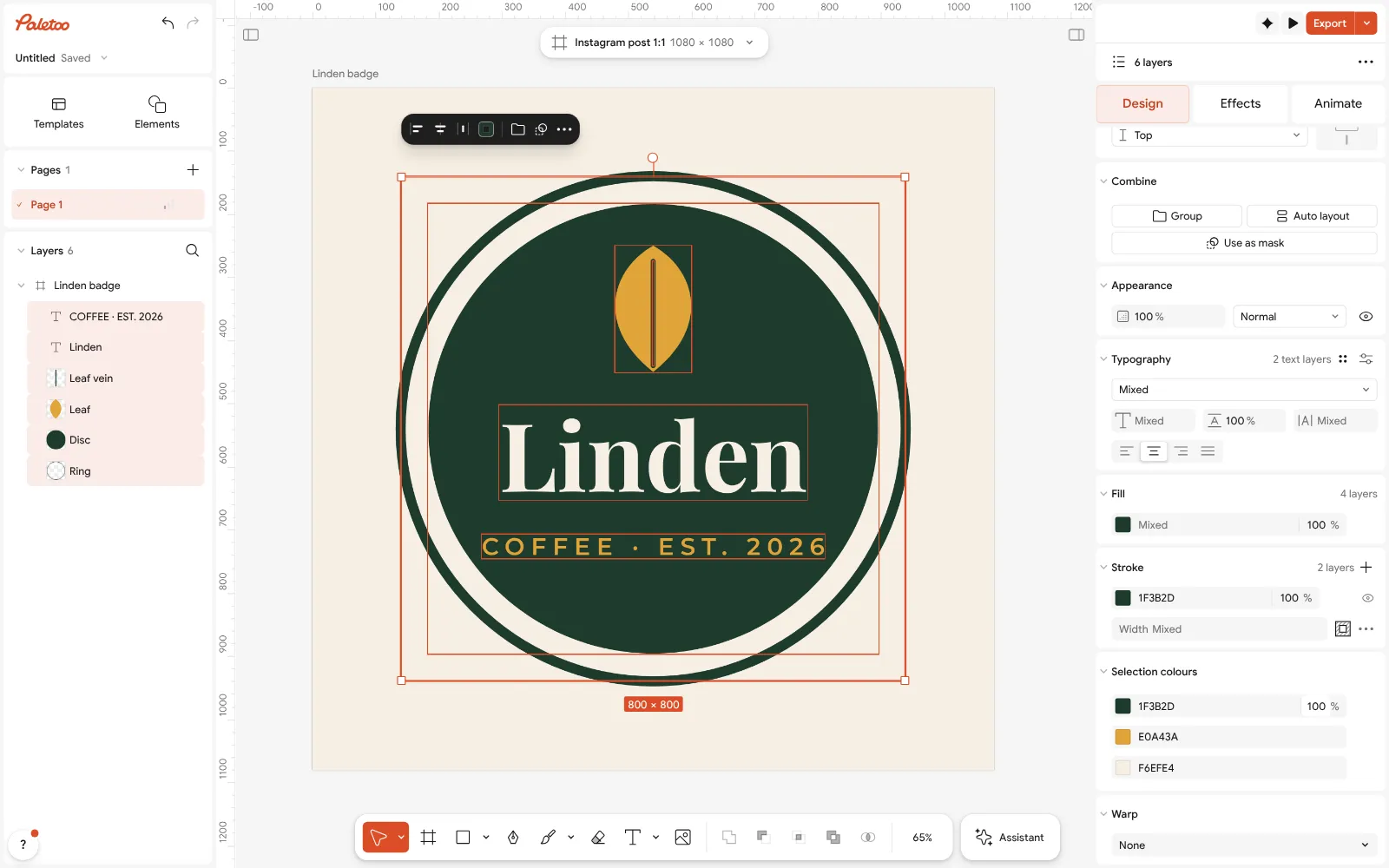
Everything selected: the file’s colours listed once under Selection colours, ready to change To change a shape, select it and press Edit path (or double-click it): drag its points and handles, or add a Stroke and set its width. Shapes can be moved, scaled, duplicated and deleted like any layer.
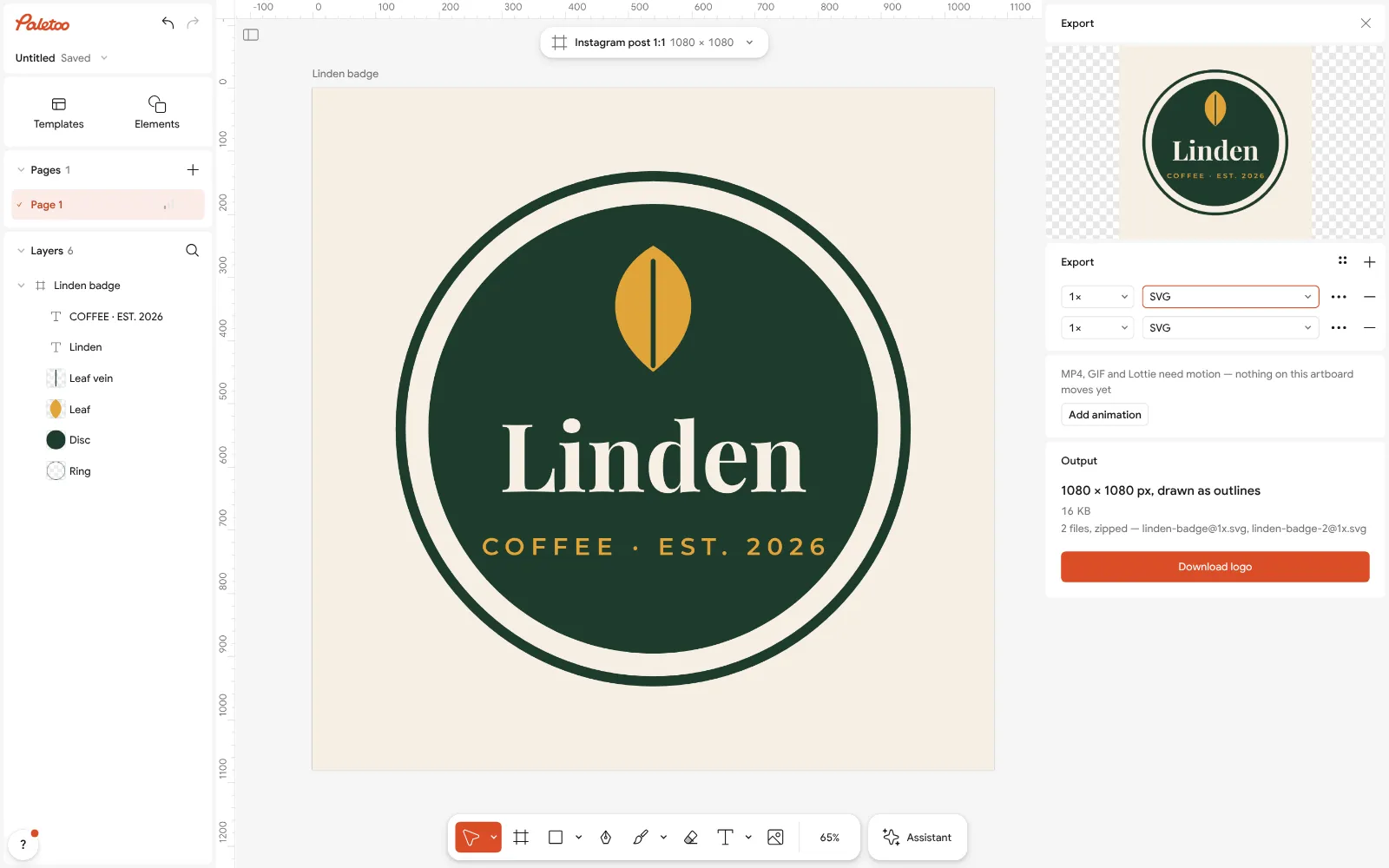
Export as SVG: the format chosen in the Export window, the file’s size and settings beside it Press Export (Ctrl Shift E) and choose SVG. In Export settings, Outline text turns the words into shapes, so the file looks the same on a computer without the font — use it for printers, cutting machines and logo files; leave it off when someone will edit the words later.
Need a picture as well? From the same window export PNG (with a transparent Background if it will sit on other things) or PDF for print. Copy as SVG puts the selection on the clipboard as SVG code for a website or another editor.
Make it your own
An SVG from Figma or Illustrator can also be pasted: copy it there as SVG and press Ctrl V in Paletoo. It arrives as layers, as a dropped file does.
If the SVG is really a photo wrapped in SVG (one
To make a cutting file for Cricut or Silhouette, keep each colour as one shape, use Outline text at export, and check the layers in Layers: one layer per colour cuts cleanly.
Sources
Questions
How can I edit an SVG file for free?
Open it in Paletoo (File or PDF on the Home screen, or drop it on the canvas). Shapes and text become layers you can recolour, retype and reshape; then export SVG, PNG or PDF. Free, no account, no watermark.
Can I edit an SVG on my iPhone or Android phone?
Yes, in the browser. Open Paletoo in Safari or Chrome, tap File or PDF and pick the SVG from Files. Tap a shape to change its colour or size, and export the SVG back to Files.
How do I change the colour of an SVG?
Select everything and use Selection colours in the Design panel: each colour in the file is listed once, and changing it recolours every shape that uses it. For one shape, select it and change its fill.
Can I change the text in an SVG?
Yes, if the text is still text in the file: it opens as live text. If the words were turned into outlines, they are shapes — retype them with a new text layer.
Why does my SVG look different in another program?
Usually because of fonts: live text needs the same font installed. Export with Outline text on and the words travel as shapes.
Can I turn a PNG or JPG into an SVG?
Yes — that is vectorising, not editing. Our PNG to SVG guide shows how to trace a picture into real paths for free.
Make it online
- Image to vector converterTurn a PNG or JPG logo, icon or drawing into a clean SVG in about 30 seconds — free, no sign-up, and your picture never leaves your browser.
- Logo makerType your brand name, pick a logo, try fonts, colours and layouts, then download SVG, PNG and app icons — free, no watermark, no sign-up.
Free design templates for posts, stories and posters: Brand guidelines templates
Try it on your own design
Paletoo opens in your browser, with no sign-up. Every effect here is live: change the picture or the words and the effect follows.
Open in PaletooOpens this design as your own copy — every layer and effect editable, free.
Read next
- 01
 PNG to SVG: why most converters make 2,000 points and how to get 20The same apple, traced two ways: 2,840 anchor points, or 14 and a few soft shapes.
- 02
 How to turn a logo into a vector — free, no IllustratorFrom a blurry PNG to a logo you can print on a van — in a minute, in the browser, for free.
- 03
 Free Illustrator alternatives: which one for which jobFive free vector tools, sorted by the work you actually do, with the catch of each.