Techniques6 min readFreeUpdated 2026-11-06
PNG to SVG: why most converters make 2,000 points and how to get 20
The same apple, traced two ways: 2,840 anchor points, or 14 and a few soft shapes.

Most PNG to SVG converters trace the picture point by point, so a shaded drawing comes out as thousands of anchor points in flat bands. To get a light SVG instead, trace it the way an illustrator draws it: a few outlines, real gradients, soft shapes for light and shade. In Paletoo that is Vectorize in Smart mode — free, in the browser, nothing uploaded.
The picture at the top of this page is the whole argument. The same shaded apple, 1024 pixels, traced point by point: 2,840 anchor points, 203 shapes, a 98 KB SVG, and the shading broken into stripes. Traced with Smart: 14 anchor points on the outline, 10 soft shapes, a 9 KB SVG, and the apple still looks like an apple. Here is why, and how to get the second result from your own pictures.
Why converters make 2,000 points
A PNG has no shapes in it, only pixels. A classic tracer — Potrace and the many converters built on the same idea — first reduces the picture to a handful of flat colours, then walks the edge of every patch of each colour and fits curves to it. That is exactly right for a logo with three inks. On a picture with a gradient, it is a disaster: a smooth fade from red to dark red becomes eight or sixteen bands, every band has two long wavy edges, and every edge needs dozens of anchor points to follow the pixels.
Add a highlight, a soft shadow, a little noise or a JPEG’s artefacts, and each becomes more patches and more edges. That is how a simple apple becomes 2,840 points and a perfume bottle photo almost 10,000. The SVG is heavy, it looks posterised, and nobody can edit it: there is no “apple” in the file, only stripes.
How to get 20: trace the parts, not the pixels
An illustrator drawing the same apple would make four things: the body, the leaf, the stem and the shadow. Each is one closed outline of a few Bézier anchors, filled with one gradient, and the light and shade on top are a few blurred shapes. Smart does the same. It finds the parts, fits each outline with as few anchors as hold its shape, measures the gradient inside it, and adds soft shapes where the picture has highlights and shade, clipped to their part.
The window shows what it is doing — “Analyzing shape…”, then “Marking anchor points…” — and ends with the honest count: on our test apple, 192 → 13 anchor points, three parts, two gradients, twelve soft shapes. The result is a group of named parts you can recolour, reshape and animate.
Which pictures get which mode
When the window opens, it reads a small copy of your picture and picks the mode it wants, marking it with a small spark. Flat art, logos, lettering and line art open on Classic with the Clean look, which draws circles, rectangles and crisp corners. Soft shading, gloss, 3D renders, emoji and a product on a plain background open on Smart. A photograph textured all over opens on Classic’s Poster / photo look.
You can always switch. Smart has five looks — Illustration, Object, Icon, Logo and Lettering — and Classic has six. Show outlines draws Classic’s preview as paths with their anchor points, so you can see the cost before you commit.
Be honest about photos
No tracer turns a photograph into a small, faithful SVG. Our product photo of a perfume bottle traced point by point makes 9,726 anchor points; with Smart, 728 and 13 soft shapes — far lighter, and it reads as a clean illustration of the bottle, not as the photo. On a busy photo the window warns you outright: about 8,500 shapes, “Too many — lower Detail or Colours”.
So keep photos as photos (WebP, JPEG or PNG) and vectorize what is meant to be drawn: logos, icons, stickers, illustrations, lettering, sketches. If you do want a photo as a vector, make it a style — a halftone, a two-colour poster, a silhouette — and trace that.
Made in Paletoo
Every picture on this page was made in Paletoo — these three with the same steps on other templates:
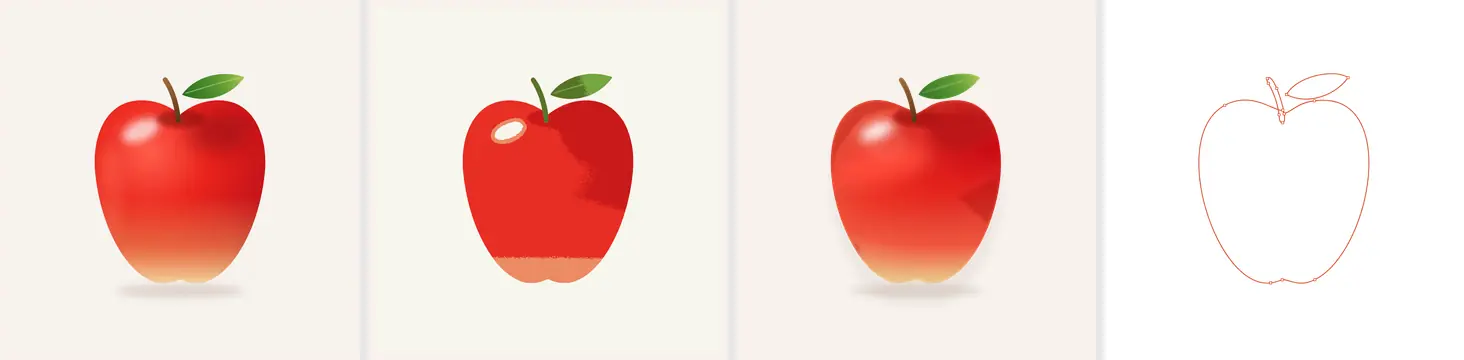
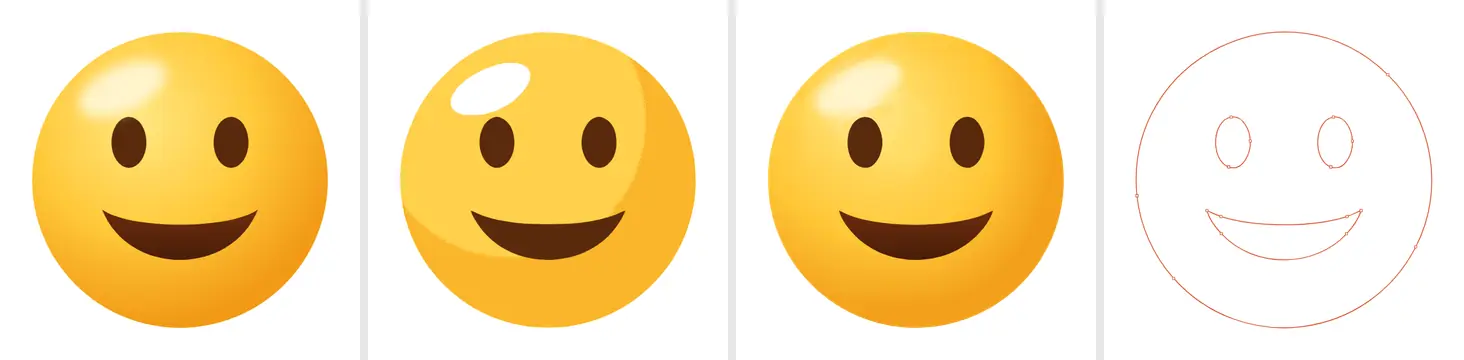
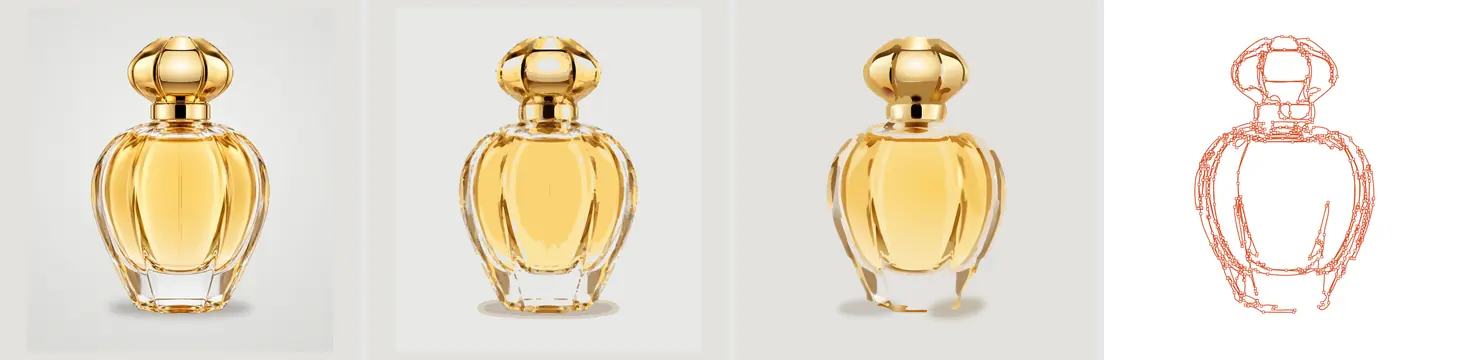
Step by step in Paletoo
Press “Open in Paletoo”: a square document opens with the shaded test apple in it — or press Open file… and pick your own PNG. Click the picture to select it.
On the Design tab, in the AI block, press Vectorize. For a shaded picture the window opens on Smart with Illustration marked by the spark; for flat art it opens on Classic with Clean.
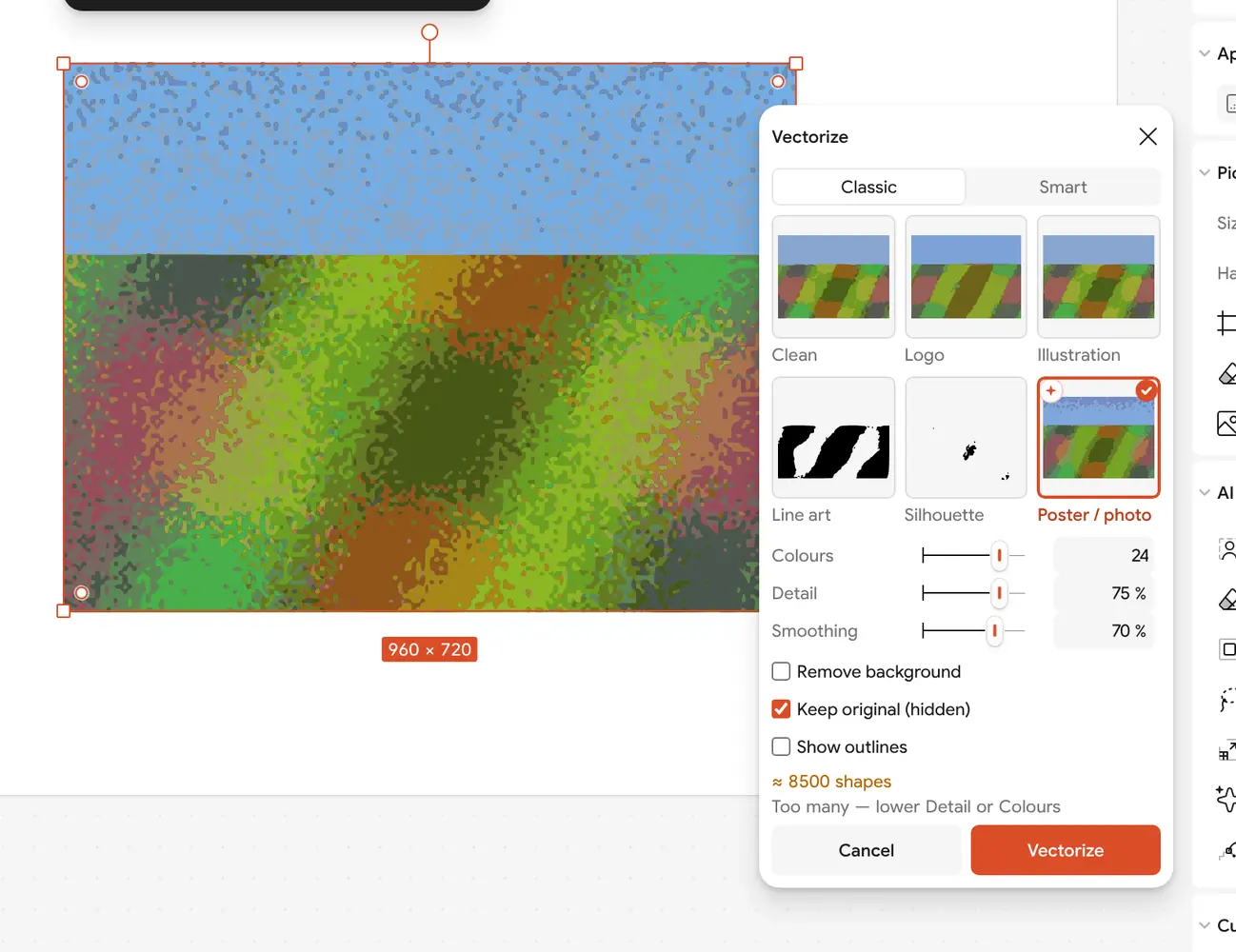
A busy photograph in the Vectorize window on Poster / photo: about 8,500 shapes and the warning “Too many — lower Detail or Colours” Watch the overlay on the canvas as Smart reads the picture, then read the line under the looks: how many anchor points the outlines take, crossed out against a point-by-point trace, with the parts, gradients and soft shapes.
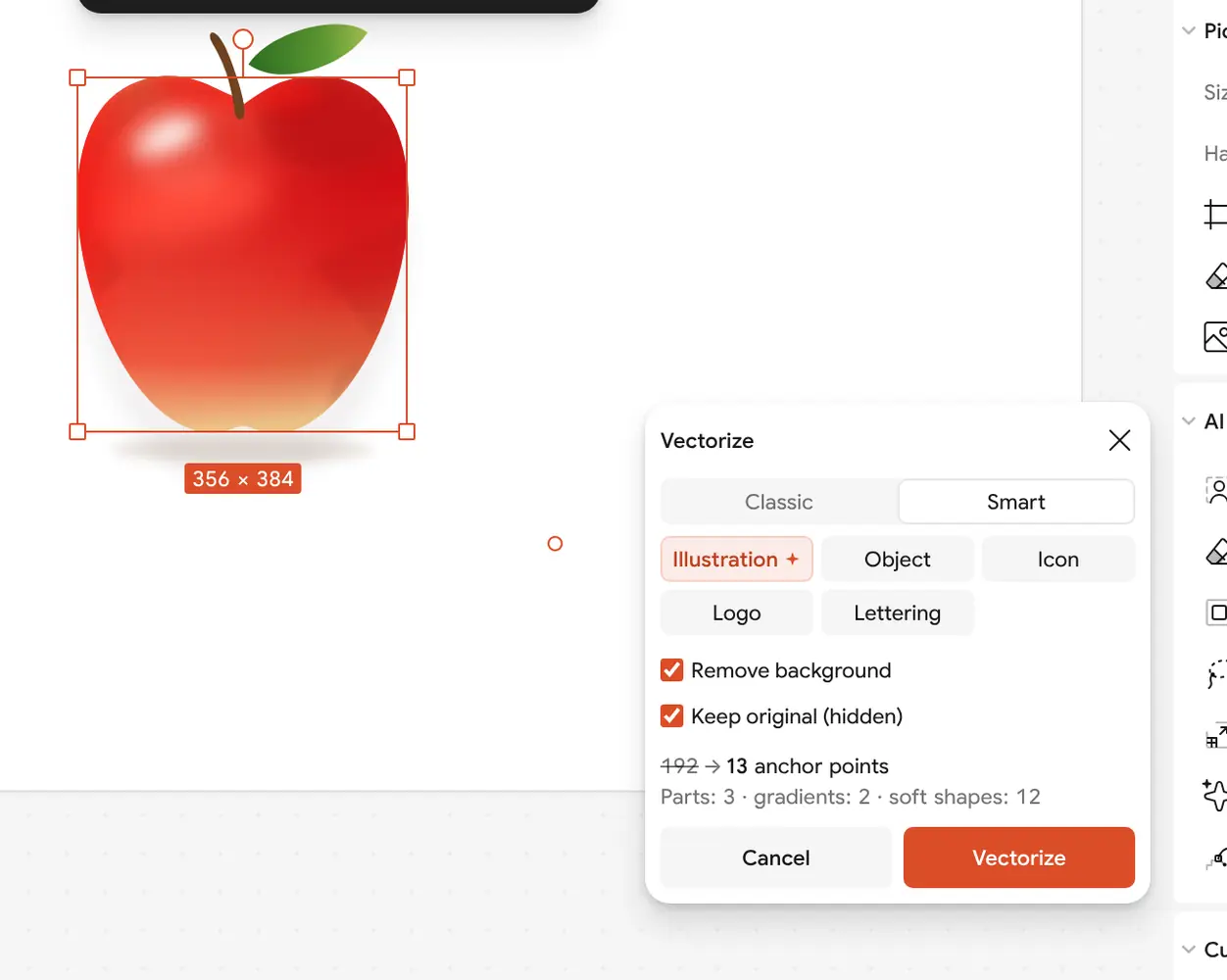
The shaded apple on Smart, Illustration suggested: 192 → 13 anchor points, three parts, two gradients, twelve soft shapes Keep Remove background on to leave the paper out, and Keep original (hidden) on to keep the PNG under the result. For a product shot try Object, for an app icon Icon.
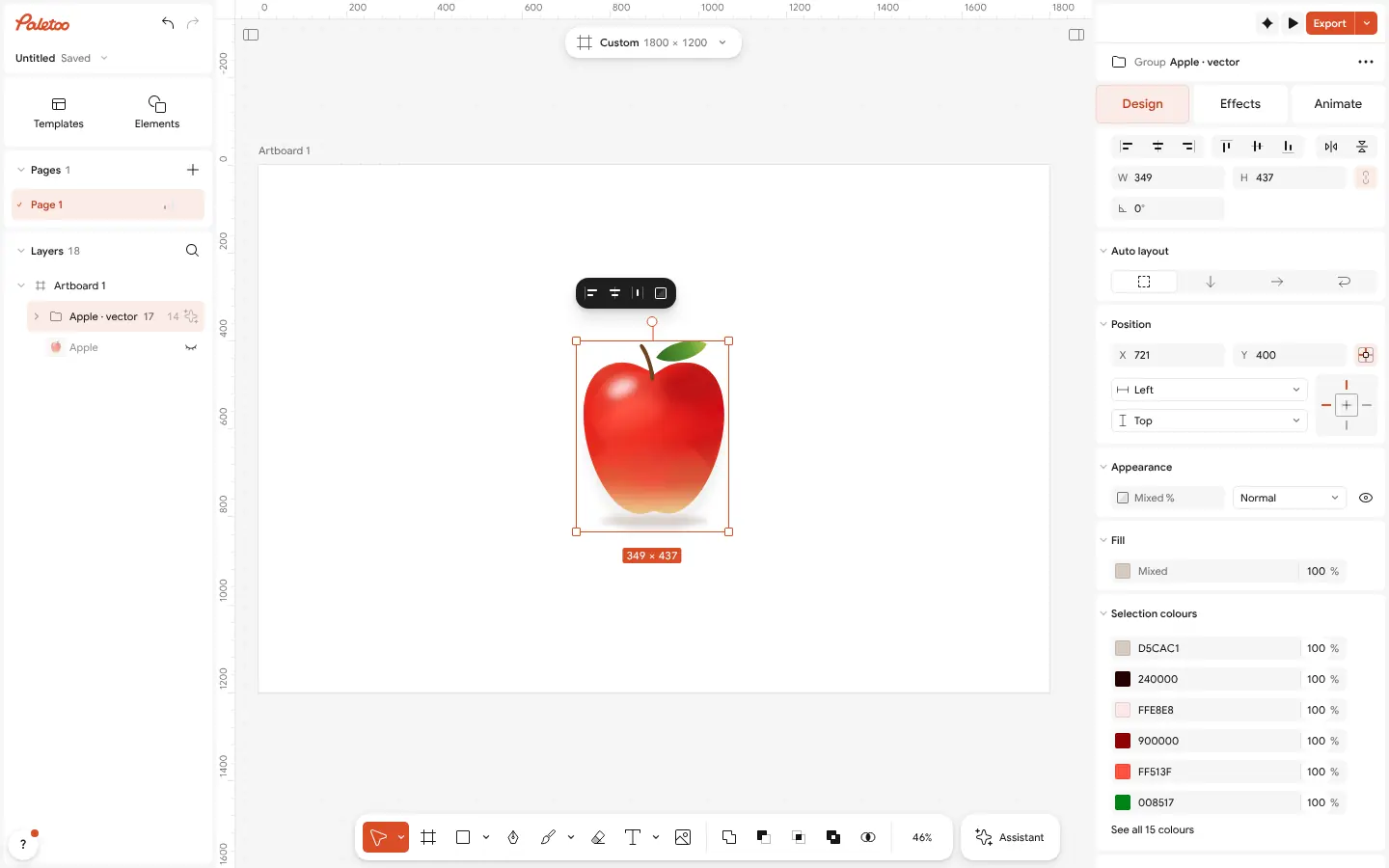
The result: the apple as a group of vector parts with its original hidden under it, and its colours listed in Selection colours Press Vectorize. The picture becomes a group of named parts; Selection colours lists every colour in it, so you can recolour the whole picture from one list.
Press Export and choose SVG. Gradients stay gradients, and a soft shape goes out as a blurred vector shape, so the file is still small and still sharp.
Make it your own
If Smart merges two parts you want separate, lower the picture’s size a little or crop it closer, and trace again; a clear gap between parts helps it find them.
If the result needs to be one flat colour per area — a sticker for a cutter, a print in spot inks — switch to Classic and choose Clean or Logo instead of Smart’s gradients.
Turn on Show outlines in Classic to compare the cost of each look before you press Vectorize.
Questions
How do I convert PNG to SVG for free?
Open the PNG in Paletoo, select it and press Vectorize. Use the mode the window suggests — Smart for shaded pictures, Clean for flat ones — press Vectorize, then export SVG. It is free and runs in your browser.
Why is my converted SVG so big?
It was traced point by point: every band of every gradient became its own shape with long edges. Tracing the picture as parts with real gradients, as Smart does, makes the same picture a fraction of the size.
Does the SVG keep gradients?
Yes. Smart fills each part with a real gradient, and its soft shapes are exported as blurred vector shapes, so the SVG keeps the shading without stripes.
Can I convert a photo to SVG?
You can, but a photo becomes an illustration of itself with hundreds of points, not a faithful copy. Keep photos as photos, and vectorize logos, icons, illustrations and lettering.
Is my picture uploaded?
No. Both Classic and Smart run in your browser, on your own device, in a background worker; nothing is sent to a server and nothing costs credits.
Make it online
- Image to vector converterTurn a PNG or JPG logo, icon or drawing into a clean SVG in about 30 seconds — free, no sign-up, and your picture never leaves your browser.
- Logo makerType your brand name, pick a logo, and it opens with your name set. Export SVG, PDF or PNG — free, no watermark, no sign-up.
Free design templates: Brand guidelines templates
Try it on your own design
Paletoo opens in your browser, with no sign-up. Every effect here is live: change the picture or the words and the effect follows.
Open in PaletooRead next
- 01
 How to turn a logo into a vector — free, no IllustratorFrom a blurry PNG to a logo you can print on a van — in a minute, in the browser, for free.
- 02
 Vectorize an image for free: raster to vector onlineTurn pixels into shapes you can scale, recolour and cut — and know when not to.
- 03
 Print-ready PDF: bleed, crop marks and CMYK, freeEverything a printer means by “print-ready”, and a checklist before you send the file.