How to make a knockout outline that cuts through
A stroke that cuts through the layers under the text.
What it is
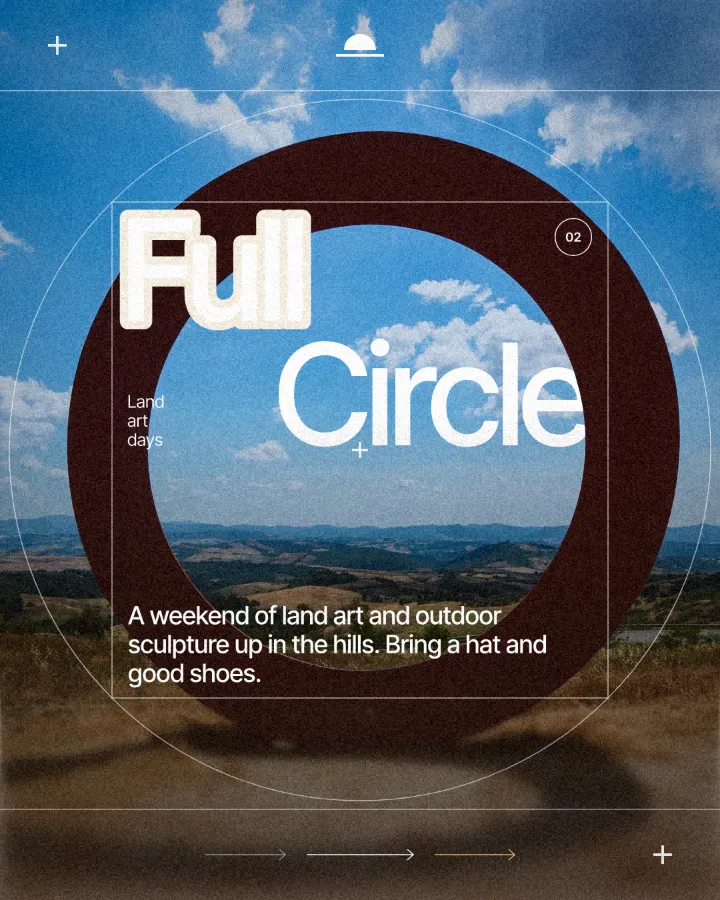
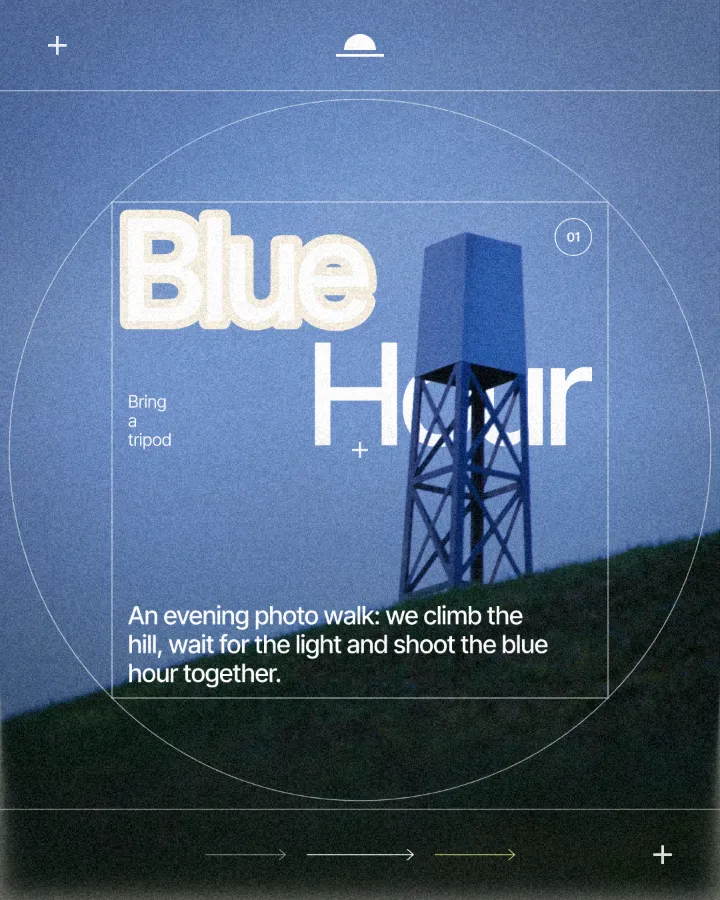
A knockout outline is a stroke that does not paint anything. Instead of a coloured line around the letters, it cuts a gap through everything underneath — the photo, the colour blocks, the pattern — so you see straight through to the background. The letters seem to be cut out of the page with a little air around them.
It solves an old problem: text on a busy photo. A normal outline adds another colour that has to work with the picture; a knockout adds space. The letters get separated from the image by the background colour itself, which always matches the layout, and the result looks like print or a die-cut sticker rather than a filter.
Where it is used
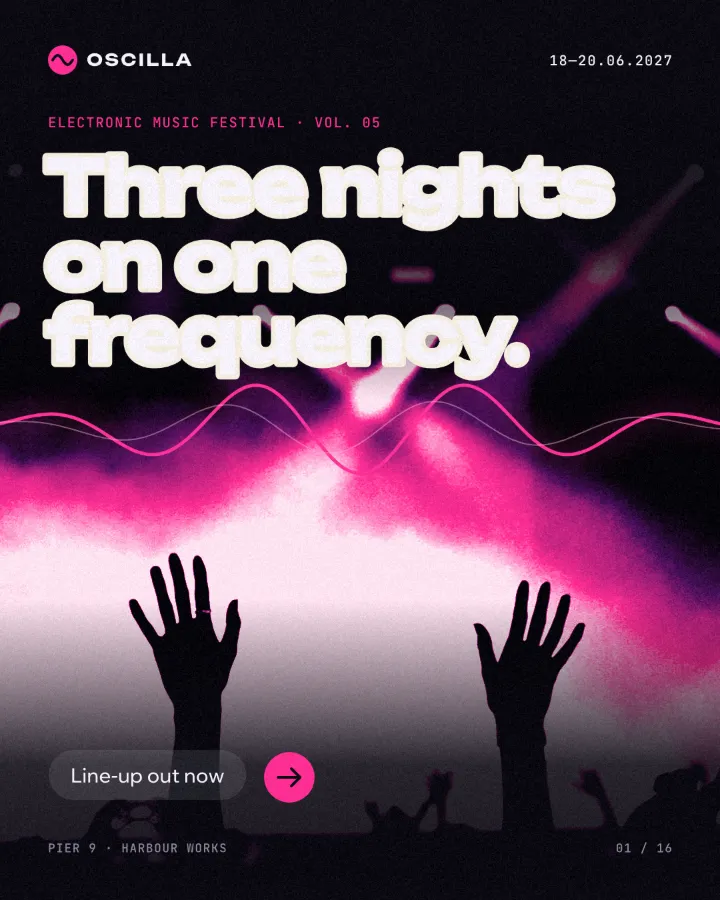
Knockout outlines are a staple of editorial covers, sports and event posters, sticker and badge designs, and bold social posts where a headline overlaps a cut-out figure. They also do the job of a drop shadow when type crosses several colours: one gap, one background colour, perfectly clean on every part of the picture.
Made in Paletoo with this mix:
How to make it, step by step
Open your design and select the text that crosses a photo or other layers. Bold display type gives the gap room to read.
In the Design tab, go to the Stroke section and press Add a stroke.
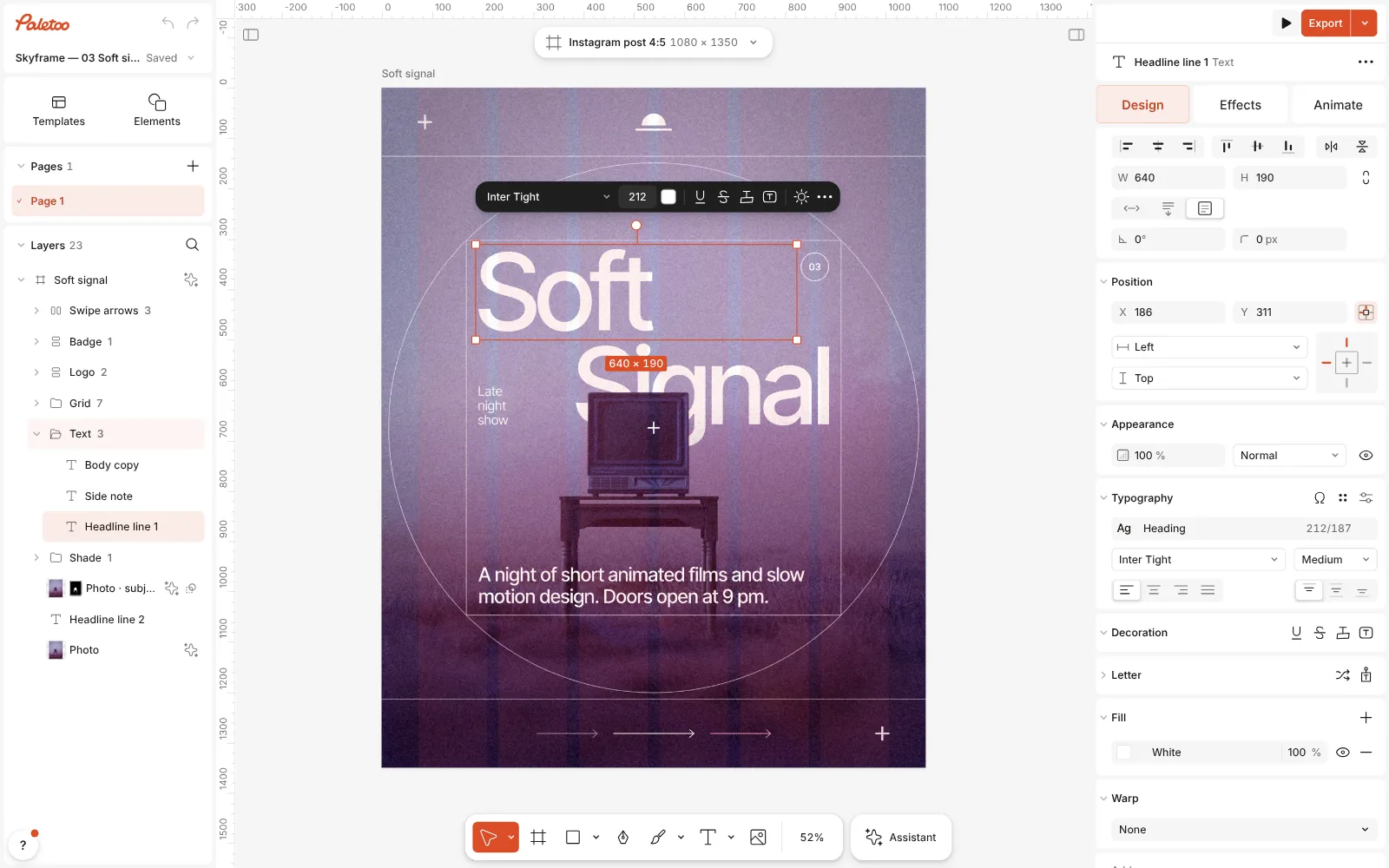
A late-night film post open in Paletoo, the word “Soft” selected with the Design tab open Press the knockout button in that stroke’s row (its tip reads Cut through the layers below). The stroke stops painting a colour: it now cuts a gap through every layer under the text, down to the background.
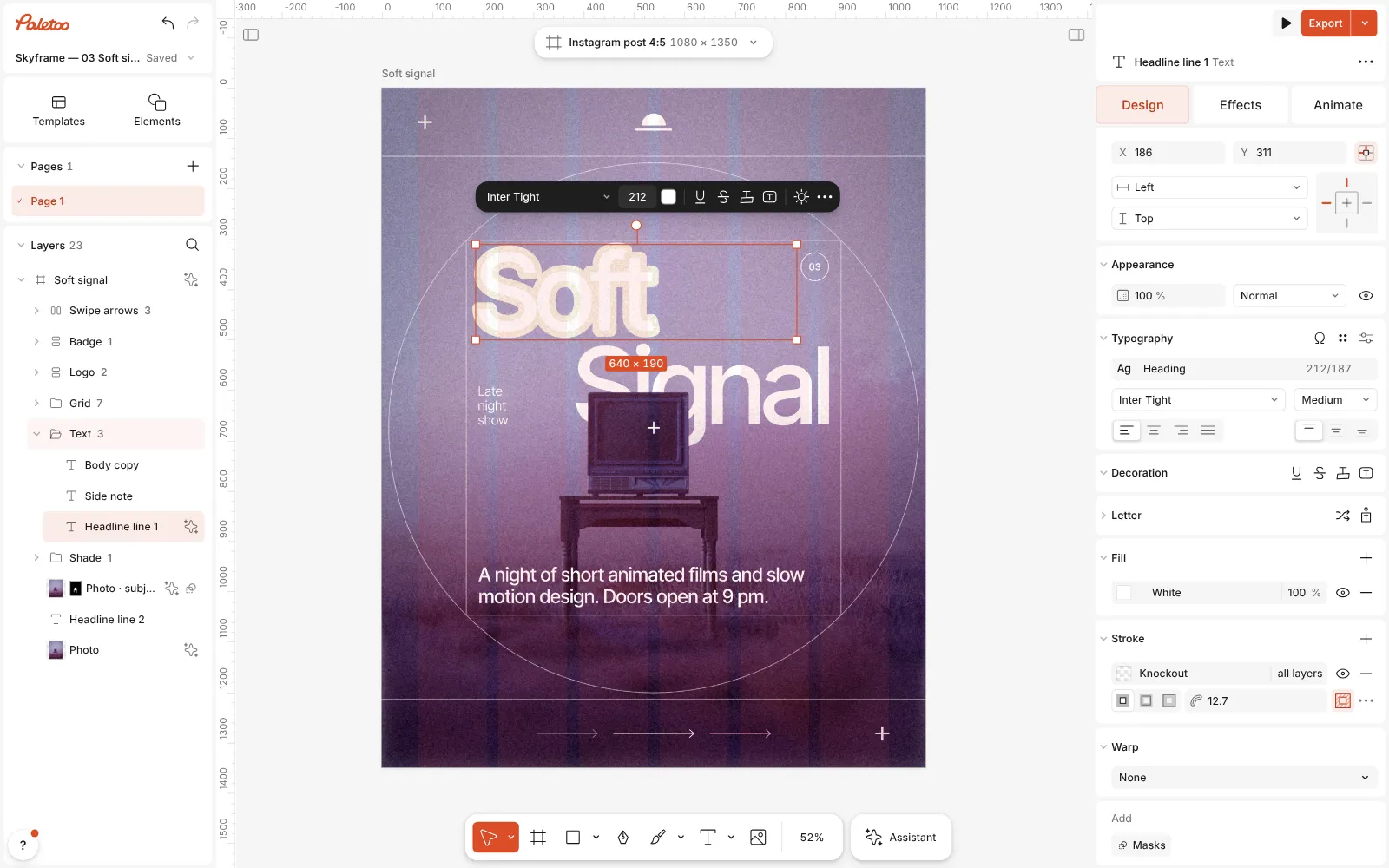
The knockout stroke on: the Stroke section shows Knockout, and a band around “Soft” is cut through the photo Set the gap with Width. To cut only the layers right under the text instead of all of them, choose how many layers it reaches in the same row — All layers is the default.
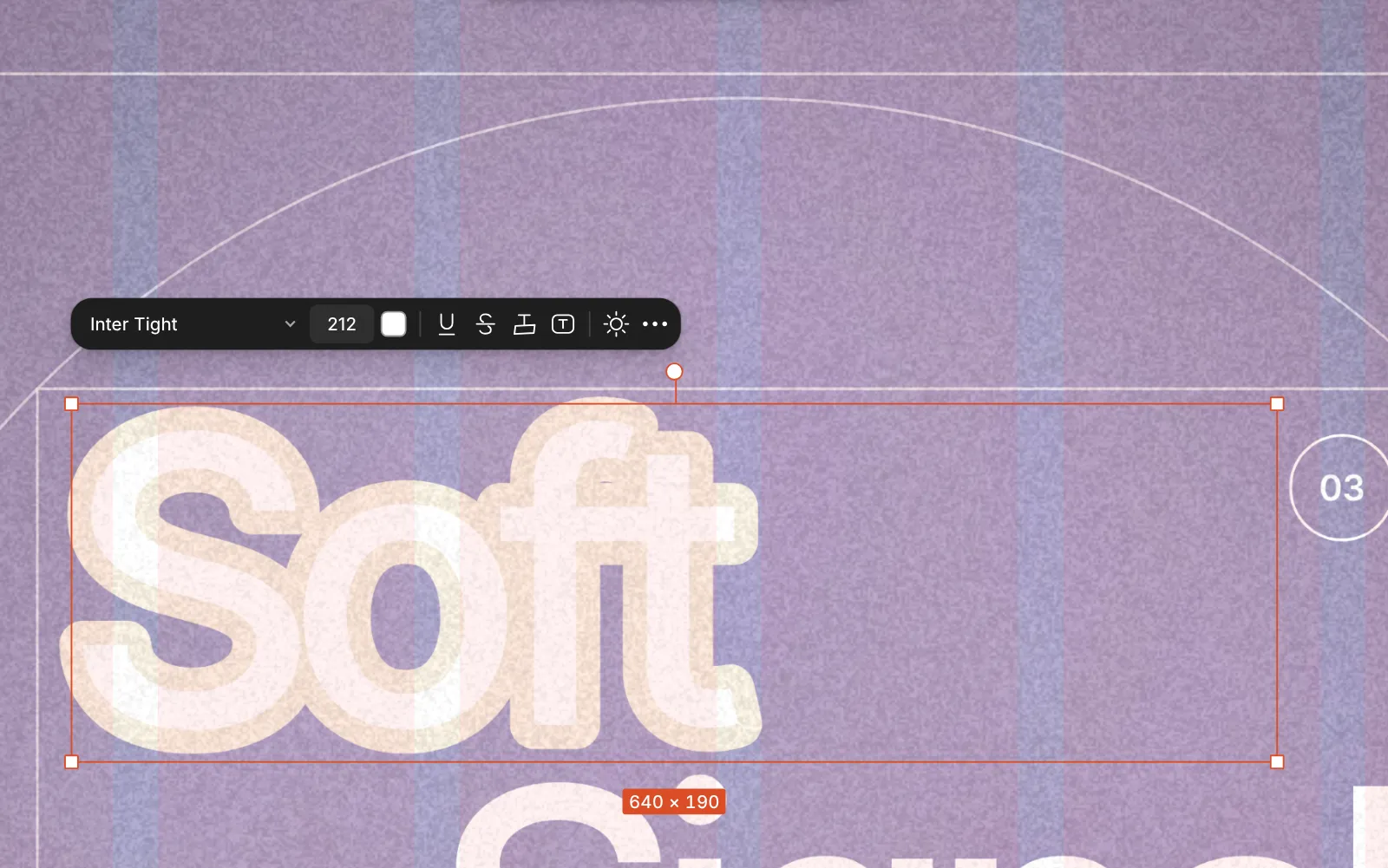
Close up: the band around the word, cut through the photo down to the paper background Change the words or the font at any time: the gap follows the letters exactly, and it stays live when the text is moved over a different part of the photo.
Press Export. In PNG and PDF the gap shows the background exactly as on the canvas.
Watch it
Make it your own
The background decides the colour of the gap. A dark background gives a dark band, a white one a white band; if you want the gap in another colour, change the artboard background or put a solid colour layer right under the photo and set the knockout to reach only the layers above it.
Keep the gap in proportion to the letters: around 3–5 % of the type size reads as a clean separation; much wider starts to look like a separate outline shape. Thin type needs a thinner gap, or the counters close up.
Combine it with a normal stroke for a sticker look: one knockout stroke for the gap and a second, coloured stroke outside it. Each stroke has its own row, so you can stack them in any order.
Questions
What is the difference between a knockout and a hollow outline?
A hollow outline makes the letters themselves see-through. A knockout cuts the band around them through the layers below; the letters keep their fill.
Can a shape have a knockout stroke too?
Yes. Rectangles, circles, paths and other shapes have the same knockout button in their Stroke section.
Does the knockout survive export?
Yes. PNG, JPEG, PDF and video exports all show the cut exactly as on the canvas. PowerPoint export cannot express a knockout and tells you so.
Why can I not see the cut?
If nothing is under the text, there is nothing to cut. Move the text over the photo or another layer, and check that the knockout reaches that layer.
More effects
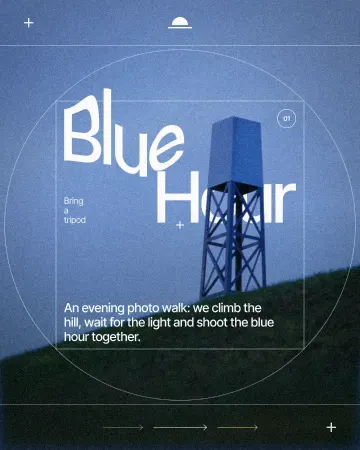
How to warp text on a mesh without rasterising it
Pull a grid over a headline; the words stay editable.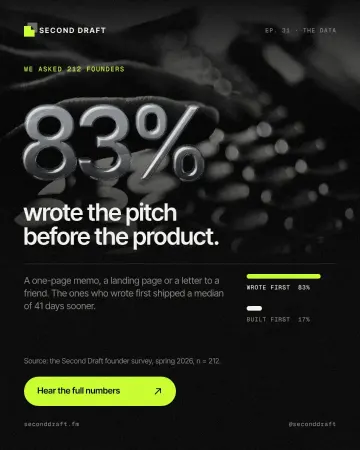
How to make an embossed metal effect
Live text pressed into the sheet and turned to chrome.
How to make a duotone effect
Two bold inks, punchy contrast and a fine poster grain.
Read the overview: graphic design trends 2026
Make it online: Instagram post maker · Text effects online · Logo maker · Carousel maker · Social media post templates · Brand guidelines templates · Instagram carousel templates
Try it on your own design
Paletoo opens in your browser, with no sign-up. Every effect here is live: change the picture or the words and the effect follows.
Open in Paletoo