Free tools5 min readFreeUpdated 2026-11-29
Photo to line art: turn a picture into lines, free online
A picture redrawn in lines — thick in the shadows, thin in the light — or traced into clean black ink you can print, cut or colour in.
By the Paletoo team · steps tested in Paletoo on
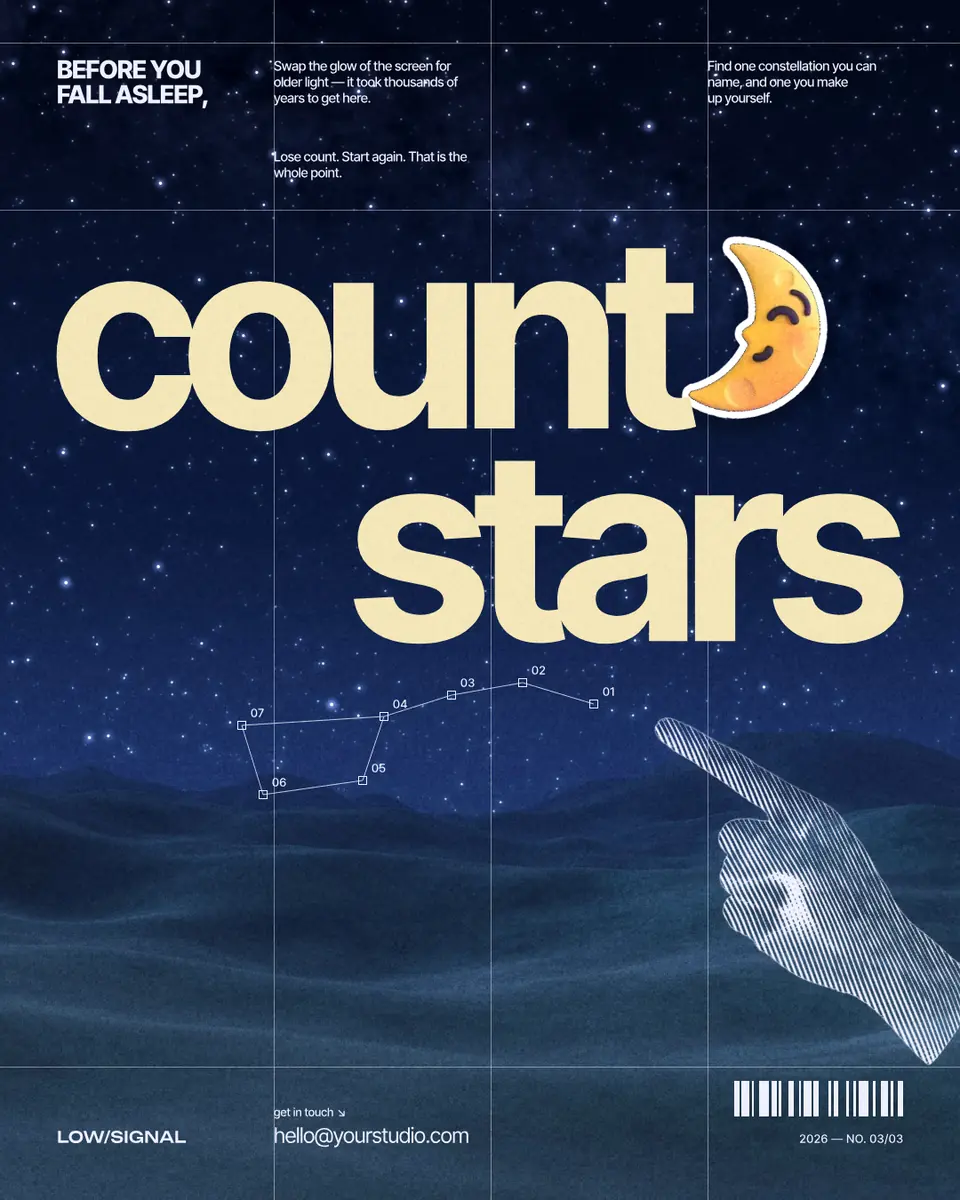
To turn a photo into line art for free, you either redraw its tones as lines — an engraving, where darker areas get thicker or denser strokes — or trace it into black vector shapes and export them as SVG. Paletoo does both in the browser: the Engrave effect turns any photo into live line work with its Etching, Woodcut, Banknote and Coin presets, and Vectorize with its Line art look traces a picture into black lines you can print, cut or colour in.
One honest note first: Paletoo has no edge-detection «sketch» filter that draws only the outlines of a face, as some AI converters do; this guide shows what its two tools give and when each one is right. Then it opens «Count stars», a night post where a hand is drawn in pale engraved lines, pointing at a constellation. Every step was run in Paletoo on 11 November 2026; the pictures are the editor itself.
Three kinds of line art from a photo
People mean three different things by «photo to line art». Outlines are a contour drawing: only the edges, thin even lines, white inside — the colouring-book look. Engraving is tone made of lines: parallel strokes that get thicker or cross each other in the shadows, as on banknotes, coins and old book illustrations. Traced ink is the dark areas of the photo turned into solid black vector shapes, which is what stamps, stencils, vinyl cutters and laser engravers need.
Paletoo has the second and the third. Engrave redraws the layer as a line engraving, live, on top of the original photo, so you can change the photo, the spacing or the ink at any time. Vectorize with the Line art look traces the picture into real vector paths you can export as SVG or PDF and edit point by point. For the first, pure outlines, there is no one-click filter: trace them with the Pen, or vectorize a high-contrast photo and keep only the lines you need.
| Kind | What you get | In Paletoo |
|---|---|---|
| Outlines | Only the edges, thin even lines, white inside | No one-click filter: the Pen, or Vectorize on a high-contrast photo |
| Engraving | Parallel lines, thicker or crossed in the shadows | Engrave: Etching, Woodcut, Banknote, Coin |
| Traced ink | Solid black shapes of the dark areas, as vectors | Vectorize › Line art, then SVG |
| Contour map | Lines of equal brightness, like a topographic map | Contours: Topo map |
Which photos convert well
Line art loves a clear subject, strong light from one side and a plain background: a hand, a face in profile, a building, a plant, a pet. Light from one side gives the shadows that the lines are made from; flat, frontal light gives flat, empty line art. Remove a busy background first, and crop tight, because every small detail turns into a scribble.
For an engraving, start with Line spacing of 3–5 px on a 1080 px post — wider for a bold woodcut, narrower for a fine etching — and an Angle of 30–45°. Crosshatch adds a second set of lines in the darkest areas, Contrast decides how much of the picture turns into ink, and Follow shape bends the lines around the form, as on a coin. For a trace, choose Line art, then lower Detail and raise Smoothing until the lines look drawn rather than noisy.
Line art in Photoshop, and the free way
The classic Photoshop «pencil sketch» is a recipe: desaturate the photo, duplicate it, invert the copy, set it to Color Dodge and blur it until lines appear; for harder outlines, Filter › Stylize › Find Edges followed by Threshold. Both are flattened pixels. In Paletoo the engraving stays a live step on the photo, and the trace is a set of real vector shapes made on your own device, with nothing uploaded — which also makes it a free photo-to-SVG converter.
Made in Paletoo
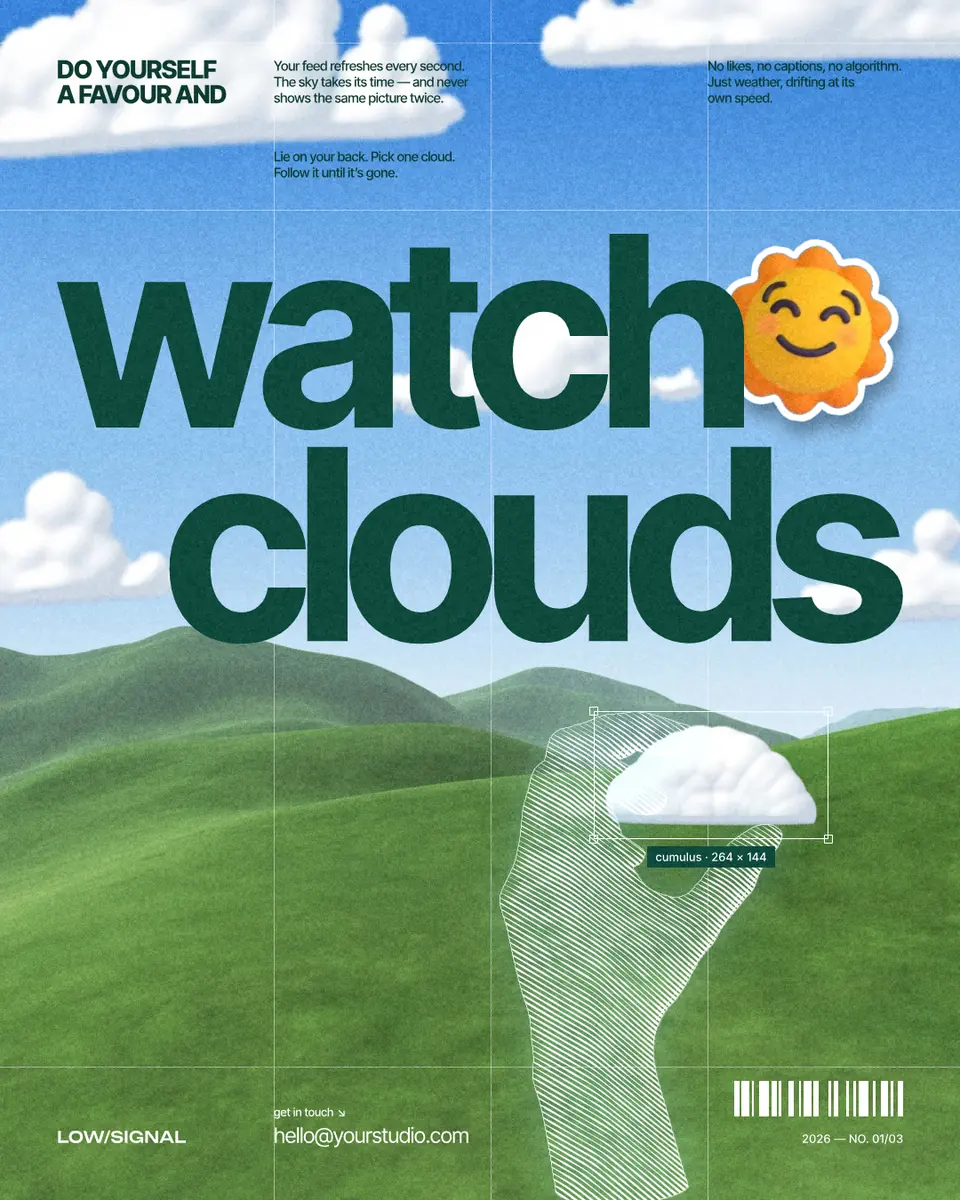
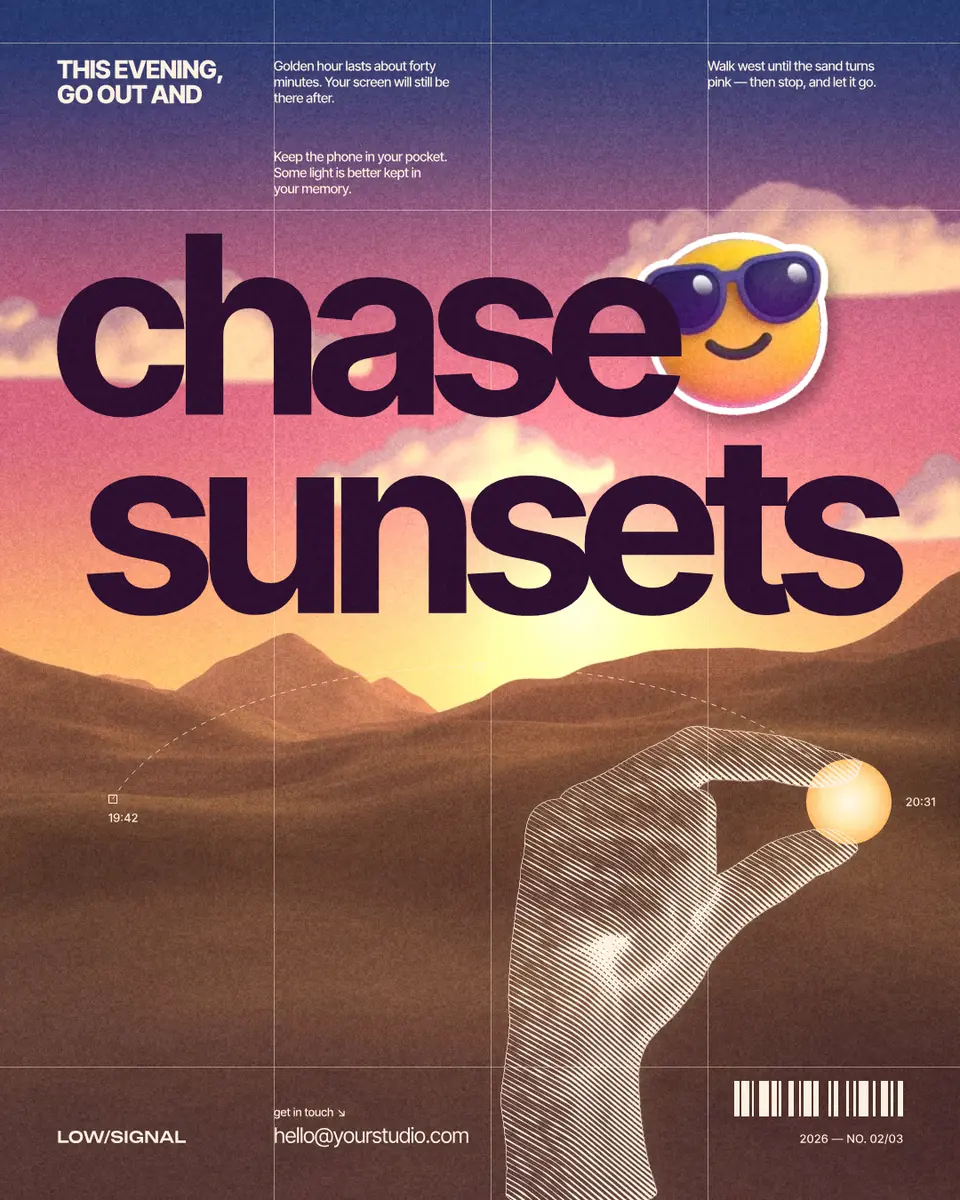
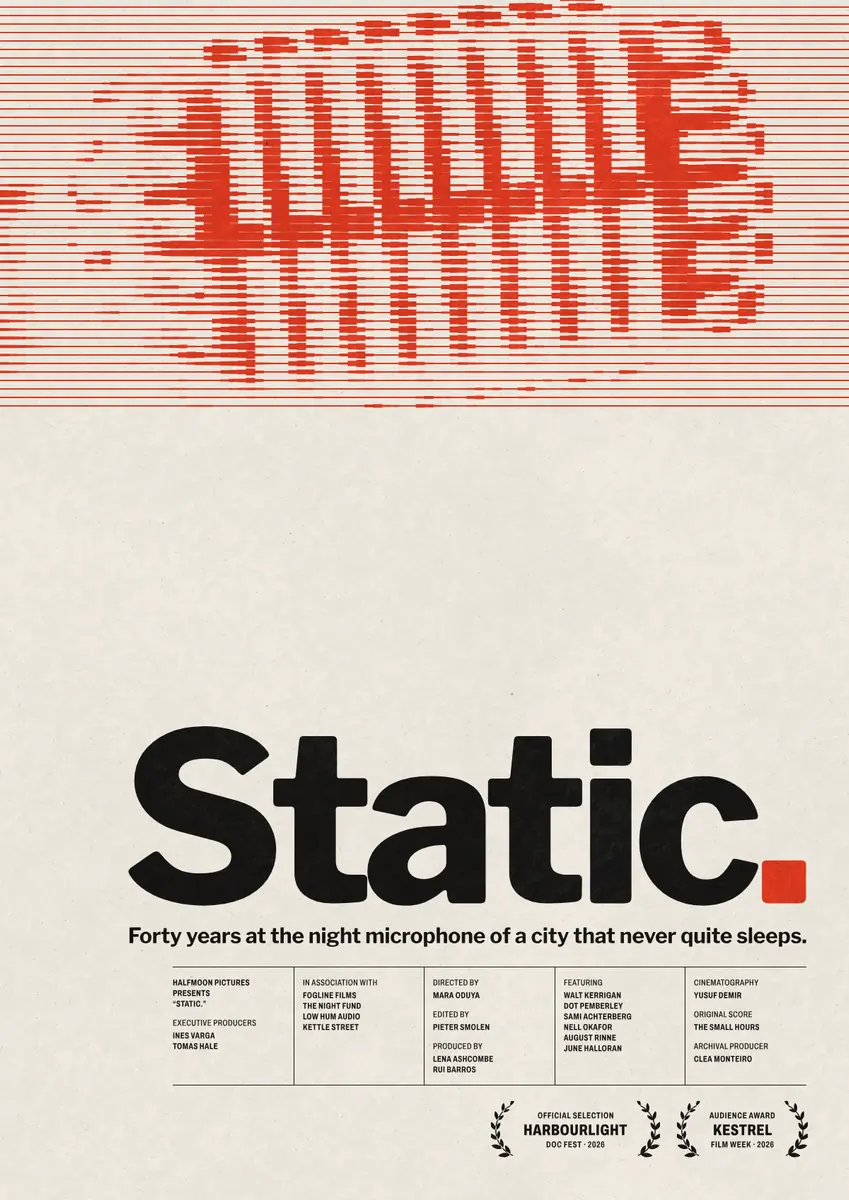
Every picture on this page was made in Paletoo — these three with the same steps on other templates:
Make it free in Paletoo
Open the post: press “Open in Paletoo” on this page, or start from the image to vector page. It opens as your own document; Layers lists the night «Photo», the «Hand», the stars and lines of the constellation, and the big «count stars».
Select the hand in the Design tab: it is an ordinary photo of a hand. To use your own, press Replace picture — the lines are an effect, so they redraw your picture.
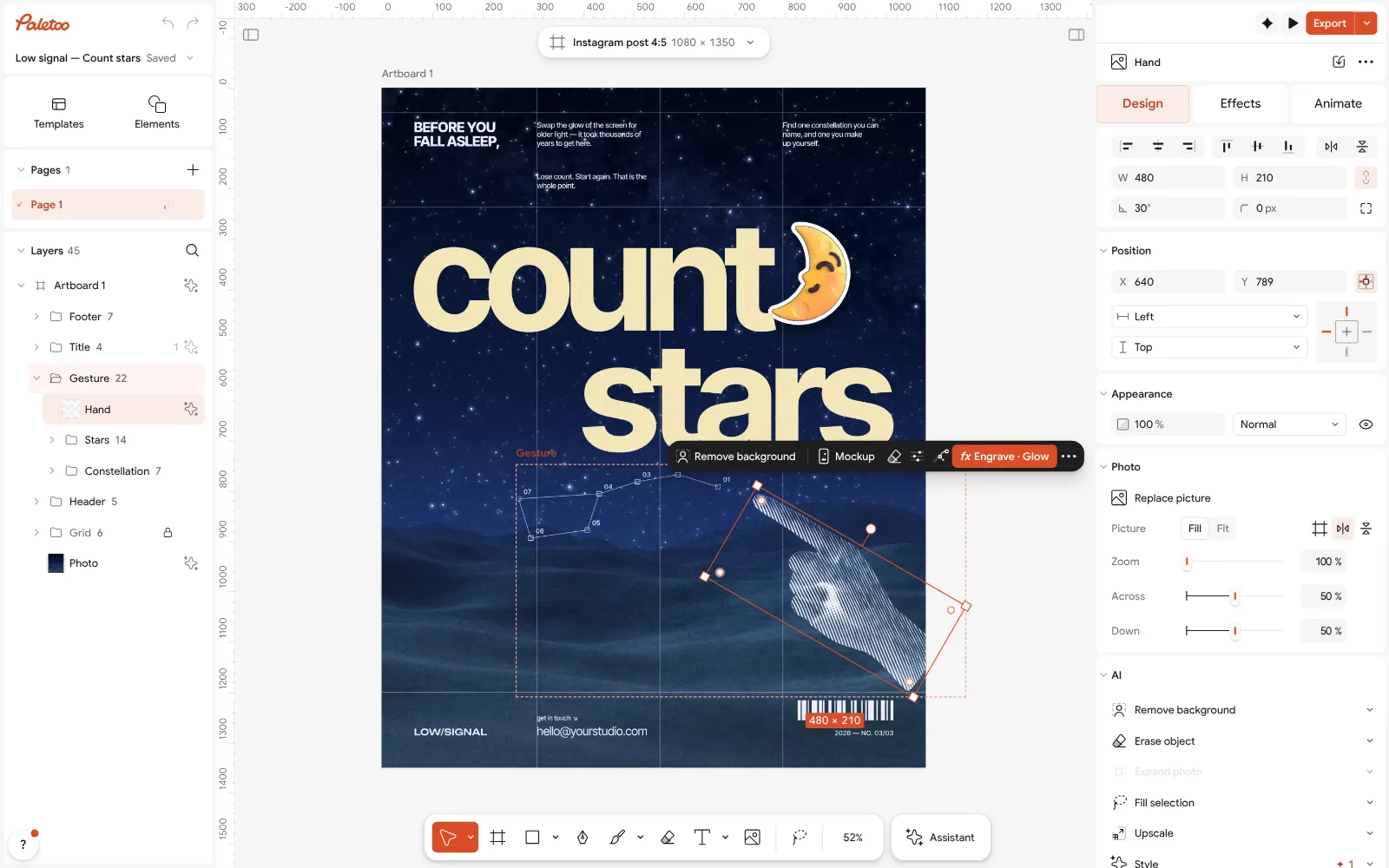
The «Count stars» post open in Paletoo: the hand selected in Design — an ordinary photo under the lines Open the Effects tab: under Applied there are two live steps — Engrave with its Etching preset, which draws the hand in fine lines, and a soft Glow, which makes the pale lines shine on the night sky.
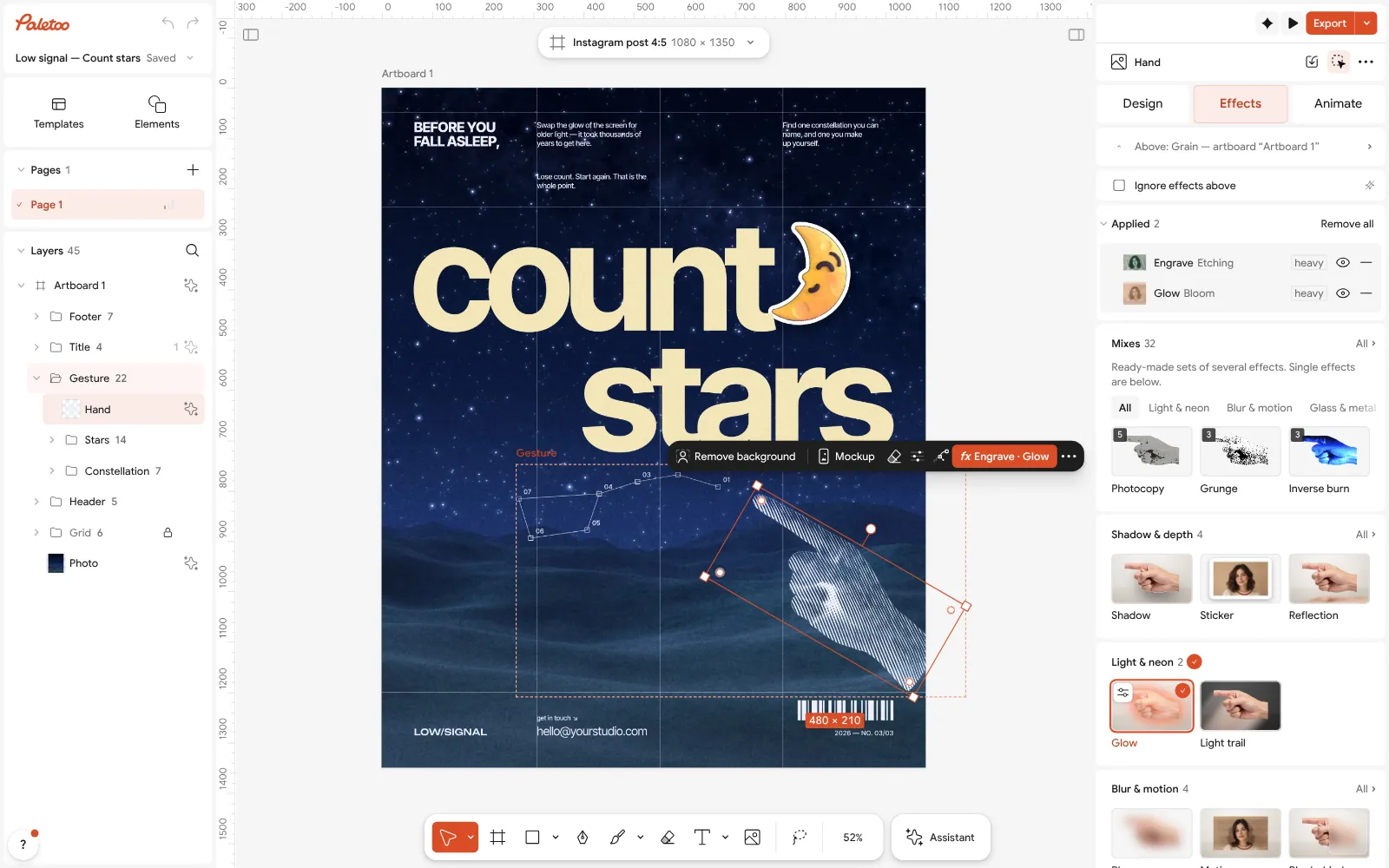
The hand under Effects: two live steps — Engrave with its Etching preset, and a soft Glow Open Engrave to tune it: Line spacing, Angle, Crosshatch and Contrast shape the lines; Ink colour and Paper colour set the inks. Try Woodcut for bold strokes or Banknote for fine ones.
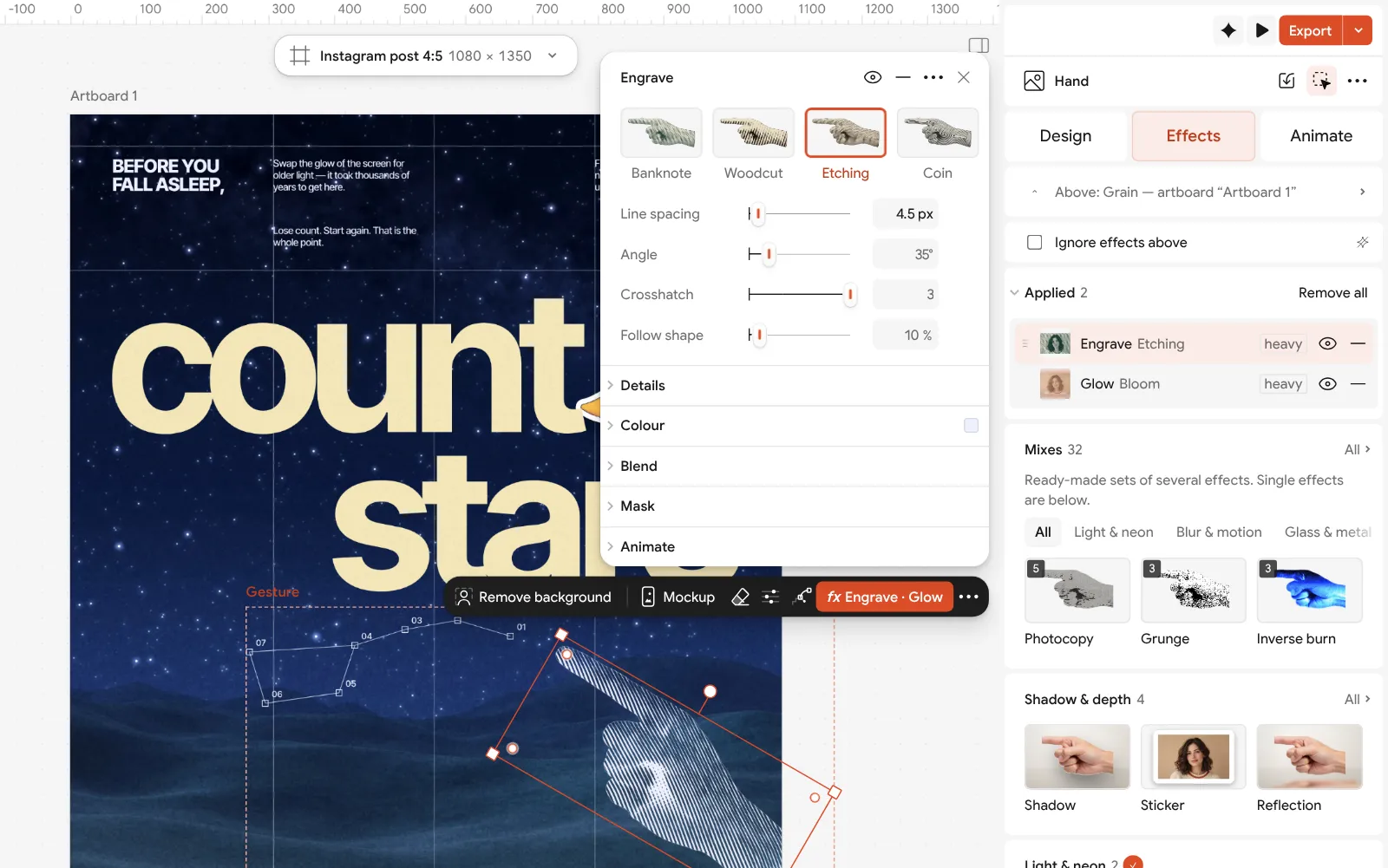
Engrave opened: its presets, line spacing, angle, crosshatch and follow shape For clean black lines as vectors: select a photo, run Vectorize and choose Line art; adjust Threshold and Detail until the drawing reads, then confirm. The result is ordinary vector shapes.
Press Export (Ctrl Shift E): PNG for a post, SVG for the vectorized lines, PDF to print. Nothing you export carries a watermark.
Make it your own
A colouring page: press Remove background on the photo, add Engrave with the Woodcut preset in black on white, and print it as a PDF.
Make the lines wrap around the form like on a coin: raise Follow shape, or start from the Coin preset.
For a cut file — a vinyl cutter, a laser, a stamp — use Vectorize and export SVG; the details are in vectorize an image for free.
Sources
Questions
How do I turn a photo into line art for free?
In Paletoo, select the photo and add Engrave for a line engraving, or run Vectorize with the Line art look for black vector lines. Both are free and work in the browser.
Is there a free photo to line art converter online?
Paletoo converts a photo to line art in the browser without an account: Engrave redraws it in lines, Vectorize › Line art traces it to SVG. Nothing is uploaded.
Can I get only the outlines of a photo?
Not with one click: Paletoo has no edge-detection sketch filter. Trace the outlines with the Pen, or vectorize a high-contrast photo and delete the shapes you do not need.
How do I turn a photo into line art in Photoshop?
Desaturate, duplicate, invert the copy, set it to Color Dodge and blur it; or use Filter › Stylize › Find Edges and then Threshold for harder lines.
Can I export line art as SVG?
Yes. Vectorize turns the picture into vector shapes that export as SVG or PDF. An Engrave effect exports as pixels in PNG or JPG.
What photos work best for line art?
A clear subject lit from one side on a plain background — a hand, a profile, a building, a plant. Flat light and busy backgrounds give empty or scribbly lines.
Make it online
- Image to vector converterTurn a PNG or JPG logo, icon or drawing into a clean SVG in about 30 seconds — free, no sign-up, and your picture never leaves your browser.
- Photo effects onlineDrop in a photo, press one mix — film, print or glitch — and download it in a minute; every step stays editable afterwards.
Free design templates for posts, stories and posters: Poster templates
Try it on your own design
Paletoo opens in your browser, with no sign-up. Every effect here is live: change the picture or the words and the effect follows.
Open in PaletooOpens this design as your own copy — every layer and effect editable, free.
Read next
- 01
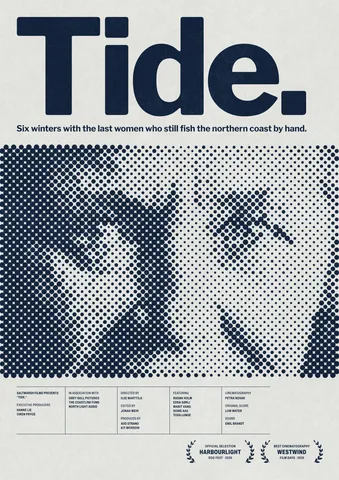 Vectorize an image for free: raster to vector onlineTurn pixels into shapes you can scale, recolour and cut — and know when not to.
- 02
 PNG to SVG: why most converters make 2,000 points and how to get 20The same apple, traced two ways: 2,840 anchor points, or 14 and a few soft shapes.
- 03
 Image to ASCII art: how to turn a photo into charactersRows of characters, as dense as the light under them, that add up to a picture.