Techniques5 min readFreeUpdated 2026-11-06
Vectorize an image for free: raster to vector online
Turn pixels into shapes you can scale, recolour and cut — and know when not to.
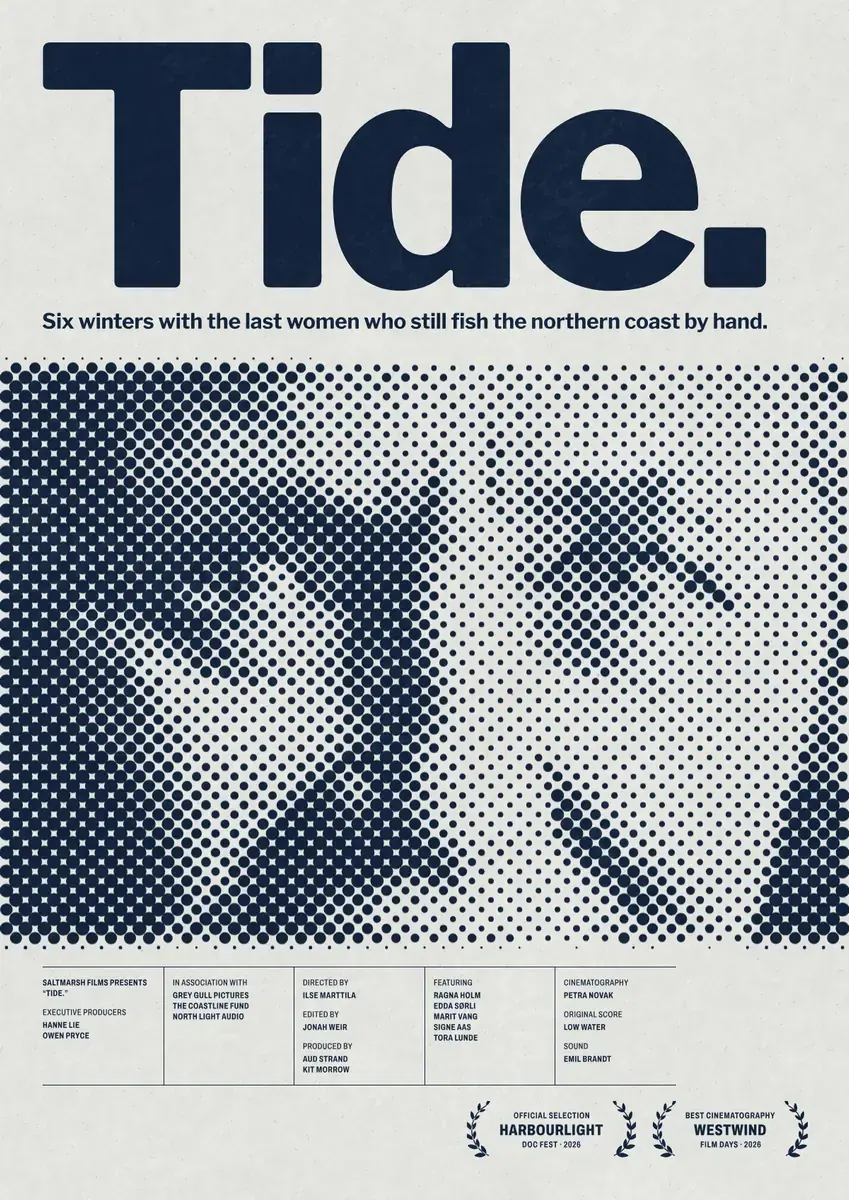
To vectorize an image for free, open it in Paletoo, select it and press Vectorize: the picture is traced into vector shapes on your own device, with nothing uploaded, and you can export the result as SVG or PDF. Pick a look such as Logo or Line art, set how many colours and how much detail, and the window tells you how many shapes it will make before you commit.
Tracing works brilliantly on some pictures and badly on others. This guide explains which is which, walks through the settings, and shows a trick on a real film poster, “Tide.”: a portrait in navy halftone dots that can become a fully vector halftone, every dot a shape, because Vectorize traces a picture with its effects and all.
Raster or vector: what changes
A raster image (JPG, PNG, WebP, a phone photo) is a grid of pixels. Enlarge it past its size and it goes soft or blocky. A vector image (SVG, PDF, EPS) is made of paths: curves and fills described by numbers, so it stays sharp at any size and every colour can be changed in a click.
You need vectors when a design must scale or be cut: a logo that goes from a favicon to a shop sign, a sticker or vinyl for a plotter, a laser-engraving file, a screen-print separation, a T-shirt print. For a poster or a post that only ends up as pixels anyway, a good PNG or a print PDF is enough.
What traces well, and what does not
Good candidates have clear edges and few colours: a logo, a scanned ink drawing, a stamp, a silhouette, flat illustration, pixel art — and halftone or dither dots, which are already flat ink on paper. Scan or photograph line work at 300 ppi or more, crop tightly, and raise the contrast so the paper is white and the ink is solid before you trace.
Photos are the poor candidates. Smooth gradients, skin and soft shadows become hundreds or thousands of stepped blobs: the file gets heavy and the picture looks posterised. If you must, use the Poster / photo look with fewer colours and less detail, or treat the photo first (halftone, threshold, pixel) so there is something flat to trace. Most of the time, a photo is better left as a photo.
The settings, in plain words
Look: five starting points — Logo (a few flat colours, crisp corners, white ground removed), Illustration (more colours, smooth curves), Line art (black lines, as on paper), Silhouette (one colour) and Poster / photo. Mode: Colour, Greys, or B & W with a Threshold. Colours: Auto, or 1 to 32. Detail: the resolution the trace runs at; every 25 % less halves it. Smoothing: how readily a bend becomes a curve rather than a corner. Specks: spots smaller than this many pixels are left out.
Remove background treats white and transparent as paper rather than a colour, and Stack colours lets each colour also cover those above it, so no hairline seams show between them. Keep original (hidden) leaves the picture under the vectors in case you want to trace it again. Watch the count under the preview, “shapes · nodes”: a logo should be dozens of shapes, not thousands.
A quick checklist
Start from the biggest, sharpest version of the picture. Clean it up before tracing, not after. Use the fewest colours that still read. Zoom to 400 % and check the corners and curves. Delete stray specks. Export SVG for the web, cutters and other editors, or PDF for print, and open the file once to make sure it is what you expect.
Made in Paletoo
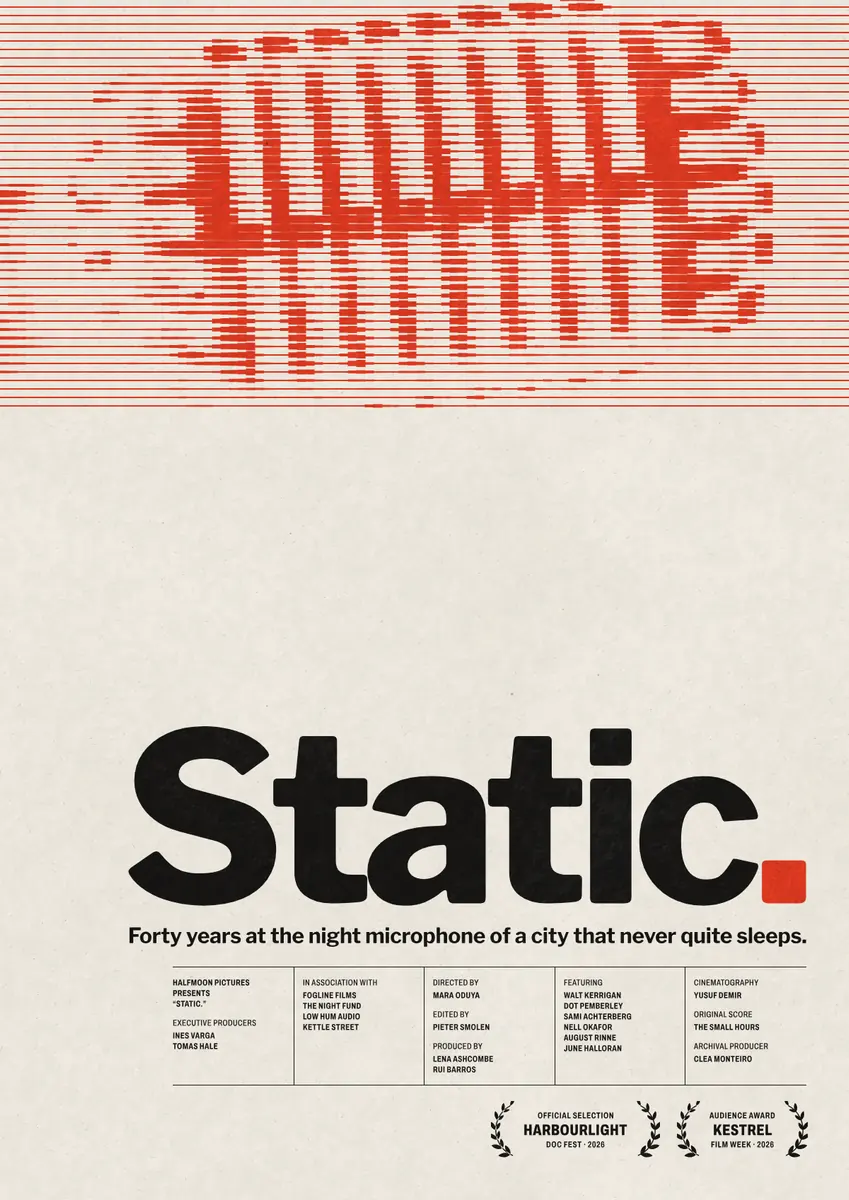
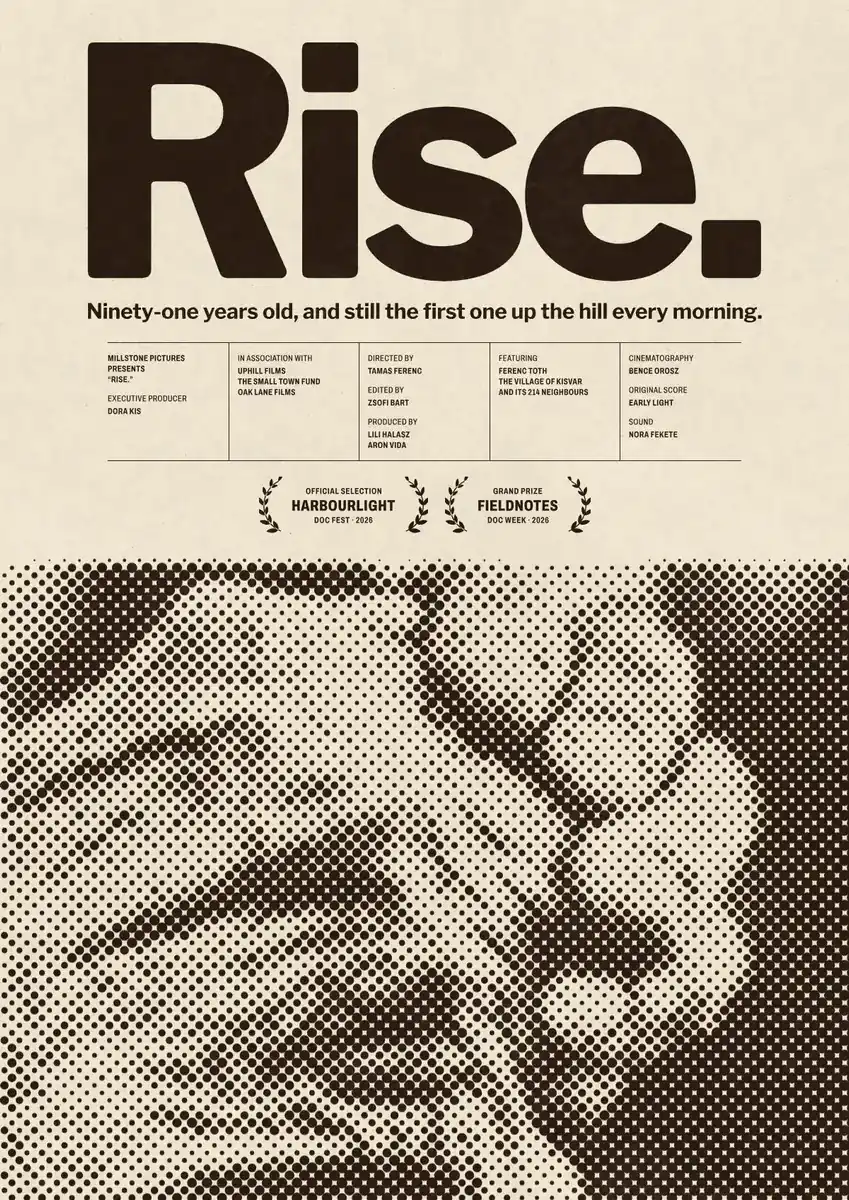
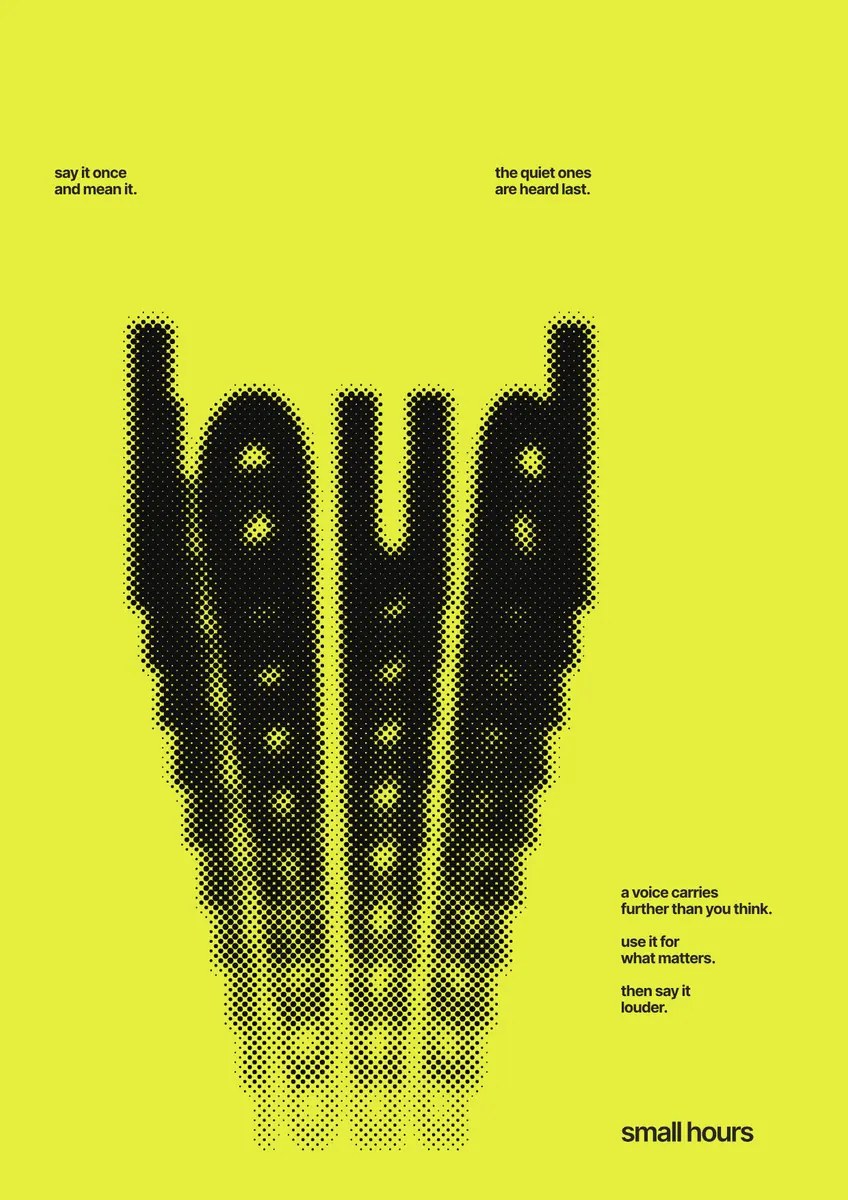
Every picture on this page was made in Paletoo — these three with the same steps on other templates:
Step by step in Paletoo
Press “Open in Paletoo” to open the Tide poster as your own document. Layers shows the paper’s faint show-through text, the photo, the title, the tagline and the credits block with its laurels.
Click the portrait to select it. The Design tab shows it is a photo slot: the picture fills the box below the title, and Replace picture puts another one in its place.
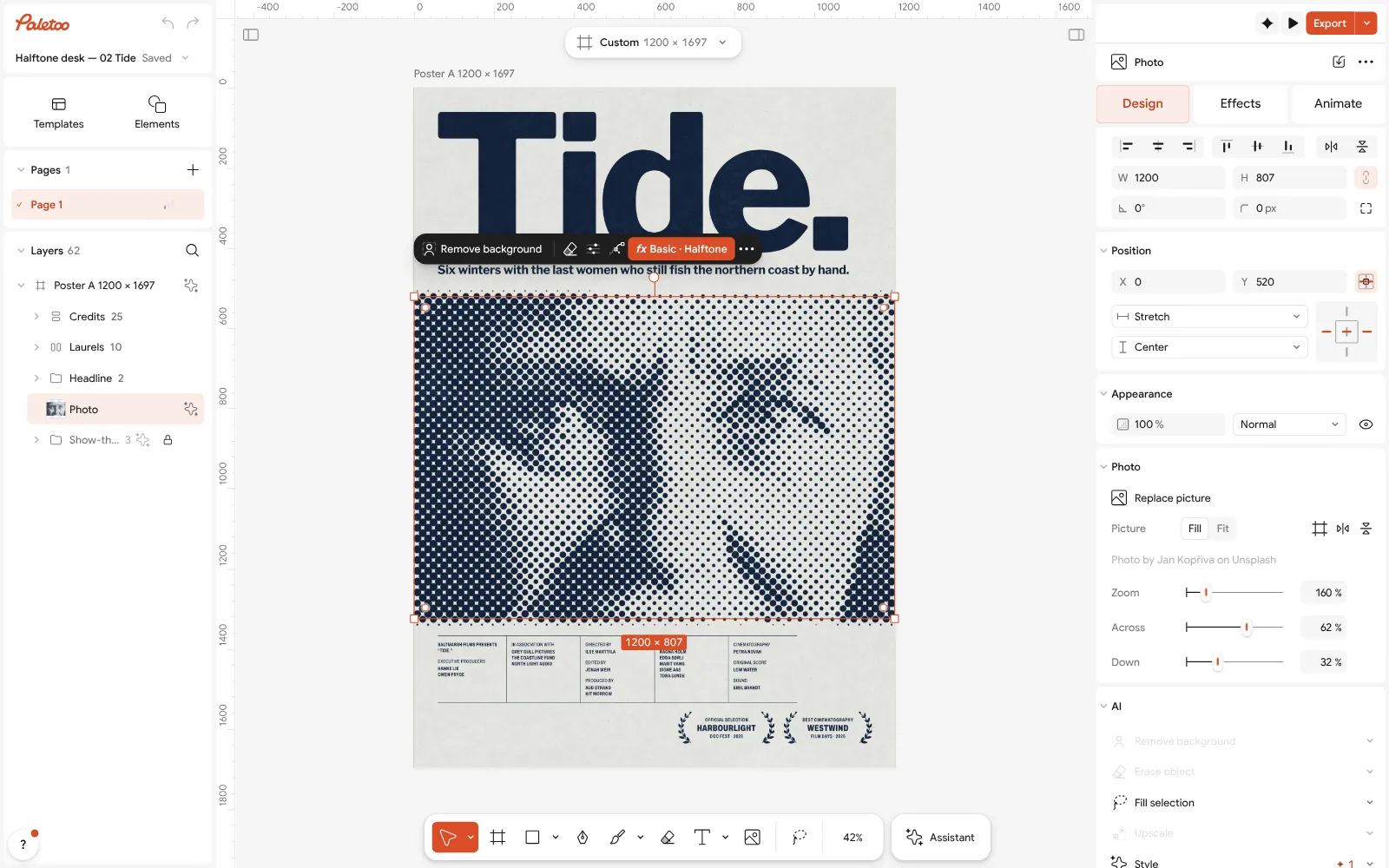
The Tide poster open in Paletoo: the halftone portrait selected, its photo slot settings in the Design tab Open the Effects tab. Under Applied are two steps: Basic, which brightens the face and pushes the contrast so the whites are clean, and Halftone, which turns it into navy dots.
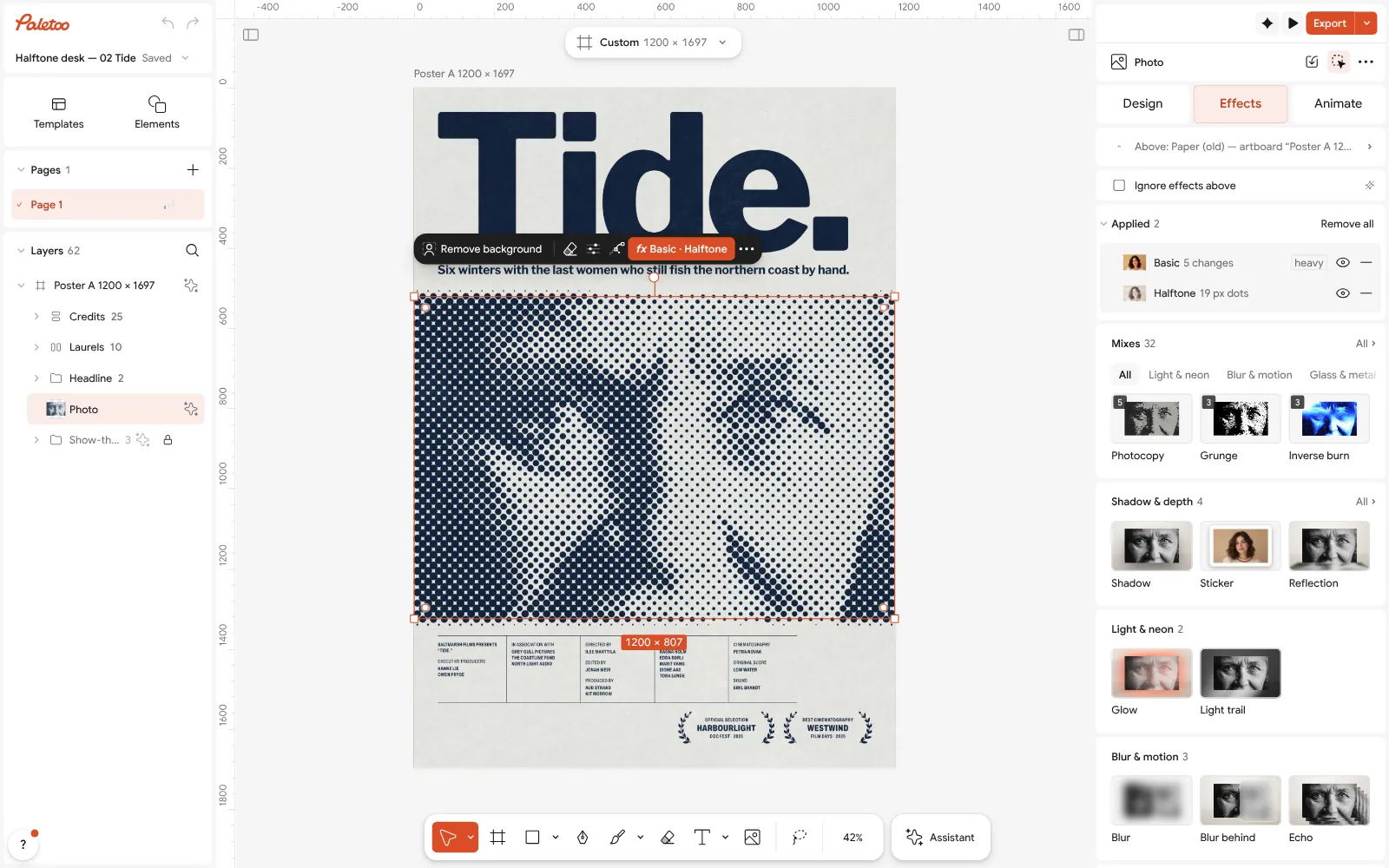
The portrait in the Effects tab: Basic and Halftone under Applied Click the Halftone row to open it: Size 19 px, Angle 45°, Dots as the shape, and one navy Ink on white paper. Every dot is sized by how dark the photo is underneath.
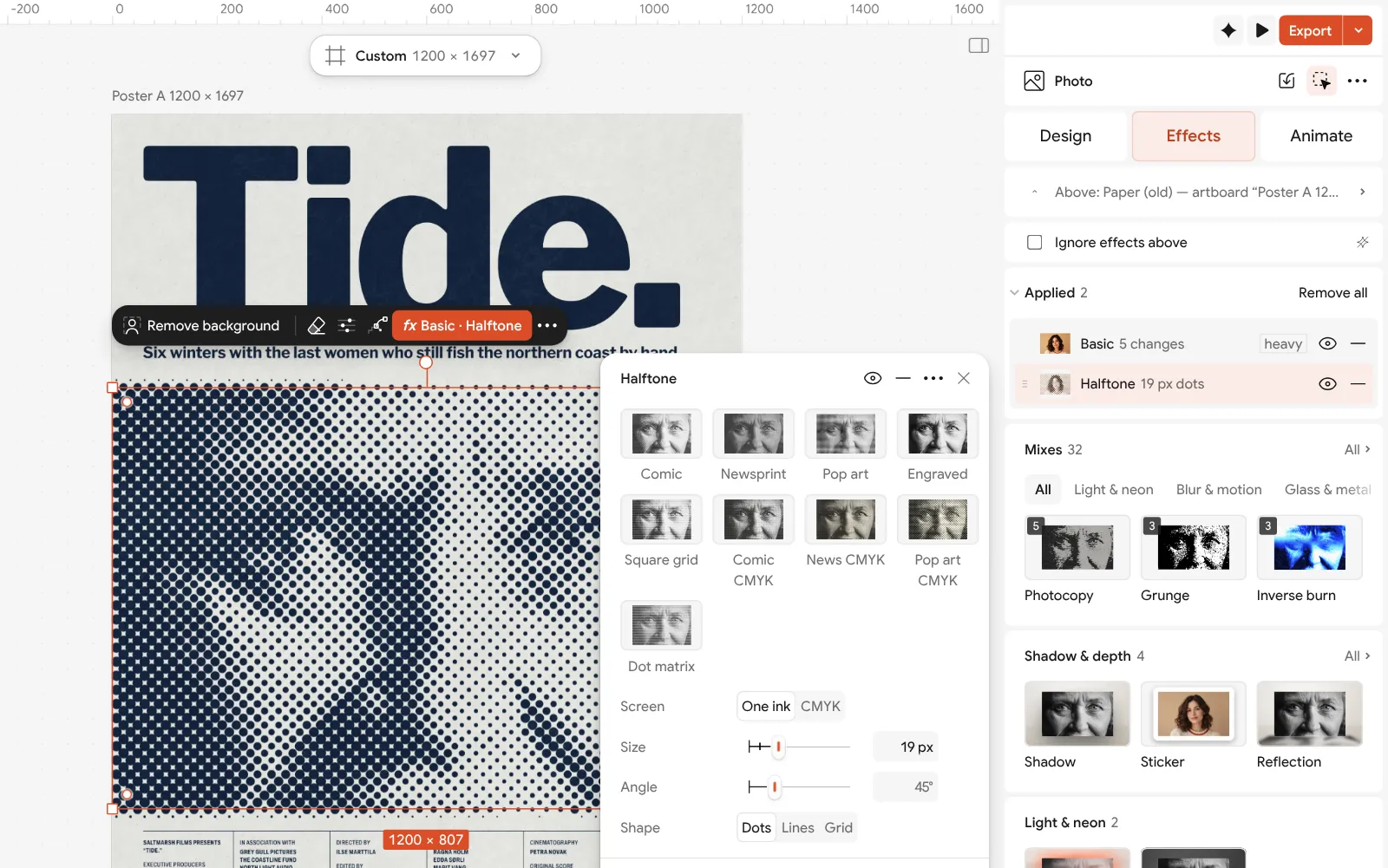
The Halftone step open: size, angle, dot shape and navy ink beside the poster Select the portrait, press Replace picture and choose a photo of your own; the dots follow it. Double-click the title and the tagline to write yours.
To make the dots vector: a photo slot is not traced, so use Copy as PNG, click an empty part of the canvas and Paste. Select the pasted picture, press Vectorize, choose Silhouette and apply. Then Export it as SVG or PDF.
Make it your own
Before you trace, raise the halftone Size a little. Fewer, bigger dots make a lighter file and a bolder print; at 19 px a 1 600 px wide photo is already a few thousand dots.
In the Vectorize window, keep Specks low, or the tiny dots in the highlights disappear, and raise Smoothing so the dots come out round rather than as polygons.
For two inks, choose Colours 2 instead of Silhouette, and turn on Remove background so the paper is not traced as a third colour.
Questions
How do I convert an image to vector for free?
Open it in Paletoo, select it and press Vectorize on the Design tab or in the right-click menu. Choose a look, adjust colours and detail, apply, and export SVG or PDF. It runs in your browser and costs nothing.
Can you vectorize a photo?
You can, but the result is many flat blobs and a heavy file. Photos usually look better as photos; vectorize logos, drawings, silhouettes and halftone or pixel treatments instead.
Is my image uploaded when I vectorize it?
No. The trace runs on your device, so the picture never leaves your computer.
Why does my traced logo look lumpy?
The source is usually too small or blurry. Start from a larger, sharper file, raise Detail, lower the number of colours and add some Smoothing.
Which file should I export, SVG or PDF?
SVG for websites, cutting machines and other vector editors; PDF for printers. Both keep the shapes as vectors.
Make it online
- Logo makerBuild a wordmark or a badge from real type and shapes, and take it away as a sharp SVG or PDF.
- Poster makerMake a poster from a template that already has the layout right, then export a print-ready PDF or an image for screens.
- Duotone, halftone and glitch photo effects onlineThree of the strongest looks for a photo, each one click away and every step still yours to tune.
Free design templates: Brand guidelines templates · Poster templates
Try it on your own design
Paletoo opens in your browser, with no sign-up. Every effect here is live: change the picture or the words and the effect follows.
Open in PaletooRead next
- 01
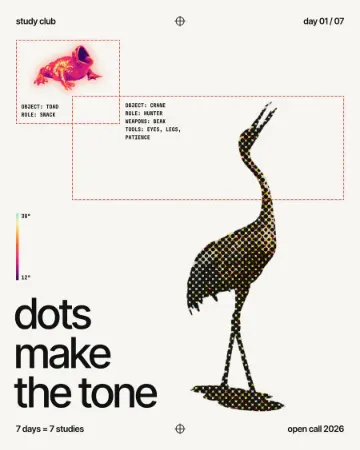 How to make a halftone effectComic-book CMYK dots, newspaper screens or one ink.
- 02
 Free Illustrator alternatives: which one for which jobFive free vector tools, sorted by the work you actually do, with the catch of each.
- 03
 Print-ready PDF: bleed, crop marks and CMYK, freeEverything a printer means by “print-ready”, and a checklist before you send the file.