Tools compared6 min readFreeUpdated 2026-11-06Save to Pinterest
Free Photoshop alternatives online: what works in a browser
Retouching, PSD files or design with photos: a different free tool for each job.

People search for “Photoshop online free” for very different reasons. One wants to open a PSD a client sent. One wants to retouch a portrait. One wants to put a photo on a poster with a halftone or a heat-camera look. Photoshop does all three; a free tool in a browser usually does one or two of them well.
This guide sorts the free browser options by the job, says honestly where each one stops, and shows the third job — design with photos — in Paletoo, on a study-club post where a crane and a toad are graded in heat-camera colours by live steps, not paint.
First, what do you need Photoshop for?
Retouching and compositing — removing a stray hair, swapping a sky, blending five photos into one — need brushes, masks, healing tools and a lot of control at full resolution. Opening PSD files needs a program that reads Photoshop’s layers, text and smart objects. Design with photos — posts, posters, covers — needs type, layout and effects more than pixel-level painting.
Photoshop itself is a subscription: Adobe sells it as a single app or in the Creative Cloud plans, and the deepest retouching tools, actions and plug-ins live there. If you retouch for a living, that is still the standard. For everything else, a free tool in a tab may be enough.
The free options, honestly
Photopea is the closest copy of Photoshop you can open in a browser: the same panels and shortcuts, layers, masks, adjustment layers, and PSD files that open with their layers intact. It is free with ads; a small subscription removes them. If someone says “I need Photoshop and cannot install anything”, this is the first answer, though it can slow down on very large files.
GIMP and Affinity are free desktop programs rather than browser tools. GIMP is open source and has been the free photo editor for decades; Affinity, free since October 2025 with a Canva account, combines photo editing, vector drawing and layout in one app. Both are deeper than any browser tool for retouching, and both take time to learn.
Paletoo is a design editor rather than a Photoshop copy. It does not try to match Photoshop’s retouching depth, and its interface does not look like Photoshop’s. What it does is the design-with-photos job: about a hundred live effects on photos, words and shapes, background removal, retouch and upscale that run on your own device for free, and import of Photoshop files with editable layers.
Opening a PSD in Paletoo
Drop a .psd file on the editor and Paletoo shows what it will become: groups, text, shapes and pictures you can edit, or one exact picture of the whole file. Text comes in as live text, and where a font is missing it says which one it replaced. Smart objects come in as pictures, and a layer style or adjustment it cannot read is listed rather than silently lost — so you know exactly what to check.
That makes it good for picking up a template from a stock site or a file from a colleague and finishing it in the browser. It is not a round trip: Paletoo saves its own .paletoo file and exports PNG, JPEG, WebP, SVG, PDF, PowerPoint and video, not PSD.
Non-destructive by default
In Photoshop, staying non-destructive is a discipline: adjustment layers, smart objects, smart filters. In Paletoo it is simply how effects work. On the crane in this post, the heat-camera colours are a Gradient map over a Levels step, with a Shadow under it; each has its own switch, and the photo underneath is never painted. Replace the photo and the new one comes out in the same colours.
Made in Paletoo
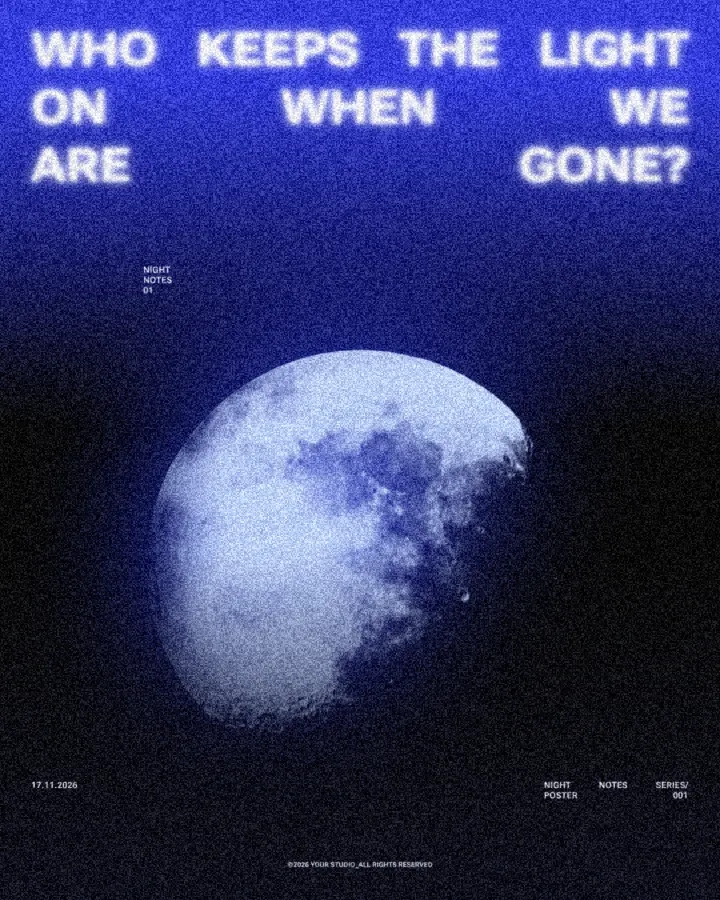
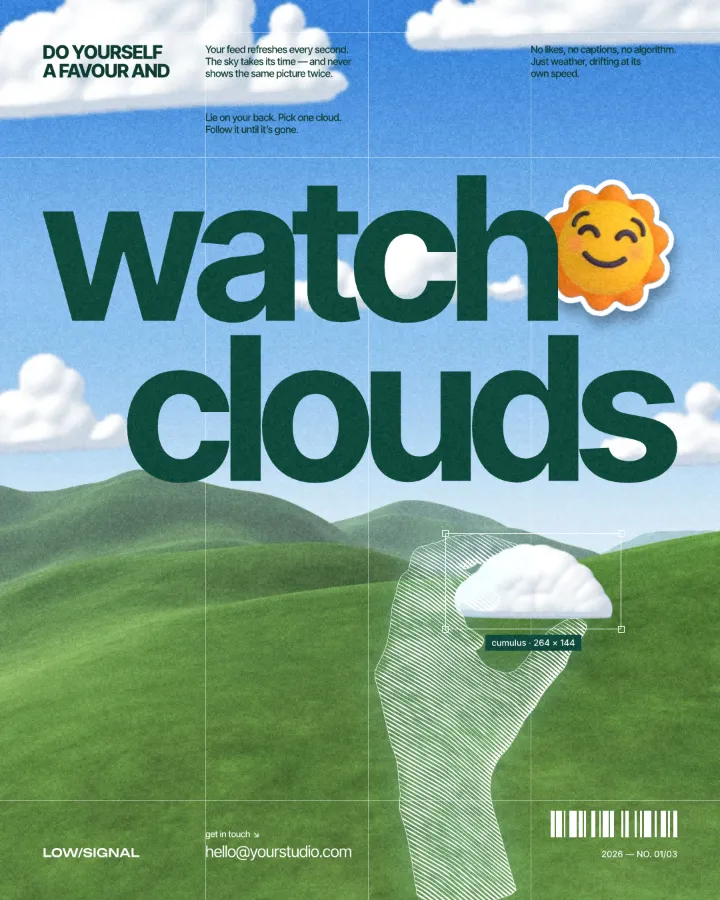
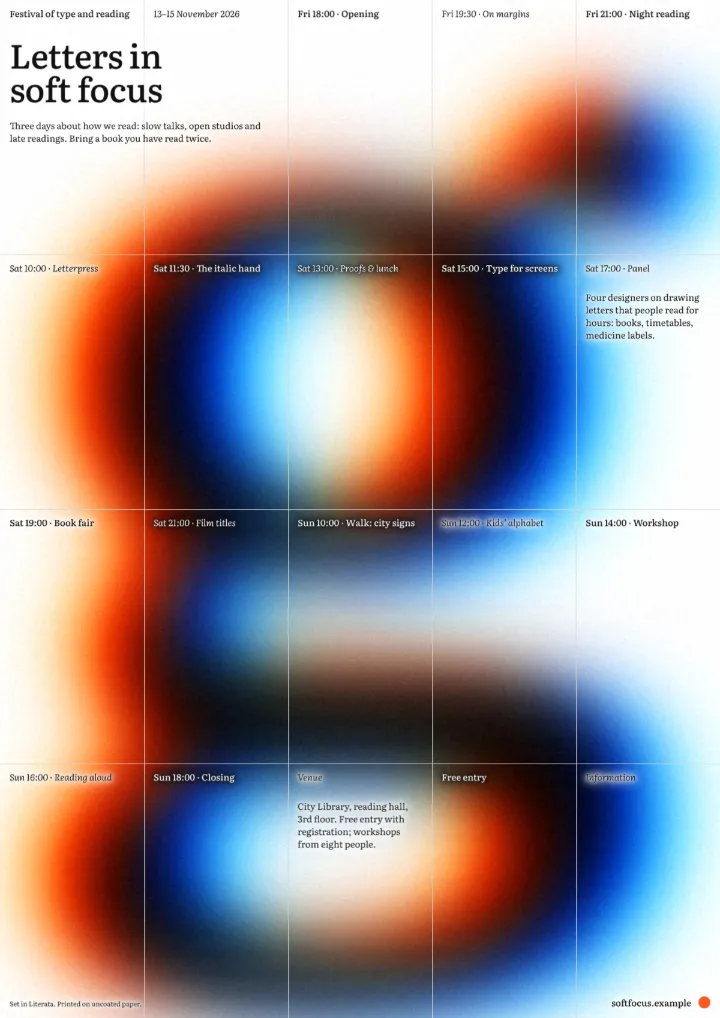
Every picture on this page was made in Paletoo — these three with the same steps on other templates:
Try it in Paletoo
Press “Open in Paletoo” to open the Crane post as your own document. Two cut-out photos, a crane and a toad, sit on a pale striped field with a heat bar and labels set like a field report.
Click the crane to select it. The Design tab shows the picture’s size, place and Appearance; Replace picture puts your own photo in its place.
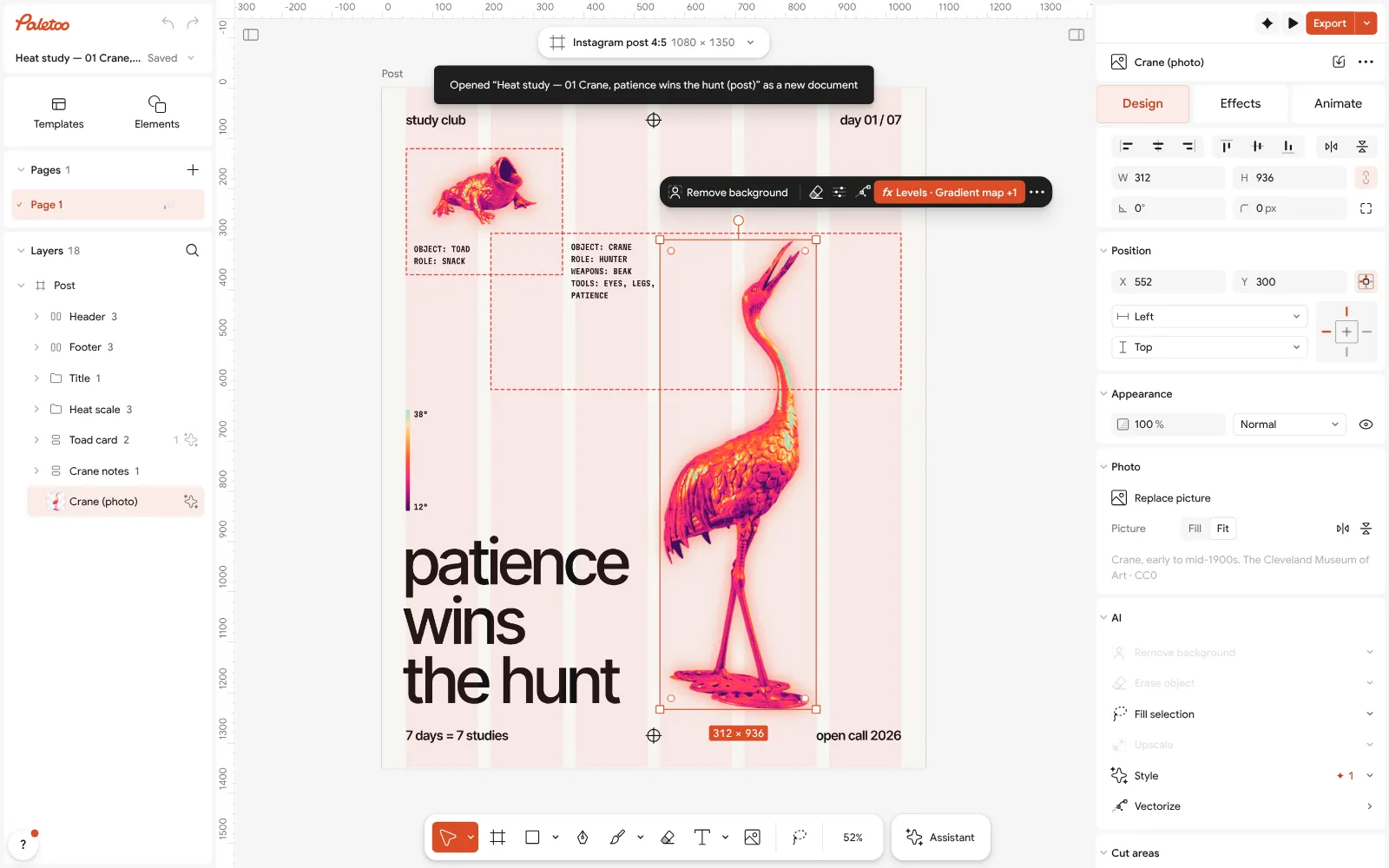
The Crane post open in Paletoo: the crane photo selected, its size, place and appearance in the Design tab Open the Effects tab. Under Applied are three live steps: Levels, which sets the light and dark, Gradient map, which turns them into heat-camera colours, and Shadow, which lifts the bird off the background.
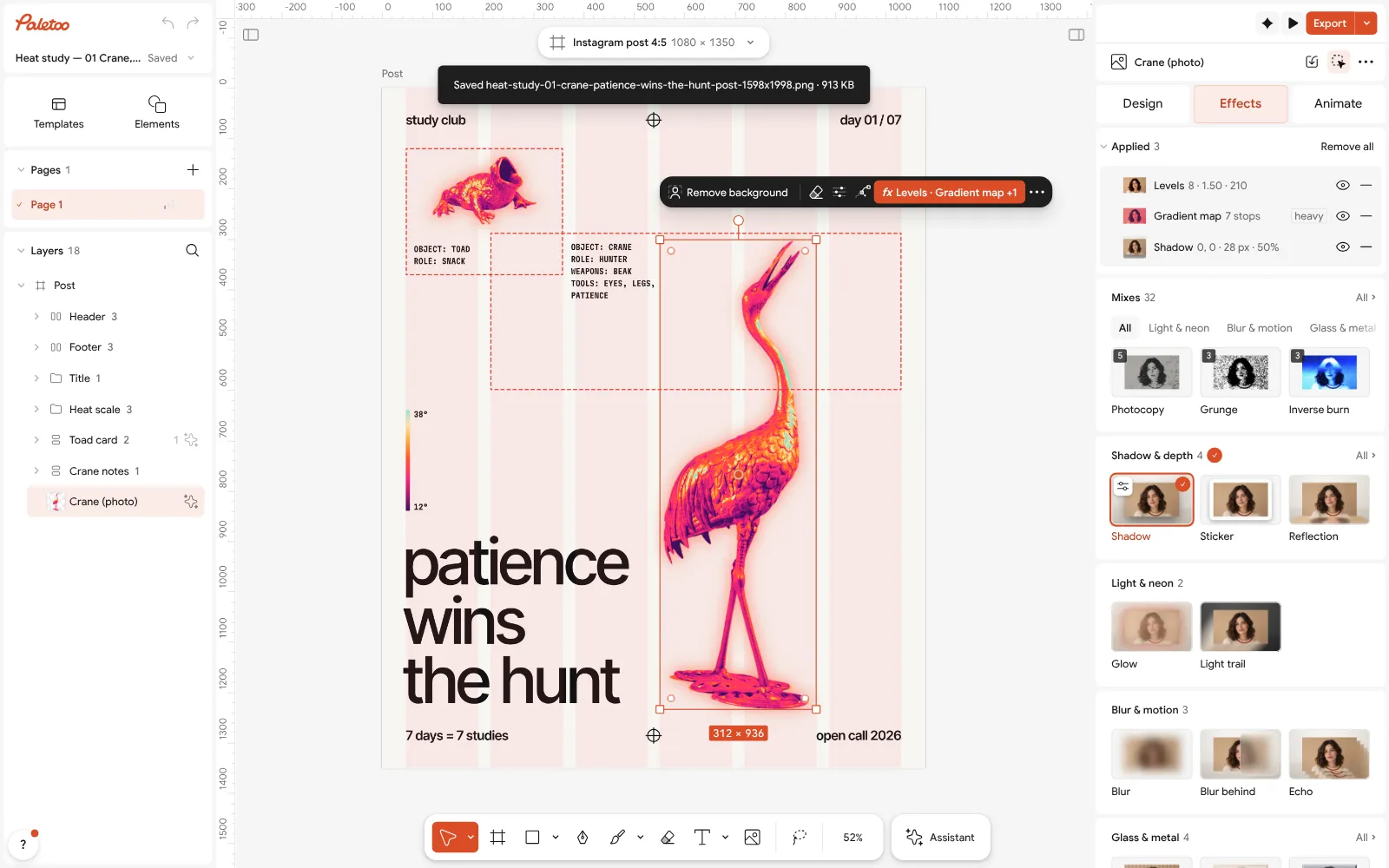
The crane in the Effects tab: Levels, Gradient map and Shadow under Applied, the Mixes below Click the Gradient map row to open it: the colours along the map run from the coldest shadows to the hottest lights. Change a colour stop and the crane changes with it; the photo itself is never touched.
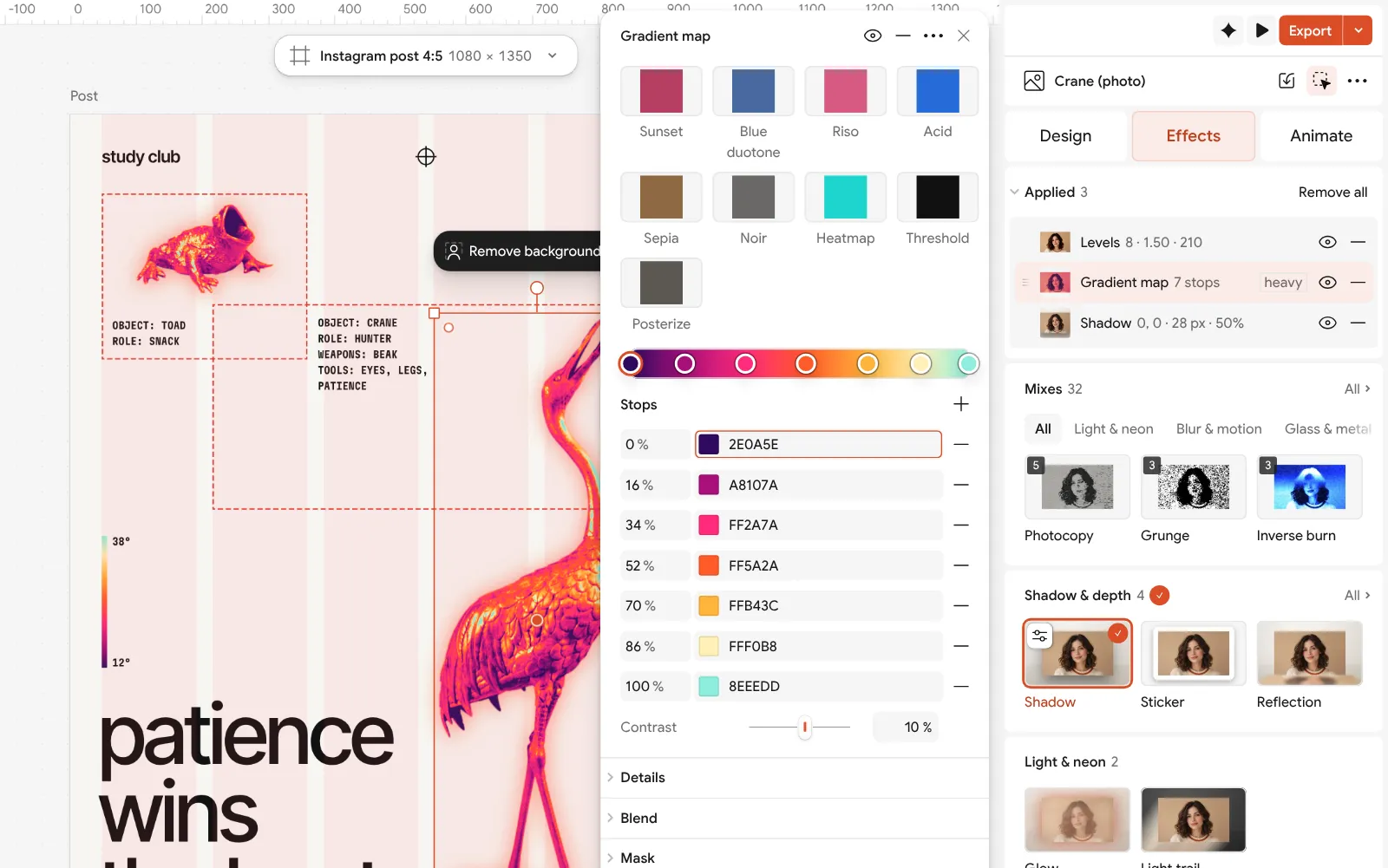
The Gradient map step open: the heat-camera colours from cold to hot beside the post For your own animal, put the photo in with Replace picture, then press Remove background: it cuts out the subject on your device, with a mask you can correct, at no cost.
Press Export for PNG or JPEG. Have a Photoshop file instead? Drop the .psd on the editor and choose Editable layers to bring its groups, text, shapes and pictures in, or One picture for an exact copy.
Make it your own
The look is all in the Gradient map. Deep purple in the shadows, then magenta, pink, orange and yellow, up to a pale mint in the brightest lights: seven stops in that order read as a thermal camera at once. Fewer, harsher colours make it graphic; more, smoother ones make it photographic.
Levels decides how much of the bird is hot. Pull the shadows in and the background goes cold; open the lights and the bird glows. Because Levels sits above the map, it changes what the map receives, not the photo.
Copy the crane to make a series: the steps travel with it, and Replace picture gives each copy a new animal in the same colours. That is the whole trick behind a seven-day series like this one.
Questions
Is there a free online version of Photoshop?
Adobe offers Photoshop on the web as part of its paid plans. The best-known free browser tool that works like Photoshop is Photopea, which is free with ads and opens PSD files.
Can Paletoo open PSD files?
Yes. Drop a .psd on the editor and choose Editable layers or One picture. Text stays live, a missing font is replaced and named, smart objects come in as pictures, and anything not imported is listed.
Is Paletoo a Photoshop replacement?
For design with photos — posts, posters, covers with effects — it can be. For heavy retouching and compositing, Photoshop, Photopea, Affinity or GIMP are better tools.
Does Paletoo remove backgrounds for free?
Yes. Background removal, retouch, upscale and smart selection run on your own device, so they use no credits and cost nothing.
Can I edit photos in Ukrainian?
Yes. Paletoo’s whole interface is in Ukrainian as well as English and Polish, and it switches without reloading your work.
Make it online
- Photo effects onlineGive a photo a film, print or glitch look in one click — and keep every step editable afterwards.
- Remove background onlineCut the subject out of any photo in one click — on your own device, with no upload and no credits.
- Duotone, halftone and glitch photo effects onlineThree of the strongest looks for a photo, each one click away and every step still yours to tune.
Free design templates: Poster templates · Team and speaker templates
Try it on your own design
Paletoo opens in your browser, with no sign-up. Every effect here is live: change the picture or the words and the effect follows.
Open in PaletooRead next
- 01
 The best free tools for graphic designers in 2026Ten free tools worth knowing, what each is best at, and where each one stops.
- 02
 How to make a halftone effect in Photoshop — and in one minuteColor Halftone, a Bitmap screen and a Smart Object — then the same dots as one live mix.
- 03
 How to make a duotone in Photoshop — and the one-minute wayDuotone mode, a Gradient Map layer, and the same two inks as one live mix.