How to put text on a path that stays editable
Type along a curve you shape on the canvas; the words stay live.
What it is
Text on a path lays a line of type along a curve: each letter stands on the line and turns with it, so a word can arc over a logo, follow the edge of a photo, run along a road or wrap around a badge. Illustrator users know it as Type on a Path; it is one of the oldest moves in lettering, from shop signs and stamps to seals and posters.
In Paletoo the path belongs to the text. It is the On path kind of the text’s Warp: the words are bent along the curve every time they are drawn, so you can fix a typo, change the font or swap the whole line and the new words follow the same curve. The path itself is edited right on the canvas, with points and handles like any vector path, and two brackets set where the words start and end along it.
Where it is used
Text on a path suits logos and badges, stamps and seals, labels and packaging, sports and team graphics, maps and route posters, and playful headlines that follow a shape in the photo — the horizon, a wave, a ribbon, the rim of a cup. It reads best on short lines: a word, a name or a phrase of a few words.
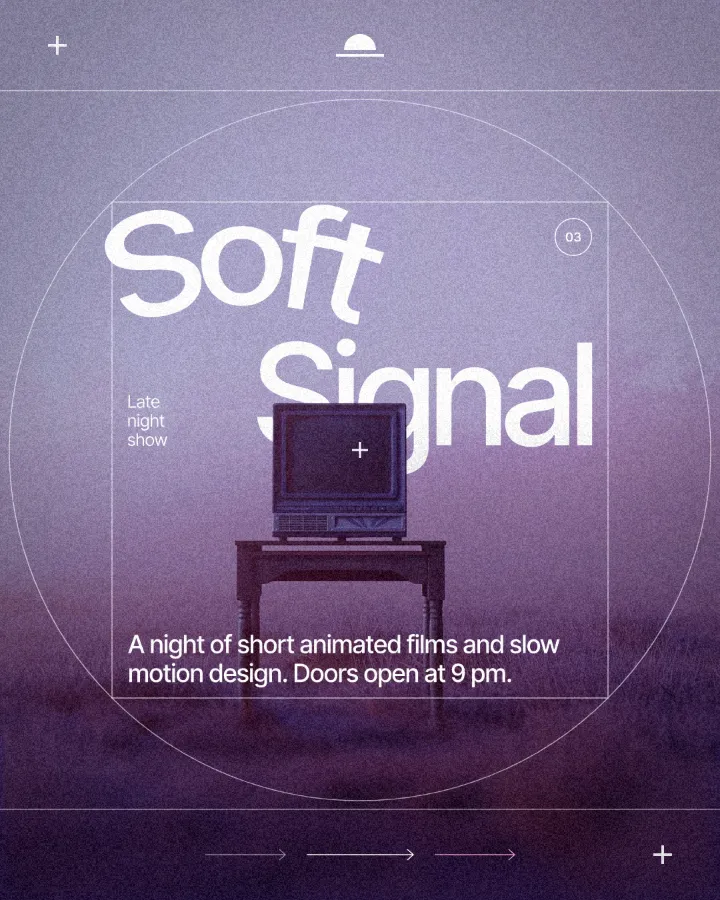
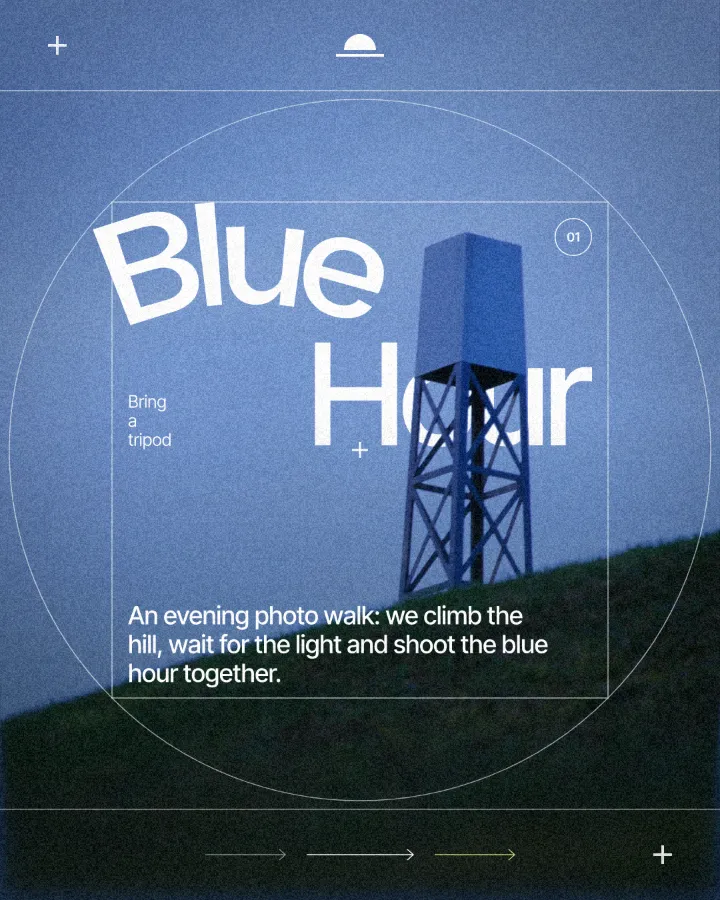
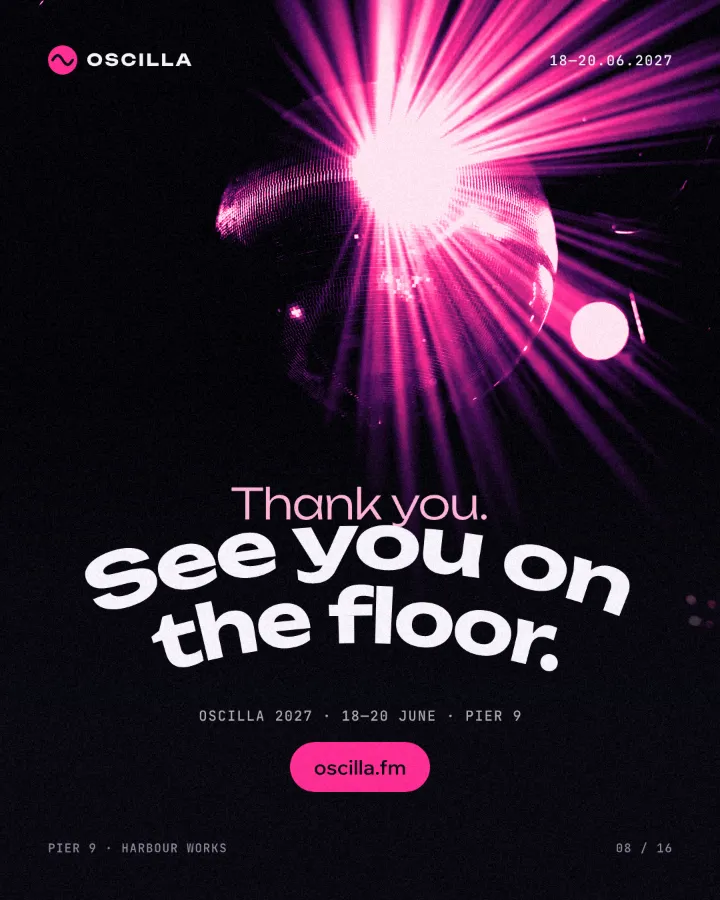
Made in Paletoo with this mix:
How to make it, step by step
Open your design and select the text. Short lines work best: a word or a short phrase follows a curve far more clearly than a paragraph.
In the Design tab, scroll to the text’s Warp section; its menu says None. Or press ⌘ K (Ctrl K on Windows) and run “Warp: On path”.
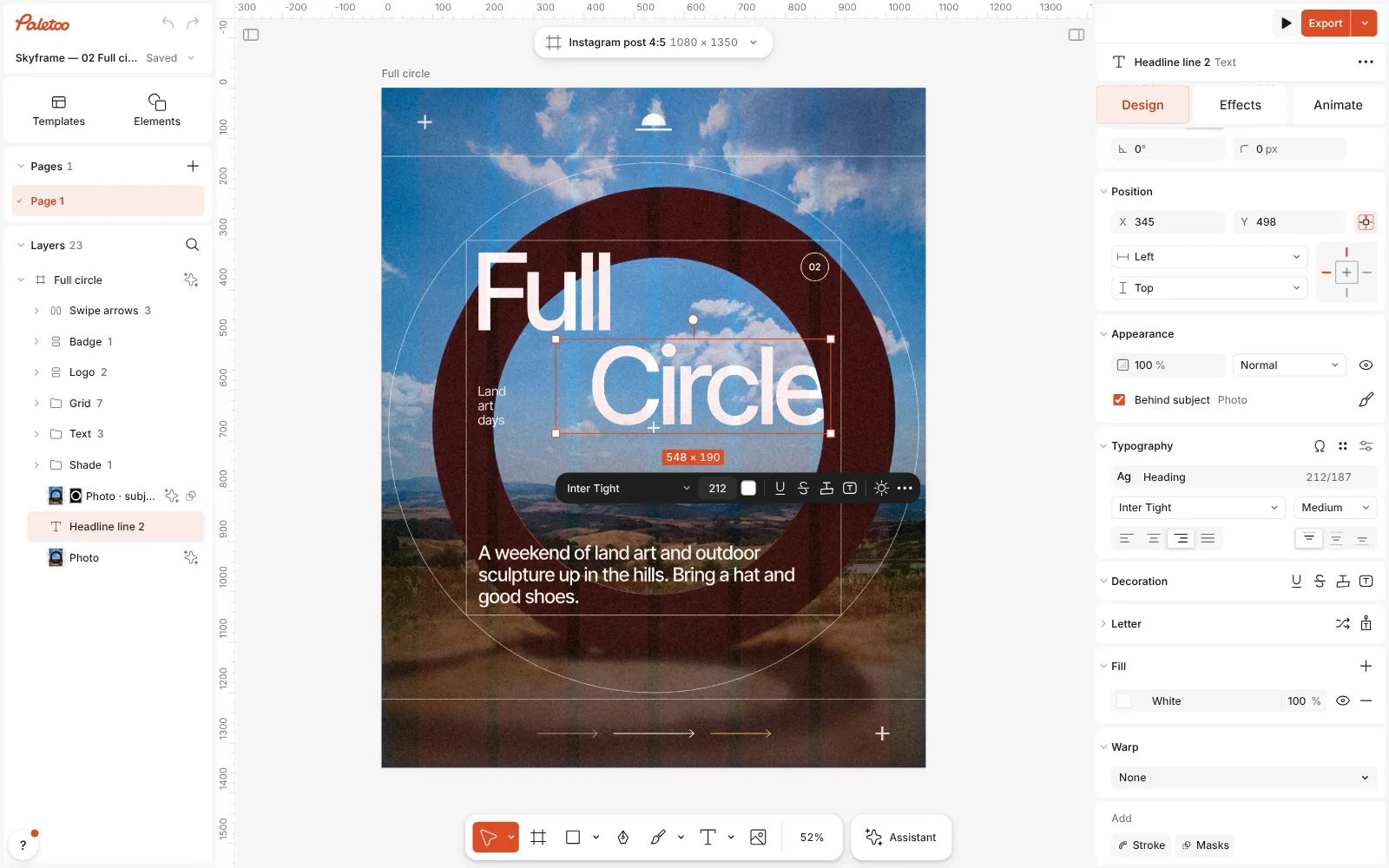
A land-art post open in Paletoo, the word “Circle” selected and the Design tab’s Warp section in view Choose On path. The words are laid along a gentle arch a little longer than the line, and the path’s two end points and their handles appear on the canvas.
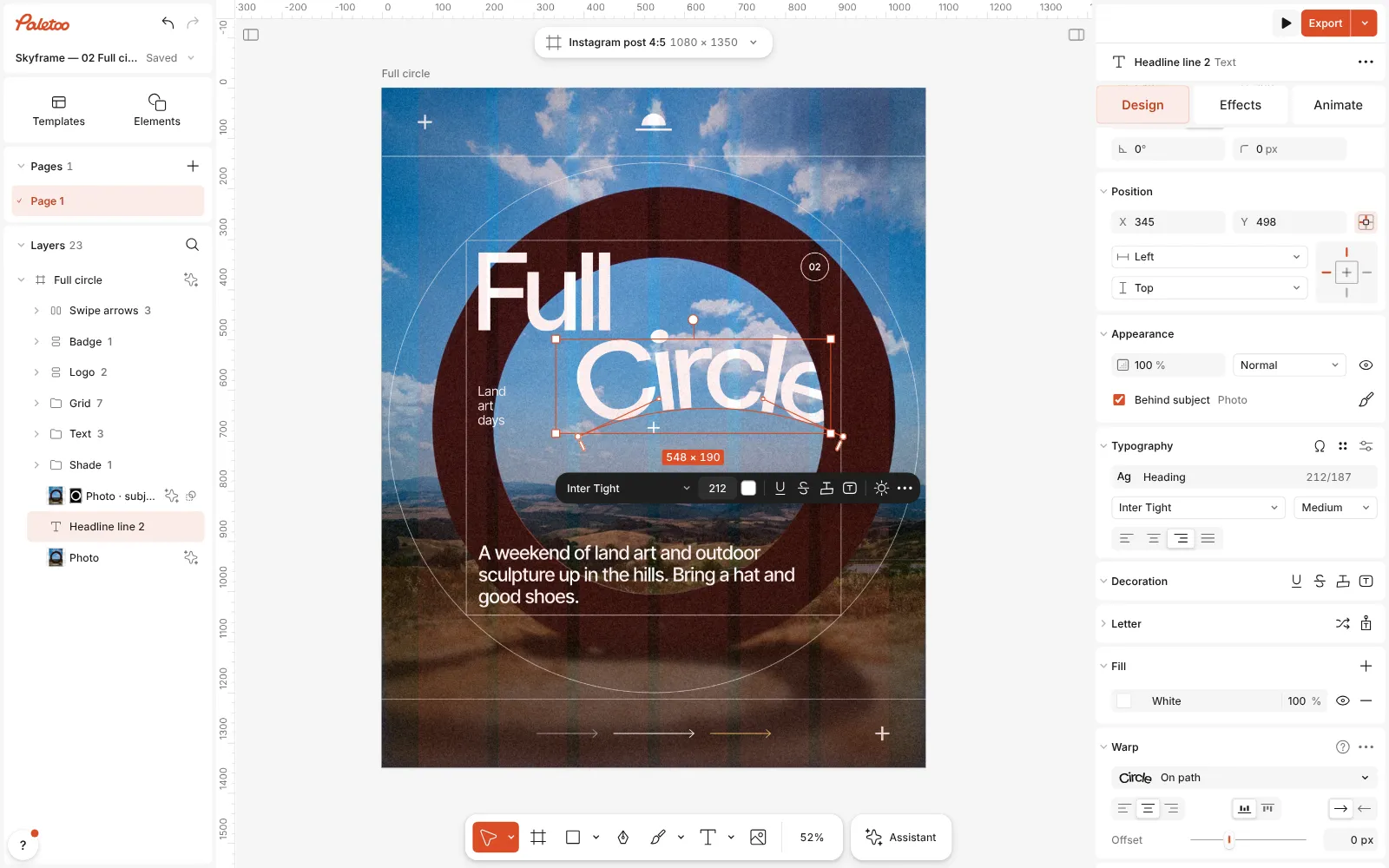
On path chosen: the word running along a curved path, its points on the canvas Shape the path: drag a point or its handles to bend it, double-click the path to add a point, ⌥-click a point to delete it. Drag the two brackets along the path to set where the words start and end.
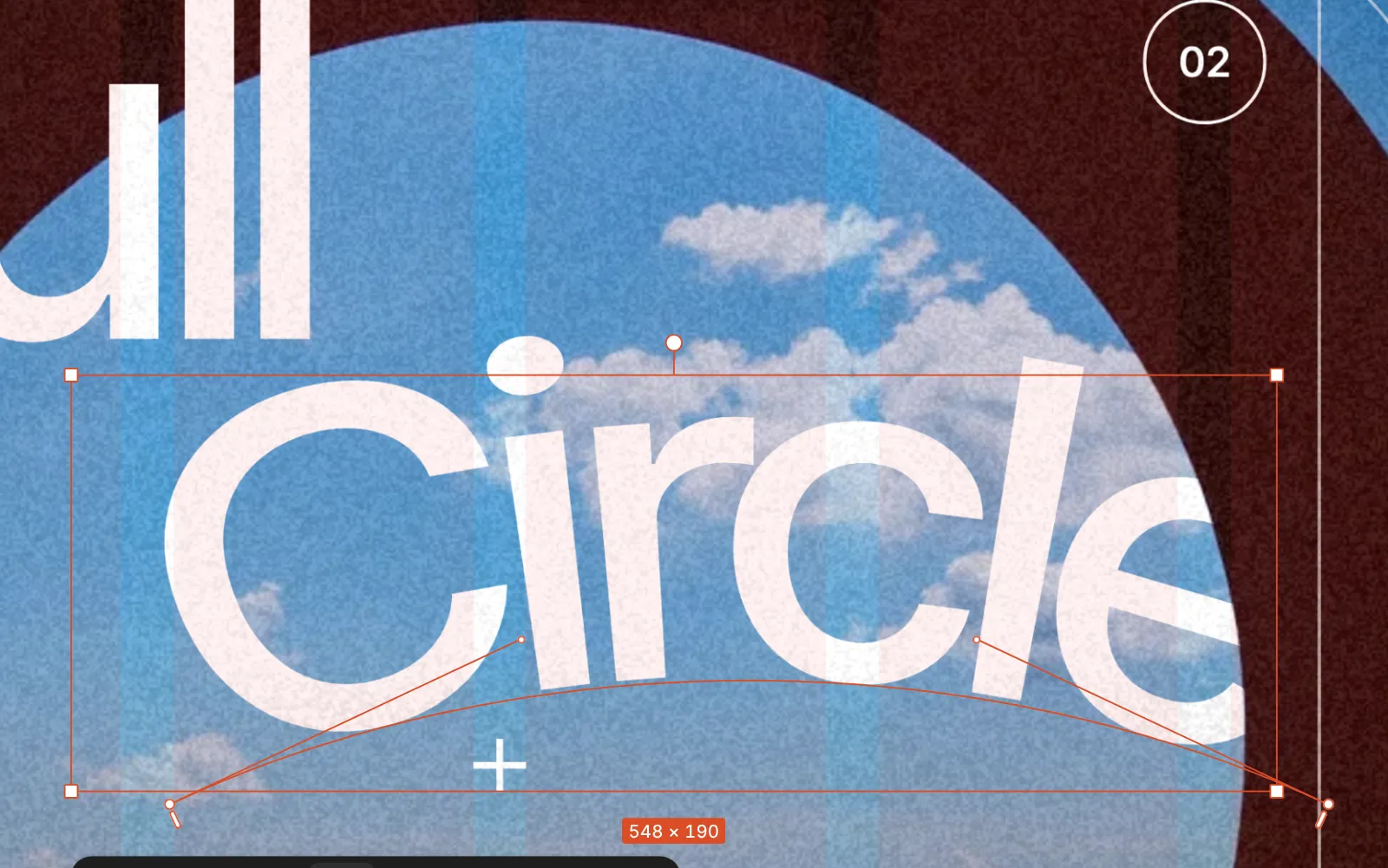
Close up: the word on its path, with the points, their handles and the start and end brackets Back in the Warp section, Align puts the words at the Start, Centre or End of the path, Side sets them On top of the line or Under it, Direction flips which way they run, and Offset lifts them off the path. The section’s Warp options menu holds Add point, Delete point and Reset path.
Double-click the text to change the words — they flow along the same path, and the font and size can still change too. Then press Export.
Watch it
Make it your own
Use few points. Two points with long handles give the smoothest curve; every extra point is another place the letters can kink. Add one only where the path really changes direction, and keep the handles on either side of it in a straight line so the curve passes through smoothly.
Letters spread apart on the outside of a curve and crowd together on the inside. If they collide in a tight bend, set the words Under the line instead of On top, loosen the bend, or add a little letter spacing. Offset moves the whole line off the path without changing its shape — useful when the path traces an edge in the photo and the type should sit just above it.
For a word all the way round a circle, use the Arc kind instead and pick its Circle preset: Bend goes to 360° and the words run round a true circle, with Start setting where they begin. On path is an open curve, best for arches, waves and lines that follow the picture. Reset path brings back the starting arch whenever the curve gets out of hand.
Questions
Does text on a path rasterise my text?
No. The path is part of the text layer: the words, font, size, colour and effects stay editable, and the type keeps its path through undo, a reload and PNG or SVG export.
How do I put text on a circle?
Choose Arc in the Warp menu and pick its Circle preset. On path is for open curves you shape yourself.
Can I move the text without breaking the path?
Yes. The path moves, scales and turns with the text layer, so you can place the word anywhere and the curve comes with it.
How do I go back to straight text?
Choose None in the Warp section’s menu. To keep On path but start the curve again, use Reset path instead.
More effects
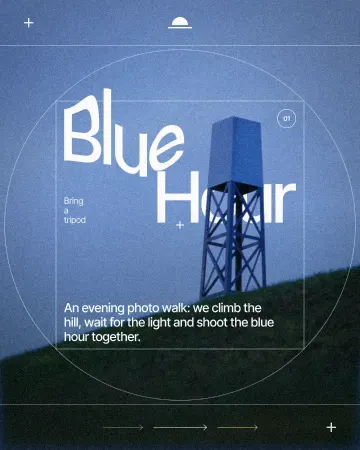
How to warp text on a mesh without rasterising it
Pull a grid over a headline; the words stay editable.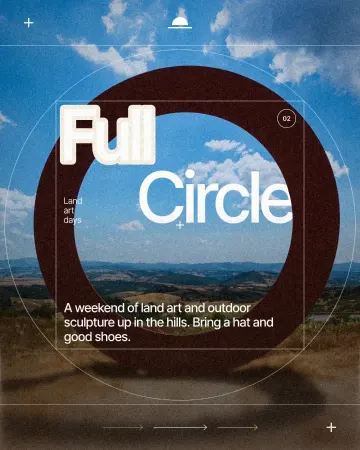
How to make a knockout outline that cuts through
A stroke that cuts through the layers under the text.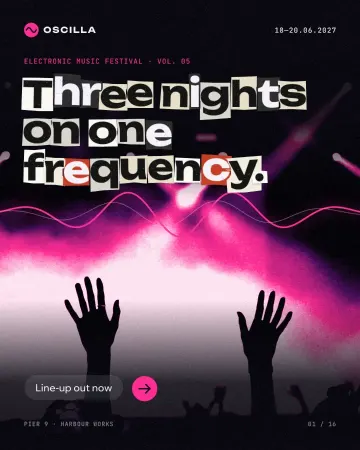
How to make newspaper cutout letters (ransom note text)
Every letter on its own scrap of paper, turned and nudged.
Read the overview: graphic design trends 2026
Make it online: Text effects online · Logo maker · Lottie animation maker · Animated text maker · Social media post templates · Brand guidelines templates · Story and Reels templates
Try it on your own design
Paletoo opens in your browser, with no sign-up. Every effect here is live: change the picture or the words and the effect follows.
Open in Paletoo