Make a before and after photo
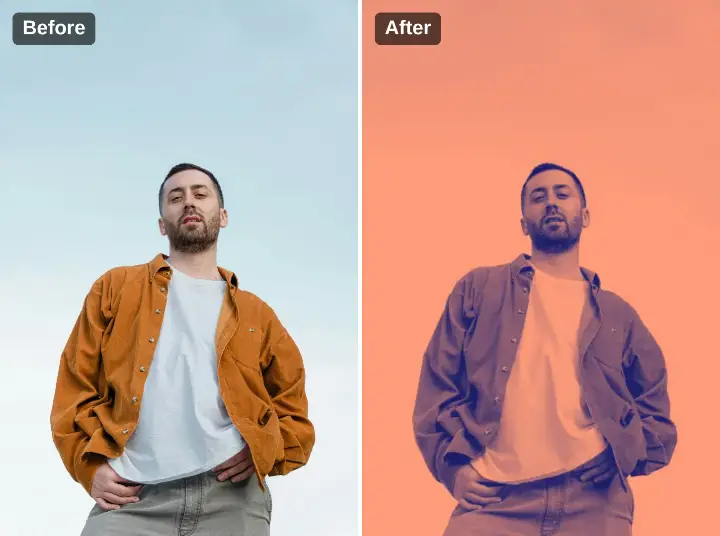
Put two photos side by side or one above the other, labelled «Before» and «After», and download one picture.
Or drop a photo here, or paste it with Ctrl+V
Settings
opens your before and after picture in the editor, for words, a logo or a carousel
Nothing is uploaded: the picture is made in this browser tab.
How to use the make a before and after photo
Add the «before»
Press Choose a photo (or drop or paste it): that is the «before», and it sets the size of both halves. Tap a sample pair to see how it looks.
Add the «after»
Choose the After picture in the panel. It fills its half, cropped from the middle if its shape differs, never stretched.
Layout and download
Side by side for a wide post, Stacked for a tall one or a story. The labels can go. Download one PNG, or open it in the editor to add words or a logo.
Made in Paletoo with the same effect
Real designs from our Learn guides. Open a guide to see how each one was made.
 The same comparison stacked, before on top, for a tall post.
 A “You can say no nicely” poster: the field behind the alpaca in two flat inks.
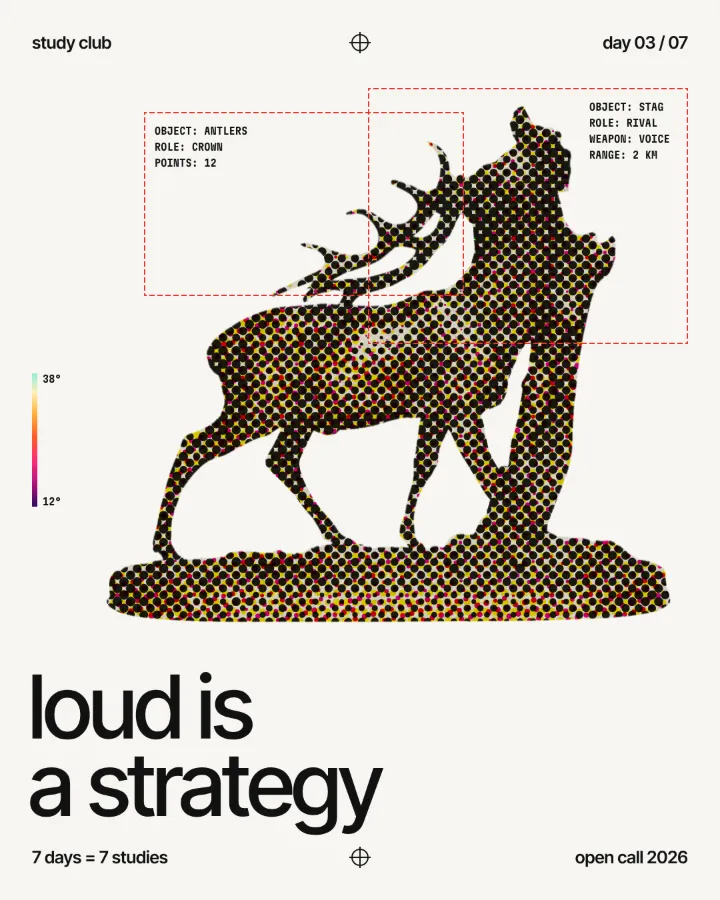 A study-club poster: the stag in heat-map colours, printed in big halftone dots.
Questions
How do I make a before and after photo?
Choose the «before» photo above (it sets the size of both halves), then the After picture in the panel, pick Side by side for a wide post or Stacked for a tall one or a story, and download one PNG. The «Before» and «After» labels can go. Free, no watermark; the photo stays in your browser.
What if my two photos are different sizes?
The «before» sets the size of both halves; the «after» is scaled to cover its half and cropped from the middle, so nothing is stretched. Photos taken the same way line up best.
Can I change the words «Before» and «After»?
Here they are fixed, or off. «Open in Paletoo» carries the picture into the editor, where the labels are ordinary text you can rewrite, restyle and move.
Which layout for Instagram?
Side by side suits a landscape or square post; Stacked suits a 4:5 post or a story. Then Resize for Instagram fits it without cropping.
What size is the download?
The PNG is your photo’s own size, up to 4096 px on the long side (a bigger photo is scaled down to that). The preview is smaller so it stays instant; the download is drawn again at full size.
Is it free? Is there a watermark?
Yes, it is free, and the PNG has no watermark. You do not need an account either.
Is my photo uploaded anywhere?
No. The photo is read and drawn by your browser on your own device; it never leaves this tab. Close the tab and it is gone.
Go further
More free tools
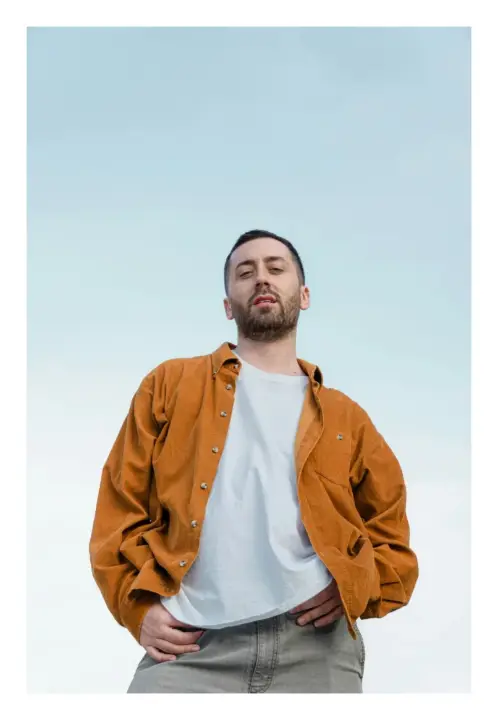
Add a border to a photo
Frame your photo with an even, polaroid or double border in any colour, and download it at full size.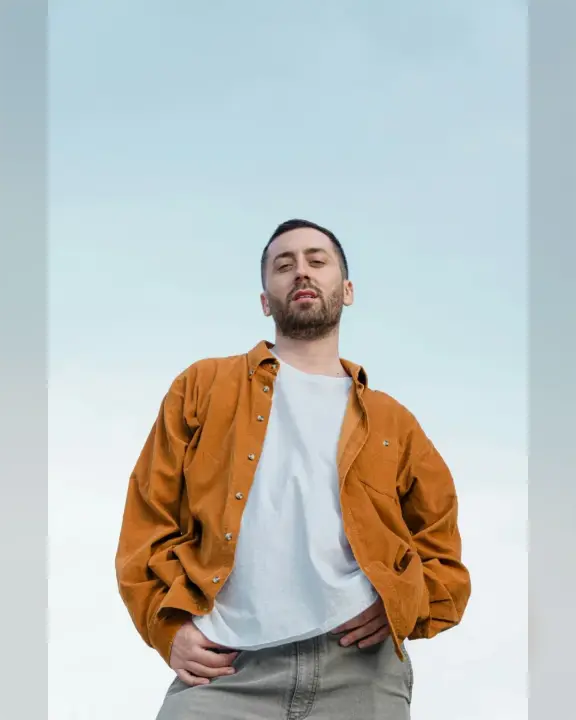
Resize an image for Instagram
Fit the whole photo into a 4:5 post, a square, a 9:16 story or a landscape post — nothing cropped — and download it at 1080 px.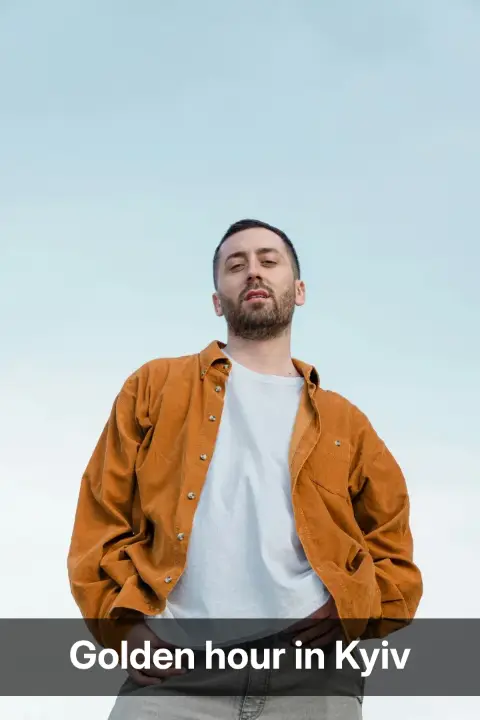
Add text to a photo
Put your words on your photo — a caption, a meme, a quote — and download it at the photo’s full size.