Photo enhancer
Updated
Fix a dull, grey or yellowed photo in one press, then make it two or four times larger — free, in your browser, nothing uploaded.
Start freeFree · no sign-up · nothing uploaded · no watermark
Before and after, made by Paletoo
Old museum scans from our templates, as they are (left) and after Auto enhance (right): one press, one editable step.
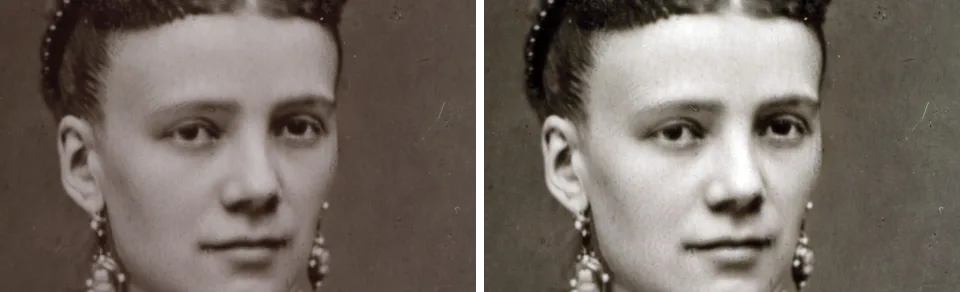 A portrait from 1879 · the sepia cast and the grey blacks fixed in one step
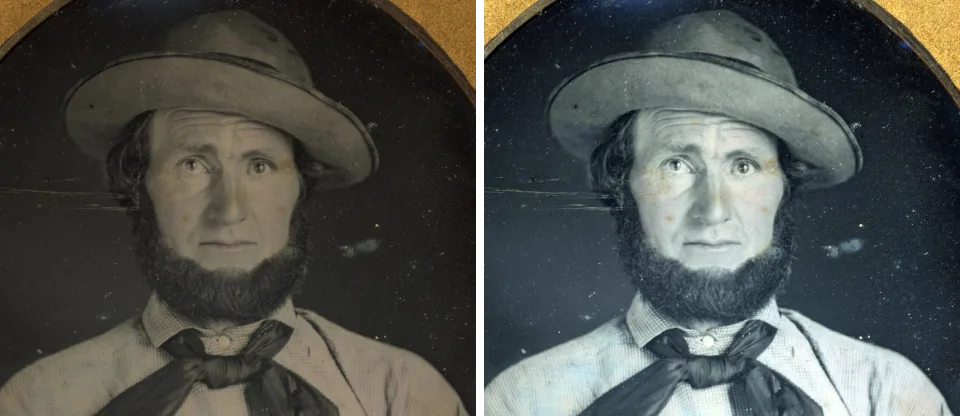 A daguerreotype portrait · the brown haze lifted, the face clearer
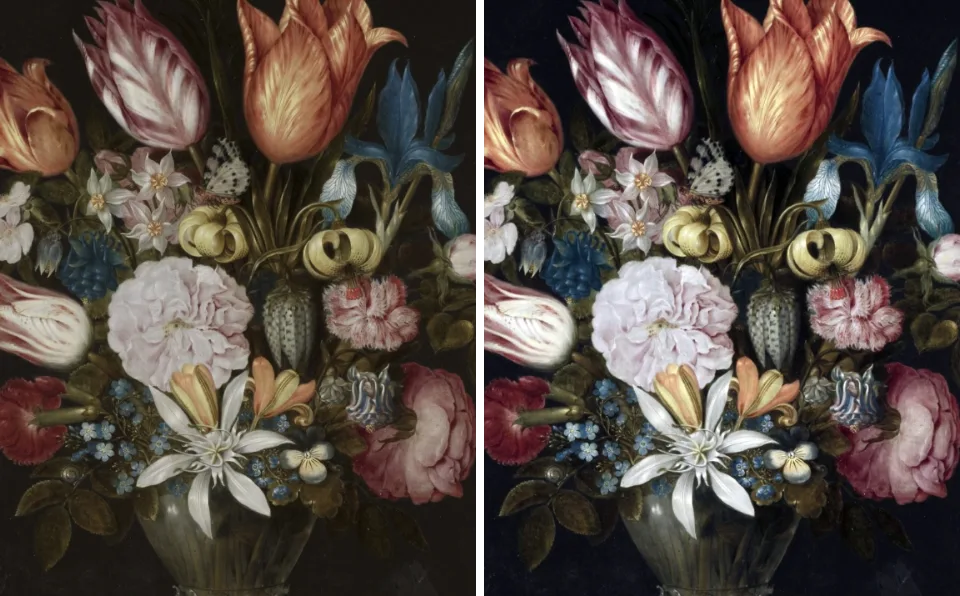 A still-life painting scan · the yellow varnish cast taken out
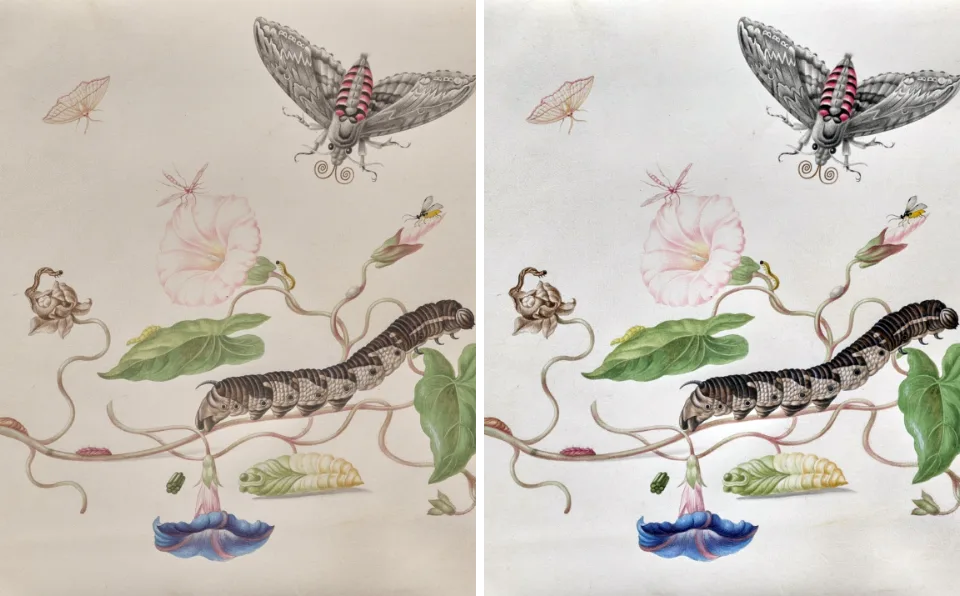 A yellowed insect plate · the paper white again
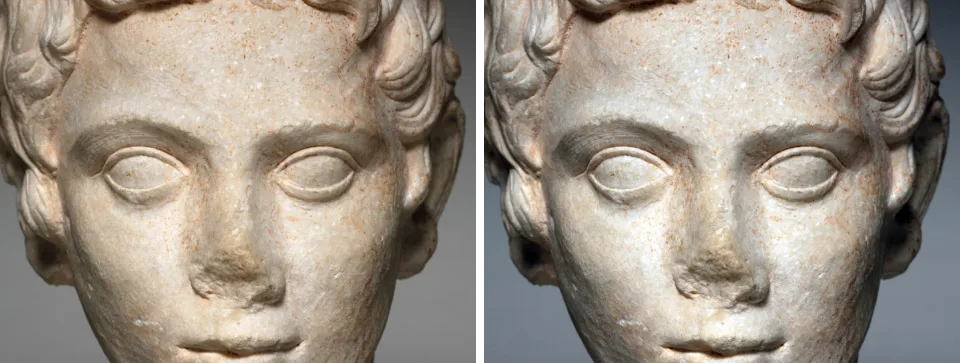 A marble head · a cleaner white, nothing painted in
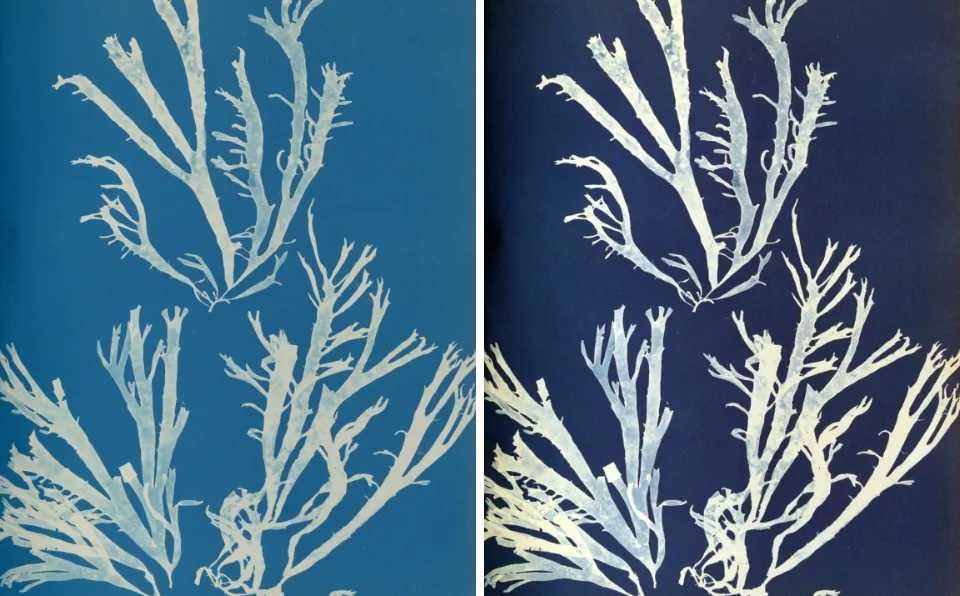 A faded cyanotype of algae · the deep blue back
How it works
-
Open your photo
«Start free» opens a faded portrait from 1879 to try it on; for your own, press Open file… or drop a JPG, PNG or WebP onto the canvas, then click it to select it.
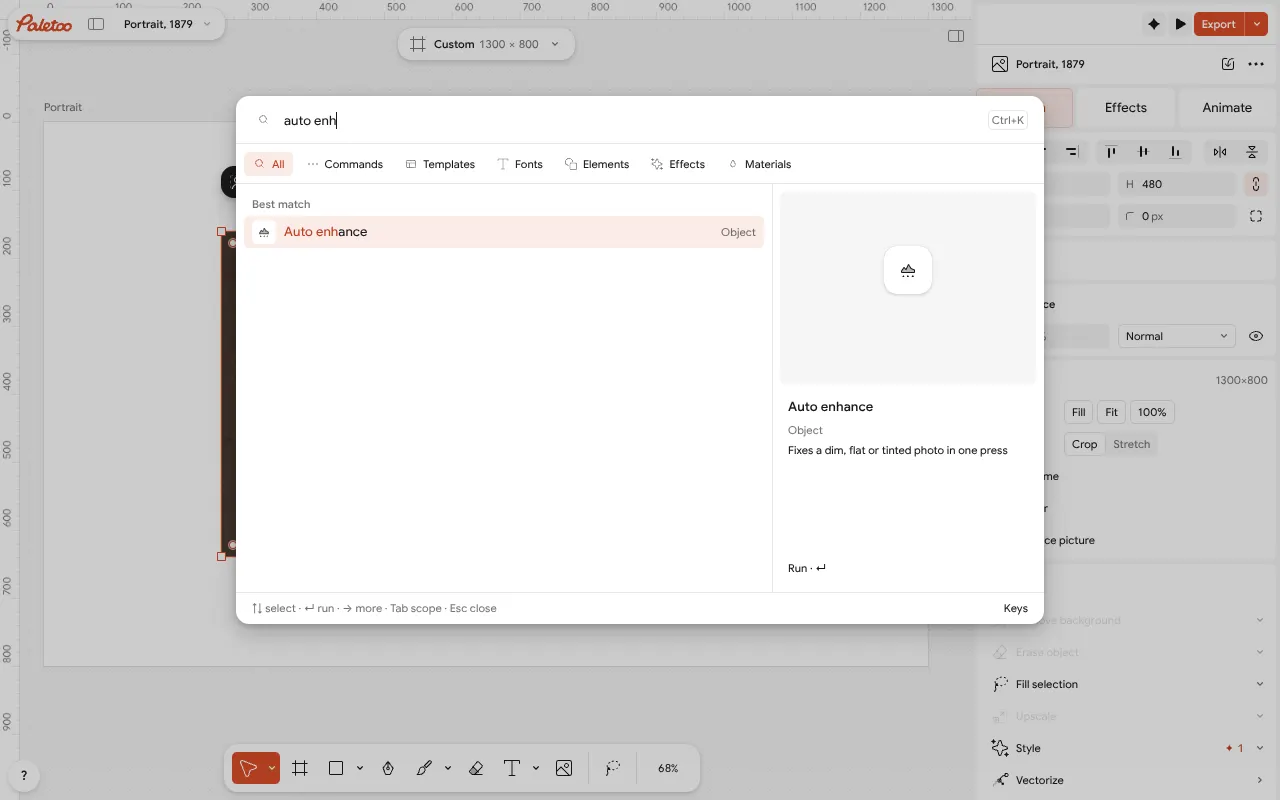
⌘K open on a faded portrait: Auto enhance among the picture’s suggestions -
Press Auto enhance
Press Ctrl K and choose Auto enhance. It reads the photo’s own pixels and stretches each colour to a full black and white, which takes away a grey veil and a colour cast. The result is one Levels step under Applied on the Effects tab, with Auto pressed, so you can tune it or take it off.
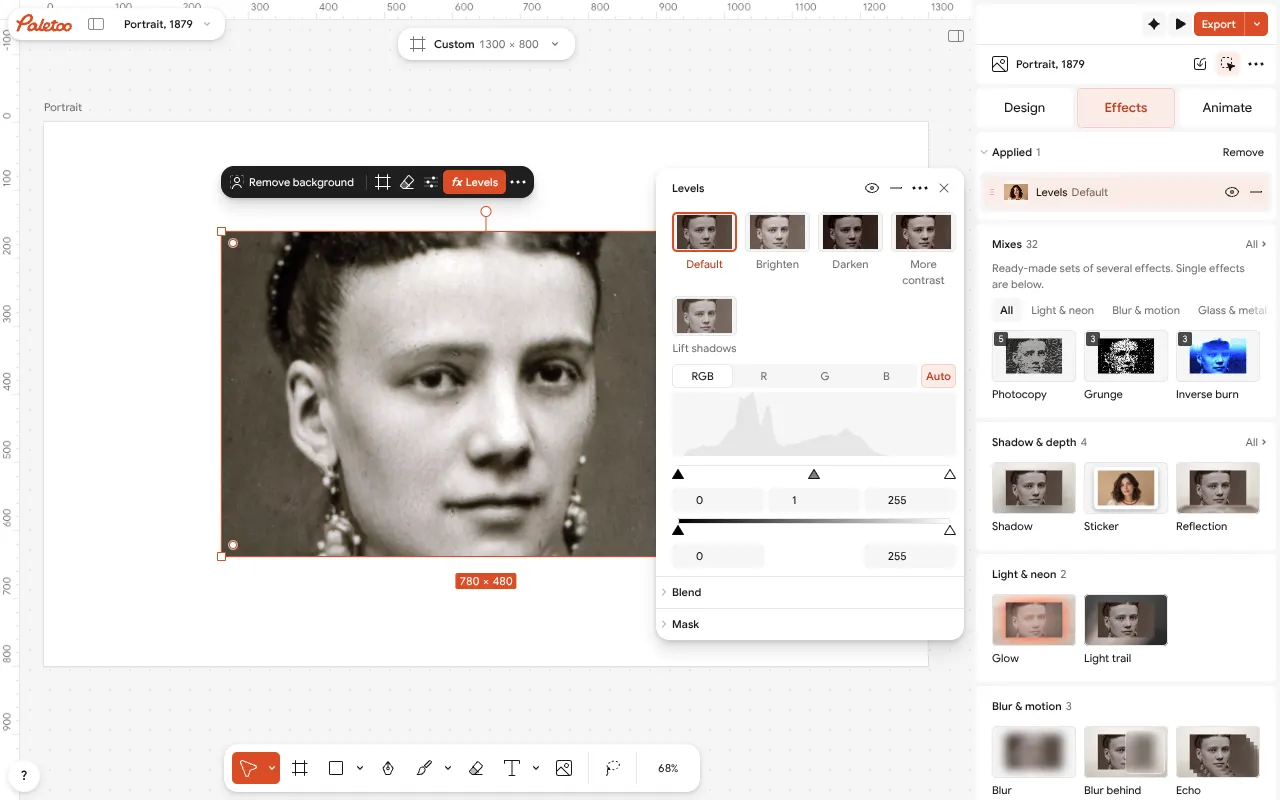
After Auto enhance: one Levels step under Applied, its Auto pressed, the portrait corrected -
Upscale and export
For a bigger file, open the AI section on the Design tab and press Upscale: ×2 or ×4, on your device. Then Export (Ctrl Shift E) a JPG, PNG or WebP with no watermark.
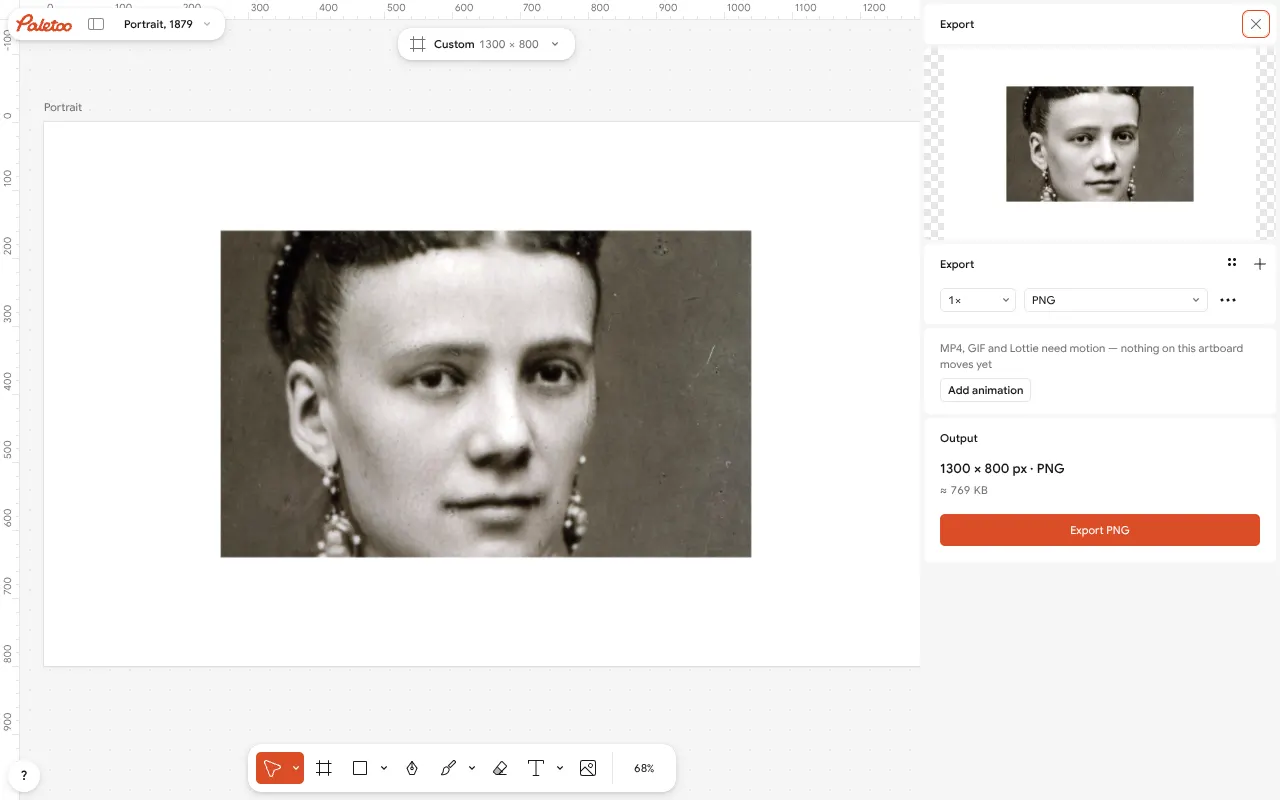
The Export window beside the enhanced portrait: the format and the size in pixels, no watermark
What you get
One press, not ten sliders
Auto enhance sets the black and white point of each colour from the photo itself: dull photos get contrast, tinted ones lose their cast.
Not AI, and still editable
Auto enhance is measurement, not a model guessing faces: it adds an ordinary Levels step you can open, nudge or delete.
2× or 4× larger, on your device
Upscale runs an AI model in your browser, adds detail instead of blur, and stops at 8192 px a side. Nothing is uploaded.
Free, no watermark
No credits and no account for Auto enhance, Upscale or the export. Credits are only for AI image generation and materials.
Then make something
The photo is already in a design editor: cut out the background, add a film look or type, and export a post or a poster.
Questions
Is this photo enhancer really free?
Yes. Auto enhance, Levels, Upscale and the export cost nothing, need no account and put no watermark on your photo. Credits in Paletoo are only for AI image generation and materials, which enhancing does not use.
Is my photo uploaded to a server?
No. Auto enhance counts the photo’s pixels in your browser, and Upscale runs its model on your device. The photo stays on your computer or phone unless you choose to save it to the cloud.
Does Auto enhance use AI?
No. It measures the photo — how dark its darkest pixels are and how light its lightest, in each colour — and stretches the range to full black and white. It adds a normal Levels step, so you can see and change exactly what it did.
Can it fix a blurry photo?
Not by guessing details that were never there. Auto enhance fixes contrast and colour, and Upscale adds pixels with detail rather than blur when you enlarge. A photo that is out of focus stays out of focus; be wary of tools that promise otherwise.
How much larger can I make a photo?
Upscale makes it two or four times larger, up to 8192 pixels on a side. A 1000 px photo becomes 4000 px with ×4, enough for an A4 print at about 340 ppi.
Why did Auto enhance change nothing?
Your photo already reaches a full black and a full white in each colour, so there is nothing to stretch; the editor tells you so. Try the Curves or Basic steps on the Effects tab to change the mood instead.
Can I enhance an old scanned photo?
Yes, that is where it helps most. Old prints fade to grey and turn yellow or pink; Auto enhance brings back the blacks and takes the cast out in one step. Every pair on this page is an old museum scan.
Do I need to sign up or install anything?
No. Paletoo opens in your browser on a computer, a tablet or a phone. Open the photo, enhance it and download it without an account or an app.
Learn more
Step-by-step guides
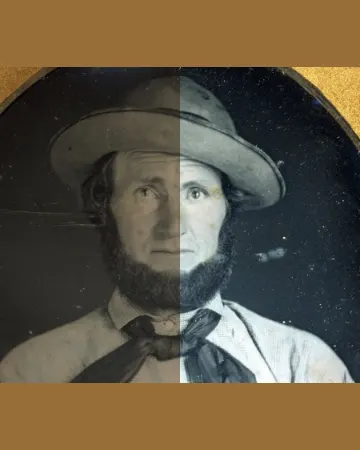
How to enhance photo quality online for free, without AI guesswork
A grey, yellowed or dark photo made clear in one press, then larger — and you can see every change.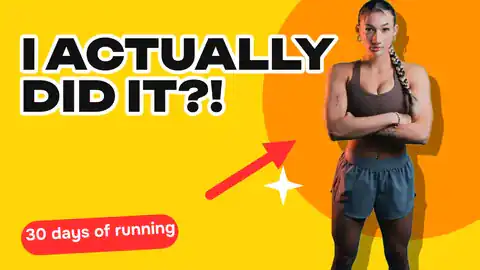
How to remove a background from a photo for free, without uploading it
A clean cut-out, made on your own computer or phone, ready for a thumbnail, a poster or a shop.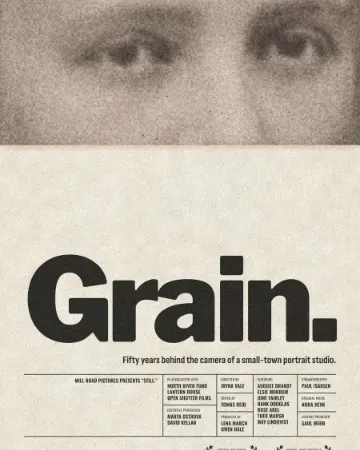
How to give a portrait an analog film look
Warm, faded, a soft halo round the lights, grain and dust.
In the help centre
More tools

Remove background online
Cut the subject out of any photo in one click — on your own device, with no upload and no credits.Photo effects online
Drop in a photo, press one mix — film, print or glitch — and download it in a minute; every step stays editable afterwards.
Image to vector converter
Turn a PNG or JPG logo, icon or drawing into a clean SVG in about 30 seconds — free, no sign-up, and your picture never leaves your browser.
Make it now
Paletoo opens in your browser. Start from the template above or a blank page, and export when you are happy.
Start free