Techniques6 min readFreeUpdated 2026-11-27
Printable stickers: make a sticker sheet at home and print it
Paper, layout, border, resolution and the print dialog — everything between a picture on screen and a sheet of stickers you can peel.
By the Paletoo team · steps tested in Paletoo on

To make printable stickers at home, lay them out on an A4 or US Letter page at 300 DPI, give each a white border 2–3 mm wide around its cut-out, export a PDF and print it at actual size on sticker paper made for your printer, then cut by hand or with a cutting machine. In Paletoo the white border is one effect, the page is a print preset and the PDF is free with no watermark; for stickers that stay on a phone, the sticker maker cuts your photos out for you.
This guide covers the paper, the layout, the border and the printer settings, then makes a sheet from «Punk princess» — a gig poster with a cut-out singer on hot-pink rays, «PUNK PRINCESS» in distressed capitals, hand-written notes and a yellow ticket for a pop-punk night. Every step was run in Paletoo on 12 November 2026.
Sticker paper: which kind
Buy sheets made for your printer: inkjet sticker paper for an inkjet, laser sticker paper for a laser printer, whose fuser heats the sheet and can soften or jam material that isn’t made for it. Then choose the finish by where the sticker will live:
Have a cut-out already? Add an outline to the image — the white border a die-cut sticker needs — and save a PNG to print.
| Paper | Finish | Good for | Watch out for |
|---|---|---|---|
| Matte paper sheets | Matte, writable | Labels, planners, jars, kids | Not waterproof; ink can smudge |
| Glossy paper sheets | Shiny, vivid colour | Photos, bright illustrations | Shows fingerprints; not waterproof |
| Printable vinyl | Matte or glossy, flexible | Laptops, phone cases, things handled often | Inkjet vinyl needs time to dry |
| Vinyl with clear laminate | Gloss or matte overlay | Water bottles, stickers to sell | Thicker: cut through both layers |
| Clear sticker paper | Transparent | Glass, light surfaces | Home printers print no white: white areas turn see-through |
Layout, border and resolution
Work at 300 DPI at the printed size: an A4 page is 2480 × 3508 px, a US Letter page 2550 × 3300 px, and a 5 cm sticker about 590 px across. A photo cut-out needs at least that many pixels of its own to print sharp; text and vector shapes are drawn fresh at any size. More in what DPI for print.
Give every sticker a white border of 2–3 mm — about 24–35 px at 300 DPI — around its cut-out. It looks like a die-cut sticker, and it is your safety margin: cutting by hand or by machine is never exact, and the border takes the error so the blade doesn’t clip the picture. Leave at least 5 mm between stickers, and keep about 10 mm clear of the page edge, because many home printers can’t print to the edge.
Bleed is for stickers cut on their own edge — squares or circles with colour running off. A die-cut sticker with a white border needs none: the white is the margin. For a print shop’s kiss-cut sheet, follow their template; print-ready PDF covers bleed and crop marks.
Printing and cutting
In the print dialog choose actual size or 100 % — never «Fit to page», which shrinks the sheet — set the paper type to the closest match (matte or glossy photo paper) and the highest quality. Print one test on plain paper first and hold it over a sticker sheet against a window to check the margins.
By hand: scissors for round shapes, a craft knife and a metal ruler for straight ones; cut through the white border, never on the picture. Kiss-cutting — through the sticker but not the backing — takes a light hand and a sharp blade.
With a Cricut: export the stickers as a transparent PNG and upload it to Cricut Design Space as a Print Then Cut image. Design Space adds registration marks, your printer prints the sheet, and the machine reads the marks and cuts around each sticker. The printable area is smaller than the sheet and depends on the machine and the paper size; Cricut publishes the current maximum. For cut files without printing, see SVG for Cricut.
Made in Paletoo
Every picture on this page was made in Paletoo — these three with the same steps on other templates:



Step by step in Paletoo
Open the poster: press “Open in Paletoo” on this page, or start from the sticker maker. It opens as your own 1080 × 1920 document: a cut-out singer on hot-pink rays with stars, «PUNK PRINCESS» in Rubik Dirt, «i don’t do quiet.» in Caveat and a yellow ticket for a pop-punk night.
Click the singer: «Punk princess» is a cut-out photo on a transparent background. Open the Effects tab and press Sticker under Shadow & glow: a white line follows the cut, and the step appears under Applied.
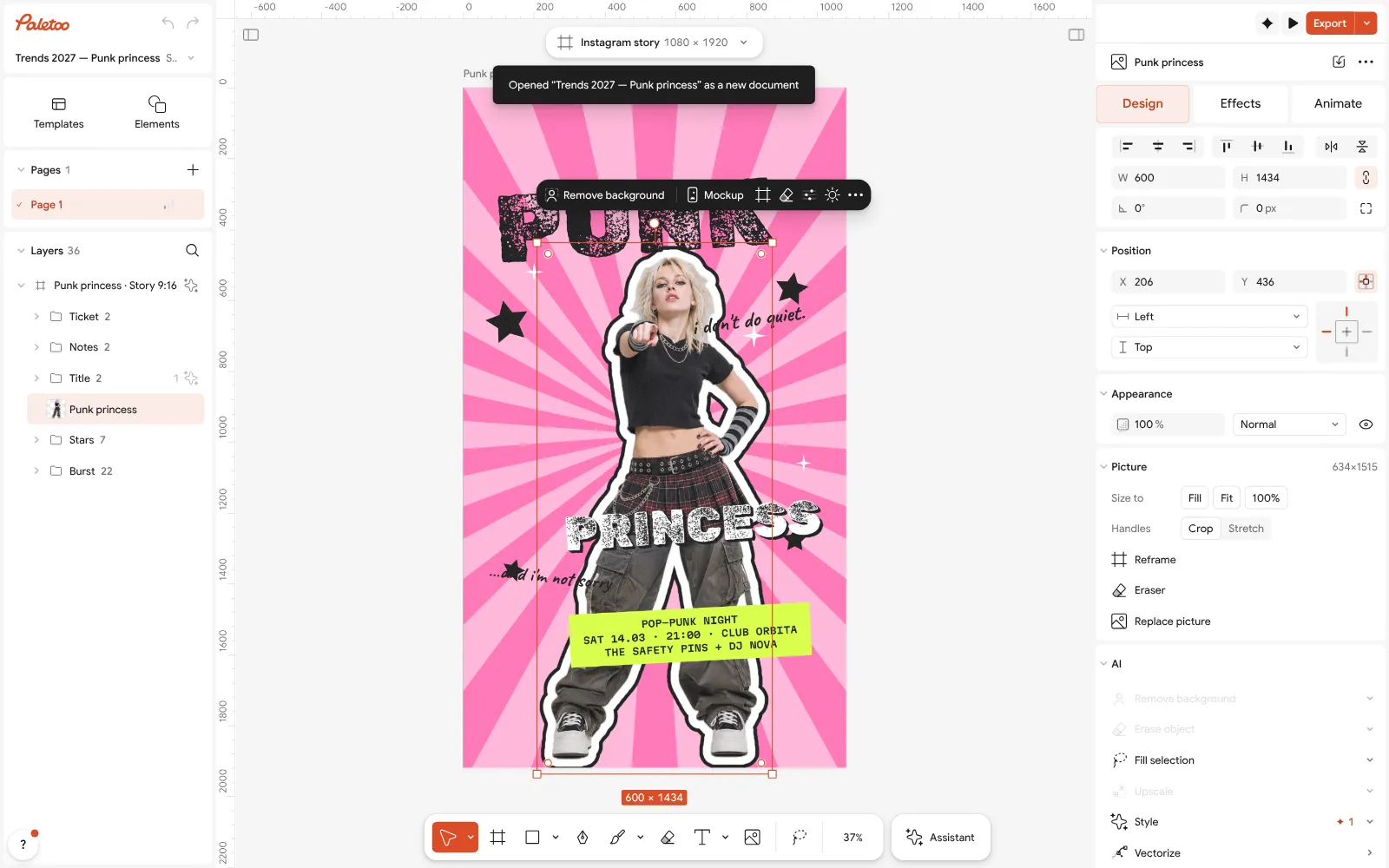
«Punk princess» open in Paletoo, the singer selected on the Design tab Make the sheet: Duplicate artboard, select the copy, press the size chip above the canvas and pick A4 portrait or Letter in the Print group under Resize this artboard — 2480 × 3508 px or 2550 × 3300 px, both 300 DPI. Delete the rays, the ticket and the notes from the copy.
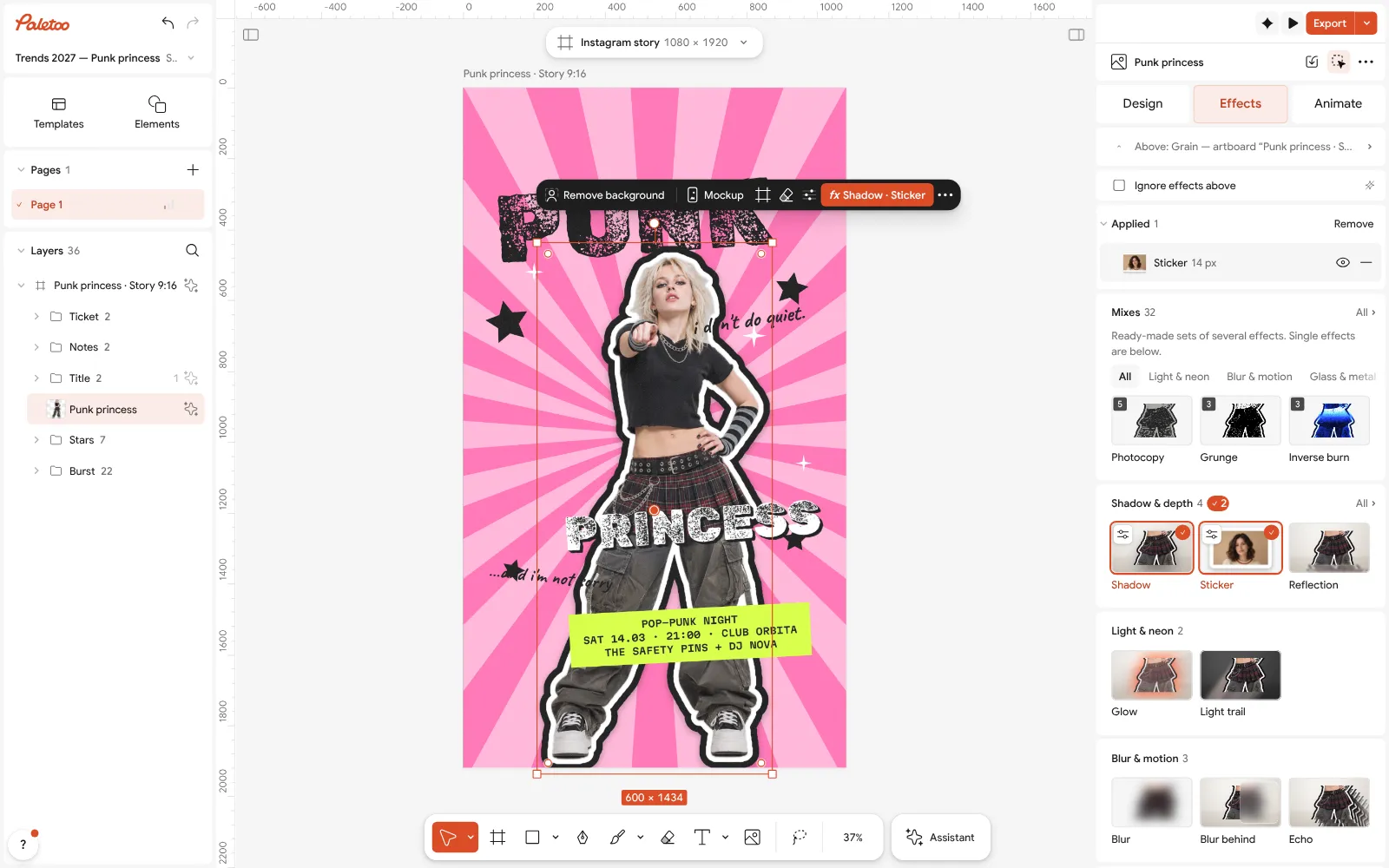
The singer with the Sticker effect: a white line along the cut, listed under Applied on the Effects tab Size and repeat: scale the singer to the sticker you want — 600 px is about 5 cm at 300 DPI — then Duplicate her to fill the page, 60 px (5 mm) apart and about 120 px (10 mm) clear of the edges. The white line scales with her, so check it is still 24–35 px wide.
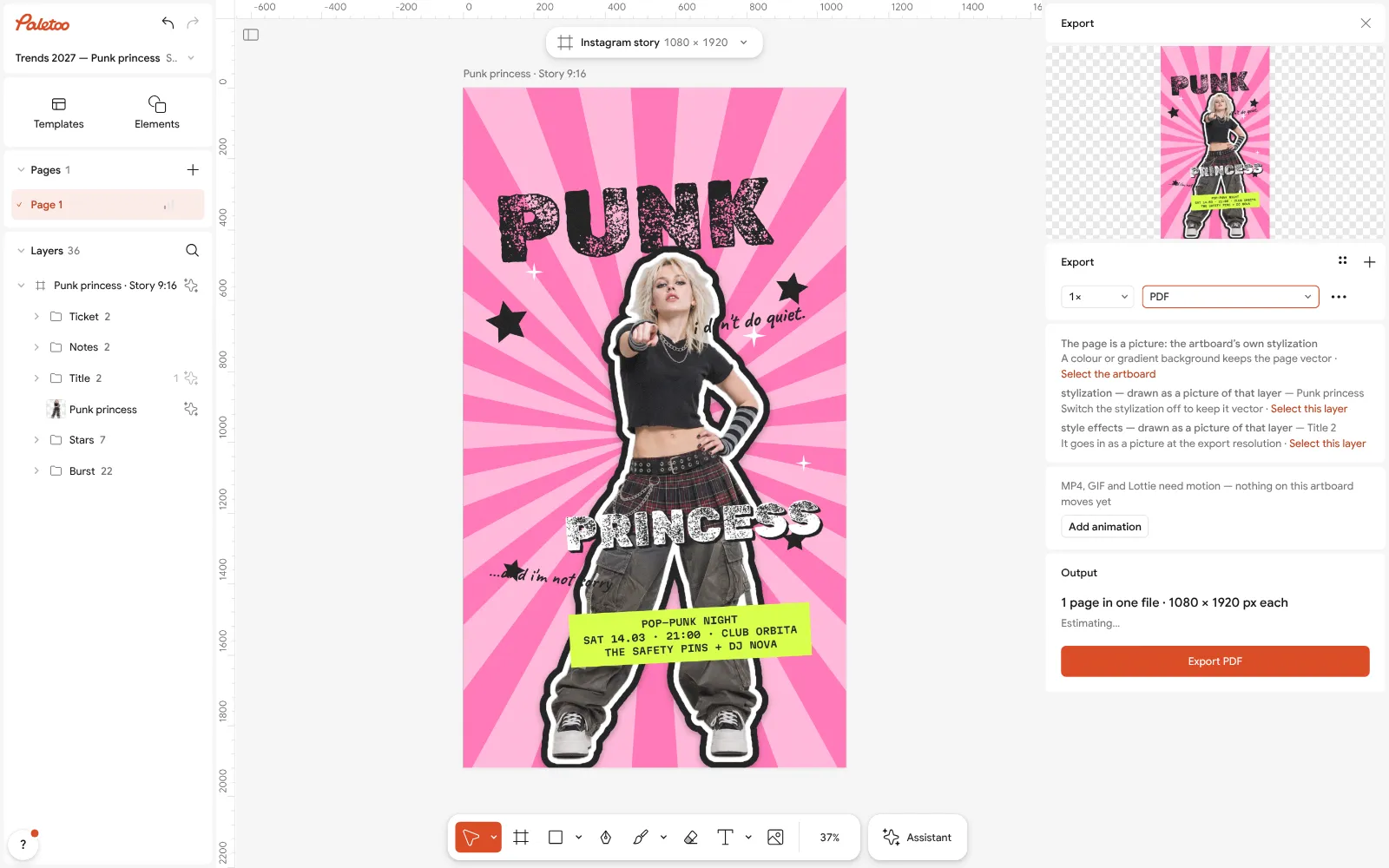
The Export window with PDF chosen for the sticker sheet Press Export (Ctrl Shift E) with the sheet selected and choose PDF. A die-cut sheet needs no Include bleed; turn on Crop marks only if a print shop will trim the page. The PDF is free and carries no watermark.
Print the PDF at actual size (100 %) on sticker paper made for your printer, with the paper type set to match, and let inkjet ink dry before you cut along the white border.
For a Cricut, export the singer alone instead: select her and choose PNG with Background set to Transparent, then upload the file to Design Space as a Print Then Cut image.
Make it your own
If the soft shadow of the Sticker prints as a grey halo, take it off and add a plain Stroke instead: white, Outside, following the Cut contour, with Round corners.
For a print shop’s kiss-cut sheet, ask for their template and bleed, then export with the PDF print with bleed preset.
The same cut-out makes a chat sticker: export it as a 512 px PNG and see WhatsApp stickers.
Sources
Questions
How do I make printable stickers at home?
Lay the stickers out on an A4 or Letter page at 300 DPI with a 2–3 mm white border, export a PDF, print it at actual size on sticker paper made for your printer, and cut by hand or with a cutting machine.
What paper do I need for printable stickers?
Sticker paper made for your printer type: matte or glossy paper sheets for indoor stickers, printable vinyl for things handled often, and a clear laminate over vinyl for water resistance.
Can I print stickers with a normal home printer?
Yes. Any home inkjet or laser printer prints sticker paper made for it; set the paper type to match and print at 100 %.
What DPI should printable stickers be?
300 DPI at the printed size: a 5 cm sticker needs about 590 pixels across, an A4 sheet 2480 × 3508 px.
How do I make waterproof stickers at home?
Print on printable vinyl and cover it with a clear laminate sheet before cutting. Paper stickers and unlaminated inkjet prints are not waterproof.
How do I print then cut stickers with a Cricut?
Export the stickers as a transparent PNG, upload it to Cricut Design Space as a Print Then Cut image, print the sheet with its registration marks and let the machine cut. The maximum size depends on the machine and paper.
Can I make printable stickers for free?
Yes. Paletoo’s templates, the Sticker effect and the PDF and PNG exports are free, with no watermark and no account.
Make it online
Try it on your own design
Paletoo opens in your browser, with no sign-up. Every effect here is live: change the picture or the words and the effect follows.
Open in PaletooOpens this design as your own copy — every layer and effect editable, free.
Read next
- 01
 How to make WhatsApp stickers from photos, on iPhone or AndroidThe file rules, the two ways a sticker gets into WhatsApp, and a cut-out with a white border — or without one — made free in the browser.
- 02
 Print-ready PDF: bleed, crop marks and CMYK, freeEverything a printer means by “print-ready”, and a checklist before you send the file.
- 03
 What DPI for printing? 300, 150 or less — and how to checkHow many pixels a print really needs, from a business card to a billboard — and the one multiplication that tells you if your file is big enough.
- 04
 How to make a Telegram sticker pack: sizes and rulesThe sizes Telegram asks for, a live preview in light and dark chats, and two free ways to make the pack — from photos in one go, or sticker by sticker in the editor.