Techniques4 min readFreeUpdated 2026-11-18
What DPI for printing? 300, 150 or less — and how to check
How many pixels a print really needs, from a business card to a billboard — and the one multiplication that tells you if your file is big enough.
By the Paletoo team · steps tested in Paletoo on
Print at 300 dpi for anything held in the hand or seen up close — photos, business cards, flyers, stickers and small posters; 150–200 dpi is enough for posters seen from a metre or more, and banners and billboards need far less, 20–100 dpi. To check a file, multiply the print size in inches by the dpi (or divide millimetres by 25.4 first): an A4 page at 300 dpi needs 2480 × 3508 pixels.
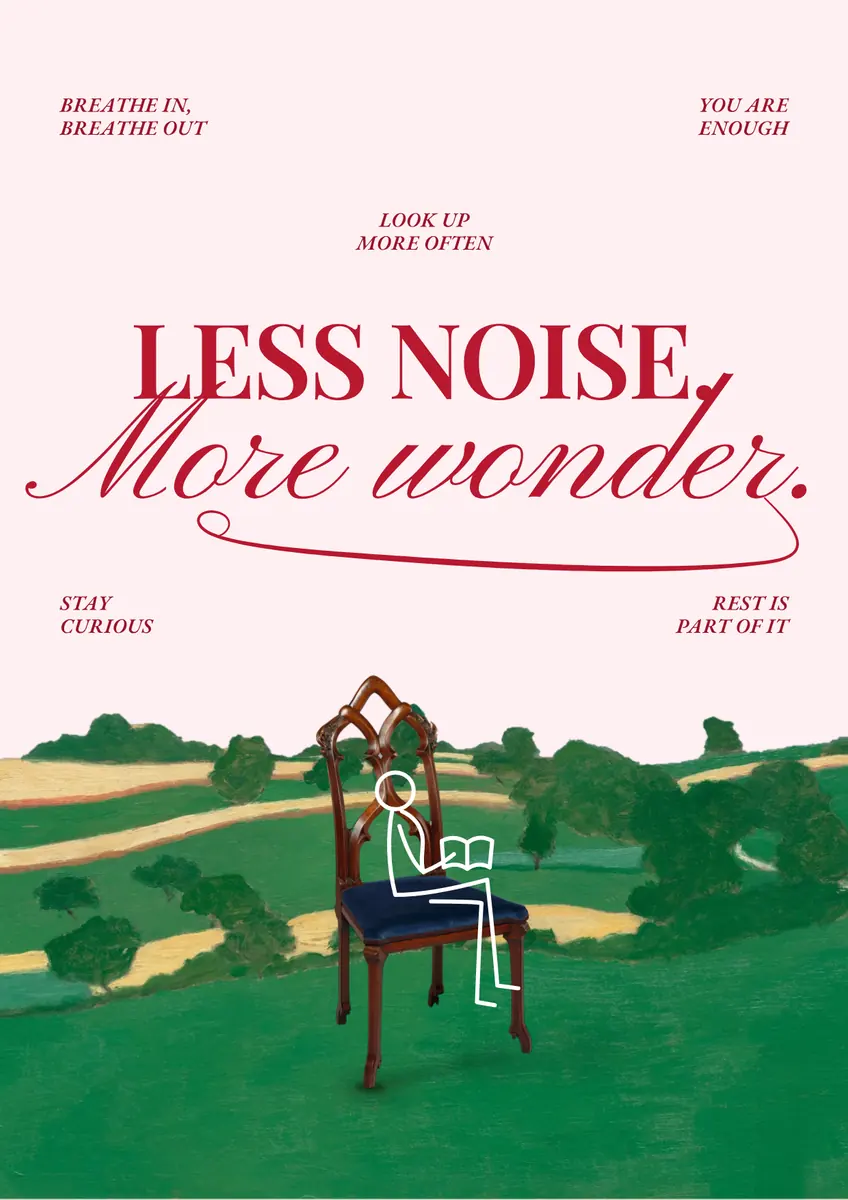
This guide explains what dpi actually measures, gives the numbers for every common print, and checks a real poster — «Less noise. More wonder.», an illustrated print that is exactly A4 at 150 dpi — then makes it A4 at 300 dpi and exports it at the size the printer wants. Every step was run in Paletoo on 11 November 2026; the pictures are the editor itself.
DPI, PPI and pixels in plain words
Strictly, dpi (dots per inch) is how many ink dots a printer lays down, and ppi (pixels per inch) is how many of your image’s pixels land on each inch of paper. Everyone says dpi for both, and so do print shops. What matters is the second meaning: how many pixels your file has for the size it will be printed. A 3000-pixel-wide picture printed 10 inches wide is 300 ppi; the same file printed 20 inches wide is 150.
The «72 dpi for screens» number is a leftover from 1980s Macs and means nothing today: a screen shows pixels, not inches, so only the pixel size of a web image matters. The dpi number stored in a file is just a label; changing it without changing the pixels does not make a print sharper.
What dpi for each kind of print
The closer people look, the more pixels you need. These are the working numbers print shops use:
| Seen from | Resolution | Example in pixels | |
|---|---|---|---|
| Photos, art prints | In the hand | 300 dpi | 10 × 15 cm: 1181 × 1772 |
| Business cards, flyers, stickers | In the hand | 300 dpi | A5: 1748 × 2480 |
| Small posters (A3, 11 × 17 in) | 0.5–1 m | 200–300 dpi | A3 at 300: 3508 × 4961 |
| Large posters (A2–A0) | 1–3 m | 150 dpi | A1 at 150: 3508 × 4967 |
| Roll-up banners | 2–5 m | 100 dpi | 85 × 200 cm: 3346 × 7874 |
| Billboards | 10 m and more | 20–50 dpi | scaled by the printer |
How to check if your picture is big enough
Divide the picture’s width in pixels by the print width in inches (mm ÷ 25.4). If the answer is 300 or more for something held in the hand, or 150 or more for a poster, print it. If it is lower, print smaller, or make the picture bigger before printing: upscaling a photo with a good method adds believable detail, though it cannot invent what was never there. Text and shapes made in a design editor are not pictures: they are drawn again at any size, so they stay sharp however big you go. That is why a poster of big type over a small photo can be printed huge, and a poster that is one full-bleed photo cannot.
Made in Paletoo
Every picture on this page was made in Paletoo — these three with the same steps on other templates:
Step by step in Paletoo
Open the poster: press “Open in Paletoo” on this page, or start from the poster maker. With nothing selected, the chip above the canvas shows its size: 1240 × 1754 — exactly A4 at 150 dpi.
To make it A4 at 300 dpi, press the chip, turn on Scale artwork and pick A4 portrait (2480 × 3508) in the Print group. The type and shapes are redrawn at the new size, as sharp as before.
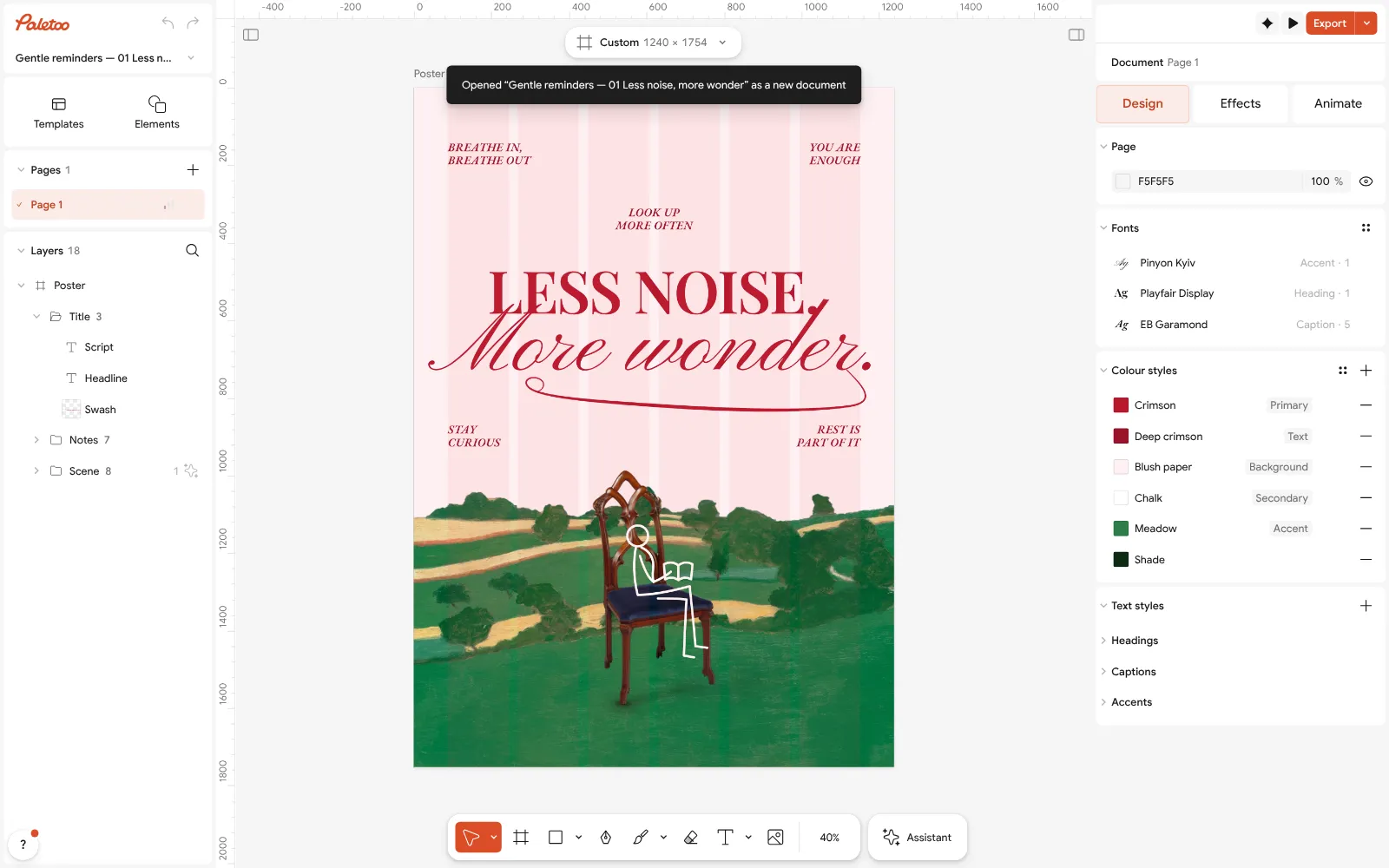
The «Less noise» poster open in Paletoo with nothing selected: 1240 × 1754 on the chip — A4 at 150 dpi Check the photos: select each one — its pixel size shows in the Design tab. A photo needs about as many pixels as the space it fills at 300 dpi; if it has fewer, run Upscale from Ctrl K on it, which works on your device.
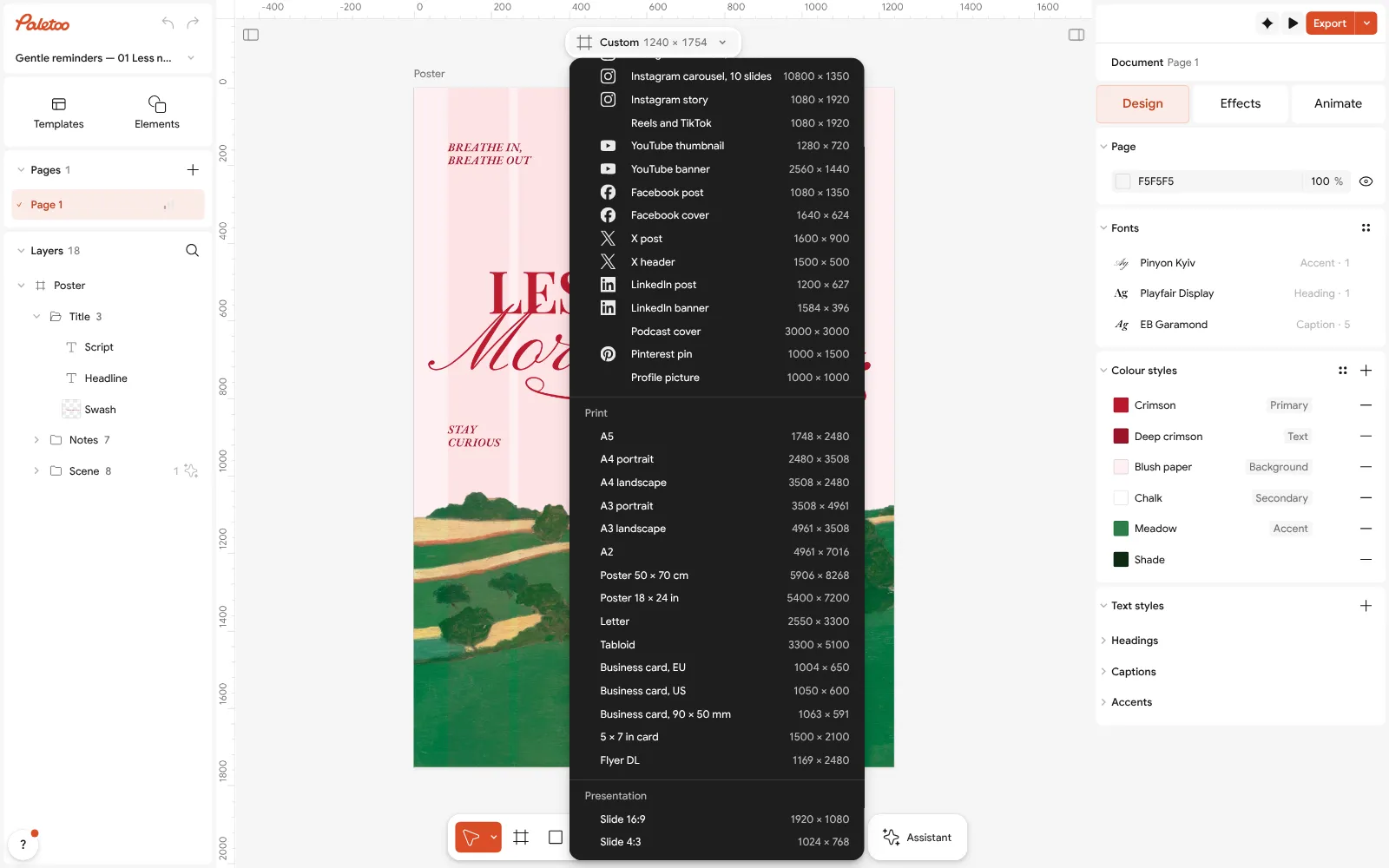
The size chip pressed: A4 portrait, 2480 × 3508 — the same page at 300 dpi — with Scale artwork on For any size not on the list, start a page from Home with New document › Custom and type it in millimetres or inches under Units: the window shows the pixels at 300 dpi before you press Create.
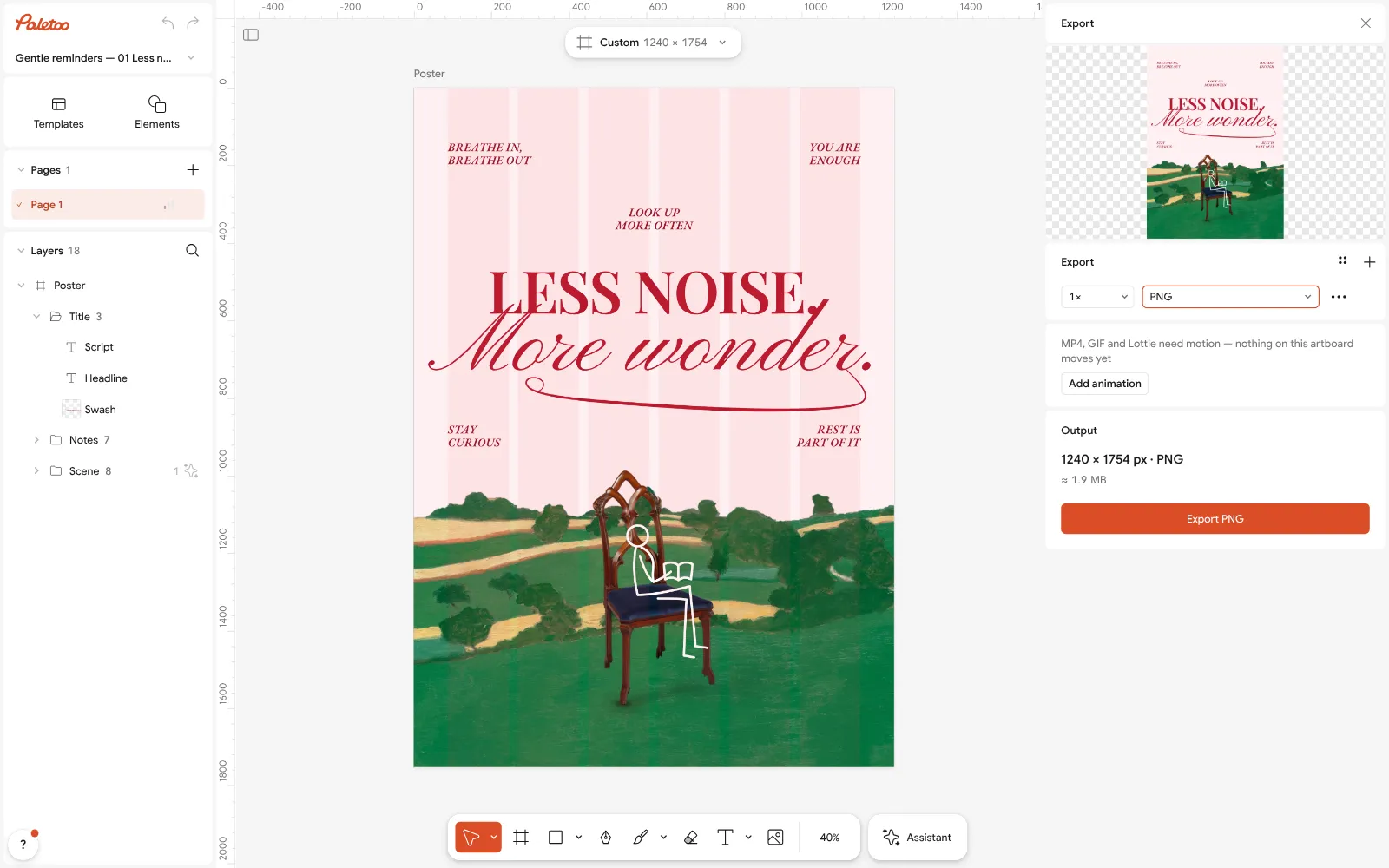
The Export window: the scale beside the format and the file’s size in pixels Press Export (Ctrl Shift E). For a PNG or JPG, the scale beside the format multiplies the artboard: 2× turns a 150 dpi page into a 300 dpi file. For print, choose PDF: text and shapes stay vector, so they print sharp at any dpi.
Print one test at 100 % on an office printer and look at it from the distance people will. If it looks sharp there, it is sharp enough.
Make it your own
Photos from a phone are usually 4000 × 3000 pixels: that is about 34 × 25 cm at 300 dpi, or A2 at 150 — more than enough for most posters.
If a printer asks for «300 dpi» and your file is a PDF from Paletoo, the text and shapes already qualify; only the photos inside need checking, in the Design tab.
For a large banner, make the design at a tenth of the size in Custom and export PDF: the vector parts scale perfectly and the file stays light.
Sources
Questions
What dpi should I use for printing?
300 dpi for photos, business cards, flyers and anything held in the hand; 150–200 dpi for posters seen from a metre or more; 20–100 dpi for banners and billboards.
Is 300 dpi good for printing?
Yes — it is the standard for prints seen up close. More than 300 rarely shows a difference on paper.
What dpi for a poster?
300 dpi for A3 and smaller, 150 dpi for A2 to A0 seen from a metre or more.
How many pixels is A4 at 300 dpi?
2480 × 3508 pixels. At 150 dpi it is 1240 × 1754.
Does changing dpi make an image sharper?
No. The dpi in a file is only a label; sharpness comes from the number of pixels. Change the pixel size (or upscale the photo) to print bigger.
Make it online
- Poster makerMake a poster from a template that already has the layout right, then export a print-ready PDF or an image for screens.
- Photo enhancerFix a dull, grey or yellowed photo in one press, then make it two or four times larger — free, in your browser, nothing uploaded.
- Flyer makerTurn a ready flyer template into yours in minutes and send the printer a PDF with bleed and crop marks.
Free design templates for posts, stories and posters: Poster templates · Team and speaker templates · Event and launch templates
Try it on your own design
Paletoo opens in your browser, with no sign-up. Every effect here is live: change the picture or the words and the effect follows.
Open in PaletooOpens this design as your own copy — every layer and effect editable, free.
Read next
- 01
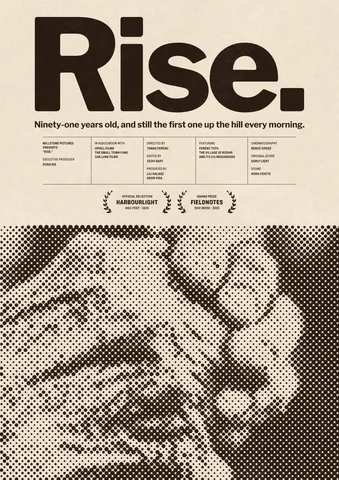 Poster sizes: A4 to A0, 18 × 24, 24 × 36 and pixels for printEvery common poster size in one table — millimetres, inches and the pixels to export — and a poster that switches size in one menu.
- 02
 Print-ready PDF: bleed, crop marks and CMYK, freeEverything a printer means by “print-ready”, and a checklist before you send the file.
- 03
 RGB vs CMYK: which to use for print, and why colours go dullWhy your neon yellow came back from the printer looking like mustard — and how to see it coming on screen, before you pay for the run.