Photoshop vs Paletoo5 min readFreeUpdated 2026-11-13
Transparent outline text: Photoshop, Illustrator, or one click
«Transparent outline» means two different looks. Both, step by step in Photoshop and Illustrator — and the one-click way that stays editable.
By the Paletoo team · steps tested in Paletoo on
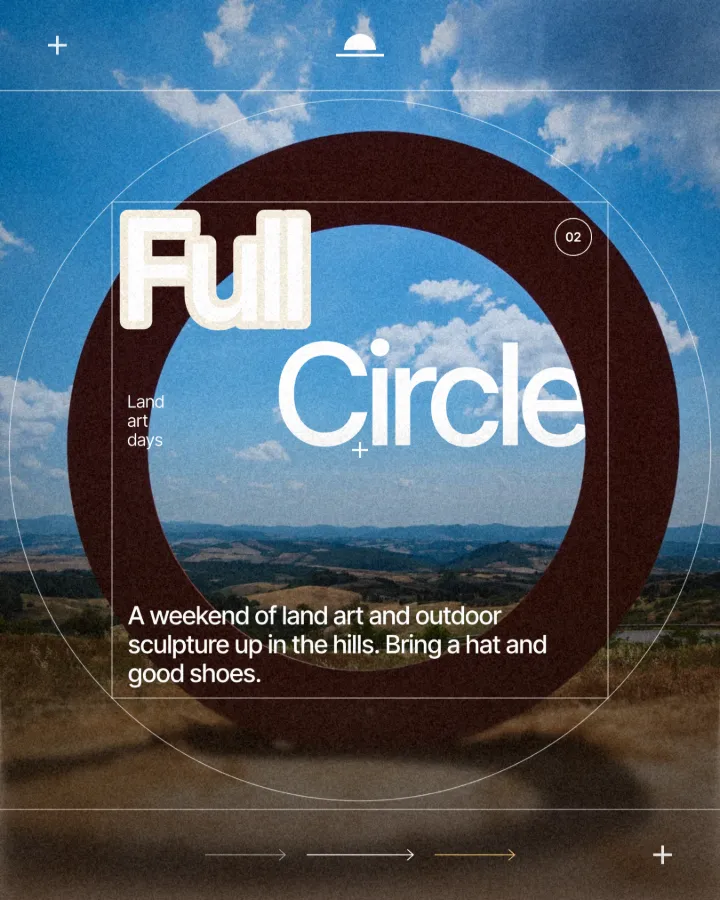
Transparent outline text means one of two things. Either the letters are see-through and only their outline is drawn (hollow text: Photoshop’s Fill 0 % with a Stroke style), or the letters stay solid and the outline itself is see-through, a band cut through the picture round them (a knockout outline). In Paletoo both are one click on live text: Hollow and Knockout in the text’s outline.
Below are the honest Photoshop and Illustrator steps for both looks, with what each costs you when the words change, and then the Paletoo way. Switch the demo between Paint and Knockout to see the second meaning — the transparent band — on your own word. Steps checked on 11 November 2026.
Try it: your word, cut out of a photo
Type a word, drag it over the photo, and switch between a painted outline and a knockout. Knockout shows the background through the band — swap the background and the band follows.

Opens the poster with your word and these settings, as your own copy. Free, no sign-up.
The Photoshop and Illustrator way
These work in Photoshop and Illustrator 2025–2026 and in much older versions. Count on 5 minutes for hollow letters and 10–15 for a transparent band per headline. You need the photo, the type on a layer above it and, for the band, a background layer in the colour the band should show.
- Hollow letters in Photoshop. Select the type layer, open Layer › Layer Style › Stroke, set Position to Outside and a size of 4–8 px, then in the Layers panel drag Fill (not Opacity) to 0 %. The letters vanish, the stroke stays.
- A transparent band in Photoshop. Ctrl-click (Cmd-click on a Mac) the type layer’s thumbnail to load the letters as a selection, then Select › Modify › Expand by 8–20 px.
- Select the photo layer and Alt-click (Option-click) the Add layer mask button. The mask hides the photo inside the grown selection, so a band of the background shows round the letters; the type stays on top in its colour.
- Hollow letters in Illustrator. Select the text, set its Fill to None and its Stroke to a colour and weight in the Properties panel. The text stays editable.
- A transparent band in Illustrator. Copy the text, choose Type › Create Outlines on the copy, then Object › Path › Offset Path by the band width and fill the result white.
- Select the white offset shape and the photo under it, open the Transparency panel and press Make Mask, then tick Invert Mask: the photo disappears inside the band and the background shows through. Put the live text back on top.
- Export: in Photoshop File › Export › Export As, in Illustrator File › Export › Export As or Save a Copy as PDF.
All of this works, and the hollow version stays live in both programs. The transparent band does not: the expanded selection in Photoshop and the outlined, offset copy in Illustrator are snapshots of today’s words. Change a letter, the font or the position and the band no longer fits; you delete the mask and build it again. In Paletoo the band is a setting of the text’s own stroke and follows every edit.
Which «transparent outline» do you need?
Hollow letters are about the word: the photo is seen through the letterforms, which works on huge, bold type over a strong picture and on minimal posters where the outline itself is the design. They get hard to read at small sizes, because thin lines on a busy picture disappear.
A transparent band is about separation: solid letters, and a gap of the background round them. It reads at any size and on any photo. Canva’s text effects include Hollow and Outline, which paint a colour; at the time of writing none of them cuts through the picture, so the band look needs a duplicate text in the background colour there — a painted imitation that breaks as soon as the background is not flat.
| Hollow letters | Transparent band (knockout) | |
|---|---|---|
| What is see-through | The letters | The band round them |
| Photoshop | Stroke style + Fill 0 % | Expanded selection + layer mask |
| Illustrator | Fill None + Stroke | Offset Path + inverted opacity mask |
| Paletoo | Hollow, one click | Knockout, one click |
| Stays live when words change | Yes, everywhere | Paletoo only |
Made in Paletoo
Every picture on this page was made in Paletoo — these three with the same steps on other templates:


The one-minute way in Paletoo
Open the example: press “Open in Paletoo” on this page. It is a night post with the word “count” over the stars, the transparent band already on.
Select your headline and stay in the Design tab. In the text’s Stroke section press Add a stroke.
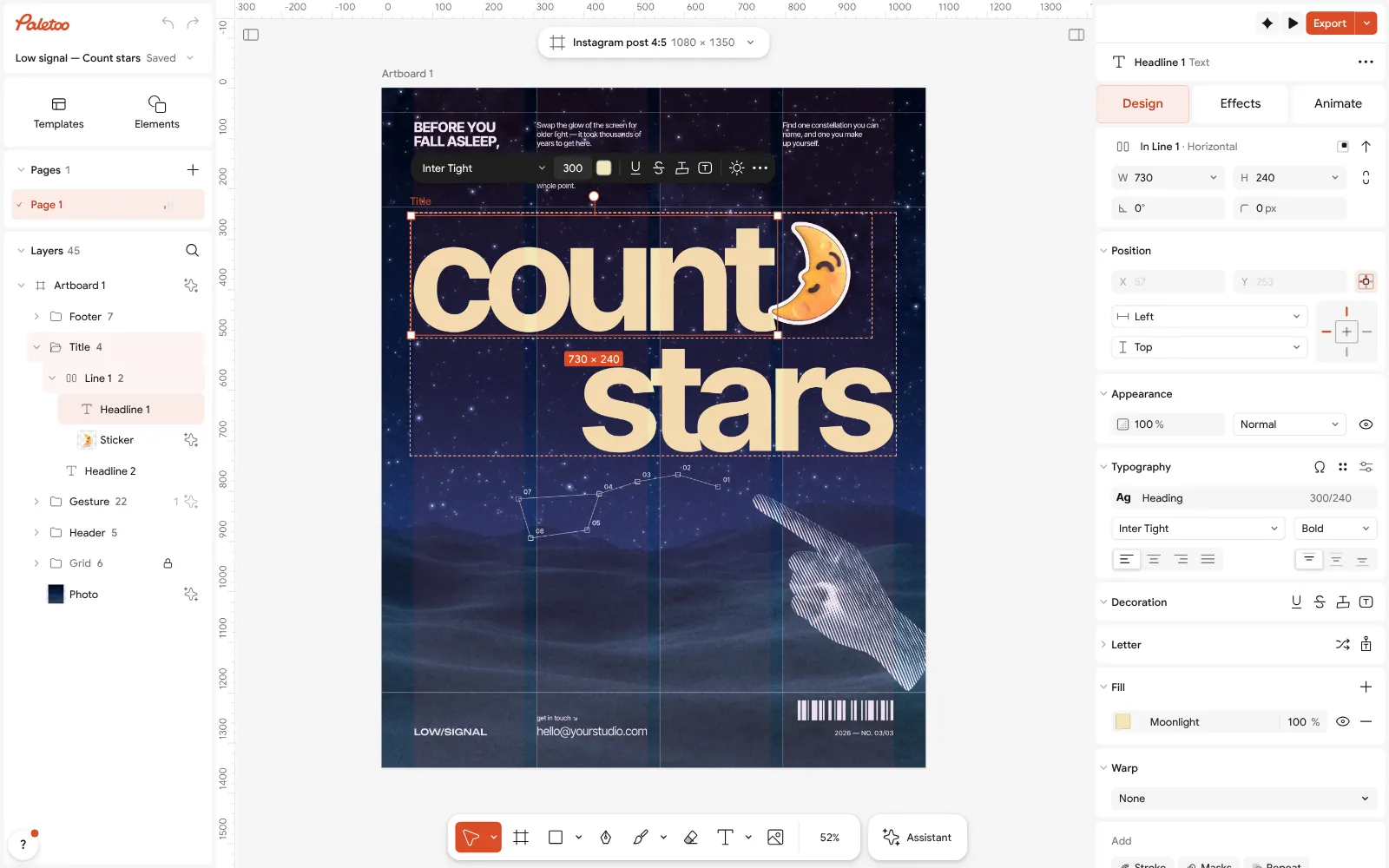
The “count stars” post open in Paletoo, the headline selected in the Design tab For a transparent band, press the knockout button in the stroke’s row (Cut through the layers below). The row shows Knockout and the band round the letters is cut through the photo.
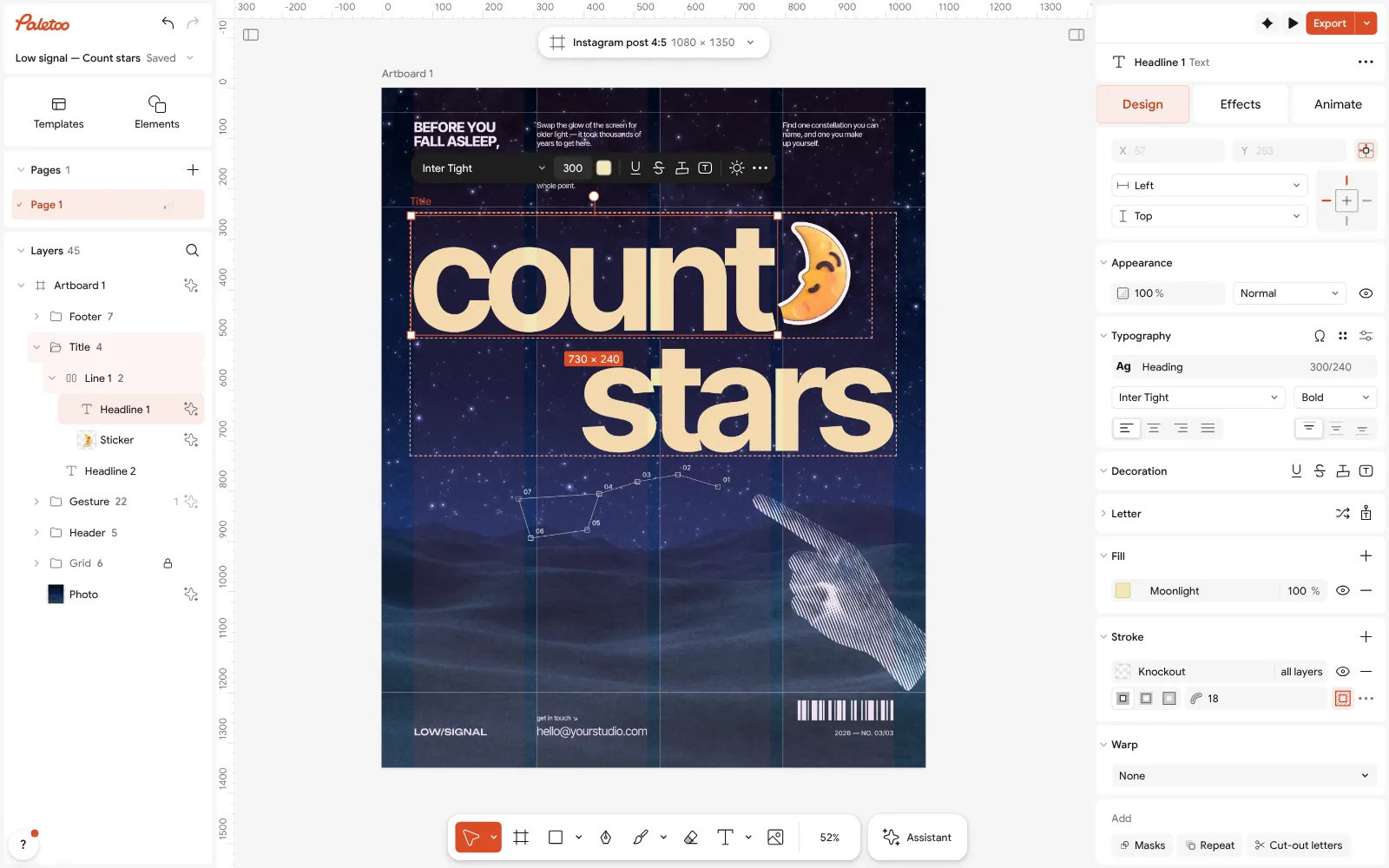
The stroke set to Knockout: a transparent band round “count”, cut through the night photo For hollow letters instead, open the outline in the Effects tab and choose Hollow rather than Fill: the letters turn see-through and the outline stays.
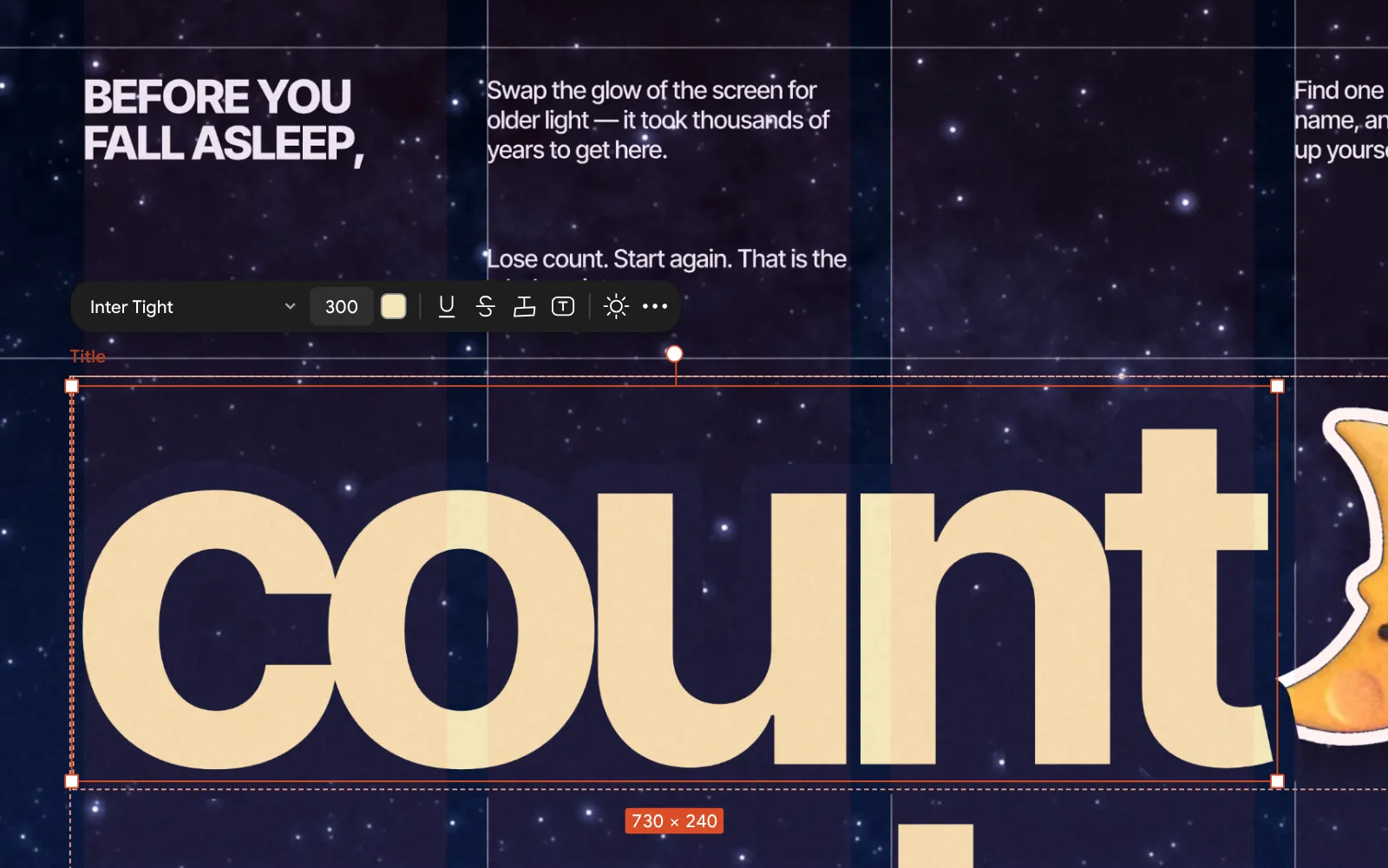
Close up: the band round the letters, the background showing through Set the width in the stroke’s weight field — it is kept relative to the type size, so it scales with the text. Change the background to change what the band shows.
Press Export (Ctrl Shift E) and choose PNG, JPG or PDF. Both looks export exactly as on the canvas, with no watermark.
Make it your own
If the band should cut only the photo and not a colour block under it, choose 1 layer in the stroke’s row instead of All layers.
Hollow letters need weight: use the boldest cut of the font and a stroke of at least 2 % of the type size, or the word disappears into the picture.
You can stack both: a knockout stroke for the band and a second stroke with Hollow for a see-through word with air round it — each stroke has its own row.
Sources
Questions
How do I make text transparent with an outline in Photoshop?
Add a Stroke layer style (Outside, 4–8 px) and set the layer’s Fill — not its Opacity — to 0 %. The letters disappear and the outline stays.
How do I make a transparent outline in Illustrator?
For hollow letters, set the text’s Fill to None and give it a Stroke. For a see-through band, outline a copy, use Offset Path, and use it as an inverted opacity mask on the photo.
Can Canva make a transparent outline?
Canva’s Hollow effect gives see-through letters. A band that cuts through the photo is not one of its effects at the time of writing; you can imitate it with a copy of the text in the background colour.
Does the transparent band stay editable in Paletoo?
Yes. It is a setting of the text’s stroke, so it follows the words, the font and the position, and it exports as it looks.
Make it online
- Text effects onlineType your words, press one effect — chrome, gold foil, emboss, cut-out letters, outlines or warps — and download it in a minute, free and with no sign-up; the words stay editable text.
- Logo makerType your brand name, pick a logo, try fonts, colours and layouts, then download SVG, PNG and app icons — free, no watermark, no sign-up.
Free design templates for posts, stories and posters: Social media post templates · Brand guidelines templates
Try it on your own design
Paletoo opens in your browser, with no sign-up. Every effect here is live: change the picture or the words and the effect follows.
Open in PaletooOpens this design as your own copy — every layer and effect editable, free.
Read next
- 01
 How to make knockout text in Photoshop — and the one-click wayA headline cut out of the photo, with a clean band of background around every letter.
- 02
 What is a knockout outline (and why designers love it)A stroke that is a hole, not a line: what the knockout outline is, why it reads on any photo, and how to make one in a minute.
- 03
 Free Illustrator alternatives: which one for which jobFive free vector tools, sorted by the work you actually do, with the catch of each.