Free tools5 min readFreeUpdated 2026-11-13
Add text to a photo online, free: words that stay readable
A caption, a quote, a date or a price on your own photo — in any font, with Ukrainian letters, on a computer or a phone.
By the Paletoo team · steps tested in Paletoo on
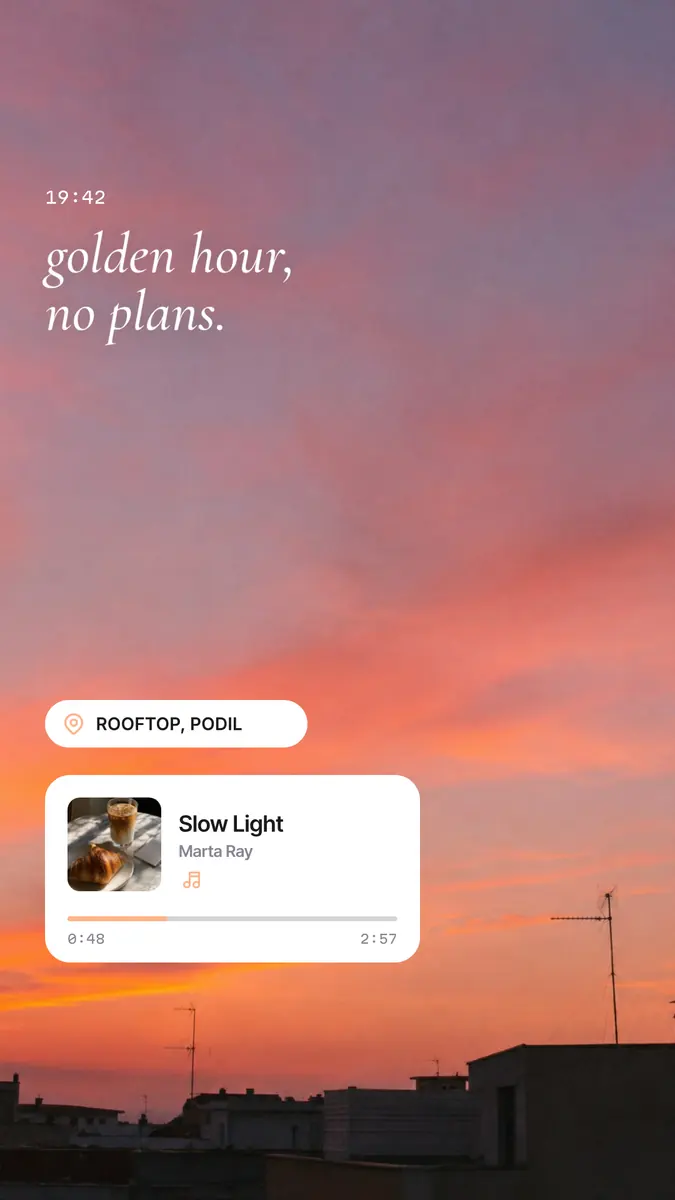
To add text to a photo for free, open the photo in Paletoo (drag it onto the page or use Open file…), press T and type, then choose the font, size and colour under Typography and press Export to save a JPG or PNG. It works in the browser on a computer or a phone, with no account and no watermark; without an account the photo is not uploaded anywhere — it stays in your browser, on your device.
This guide does it on «Golden hour», a story from our social set — an evening sky with a line of words, a time stamp and a place tag — and deals with the real problem: words on a photo are hard to read. It shows the four ways to fix that, where to put the text so an app does not cover it, and which fonts carry Ukrainian. Every step was run in Paletoo on 11 November 2026; the pictures are the editor itself.
Why words on a photo are hard to read — and four fixes
A photo is thousands of colours; a word is one. Wherever the letters cross a patch of similar brightness they disappear. Contrast is what the eye needs: the accessibility guidelines ask for a ratio of at least 4.5 to 1 between text and what is behind it, 3 to 1 for large text — and a busy photo gives that only by luck.
So do not hunt for a magic colour; change what is behind the letters. Put the words on the calm part of the picture — sky, a wall, blurred background. If there is none, give the text its own background, darken the photo a little, or add a soft shadow under the letters. White text with a thin dark shadow reads on almost anything; that is why film subtitles look the way they do.
| Way | In Paletoo | Best for |
|---|---|---|
| The calm part of the photo | Drag the text onto sky, a wall, an out-of-focus area | Quotes, titles, one or two lines |
| A background behind the text | Text background, with a colour and round corners | Captions, prices, dates, stories |
| A shadow under the letters | Effects › Shadow | White words on a busy photo |
| A darker photo | A black rectangle over the photo at 30–40 % opacity | Long text, covers, thumbnails |
Where to put the text
Apps cover the edges. In an Instagram story the top and bottom of the 1080 × 1920 frame (about 250 px each) sit under the profile row and the reply field; a reel adds captions and buttons on the right. Keep words in the middle band. In a 4:5 post the feed shows everything, but the profile grid crops the picture to its centre — so a title belongs in the central part.
Leave a margin of about 5–6 % of the width; text pressed to the edge looks like a mistake. Two sizes are enough: one for the main line, one small for the date or the name. And count the words: a photo carries six to ten well — more is a caption, and belongs under the post.
Fonts, and Ukrainian letters
Many beautiful fonts have no Cyrillic at all, or have Russian letters but not і, ї, є, ґ — the word then falls into a different, default font halfway through. The font list in Paletoo has a «With Ukrainian» filter, and the guide to Ukrainian fonts shows thirty that are free for commercial use. A handwritten font suits two or three words; a line of text wants a plain one.
Your own font works too: upload the file once and it appears in the list. When the picture is exported the letters become part of the image, so it looks the same on every phone.
Made in Paletoo
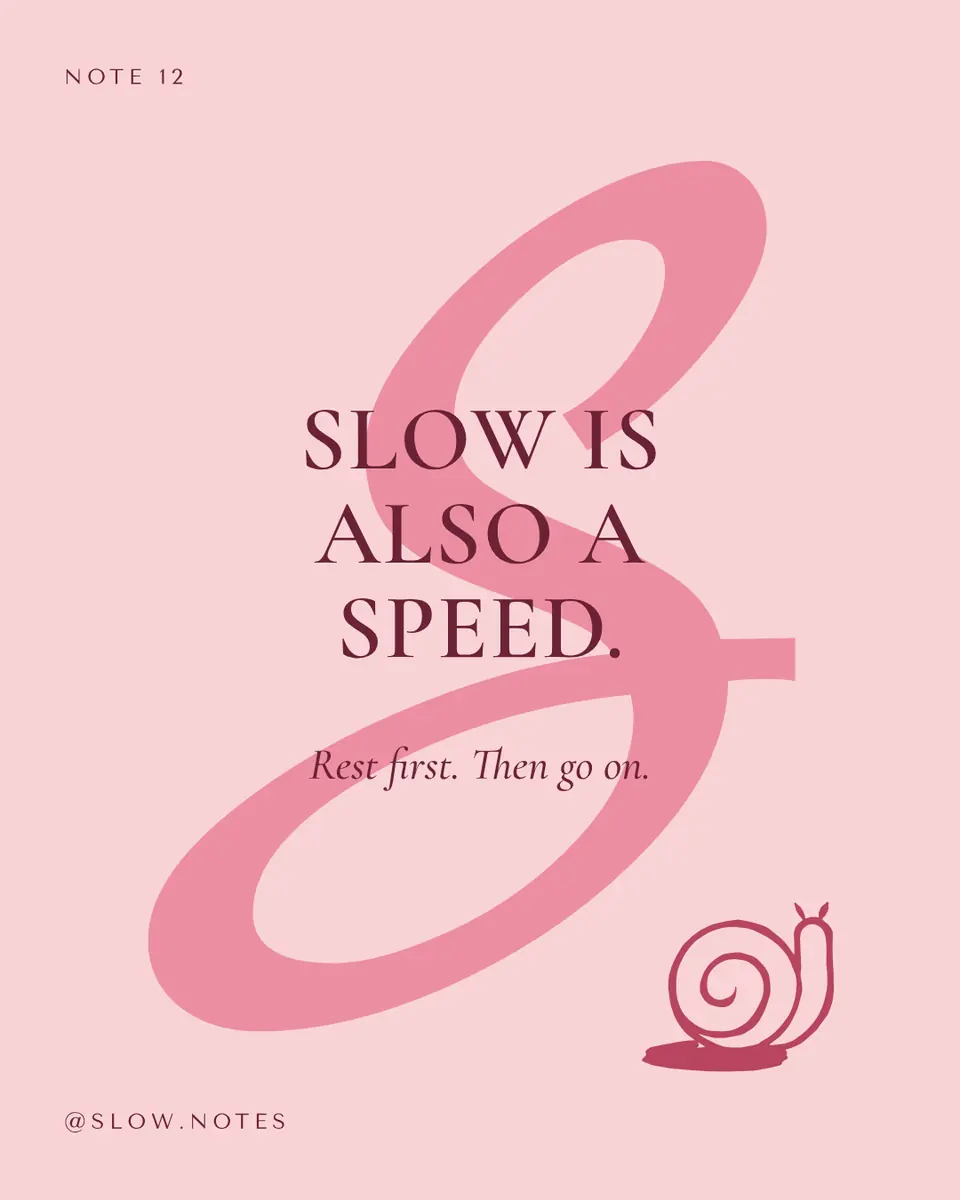
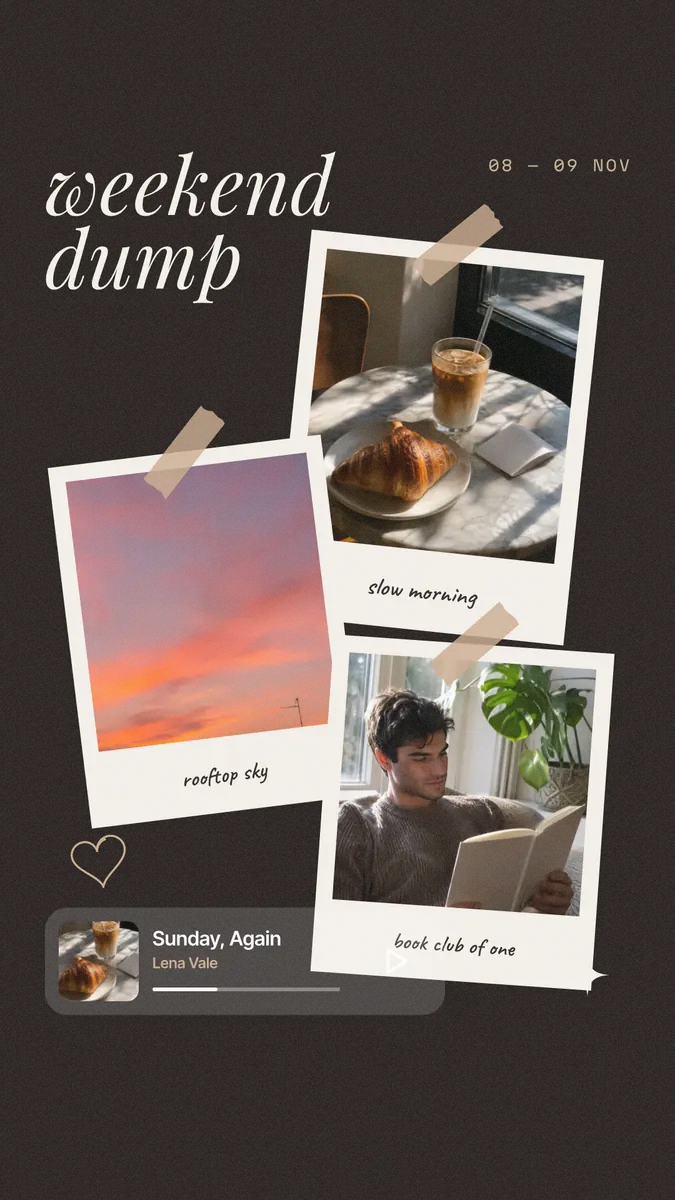
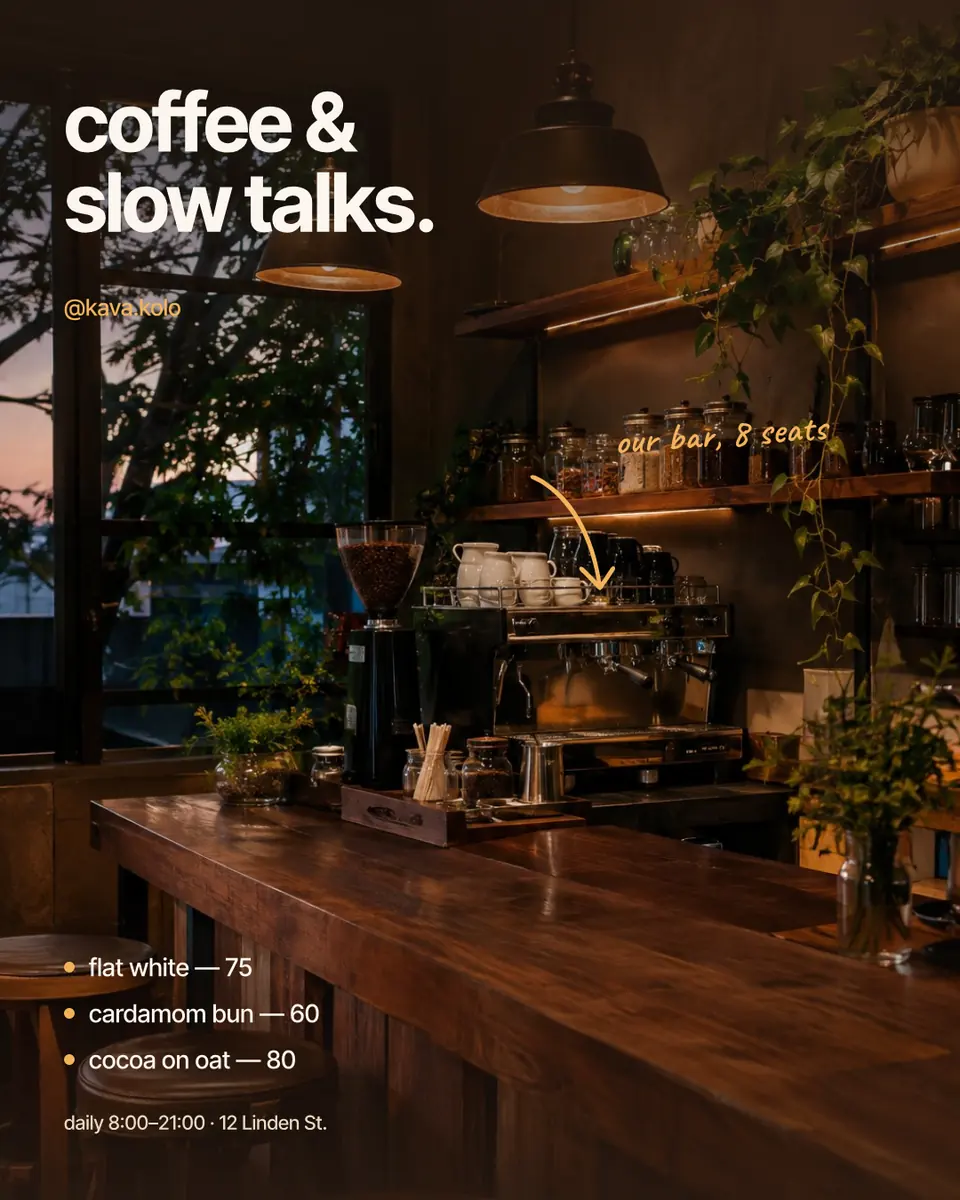
Every picture on this page was made in Paletoo — these three with the same steps on other templates:
Make it free in Paletoo
Open the example: press “Open in Paletoo” on this page — a 9:16 story with a photo and words. For your own photo, select the picture and press Replace picture; or start from an empty page with Place image….
Double-click the words and type your own. For a new line press T (Add text), click where it should go and type; Esc finishes.
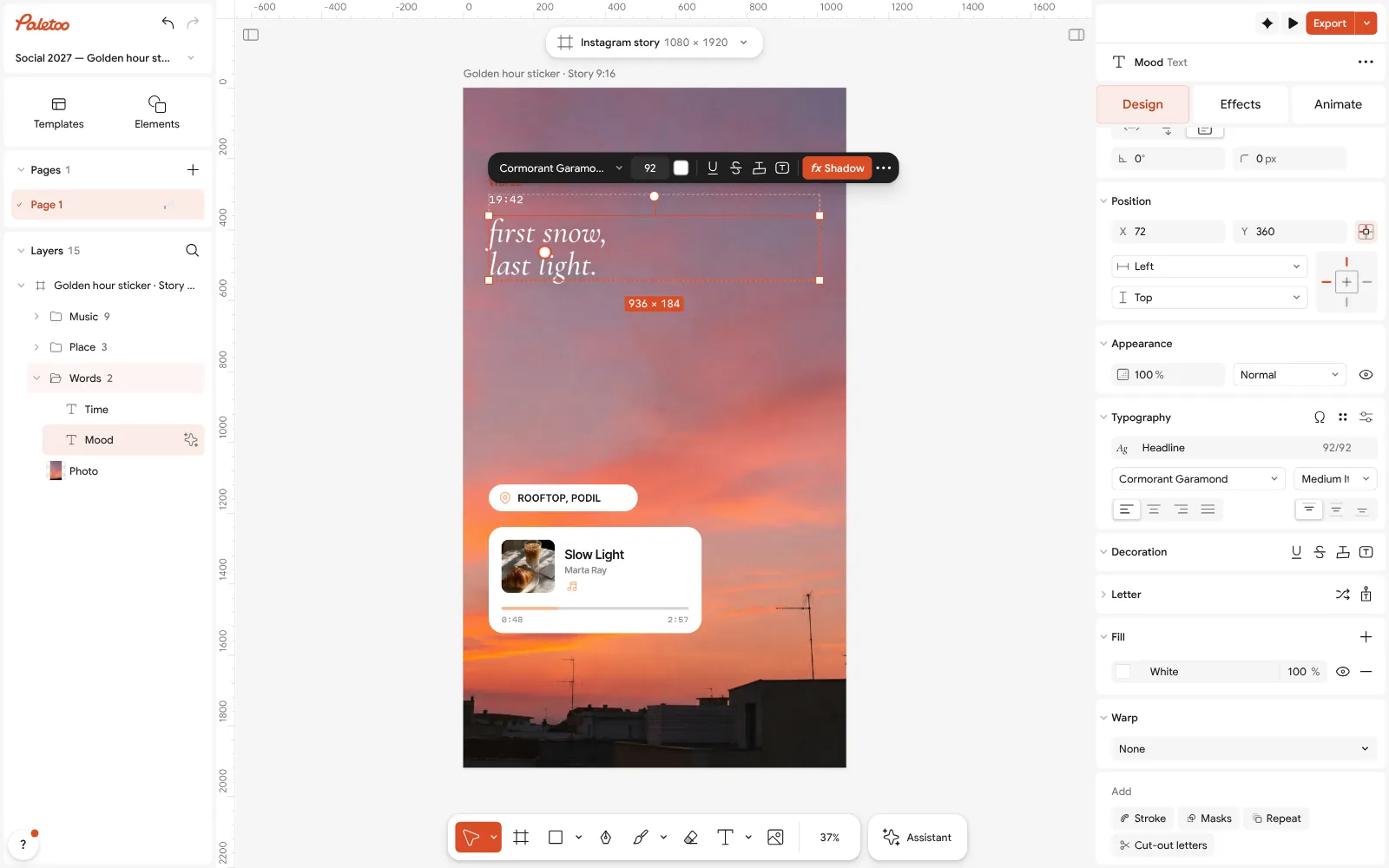
The story open in Paletoo: the line of words retyped and selected, its font and size under Typography With the text selected, set the font, size, weight and colour under Typography in the Design tab. Drag the text onto the calm part of the photo; the guides show the centre and the edges.
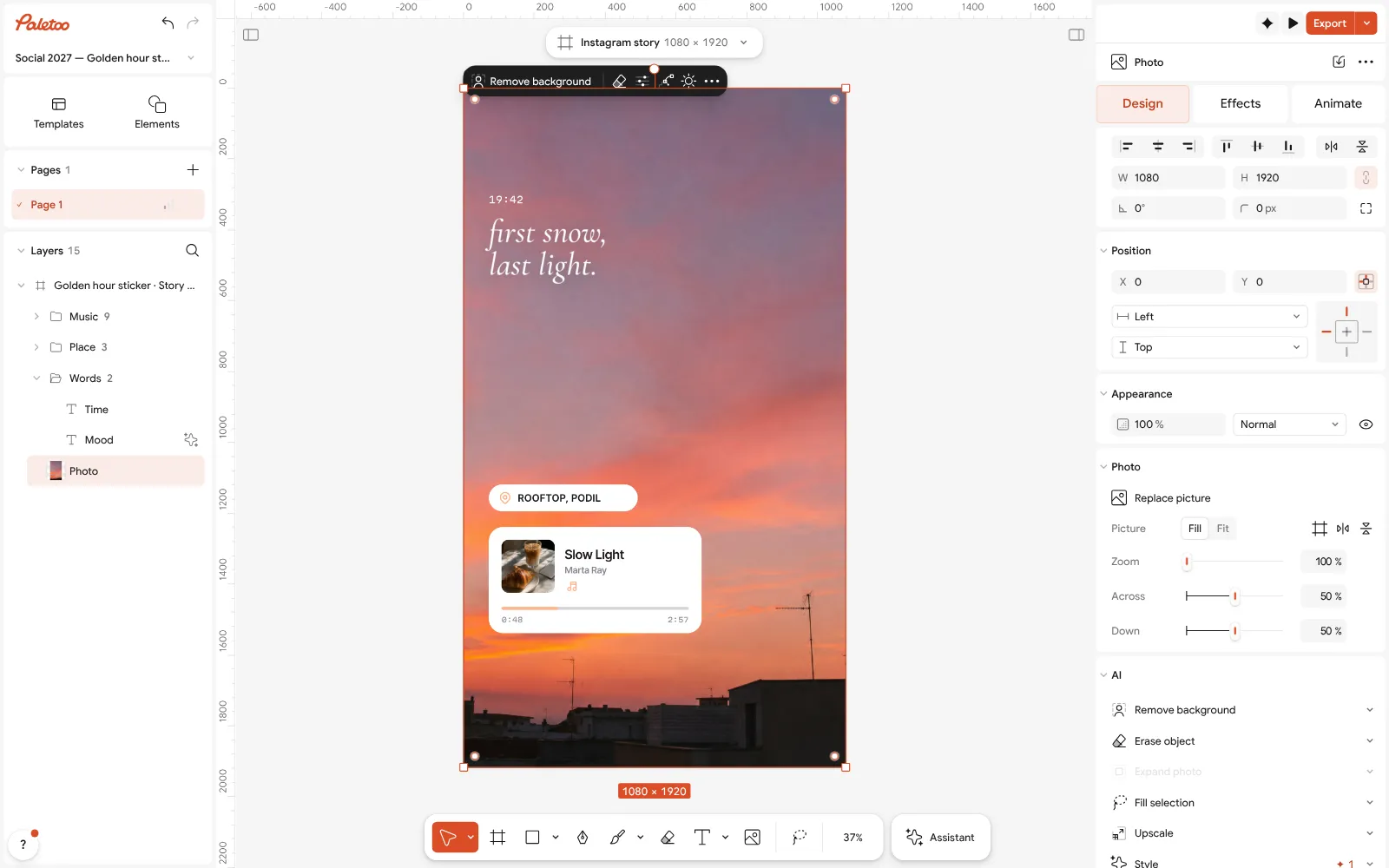
The photo selected: Replace picture puts your own photo under the same words If it still does not read, double-click the text, select the words and add a Text background: a colour, an opacity and round corners behind exactly those words.
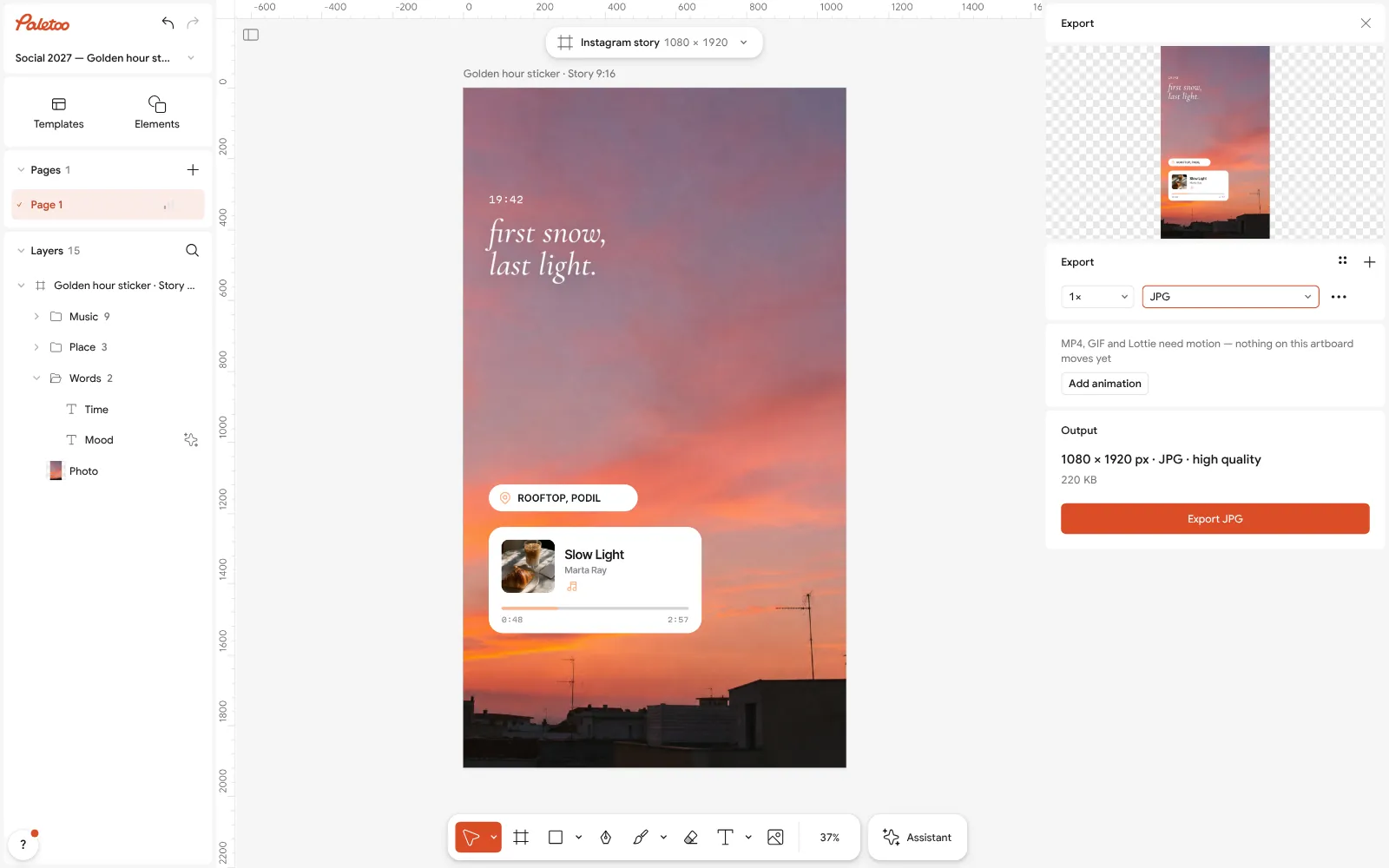
Export as JPG: the photo with its text, ready to post or send Or keep the letters bare and open the Effects tab: Shadow puts a soft dark edge under white words — set a small blur and no offset.
Press Export (Ctrl Shift E) and choose JPG for a photo to post or send, PNG if the text must stay perfectly sharp. On a phone the file goes to the share sheet.
Make it your own
For a meme-style caption use a heavy font in white and add a Stroke in black, 4–6 px: it reads on any photo.
A watermark or a signature: type your name, set Opacity to 40–50 % and put it in a corner; copy it to the next photo with Ctrl C.
Words behind a person? Press Remove background on a copy of the photo and put the cut-out above the text — the letters go behind the head.
Sources
Questions
How do I add text to a photo online for free?
Open the photo in Paletoo, press T, type the words, set the font and colour and export JPG or PNG. It is free, with no watermark and no account; without an account the photo stays on your device.
How do I add text to a photo on an iPhone or Android?
The same way: open Paletoo in the phone’s browser, add the photo from the gallery, tap the text tool and type. Export saves the picture through the share sheet.
How do I make text on a photo readable?
Put it on a calm part of the picture, or change what is behind it: a text background, a soft shadow or a darker photo. White with a dark shadow works on almost any picture.
Which fonts have Ukrainian letters?
In Paletoo the font list has a «With Ukrainian» filter. Many popular fonts lack і, ї, є, ґ — check before you choose, or upload your own font.
Will the photo lose quality?
No: the picture is exported at its own size, and you can choose 2×, 3× or any scale you type. For the sharpest text save PNG; for a smaller file, JPG.
Can I remove text from a photo?
Text you added in Paletoo stays editable — select it and delete. Text that is already part of a picture is pixels; erasing it needs a retouching tool, not a text one.
Make it online
- Text effects onlineType your words, press one effect — chrome, gold foil, emboss, cut-out letters, outlines or warps — and download it in a minute, free and with no sign-up; the words stay editable text.
- Instagram story makerPick a 9:16 template, change the words and the photo, add motion if you like, and export an image or a video in a couple of minutes.
- Photo effects onlineDrop in a photo, press one mix — film, print or glitch — and download it in a minute; every step stays editable afterwards.
Free design templates for posts, stories and posters: Social media post templates · Story and Reels templates · Poster templates
Try it on your own design
Paletoo opens in your browser, with no sign-up. Every effect here is live: change the picture or the words and the effect follows.
Open in PaletooOpens this design as your own copy — every layer and effect editable, free.
Read next
- 01
 How to make a transparent PNG for free: a logo, words or a cut-out photoA logo, a line of words or a cut-out photo that sits on anything — no white box, no watermark, on a computer or a phone.
- 02
 How to make an Instagram post for free: size, layout, exportThe size, the margins and the three type sizes that make a post read in one second.
- 03
 How to remove the background from a photo online — free, on your deviceOne click cuts the subject out; the background is hidden, not deleted, so you can bring it back.
- 04
 How to put text on a path that stays editableType along a curve you shape on the canvas; the words stay live.