Free tools5 min readFreeUpdated 2026-11-20Save to Pinterest
How to remove the background from a photo online — free, on your device
One click cuts the subject out; the background is hidden, not deleted, so you can bring it back.
By Paletoo’s designers · every step done in Paletoo
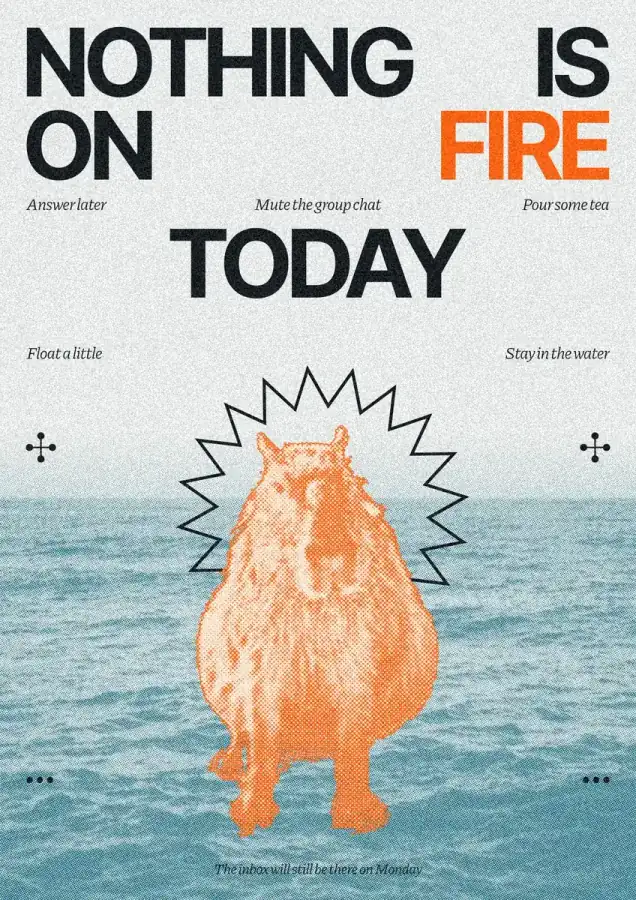
To remove the background from a photo online for free, open it in Paletoo, select it and press Remove background in the AI block of the Design tab. The subject is cut out on your own device in a few seconds — the photo is not uploaded and no credits are used — and the background is only hidden, so Restore background brings it back at any time. Export a PNG with a transparent background, or put the cut-out on a new background right there.
This guide shows which photos cut out cleanly and which do not, what to do with a cut-out once you have it, and how to fix an edge. It is taught on a poster from the Halfmood series, «Nothing is on fire», whose capybara was cut out of its own photo in the editor and printed in halftone over a landscape.
Drag across: a background removedLive
The photo on the left, its cut-out on the right — hair strand by strand, no halo on any backdrop. Drag the line, switch the photo and the backdrop.


Your photo is cut out on this device — it is never uploaded.
Photo
Backdrop
Also in the editor:3 more backdropsShadowOutline
Download in Paletoo — freeIn the editor: the PNG at full size, 3 more backdrops, a shadow and an outline. Free, no sign-up.
Now your photo
Paletoo cuts it out on your phone or computer: nothing is uploaded, no credits, and the background is only hidden — Restore background brings it back.
- Open Paletoo and drop your photo on the canvas.
- Click Remove background — the cut runs on your device.
- Export a transparent PNG or put the cut-out on a new background.
Remove a background in PaletooOpens a new document with exactly this setup — free, no sign-up.
What Remove background does, and where
Remove background finds the main subject of a photo — a person, an animal, a product, a plant — and hides everything else with a mask. It runs a small segmentation model in your browser, on your device: the first time it downloads the model once, after that it works in seconds, and the photo itself never leaves your computer. That matters for a client’s product shots or a family photo.
Nothing is thrown away. The cut is a mask on the photo, so the background is still there under it: Restore background shows the whole photo again, and you can try again on another part of the picture.
Many photos at once? Remove backgrounds from many photos in one go and download them as one ZIP. Need the cut-out on plain white for a shop? Add a white background. Choosing a remover: see Paletoo vs remove.bg and Paletoo vs Photoroom, both honest comparisons.
Which photos cut out well
A clear subject, in focus, on a background of a different colour or brightness: a person against a wall, a cup on a table, an animal on grass. Those come out clean on the first click. Hair, fur and leaves against a busy background are harder; glass and smoke are the hardest, because the background shows through them.
Help it before you click: crop to the subject, use the sharpest copy you have, and if the subject touches the edge of the photo, leave it there — a crop through a shoulder is easier than a guess at a missing one.
What to do with a cut-out
A transparent PNG for a marketplace, a presentation or a sticker is the obvious use. The better one is a design: the cut-out over a big word, so the letters run behind it; over a flat colour with a soft shadow; or printed in halftone or duotone over another photo, as the capybara is. Because the cut-out is still the photo with a mask, every effect follows its edge.
For a collage, cut out several subjects and arrange them like paper scraps; for a product card, put the product on a plain colour, add a ground shadow and export at the marketplace’s size.
Made in Paletoo
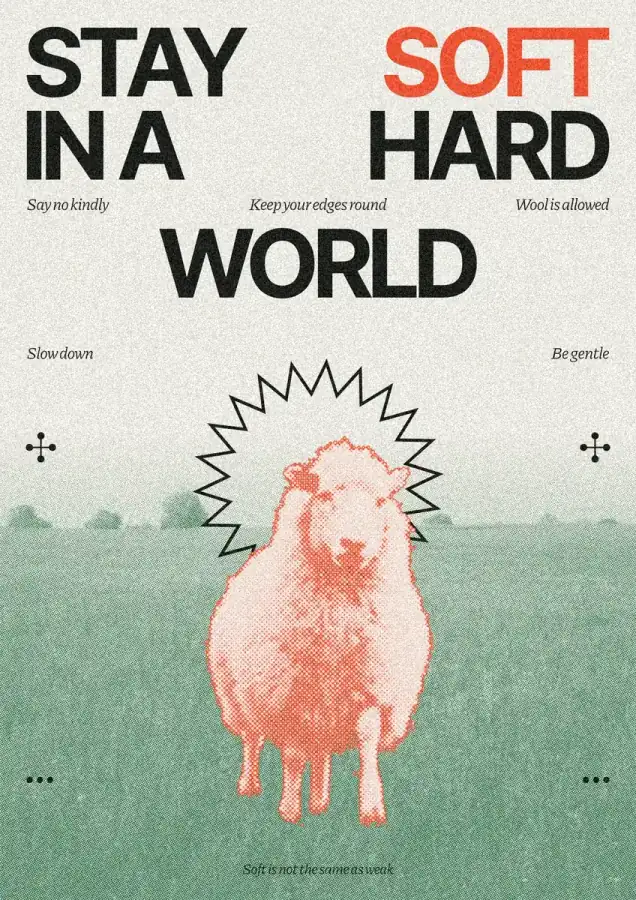
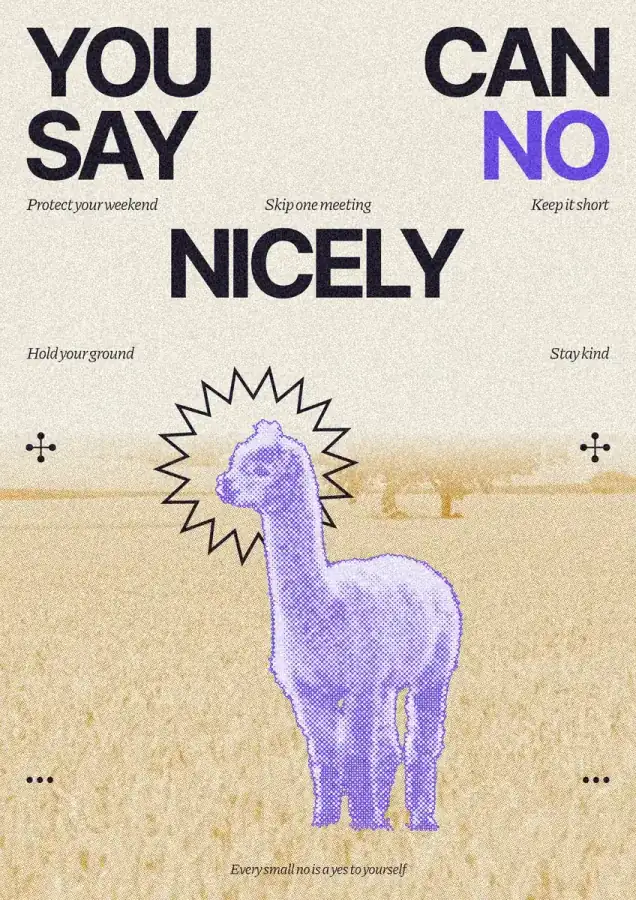
Every picture on this page was made in Paletoo — these three with the same steps on other templates:

Make it free in Paletoo
Press “Open in Paletoo”: the «Nothing is on fire» poster opens as your own document. Click the capybara: it is a photo whose background was removed in the editor, and the Design tab shows it.
Click the landscape behind it to select a photo with its background. On the Design tab, the AI block holds Remove background.
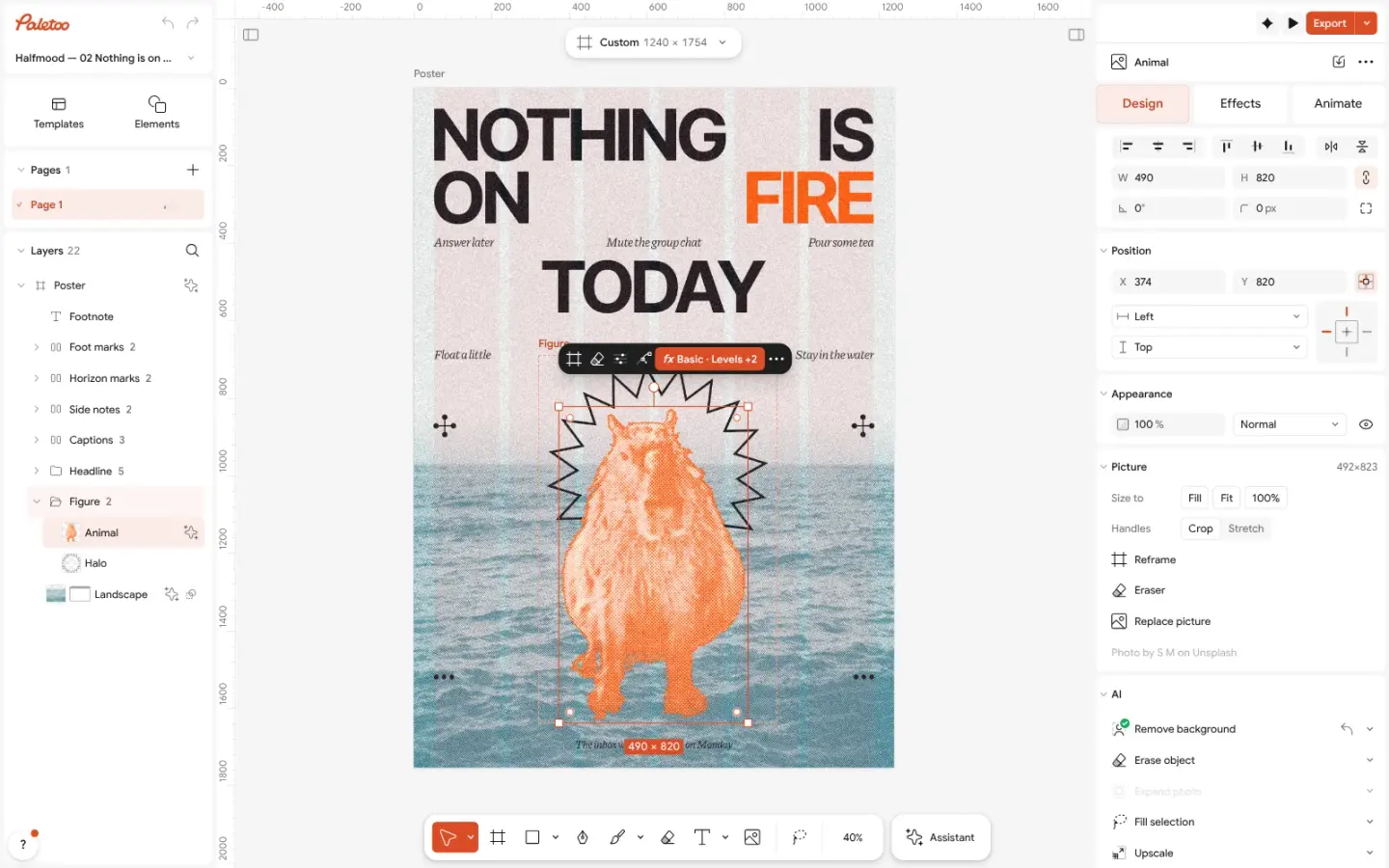
The «Nothing is on fire» poster open in Paletoo: the capybara, cut out of its photo, selected Press Remove background. The first time, the model is downloaded once; then the subject is cut out in a few seconds, on your device. To use your own photo, press Open file… or drop it onto the canvas first.
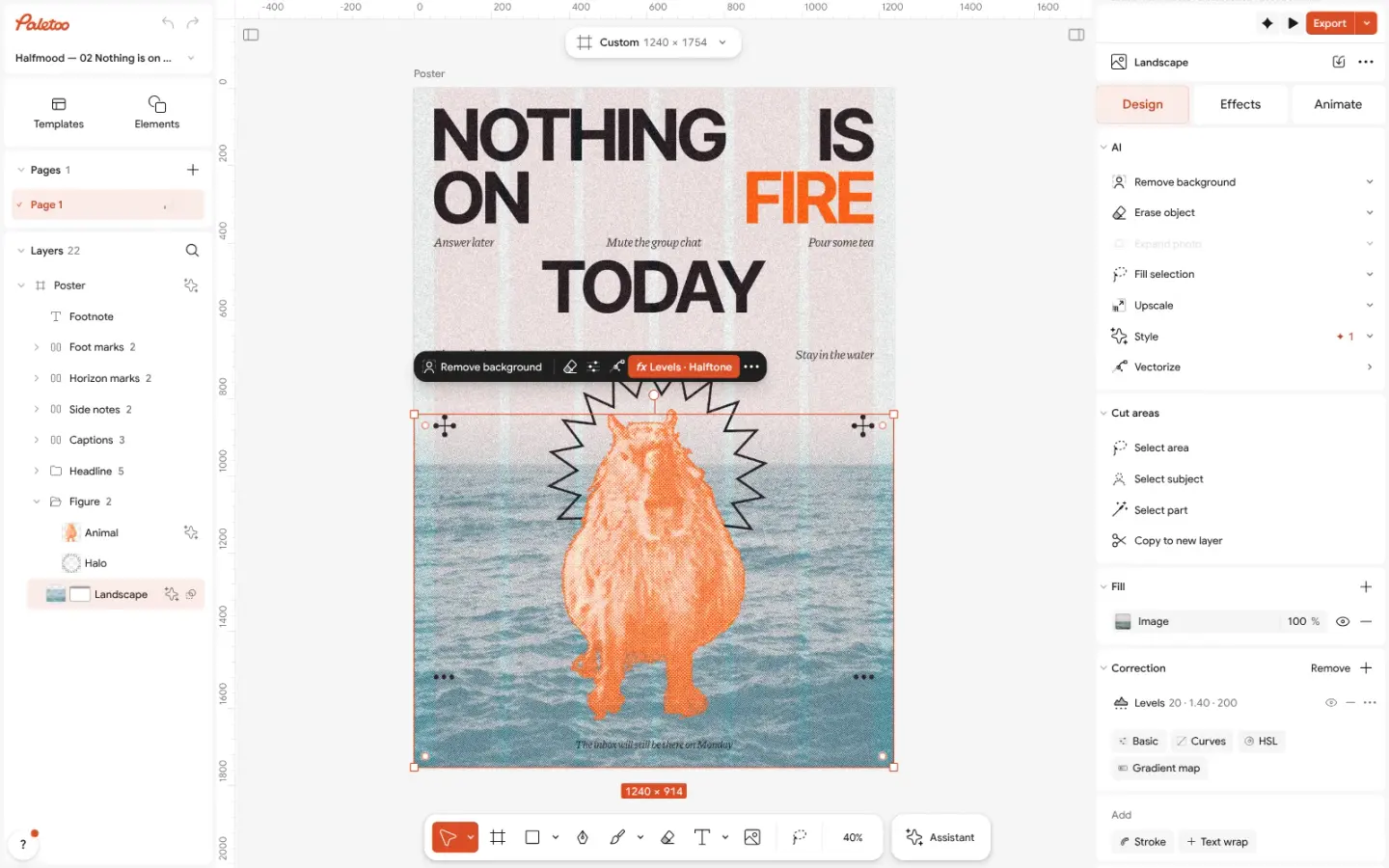
The landscape photo selected, Remove background in the AI block of the Design tab If the cut is not what you wanted, press Restore background: the whole photo shows again, nothing was deleted. Select subject lets you click the parts to keep instead.
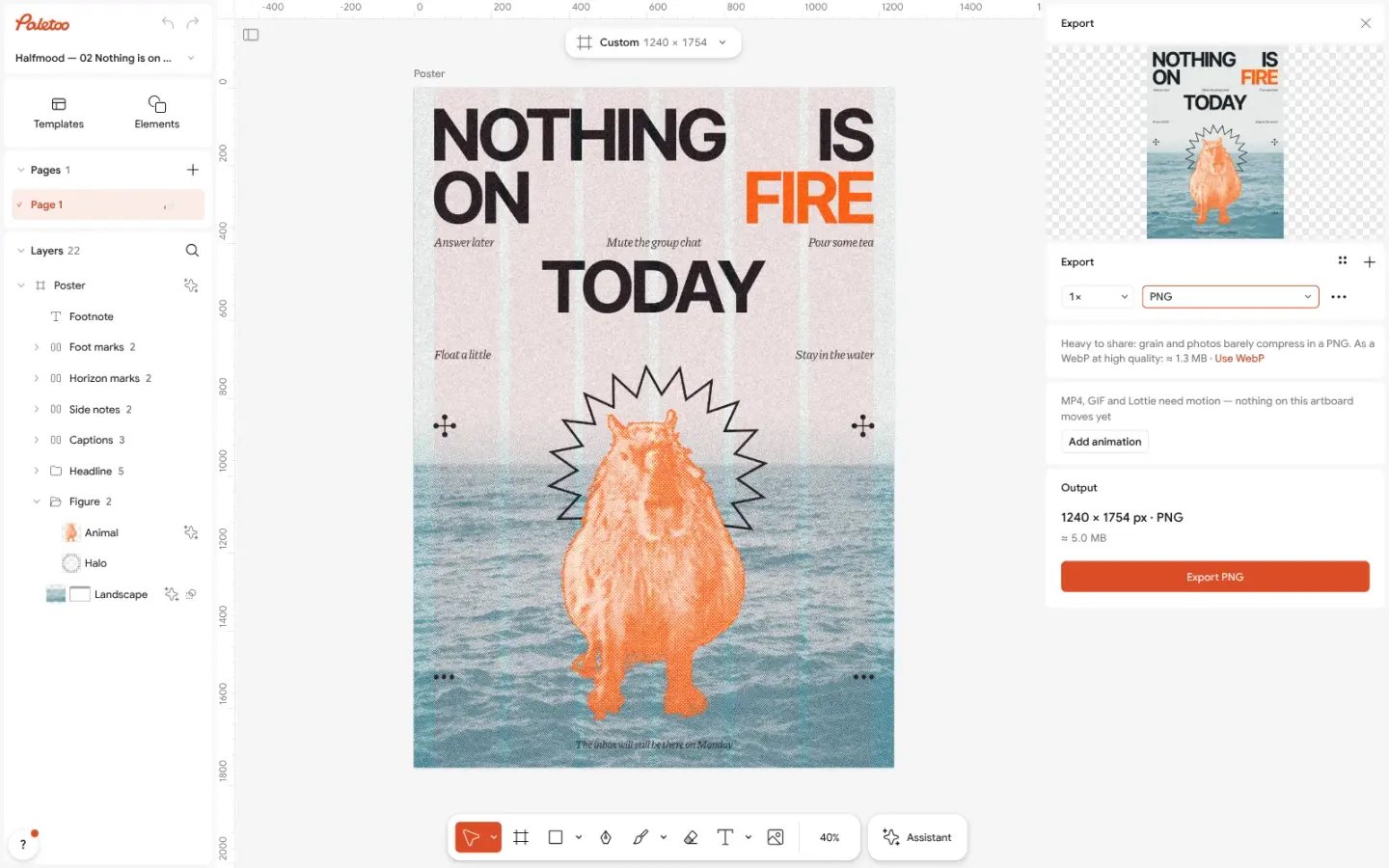
Export open on PNG for the whole poster; its ⋯ settings can leave the background transparent Put the cut-out on a new background: move it over a colour, a word or another photo, and add a Shadow on the Effects tab so it stands on it.
Press Export and choose PNG; in the row’s ⋯ settings, Background set to Transparent keeps the cut-out alone. Or export the whole design as PNG, JPEG or PDF.
Make it your own
If the edge has a halo of the old background, add a Shadow or a thin stroke on the Effects tab: on a new background a soft dark edge reads as a deliberate cut.
For a marketplace, put the product on a white or light-grey artboard of the size the marketplace asks for, and export JPEG: many do not accept transparency.
For a sticker look, add a thick white stroke around the cut-out and a soft shadow under it.
Questions
How do I remove the background from a photo for free?
Open the photo in Paletoo, select it and press Remove background in the AI block of the Design tab. It is free, uses no credits and needs no account; export a PNG with a transparent background.
Is my photo uploaded to a server?
No. Remove background runs on your own device, in the browser. The model is downloaded once; your photo never leaves your computer.
Can I get the background back?
Yes. The background is hidden by a mask, not deleted: press Restore background and the whole photo shows again.
Why is the edge around hair rough?
Fine hair and fur against a busy background are the hardest case for any tool. Use a photo where the hair is in focus against a plainer background, or add a soft shadow on the new background to hide a rough edge.
How do I save a PNG with a transparent background?
Press Export, choose PNG, open the row’s ⋯ settings and set Background to Transparent. Everything outside the cut-out stays see-through.
Make it online
- Remove background onlineCut the subject out of any photo in one click — on your own device, with no upload and no credits.
- Photo effects onlineDrop in a photo, press one mix — film, print or glitch — and download it in a minute; every step stays editable afterwards.
- Photo collage makerDrop your photos into a ready grid — two, three, four or five frames — and every picture fills its frame without stretching.
Free design templates for posts, stories and posters: Team and speaker templates · Poster templates · Social media post templates
Try it on your own design
Paletoo opens in your browser, with no sign-up. Every effect here is live: change the picture or the words and the effect follows.
Open in PaletooOpens this design as your own copy — every layer and effect editable, free.
Read next
- 01
 How to make a transparent PNG for free: a logo, words or a cut-out photoA logo, a line of words or a cut-out photo that sits on anything — no white box, no watermark, on a computer or a phone.
- 02
 How to remove a background from a photo for free, without uploading itA clean cut-out, made on your own computer or phone, ready for a thumbnail, a poster or a shop.
- 03
 Collage and scrapbook design trend 2027: cut-outs, tape and torn paperCut-outs, photocopies and masking tape: a handmade look for a feed full of polished pictures.
- 04
 How to make a duotone effectTwo bold inks, punchy contrast and a fine poster grain.