Techniques5 min readFreeUpdated 2026-11-14
20 design lifehacks in Paletoo: two-second tricks that save hours
Twenty tricks that turn ten clicks into one key — each filmed in the editor, two seconds long, on a loop.
By the Paletoo team · steps tested in Paletoo on
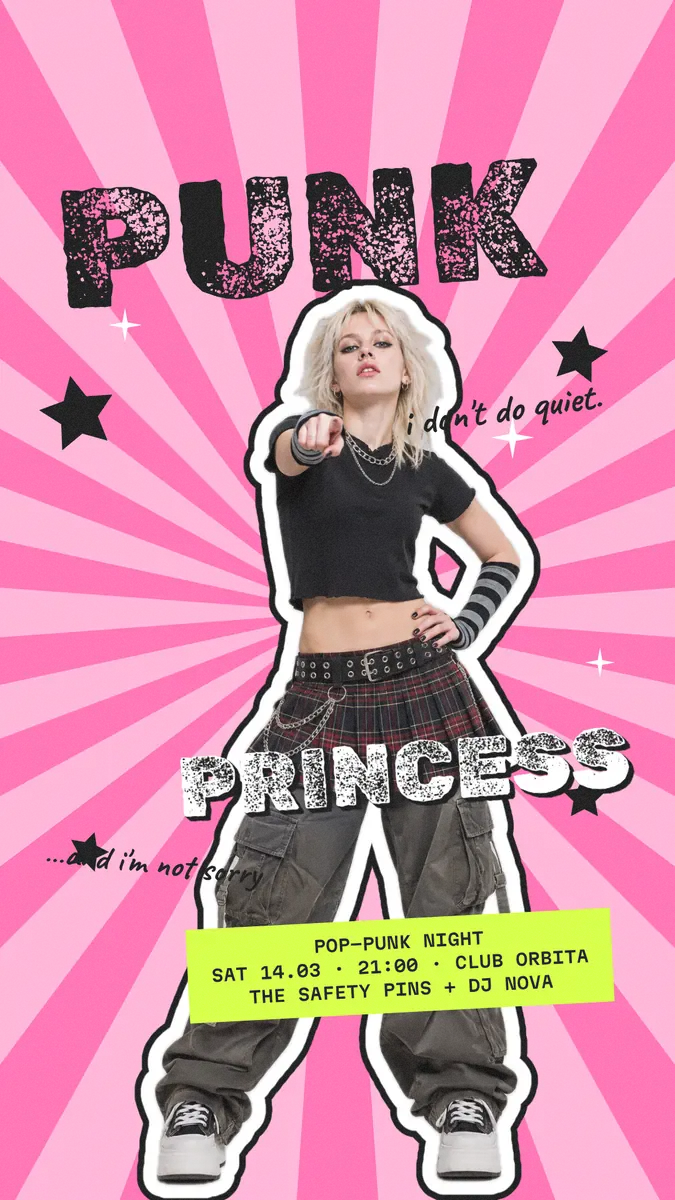
The fastest designers are not faster at clicking — they skip the clicks. These twenty lifehacks are the ones that save the most time in Paletoo: one search box for every command, Alt-drag to duplicate, copying a look from one layer to another, letter spacing, size and weight from the keyboard, centring, flipping, find-and-replace across every artboard, and copying a picture straight into a chat. Each has a two-second clip of the editor doing it.
The keys follow Figma’s wherever the editor has the same action, and every letter works on any keyboard layout, Ukrainian included. On a Mac, Ctrl is ⌘ and Alt is ⌥. After the clips: how to learn shortcuts so they stick, and the steps to try five of them on «Punk princess», a gig poster.
Twenty tricks, two seconds eachLive
Each clip is the editor itself, looping. Hover or scroll to play; the keys work on any keyboard layout.
01 Run any command by typing
Actions finds every command, element and effect by name: type “outline”, “QR” or “palette” and press Enter.
Ctrl K
02 Alt-drag to duplicate
Hold Alt while you drag a layer: a copy moves, the original stays. Add Shift to keep it in line.
Alt + drag
03 Duplicate, then nudge
Ctrl D drops a copy on top of the layer; the arrow keys move it a pixel, with Shift ten.
Ctrl D
04 Copy a look to another layer
Copy properties takes the fill, stroke and effects; Paste properties puts them on any other layer.
Ctrl Alt C → V
05 Pick any colour on the canvas
Press I and click a photo or a shape: the selection takes that exact colour.
I
06 Swap fill and stroke
One key turns a filled word into an outlined one and back — the fastest “outline text” look.
Shift X
07 Opacity with number keys
5 sets 50 %, 0 sets 100 %, and 0 0 makes the layer invisible. No slider needed.
1 … 9 · 0
08 Tighten a headline by eye
Alt with < or > changes letter spacing in small steps while you look at the word.
Alt < · >
09 Font size without the panel
Ctrl Shift with < or > steps the size down or up — on several text layers at once.
Ctrl Shift < · >
10 Heavier or lighter in one key
Ctrl Alt with < or > moves through the font’s weights, from Thin to Black.
Ctrl Alt < · >
11 Line height by feel
Alt Shift with < or > opens or closes the lines of a paragraph until it breathes.
Alt Shift < · >
12 Auto layout for a button or a list
Select a text and a shape and press Shift A: the shape now grows with the words.
Shift A
13 Centre things on each other
Select two layers: Alt H lines up their horizontal centres, Alt V their vertical ones.
Alt H · Alt V
14 Flip to face the text
A person or an arrow should look into the layout, not out of it: Shift H mirrors it.
Shift H
15 Zoom to fit, zoom to selection
Shift 1 shows the whole design, Shift 2 jumps to what you have selected.
Shift 1 · Shift 2
16 Hide the interface, judge the design
Ctrl \ hides the panels; look at the design as the reader will, then press it again.
Ctrl \
17 Find and replace in the whole design
Change a date or a price on every artboard at once — posts, stories and the print version.
Ctrl F
18 Paste to replace
Copy one element, select another and paste to replace: the new one takes the old one’s place and size.
Ctrl Shift R
19 Copy as PNG, paste in a chat
The selection goes to the clipboard as a picture: paste it straight into Telegram, Slack or an email.
Ctrl Shift C
20 Export every size in one go
Tick all the artboards in Export: the post, the story and the print come down together.
Ctrl Shift E
Open this in PaletooOpens a new document with exactly this setup — free, no sign-up.
Learn three, not twenty
Nobody keeps twenty shortcuts after one read. Pick the three that match what you do most — text, colour or layout — and use only those for a week; when your hand finds them without thinking, take the next three. The search box (Ctrl K) is the one to learn first, because it teaches the others: every command in it shows its own keys beside its name.
Most of the keys come in pairs that mirror each other: < makes smaller, > makes bigger, and adding Alt, Shift or Ctrl changes what grows — the letter spacing, the line height, the size or the weight. Learn the pattern once and you have learned eight shortcuts.
Say the shortcut out loud the first few times — “Alt, drag” — and do it instead of reaching for the menu even when it is slower. Within a few days the key is faster than the menu, and after a month you will not remember that the menu was ever there.
Why these twenty
We counted what people repeat most in the editor: changing words and sizes, nudging and aligning, copying a look across layers, recolouring, and exporting the same design in several sizes. Every hack here replaces one of those repetitions with a single key or a drag. The rest of the editor’s keys are one press away: the list of keyboard shortcuts opens with ? (Shift and the slash key).
| Area | Hacks | Saves |
|---|---|---|
| Speed | Actions, Duplicate, Zoom to fit, Show / hide UI | Hunting through menus and panels |
| Text | Letter spacing, size, weight, line height, Find and replace | Dragging sliders for every line |
| Colour | Copy properties, Pick color, Swap fill and stroke | Retyping HEX codes and rebuilding effects |
| Layout | Alt-drag, opacity keys, Auto layout, align, flip, Paste to replace | Rebuilding and re-measuring |
| Export | Copy as PNG, Export all artboards | Saving files only to send them |
Shortcuts and keyboard layouts
A common frustration in web design tools is that shortcuts stop working when the keyboard is switched to Ukrainian or another language: the browser reports Cyrillic letters, and the tool waits for Latin ones. In Paletoo every letter key is matched by what is printed on it or, failing that, by its position — so I stays I and Shift X stays Shift X whatever language you type in.
Some keys belong to the browser or the system first: Ctrl W closes the tab and Ctrl N opens a window in most browsers, so the editor uses other keys for its own actions. If a shortcut does nothing, check that the focus is on the canvas, not in a text field — click an empty spot of the canvas and try again.
Made in Paletoo
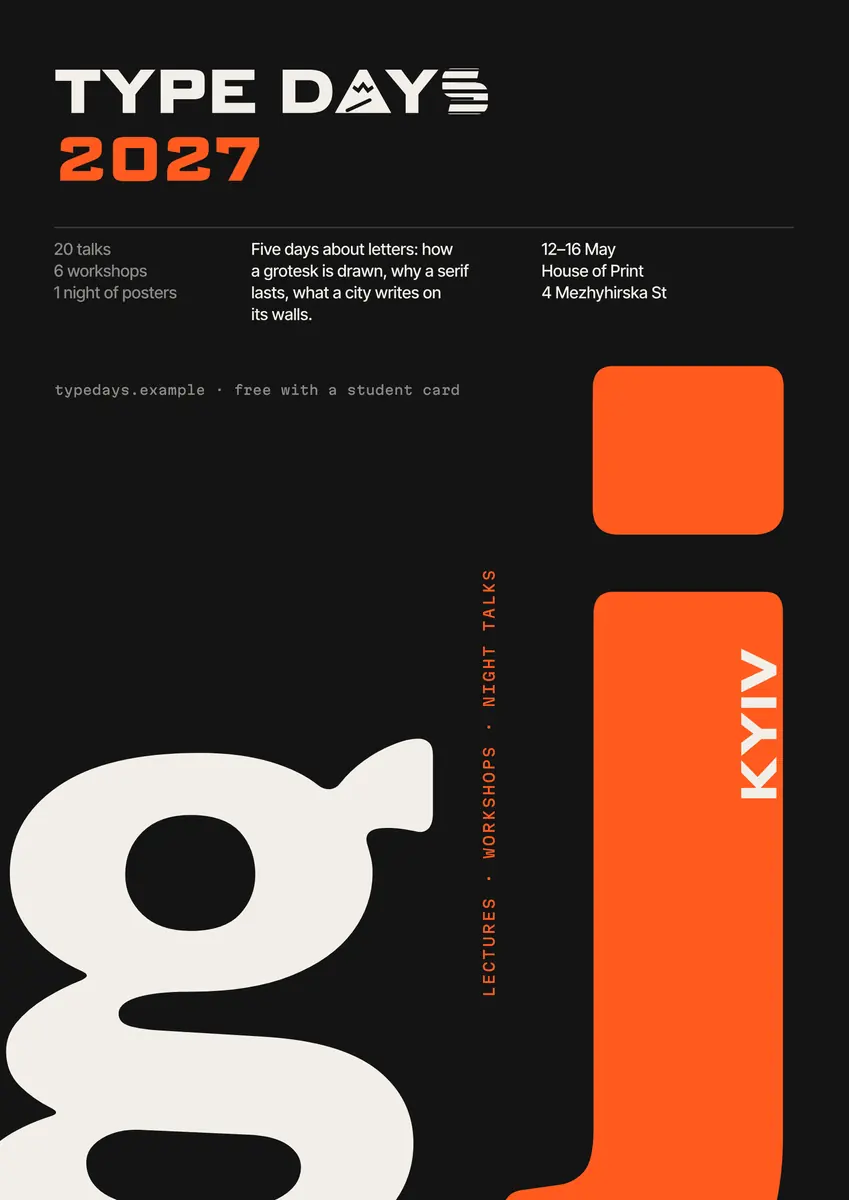
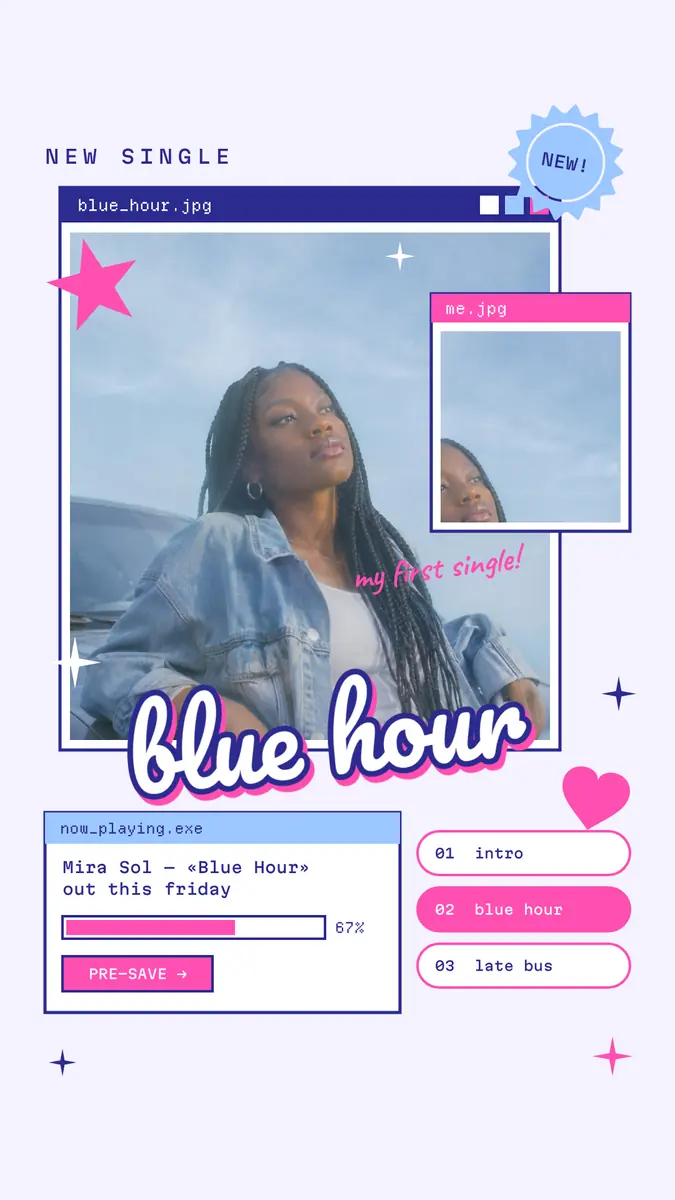
Every picture on this page was made in Paletoo — these three with the same steps on other templates:

Step by step in Paletoo
Open the poster: press “Open in Paletoo” on this page. «Punk princess» is a gig poster with a cut-out singer, rays, stars and a ticket — plenty to try the hacks on.
Press Ctrl K to open Actions and type a command’s name — for example “flip” — then press Enter. Each command shows its keys beside its name.
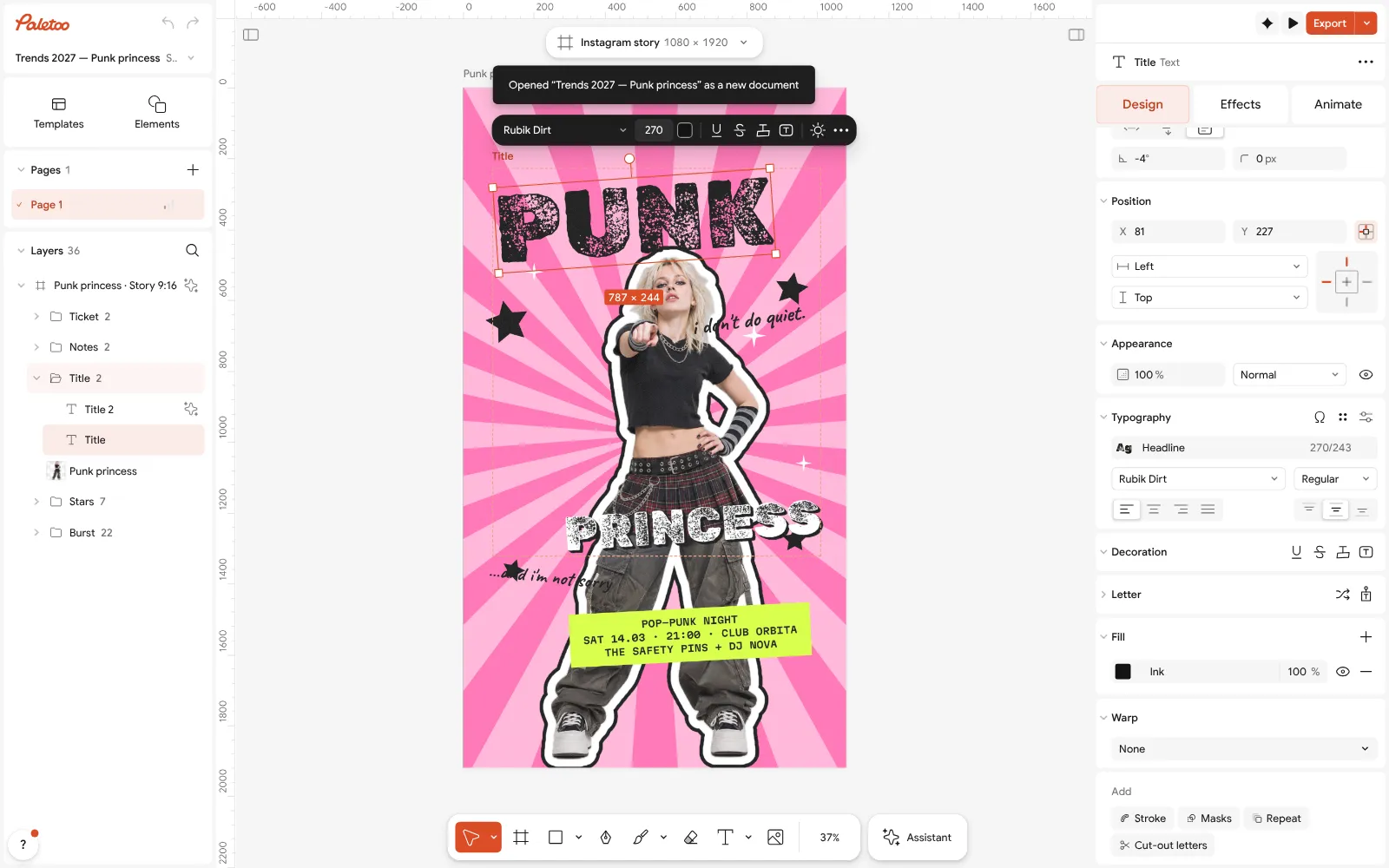
The «Punk princess» poster open in Paletoo, the title selected: its size under Typography Select the title and press Ctrl Shift > a few times: the size grows step by step. The Typography section of the Design tab shows the new value.
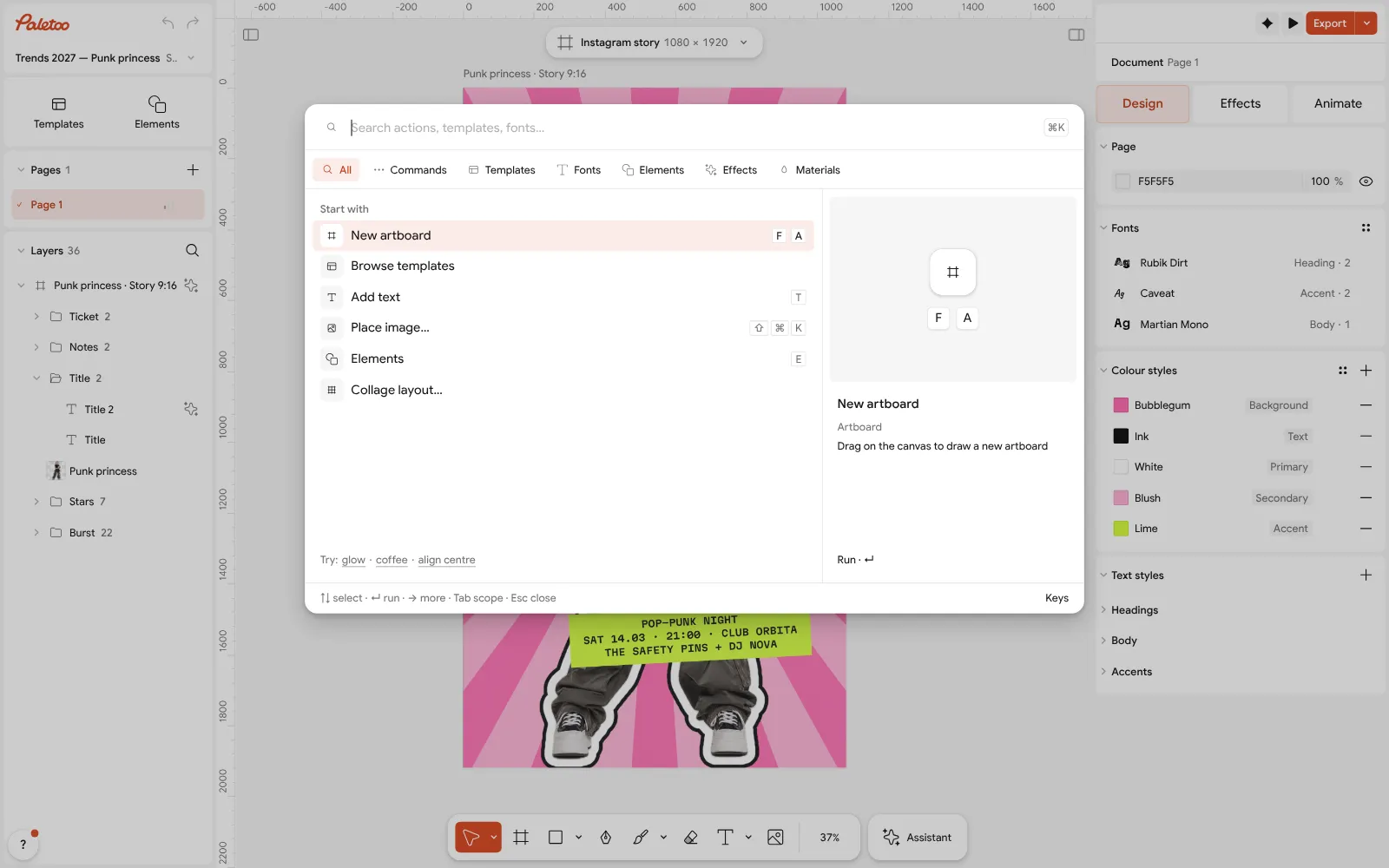
Actions open over the poster: every command by name, with its keys Select a star, press Ctrl Alt C (Copy properties), select another shape and press Ctrl Alt V (Paste properties): the second one takes the first one’s look.
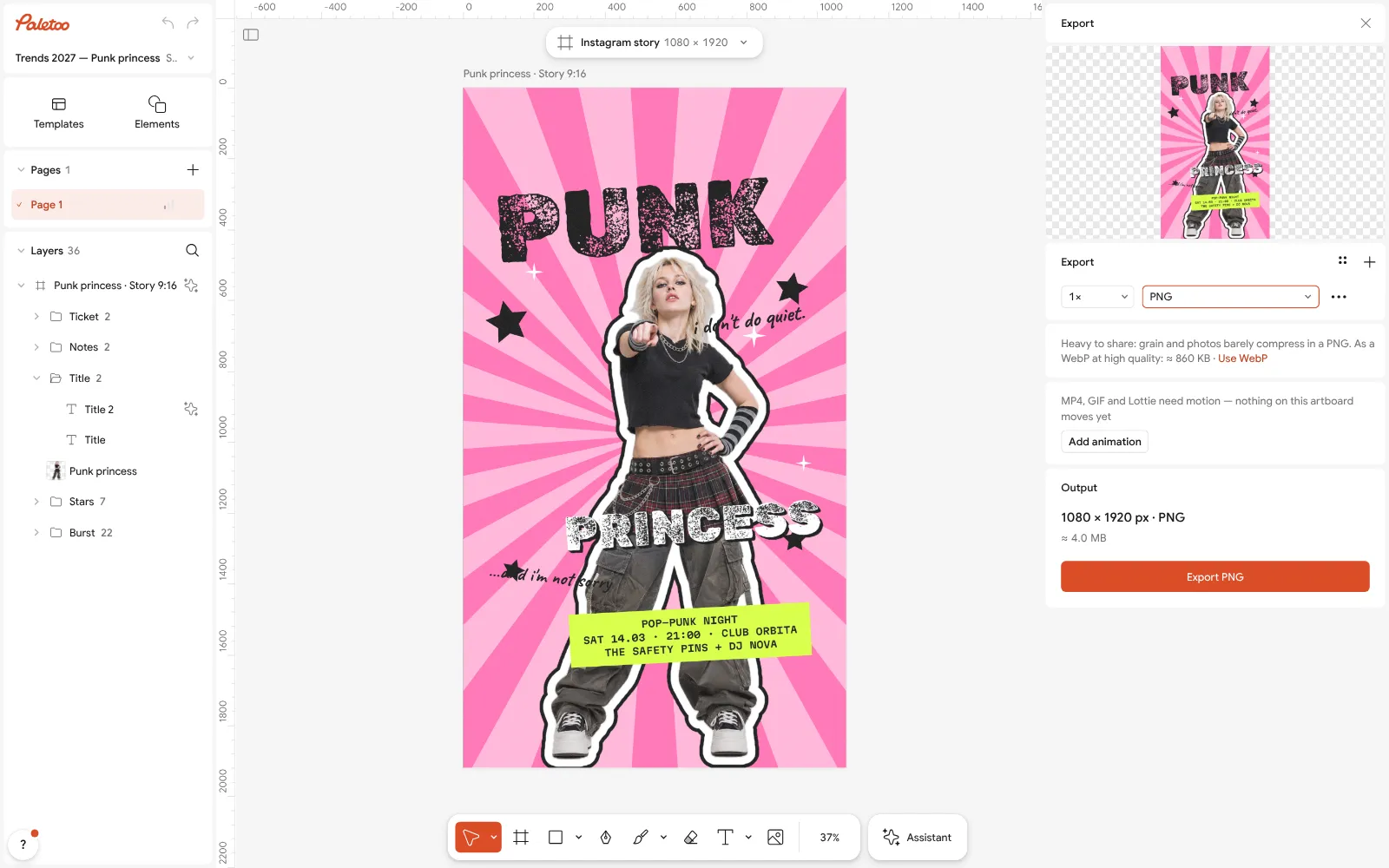
The Export window with the poster ready to download Hold Alt and drag a star to leave a copy behind; press 5 to set its Opacity to 50 %.
Press Export (Ctrl Shift E) — or Ctrl Shift C (Copy as PNG) to paste the poster straight into a chat.
Make it your own
If a key does nothing, click an empty part of the canvas first: while a text field in the panel has the focus, the keys type into it. Actions always work.
Prefer Copy properties to rebuilding a look: it carries the fill, the stroke and every effect, in the same order.
When you change a date or a price, use Find and replace instead of editing each artboard: it reaches every copy, including the ones you forgot.
Sources
Questions
What are the most useful design shortcuts?
A command search (Ctrl K), duplicate (Ctrl D and Alt-drag), copy and paste a look (Ctrl Alt C and V), the eyedropper (I), and the text keys for size, weight and spacing. This page shows twenty with clips.
Do Paletoo’s shortcuts work with a Ukrainian keyboard?
Yes. Every letter key is matched by what is printed on it or by its position, so shortcuts work whichever language the keyboard is set to.
Are the shortcuts the same as in Figma?
Wherever Paletoo has the same action as Figma, it uses Figma’s keys, so most of your Figma habits carry over.
Where is the full list of shortcuts?
Press ? in the editor (Shift and the slash key) to open the list of keyboard shortcuts. Actions (Ctrl K) also shows each command’s keys.
Do the lifehacks work on a phone?
The keyboard ones need a keyboard. On a phone, Actions, Duplicate, Copy properties and Export are in the menus of a selected layer.
Can I change a shortcut?
Yes. In the list of keyboard shortcuts a command’s keys can be set to your own, and set back to the default at any time.
Make it online
- Poster makerMake a poster from a template that already has the layout right, then export a print-ready PDF or an image for screens.
- Instagram post makerDesign a post at the right size from a real template, then export a sharp PNG or JPG — free, in your browser.
- Text effects onlineType your words, press one effect — chrome, gold foil, emboss, cut-out letters, outlines or warps — and download it in a minute, free and with no sign-up; the words stay editable text.
Free design templates for posts, stories and posters: Poster templates · Social media post templates
Try it on your own design
Paletoo opens in your browser, with no sign-up. Every effect here is live: change the picture or the words and the effect follows.
Open in PaletooOpens this design as your own copy — every layer and effect editable, free.
Read next
- 01
 Graphic design hacks: 15 small habits that save hoursFifteen habits, each a few seconds long, that add up to hours.
- 02
 Your first poster in 10 minutes: a timed exercise for beginnersSet a timer. Ten minutes, six small decisions, one finished poster.
- 03
 Graphic design for beginners: your first poster in 30 minutesFour basics, two rules for type and colour, and a first design you can post today.