Free tools7 min readFreeUpdated 2026-11-22
Text behind image: put words behind a person, free
The magazine-cover trick — the headline tucked behind the model’s head — in one click, on words you can still retype.
By the Paletoo team · steps tested in Paletoo on
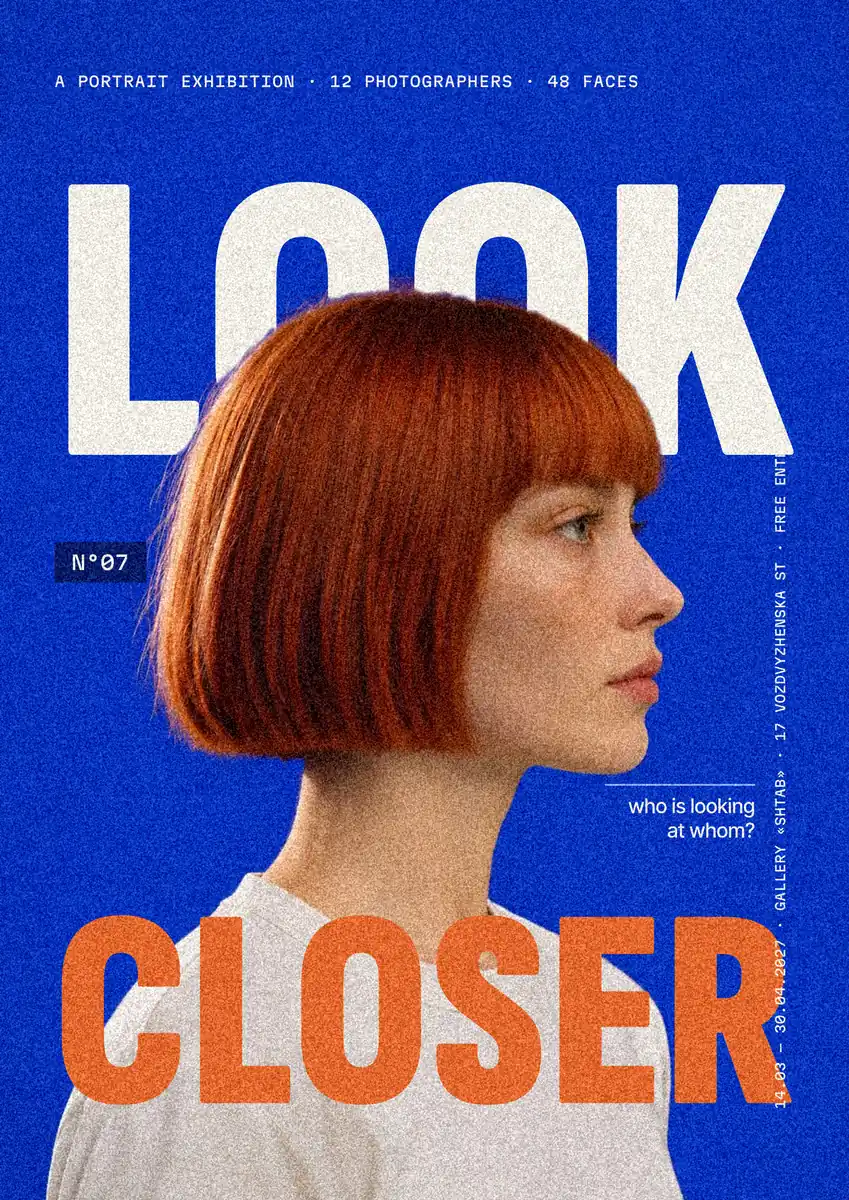
To put text behind an image, you need the photo twice: the whole picture at the bottom, your words above it, and on top a copy of the photo with everything except the subject removed, so the person or object covers part of the letters. In Paletoo that is one command, Put behind subject: it finds the subject on your device, makes the copy for you and leaves the words live, so you can retype, move or recolour them and they stay behind.
This guide explains how the effect works, how to choose a photo and a font for it, how Photoshop and Canva do the same, and then retypes «Look closer» — an A3 exhibition poster where a huge «LOOK» stands behind a red-haired woman’s head on electric blue. Every step was run in Paletoo on 11 November 2026; the pictures are the editor itself.
How text behind a person works
The effect is three layers in a sandwich. At the bottom is the whole photo. Above it are your words. On top is a second copy of the same photo in exactly the same place, with everything except the person or object masked away. Where the subject is, the top copy covers the letters; everywhere else you look straight through it to the words, and the eye reads the overlap as depth: the word seems to hang in the room behind the model.
Everything depends on that top copy matching the photo underneath to the pixel. Shift it, scale it or colour it differently and a pale halo appears around the hair. That is why Paletoo makes the copy from the same picture, in the same place, with the same effects, and keeps it as an ordinary layer named after the photo — «Portrait · subject» on this poster. Its mask is the same kind of subject mask Select subject makes, so it can be refined with a brush, and because it is just a layer it exports to PNG, JPG and PDF exactly as the canvas shows it. The copy also lets clicks through to the words under it, so they stay as easy to select as before.
Choosing the photo, the word and the font
Pick a photo where the subject has a clean edge against a plain or out-of-focus background: a studio wall, the sky, a blurred street. Leave room above or beside the head for the words, and frame the subject so it covers the letters only in part. A head over one or two letters of a five-letter word reads at a glance; cover half the word and nobody can read it, so check the word with the subject in front of it before you commit.
The font does half the work. Heavy, condensed capitals give the subject a big surface to stand in front of and still read when a third of a letter is hidden: «Look closer» sets its title in Sofia Sans Extra Condensed at 860 px on a 1754 px wide poster. Thin scripts and small type lose too much. Give the word a colour that separates from both the background and the subject — cream on blue here — and keep everything people must read, such as dates, prices and names, fully in front.
| Tool | How | Cost |
|---|---|---|
| Paletoo | Put behind subject: the subject found on your device, a masked copy made over the words | Free, no account |
| Photoshop | Select › Subject, Layer via Copy (Ctrl J), the type layer dragged between the two | Subscription |
| Canva | The photo duplicated, Background Remover on the top copy, the text sent back between them | Background Remover is on paid plans |
| Video editors | A mask on the subject, tracked frame by frame (CapCut, Premiere Pro, DaVinci Resolve) | Varies |
Text behind an object in Photoshop and Canva
In Photoshop, open the photo and add your type layer. Select the photo layer, choose Select › Subject, and press Ctrl J (Cmd J on a Mac) to copy the selection to a new layer. Drag that layer above the type in the Layers panel, then clean the edge with a layer mask and a soft brush. The type stays editable, but the photo is now two layers you have to move and scale together.
In Canva the usual way is to duplicate the photo, remove the background from the top copy with Background Remover, and send the text backward so it sits between the two copies. It works, but Background Remover is part of Canva’s paid plans, and the copies drift apart if you resize one of them. In Paletoo the whole sandwich is one command, and taking it back is one more: Remove behind subject.
Made in Paletoo
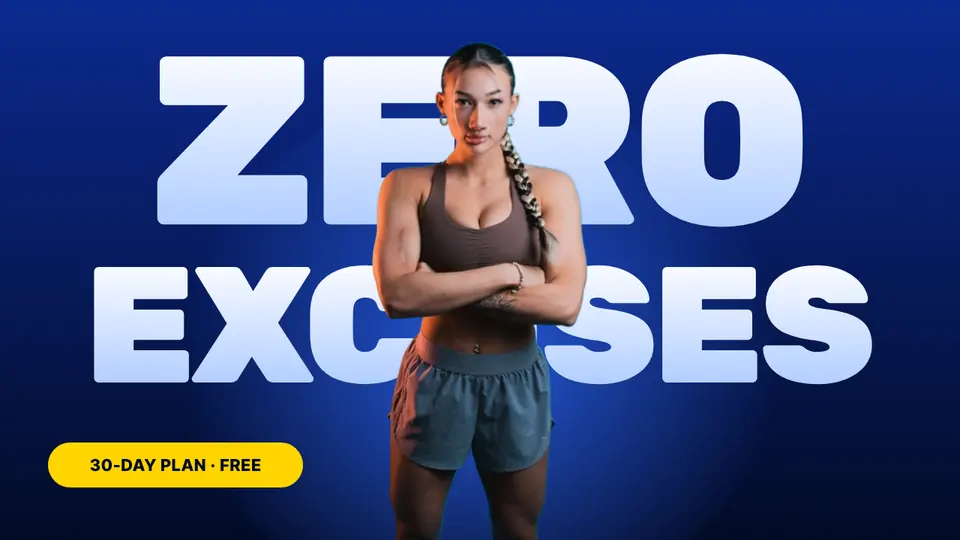
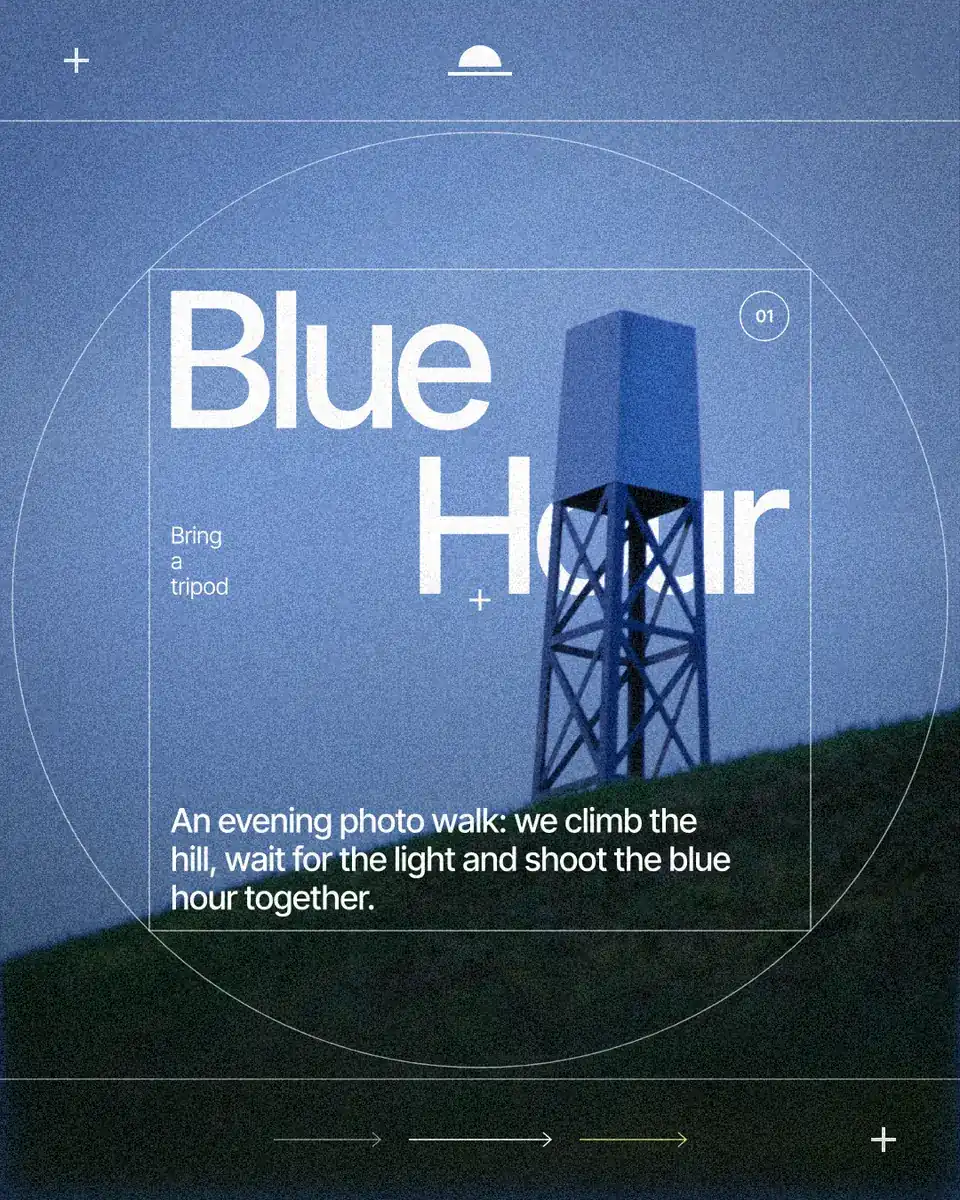
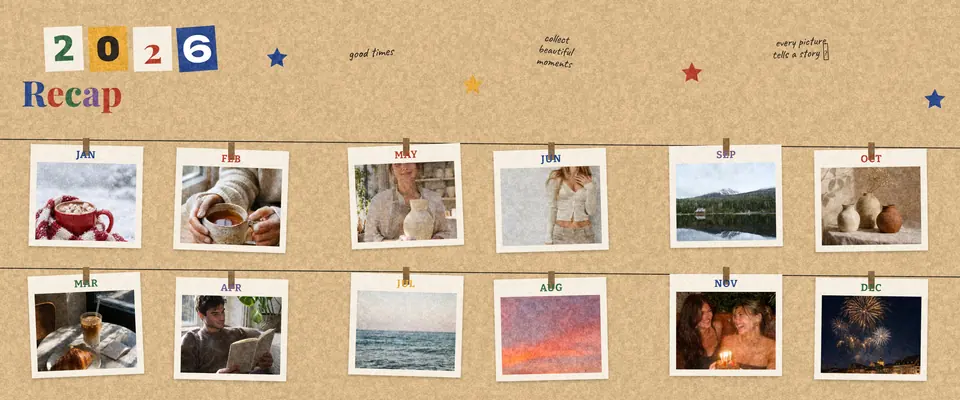
Every picture on this page was made in Paletoo — these three with the same steps on other templates:
Make it free in Paletoo
Open the poster: press “Open in Paletoo” on this page, or start from the poster maker. It opens as your own document; in Layers the «Portrait» photo is at the bottom, then «Title» (LOOK), then «Portrait · subject» — the copy that covers the letters — then «CLOSER» and the small lines.
Double-click «LOOK» and type your own word: «COME» turns the poster into «COME CLOSER». Its font and size are under Typography in the Design tab. Her head stays in front of the new letters, because the subject copy above them has not moved.
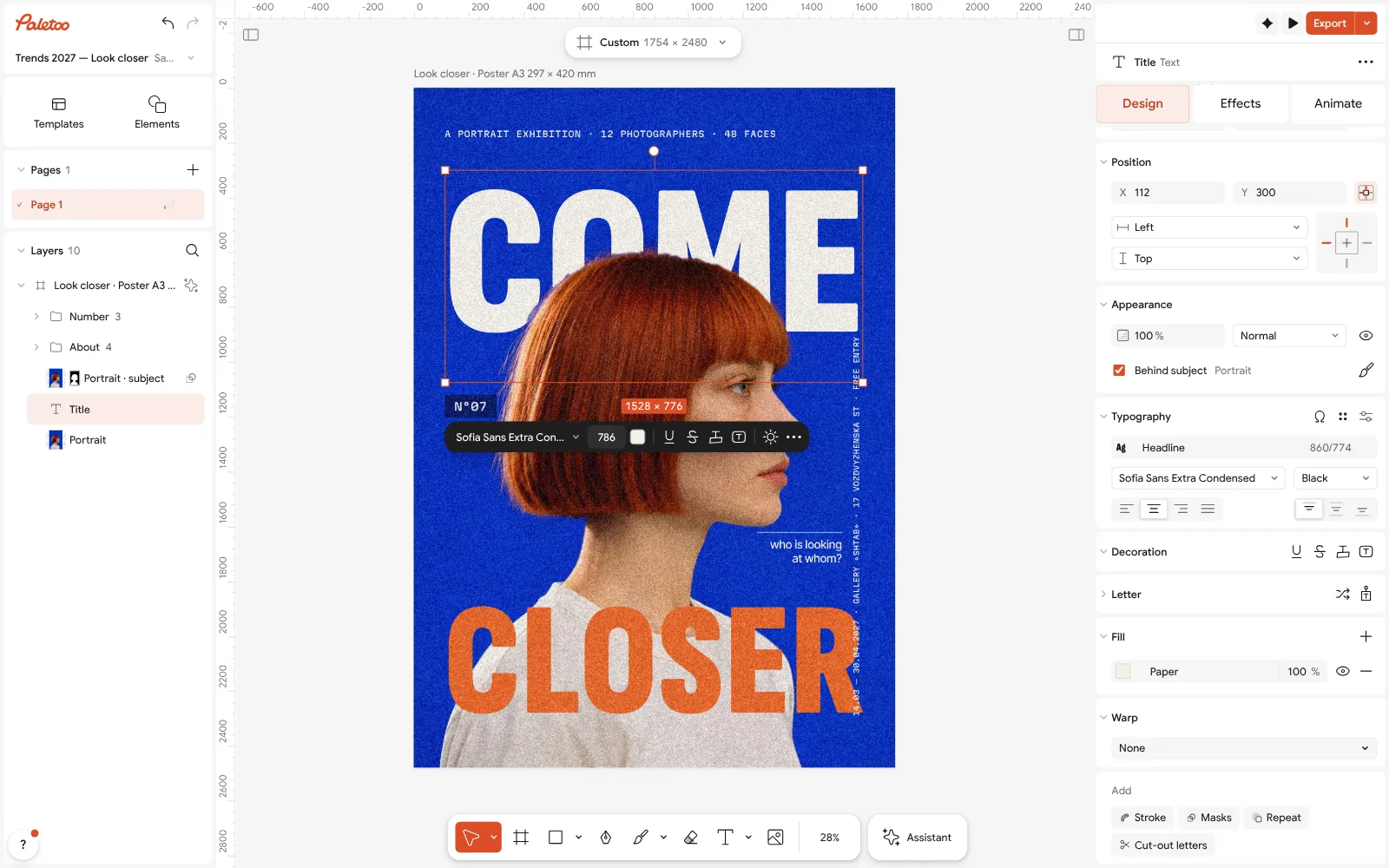
The «Look closer» poster open in Paletoo: «LOOK» retyped as «COME» and selected, still behind her head, its font under Typography With the title selected, look under Appearance: Behind subject is ticked, next to the photo’s name. Untick it and the word comes out in front; tick it and it goes back. Drag the word up or down and it stays behind.
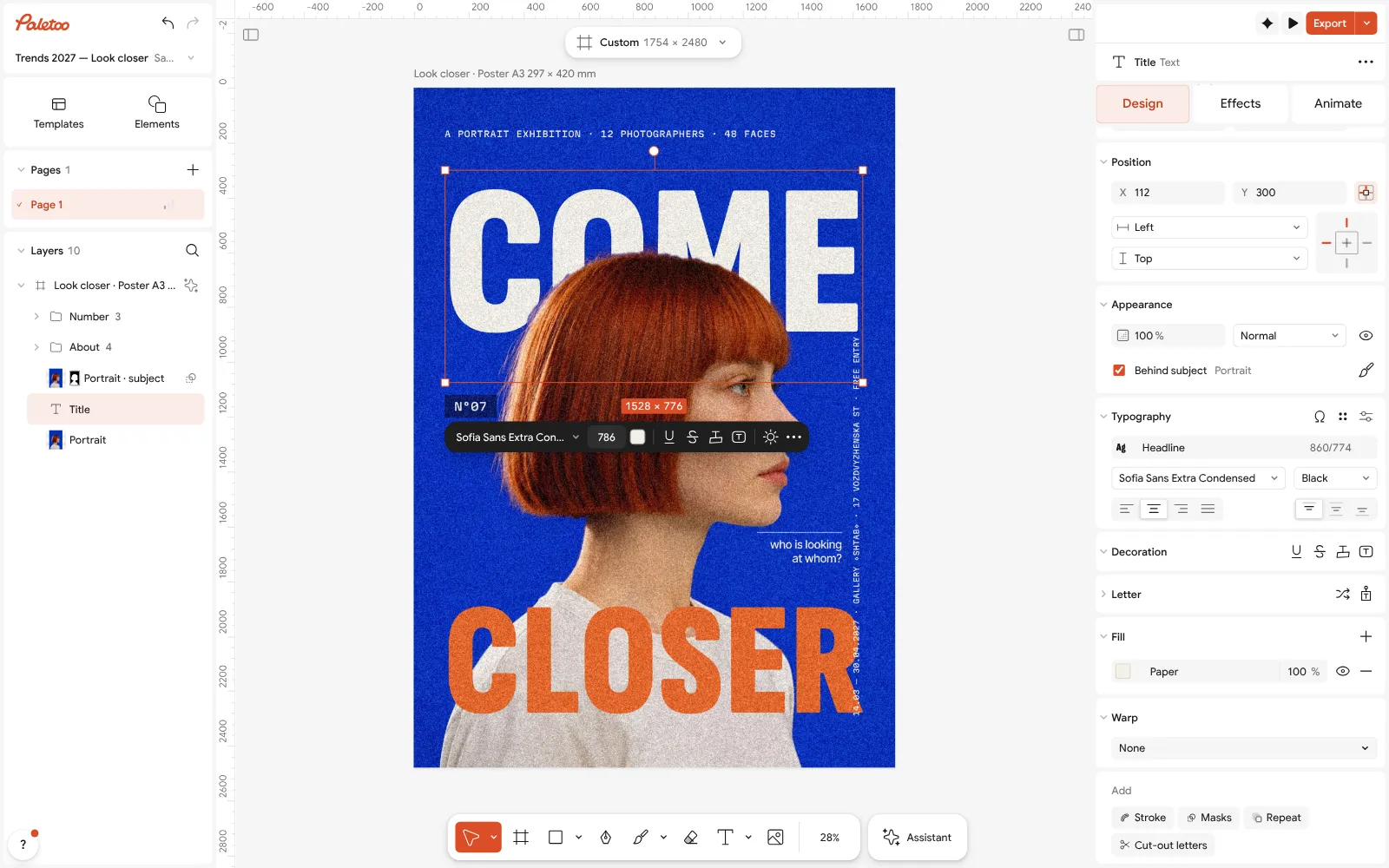
The title selected: Behind subject ticked under Appearance, the portrait’s subject copy lying over the letters For your own picture, place the photo, type the words over it, select them and run Put behind subject — from Ctrl K (⌘ K on a Mac), from the button above the selection, or by ticking the box under Appearance. The first time, it downloads the subject model; after that it takes a few seconds on your device, and nothing is uploaded.
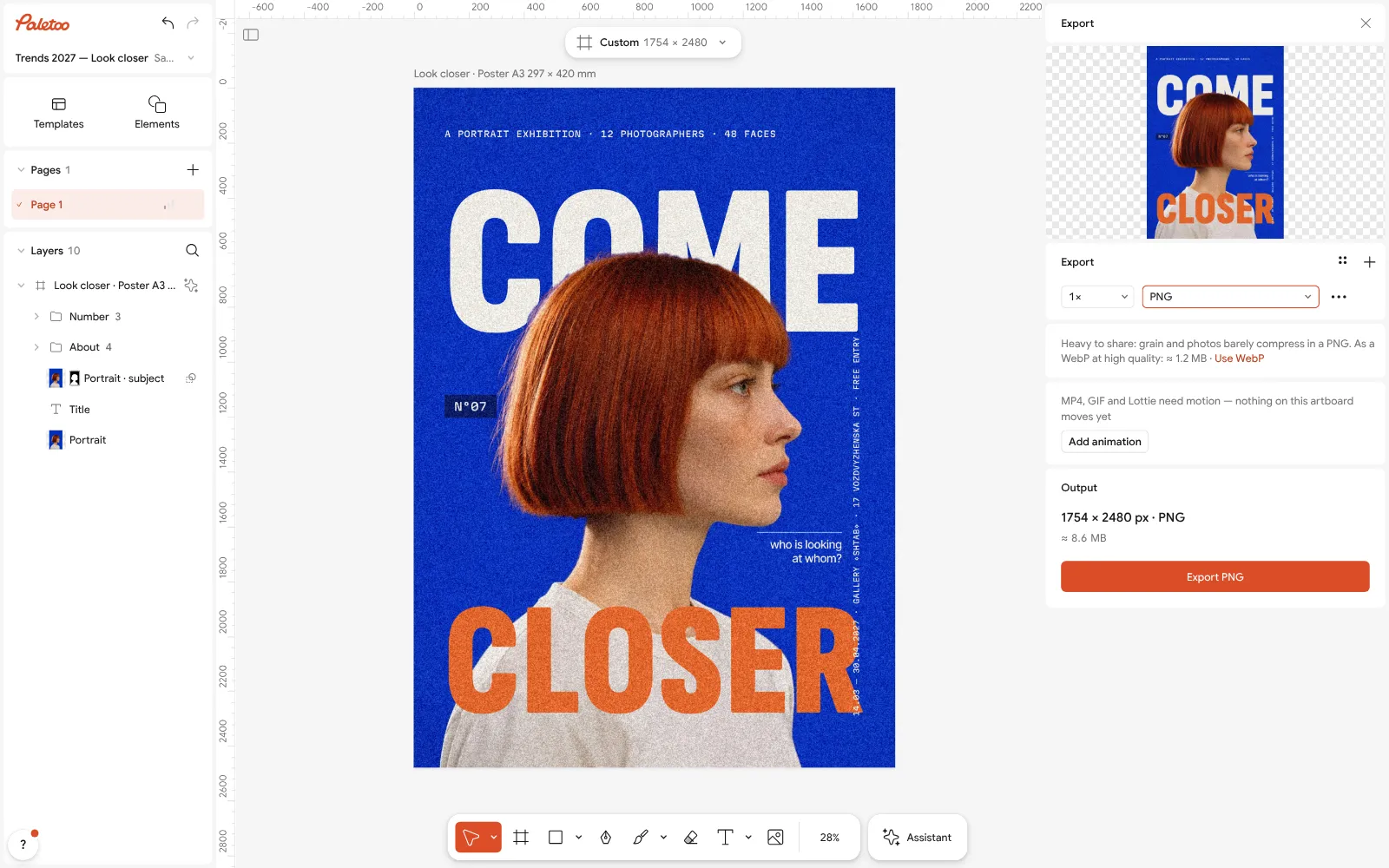
Export as PNG, ready to post If the edge needs help — loose hair, fingers, a hat brim — press the Brush beside the row and paint the subject’s edge in or out. To undo the whole effect, run Remove behind subject.
Press Export (Ctrl Shift E): PNG or JPG for a post or a thumbnail, PDF for print. The copy is an ordinary layer, so every file looks exactly like the canvas, and none carries a watermark.
Make it your own
Give the depth a shadow: select «Portrait · subject», press Add effect and choose Shadow. A soft shadow falling from the head onto the letters makes the word look physically behind her.
It is not only for words: a circle, a sticker or a hand-drawn arrow can go behind a shoulder too — select it over the photo and run Put behind subject.
Check it at phone size: zoom out until the poster is about 300 px wide. If you can still read the word, the subject covers the right amount. For a clean cut-out of the person on its own, see remove a background online.
Sources
Questions
How do I put text behind a person in a photo?
Put the words over the photo, then cover them with a copy of the photo that shows only the person. In Paletoo, select the words and run Put behind subject: the copy is made for you and the text stays editable.
Can I put text behind an image online for free?
Yes. Paletoo does it in the browser, free and without an account. The subject is found on your device, so the photo is not uploaded anywhere.
How do you put text behind an object in Photoshop?
On the photo layer choose Select › Subject, press Ctrl J to copy it to a new layer, then drag your type layer between the photo and the copy. Refine the edge with a layer mask.
How do I put text behind an image in Canva?
Duplicate the photo, remove the background from the top copy with Background Remover, which is on Canva’s paid plans, and send the text backward so it sits between the two copies.
Why does my text behind image look fake?
Usually the copy does not match the photo below, which leaves a halo around the hair, or the subject hides too much of the word. Refine the edge and let the subject cover one or two letters at most.
Can I change the words after putting them behind?
Yes. They stay live text: retype, move, resize or recolour them and they stay behind the subject. Untick Behind subject to bring them back in front.
Make it online
- Poster makerMake a poster from a template that already has the layout right, then export a print-ready PDF or an image for screens.
- YouTube thumbnail makerA face cut out of its background, three big words and one bright colour: thumbnails at 1280 × 720 that read at the size of a stamp.
- Remove background onlineCut the subject out of any photo in one click — on your own device, with no upload and no credits.
Free design templates for posts, stories and posters: Poster templates · YouTube thumbnail templates · Team and speaker templates
Try it on your own design
Paletoo opens in your browser, with no sign-up. Every effect here is live: change the picture or the words and the effect follows.
Open in PaletooOpens this design as your own copy — every layer and effect editable, free.
Read next
- 01
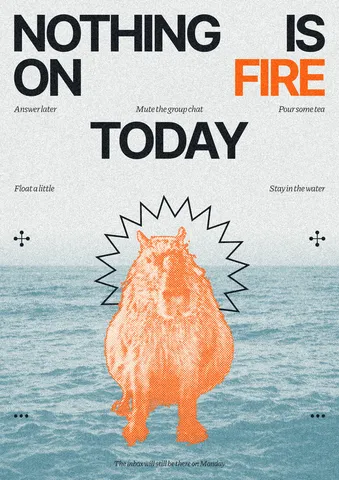 How to remove the background from a photo online — free, on your deviceOne click cuts the subject out; the background is hidden, not deleted, so you can bring it back.
- 02
 Add text to a photo online, free: words that stay readableA caption, a quote, a date or a price on your own photo — in any font, with Ukrainian letters, on a computer or a phone.
- 03
 How to make a knockout outline that cuts throughA stroke that cuts through the layers under the text.