Free tools5 min readFreeUpdated 2026-11-20
How to remove a background from a photo for free, without uploading it
A clean cut-out, made on your own computer or phone, ready for a thumbnail, a poster or a shop.
By Paletoo’s designers · every step done in Paletoo
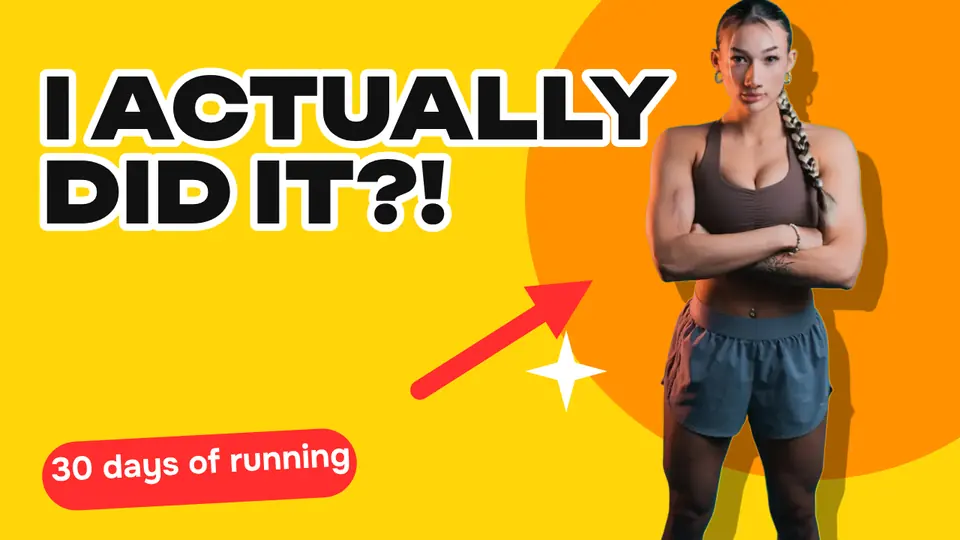
To remove a background without uploading the photo, use a remover whose model runs in your browser: in Paletoo the cut-out happens on your own computer or phone, so the photo never leaves it. Open the photo, select it, press Remove background, tidy the edge if it needs it, and export a PNG with a transparent background. It is free, with no sign-up, no credits and no watermark — and you can check that nothing is sent in the browser’s network panel.
This guide does it on a YouTube thumbnail, “I actually did it?!”, where a cut-out runner stands in front of an orange circle. It covers why privacy matters with cut-outs, what makes a photo cut out cleanly, how to fix hair and soft edges, and the small touches — a floor shadow, an outline — that stop a cut-out from looking pasted on.
Why “no upload” matters
Most free background removers send your photo to a server, run the model there and send the result back. That is fine for a picture of a mug, less fine for a portrait of a child, a passport photo, a signed document or a client’s unreleased product. The service’s terms decide how long the photo is kept and what it may be used for.
A cut-out that runs on your device avoids the question. The first time, the browser downloads the model once — about 44 MB — and keeps it; after that the photo is processed where it already is. You can check it yourself: open the browser’s network panel, cut out a photo, and see that nothing is sent. It also means no credits and no daily limit.
The same works for a whole folder: remove backgrounds from many photos in the browser and get one ZIP. How this compares with an upload-first service: Paletoo vs remove.bg; every comparison is on the compare page.
What makes a photo cut out cleanly
Contrast between the subject and the background matters more than the camera. A person in a dark jacket against a pale wall cuts out almost perfectly; a person in beige against a beige sofa does not. Even light helps, and so does focus: a sharp subject on a softly blurred background is the easiest case of all.
Hair, fur and see-through things are the hard part for every remover. Expect to tidy them. Busy group photos work, but each person may come out as one shape with the others; for a single subject, crop close before you start.
Making a cut-out look real
A cut-out pasted onto a new background often floats. Two things ground it: a shadow and light that matches. Right after the cut-out, Paletoo’s ⌘K suggests Add floor shadow, a soft studio shadow under the subject that you can tune. A thin outline or a hard drop shadow does the opposite job: it makes the cut-out look deliberately cut, as on the thumbnail in this guide.
Match the colours too. If the new background is warm and the subject was photographed in cold light, an Adjust step or a gentle colour grade across the whole design ties them together.
Where a cut-out earns its keep
A product on a white or a soft studio background for a shop listing; a person in front of big words on a YouTube thumbnail; a portrait over a flat colour for a poster or a profile; a sticker with a white outline for a story. The thumbnail in this guide is the second case: the runner is cut out, given a hard shadow and set against an orange circle, so she reads at the size of a phone’s list. Each of these starts with the same press of one button, on a photo that never left your device.
Made in Paletoo
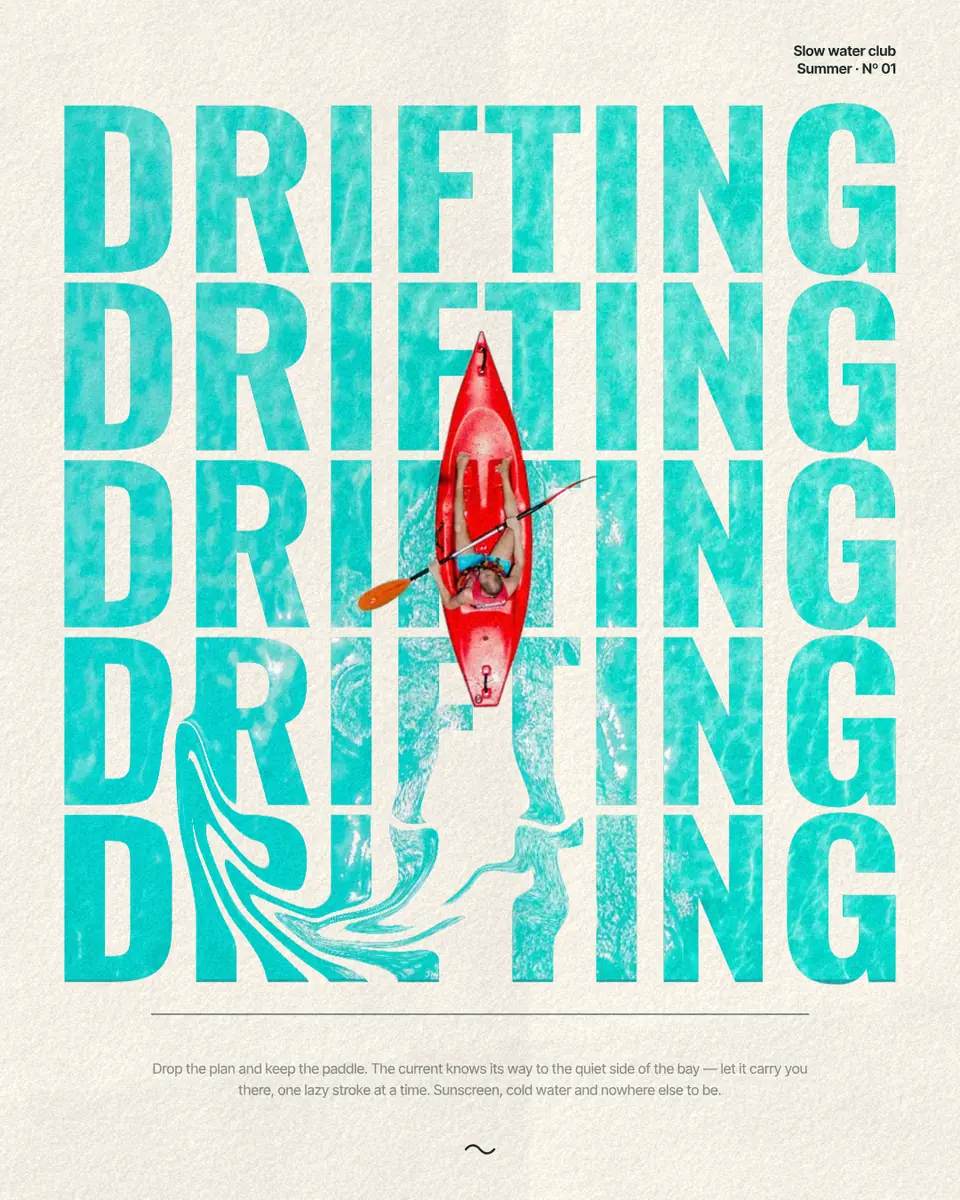
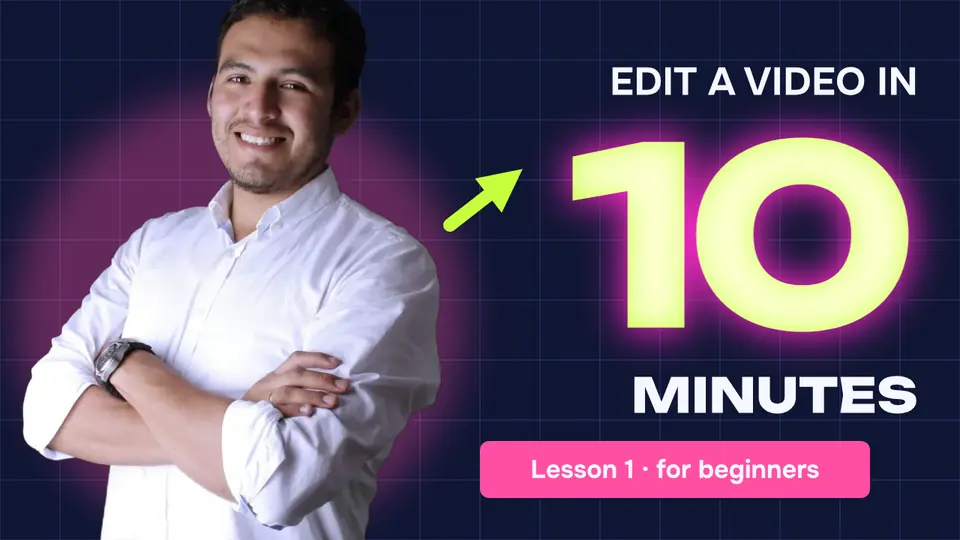
Every picture on this page was made in Paletoo — these three with the same steps on other templates:

Make it free in Paletoo
Press “Open in Paletoo” to open the thumbnail, or press Open file… and choose your own photo. Click the photo to select it: the Design tab shows its AI section.
Press Remove background. The first time, the model downloads once; then the cut-out takes a moment and runs on your device. The background is hidden with a mask, not deleted.
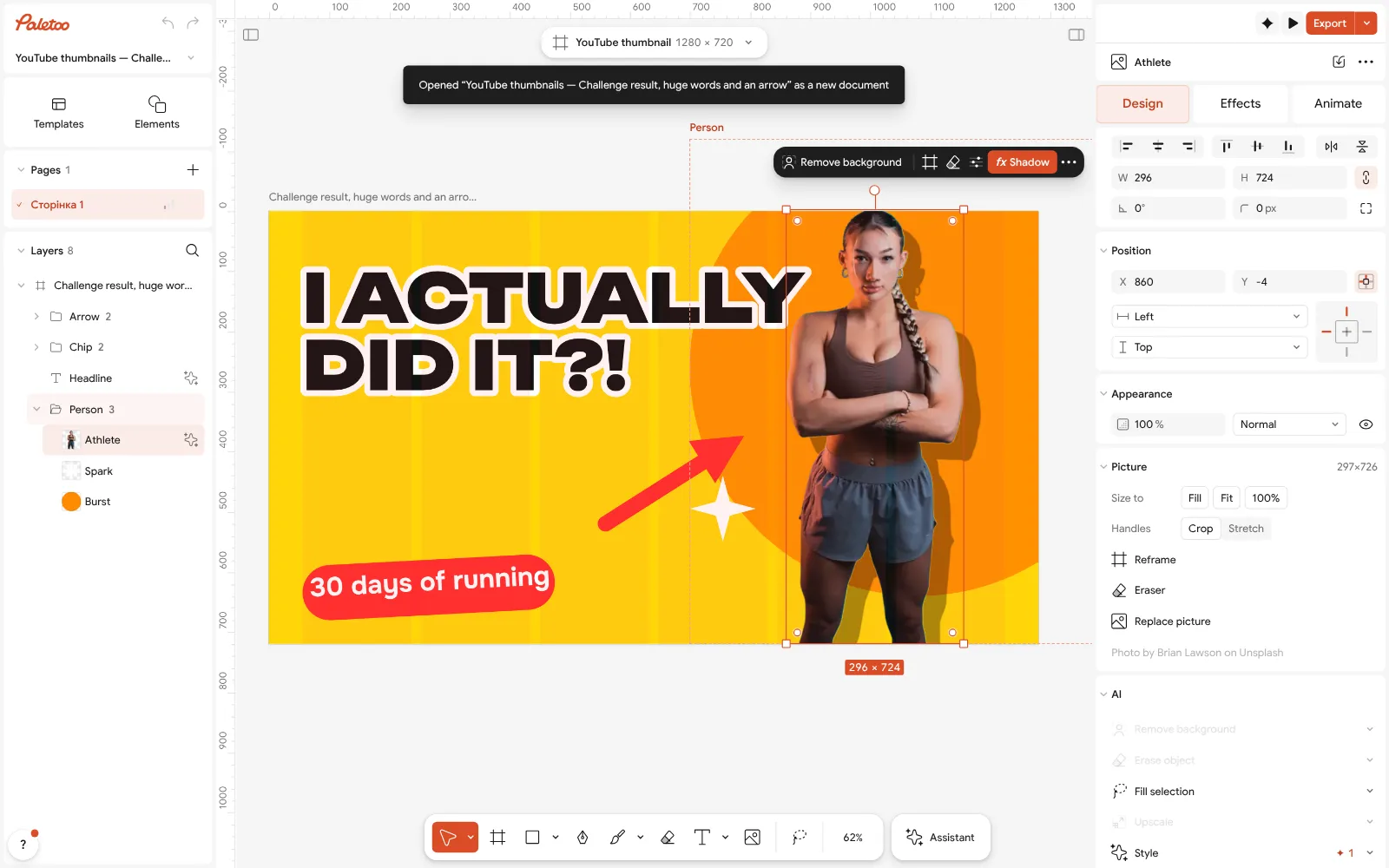
The thumbnail open in Paletoo: the cut-out runner selected, the AI section on the Design tab If hair or a soft edge looks rough, run Refine subject: it smooths, feathers and shifts the mask’s edge, with views to check it on light and dark.
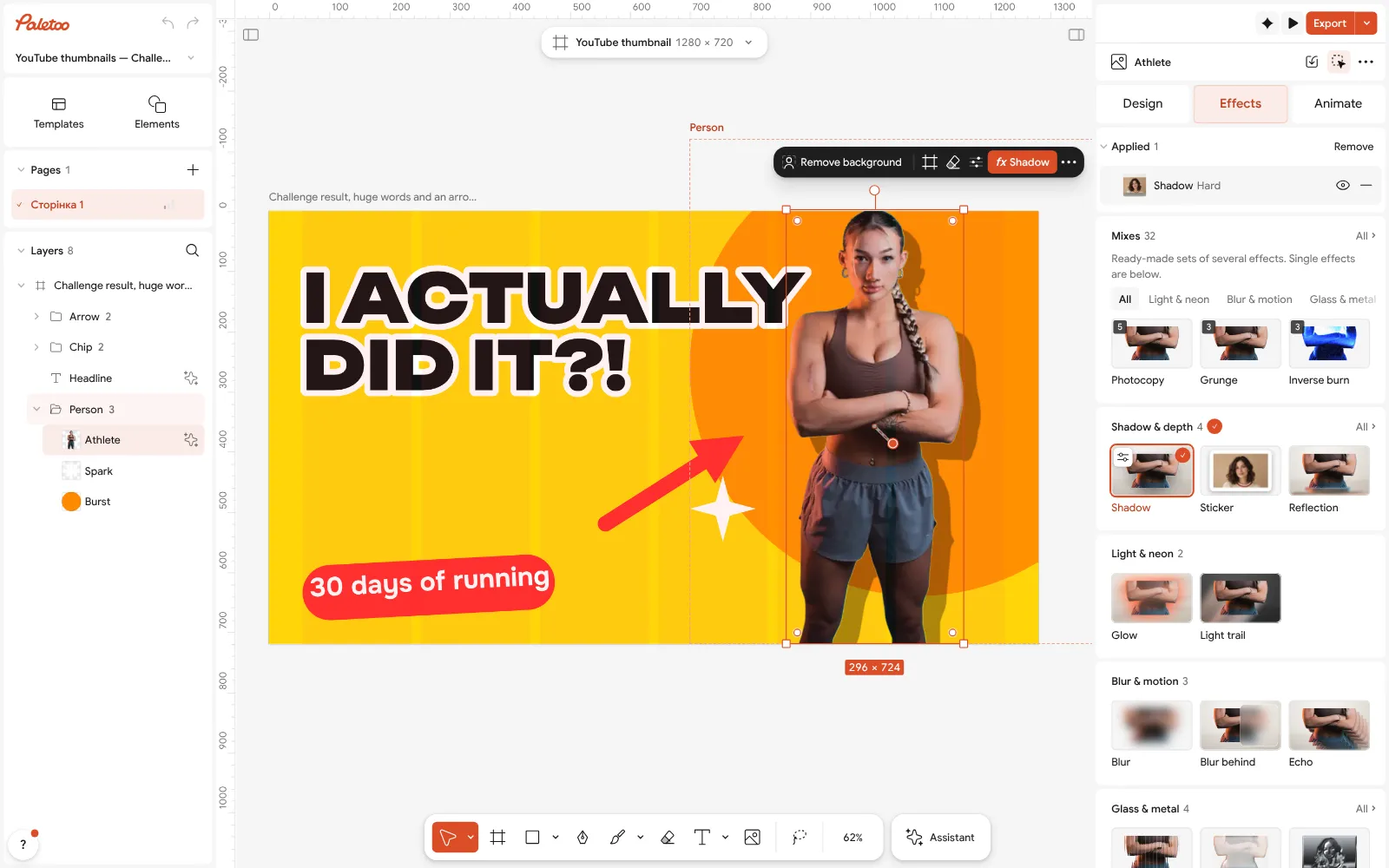
The runner’s steps under Applied on the Effects tab Open the Effects tab to see what is on the cut-out. The runner has a shadow step under Applied; on your own photo, press Ctrl K and choose Add floor shadow for a soft shadow to stand on.
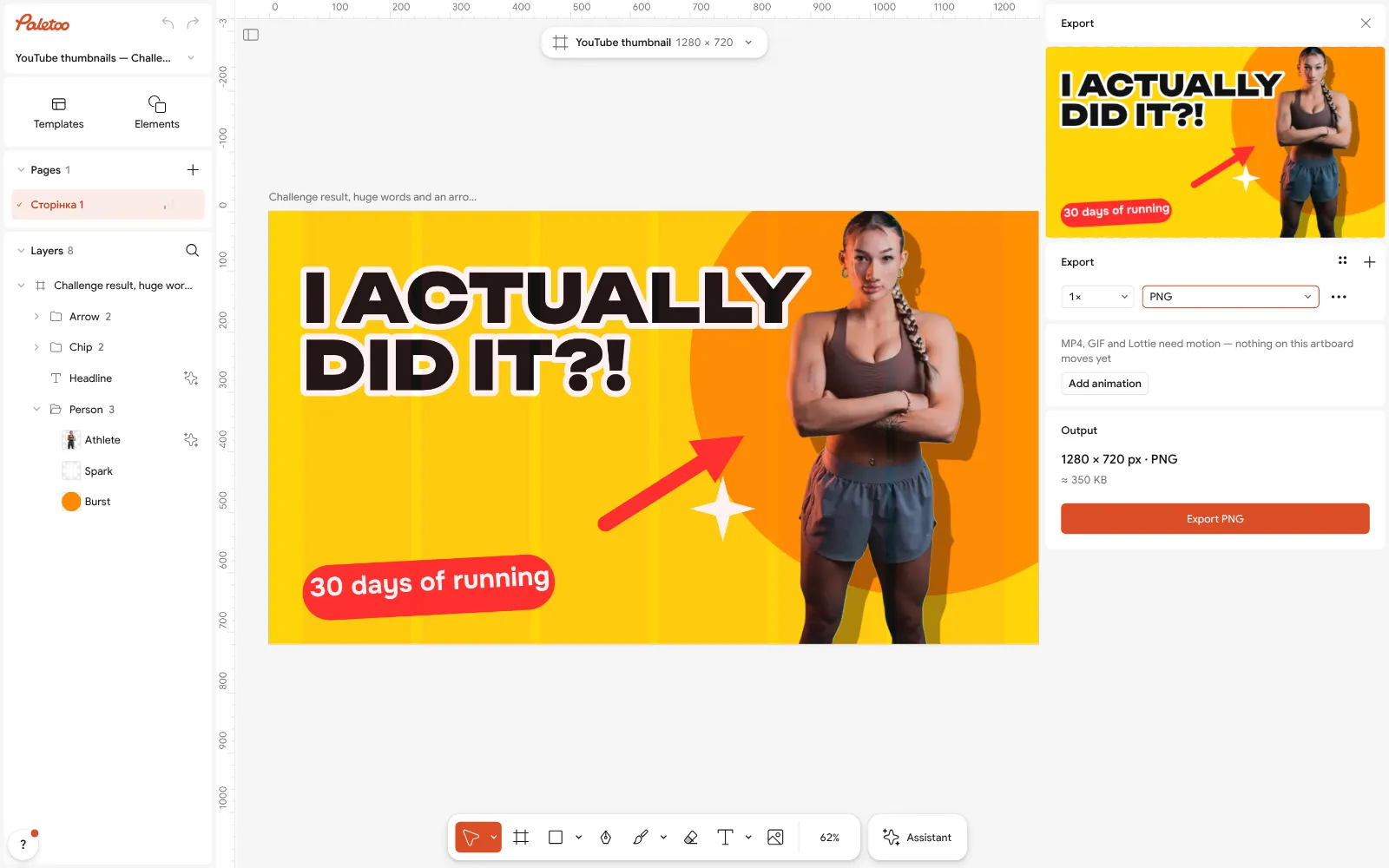
The Export window with PNG chosen, ready for a transparent background Put the cut-out to work: drag a new colour or photo behind it, write a headline over the background, or keep it alone for a shop listing.
For a file of its own, press Export, choose PNG and set Background to Transparent. Everything outside the subject stays empty.
Make it your own
If the edge has a light halo from the old background, run Refine subject and shift the edge inwards by a pixel or two.
If something you wanted was cut away — a hand, a bag — press Restore background and try again on a closer crop, or paint it back with the eraser’s restore side.
Before you export, look at the cut-out on black and on white. A halo you miss on one shows on the other; Transparent PNG keeps exactly what you see.
Questions
How do I remove a background without uploading the photo?
Use a remover that runs on your device. In Paletoo, open the photo, select it and press Remove background: the model runs in your browser, so the photo is never sent to a server — only the model itself is downloaded once, the first time. Then export a PNG with a transparent background.
Is it free, and is there a limit?
It is free, with no credits, no daily limit and no watermark on the export. You do not need an account either.
Does it work on a phone?
Yes. Open Paletoo in the phone’s browser, add a photo, select it and press Remove background in its AI section; it runs on the phone, iPhone included.
How do I get a transparent PNG?
Press Export, choose PNG and set Background to Transparent. Everything outside the cut-out is left empty.
Can I get the background back later?
Yes. The background is hidden by a mask, not deleted: press Restore background in the same section, or undo straight after.
Make it online
- Remove background onlineCut the subject out of any photo in one click — on your own device, with no upload and no credits.
- YouTube thumbnail makerA face cut out of its background, three big words and one bright colour: thumbnails at 1280 × 720 that read at the size of a stamp.
- Mockup generatorShow your design on a phone, a poster, a T-shirt or a bag — free, with real light and folds, no watermark and no sign-up.
Free design templates for posts, stories and posters: Team and speaker templates · YouTube thumbnail templates · Poster templates
Try it on your own design
Paletoo opens in your browser, with no sign-up. Every effect here is live: change the picture or the words and the effect follows.
Open in PaletooOpens this design as your own copy — every layer and effect editable, free.
Read next
- 01
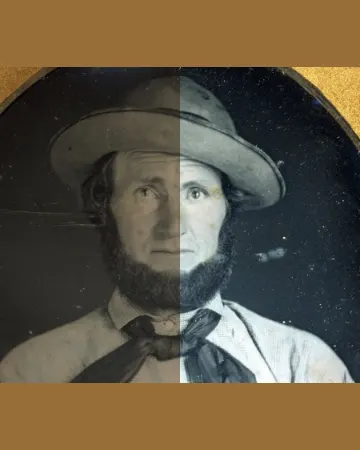 How to enhance photo quality online for free, without AI guessworkA grey, yellowed or dark photo made clear in one press, then larger — and you can see every change.
- 02
 How to remove the background from a photo online — free, on your deviceOne click cuts the subject out; the background is hidden, not deleted, so you can bring it back.
- 03
 Free poster maker: make a poster online with no watermarkA real poster, from the size to a print-ready PDF, without paying or signing up.