Techniques6 min readFreeUpdated 2026-11-24
SVG for laser engraving: make a laser-ready file free
Turn a logo, a drawing or a photo into a laser-ready SVG — cut, score and engrave as separate colours, text as outlines — free, in your browser.
By the Paletoo team · steps tested in Paletoo on
To make an SVG for laser engraving, trace your image into vector shapes, give each laser operation its own colour (for example black to engrave, red to cut), turn text and thin lines into filled outlines, and export a plain SVG. LightBurn, xTool Creative Space and the Glowforge app all open it and map each colour or each fill and stroke to an operation you set.
A laser follows paths, so a PNG alone only engraves as a picture; a clean SVG lets the same file cut a coaster, score a line and engrave a logo in one job. Below: the tracer to try on your own picture, what the laser does with fills and strokes, the size and kerf rules that save material, and the steps in Paletoo on «Old Town», a coffee and bakery badge in cream on navy.
Try it first: drop a logo, a drawing or a photo below and get the SVG your laser software will open — traced in this browser tab, nothing uploaded.

Drop an image, get a clean SVG
Your PNG or JPG becomes a vector right here, traced by the same engine as the editor. Free, no sign-up, and the picture never leaves your device.
Download SVGor drop it on the picture, or paste it
Edit in the editorYour picture opens there with Vectorize on it: recolour it, change the detail, edit the points.
Or try one of ours
Free · no sign-up · nothing uploaded
Zoom in: pixels against a vector
The same logo at three zooms. Left of each line the 120 px PNG, right of it the SVG Vectorize made (26 anchor points): it stays sharp at any size.
What a laser does with an SVG: engrave, score, cut
Laser software reads an SVG as a set of shapes and lines and lets you give each group an operation. Engrave (also called fill or raster) sweeps back and forth over a filled area and burns it in; score follows a line at low power and leaves a thin mark; cut follows a line at full power until it goes through. LightBurn sorts shapes into layers by their colour, and each layer gets its own mode, speed and power. The Glowforge app treats fills as engraves and strokes as scores or cuts. xTool Creative Space lets you pick the operation for each object after import.
That is why a laser file should be built by colour and by role. Keep every shape you want engraved as a filled shape in one colour; draw the cut line as a single closed path in a second colour; keep scores in a third. A file in which the outline of a coaster is part of the same black shape as the logo will engrave the outline instead of cutting it.
| Part of the design | In the SVG | Operation | Typical colour |
|---|---|---|---|
| Logo, letters, solid artwork | Filled shapes, no stroke | Engrave (fill) | Black |
| Outline of the piece | One closed path, stroke only | Cut | Red |
| Fine detail line, fold line | Open or closed path, stroke only | Score | Blue |
| Photo | Keep as PNG or JPG, not traced | Engrave with dithering | — |
| Text | Outlined to shapes | Engrave or cut | Black or red |
Size, units and kerf: get it right before the first burn
An SVG carries its size, but programs read units differently, and a logo can arrive 25 % too small. After import, check the width in millimetres or inches and type the real size once; a design made at its real size from the start — a 90 mm coaster, a 50 mm keychain — avoids the question. Lock the aspect ratio when you scale so circles stay round.
The beam removes material where it cuts, a width called kerf: often about 0.1–0.2 mm on wood and acrylic, depending on the machine and the lens. It does not matter for a coaster, but it does for inlays and parts that slot together: offset the cut line by half the kerf, or test on scrap first. For engraving, thin parts burn wider than drawn, so a 0.3 mm line in a 30 mm logo may close up; keep strokes and gaps above about 0.5 mm at the final size.
Photos, gradients and trace settings
A photo is not a good trace. A laser engraves photos line by line, with dithering that turns grey into a pattern of dots, so give it the photo as a PNG or JPG and let the laser software do that part. Trace only what should become crisp shapes: a logo, lettering, a silhouette, a pencil or ink drawing.
For one-colour engraving, trace with a single colour, so every dark area becomes one shape and the paper becomes nothing. Remove the background, or the white paper becomes a white shape the laser will dutifully engrave. A logo with two colours on wood still engraves in one: decide which parts burn and which stay bare, and recolour the burnt ones black before export.
Made in Paletoo
Every picture on this page was made in Paletoo — these three with the same steps on other templates:
Step by step in Paletoo
Open the badge: press “Open in Paletoo” on this page, or open your own PNG or JPG with Open file…. «Old Town» opens as your own 1080 × 1080 document: the name in cream Yeseva One on a gentle arch over navy, a red star under it, a thin rule and «COFFEE · BAKERY · 2026» in small capitals.
Select the name, the layer «Brand name». Under Typography in the Design tab: Yeseva One, 140 px — a high-contrast serif whose thin strokes still burn cleanly at 60 mm wide. Double-click and type your own words.
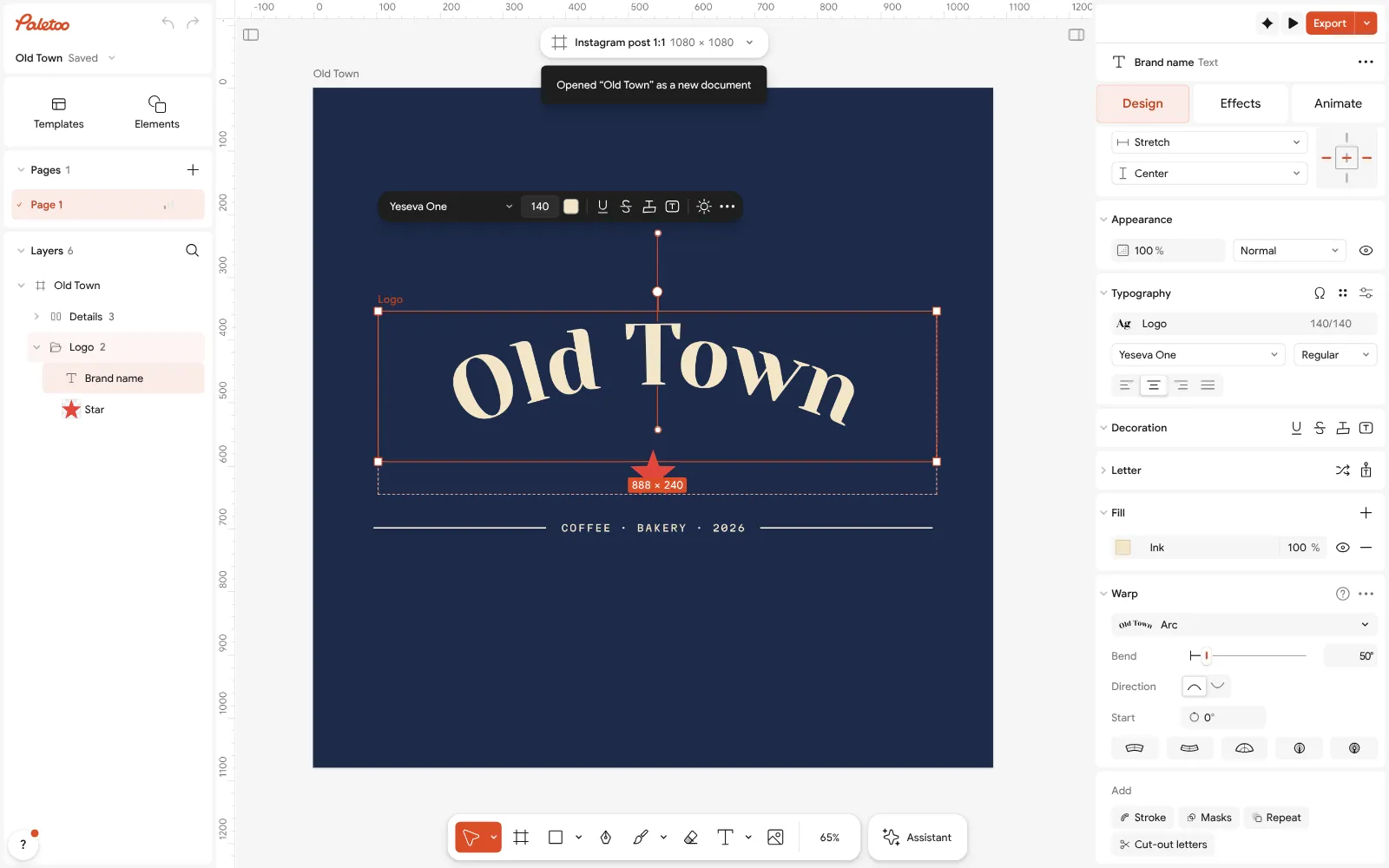
The «Old Town» badge open in Paletoo with its name selected: Yeseva One under Typography Press Select all (Ctrl A). Selection colours lists the cream of the type and the rule, the red of the star and the navy of the ground. Set the cream and the red to black: on the laser that is everything that engraves. For your own picture, select it and press Vectorize with Silhouette chosen or Colours set to 1, and Remove background left on.
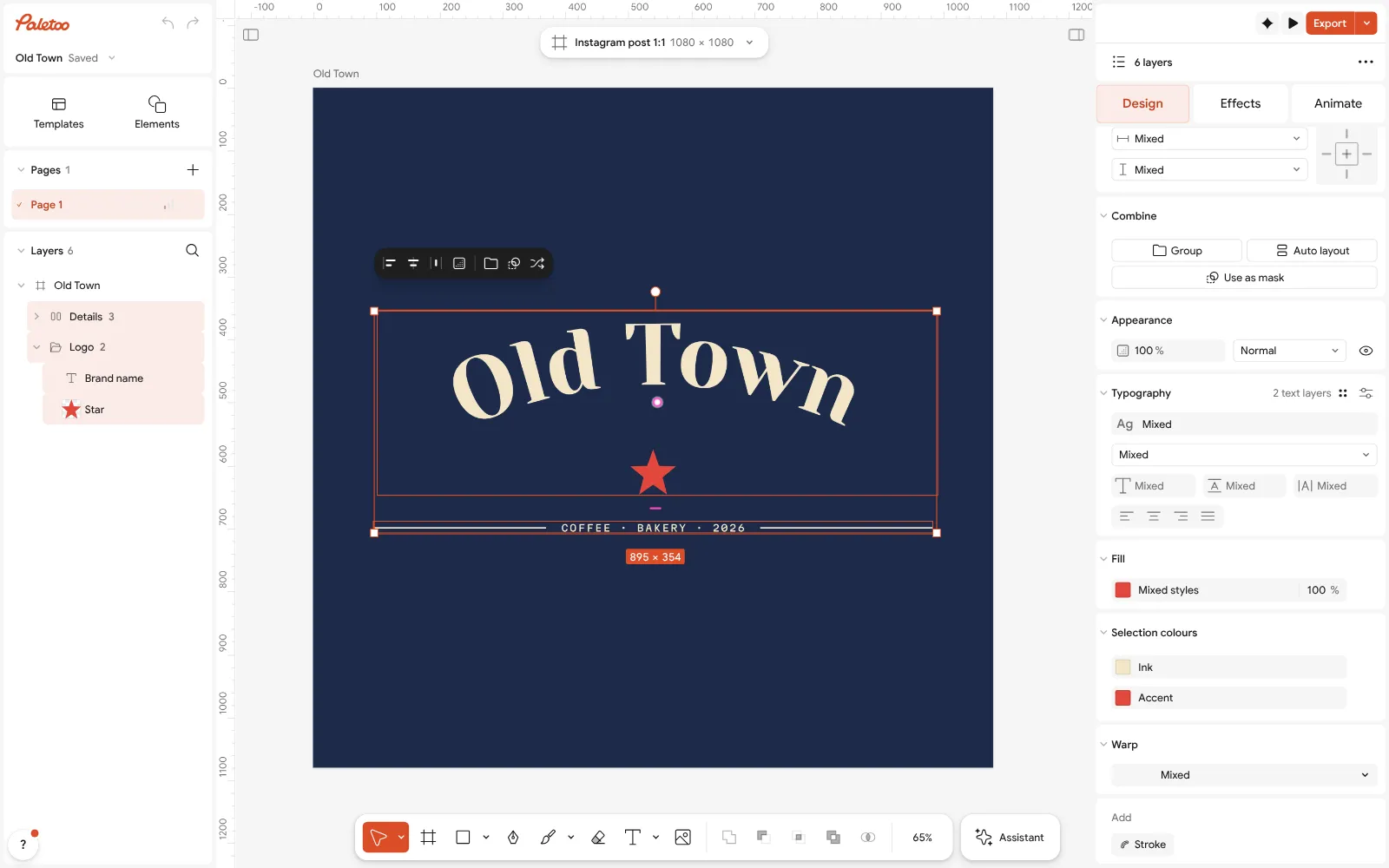
Everything selected: Selection colours lists the cream type, the red star and the navy ground Draw the cut line: a circle or a rounded rectangle around the badge, with no fill and a red stroke. The rule is a thin line; if it should engrave as a solid band, select it and run Outline stroke (Ctrl Alt O).
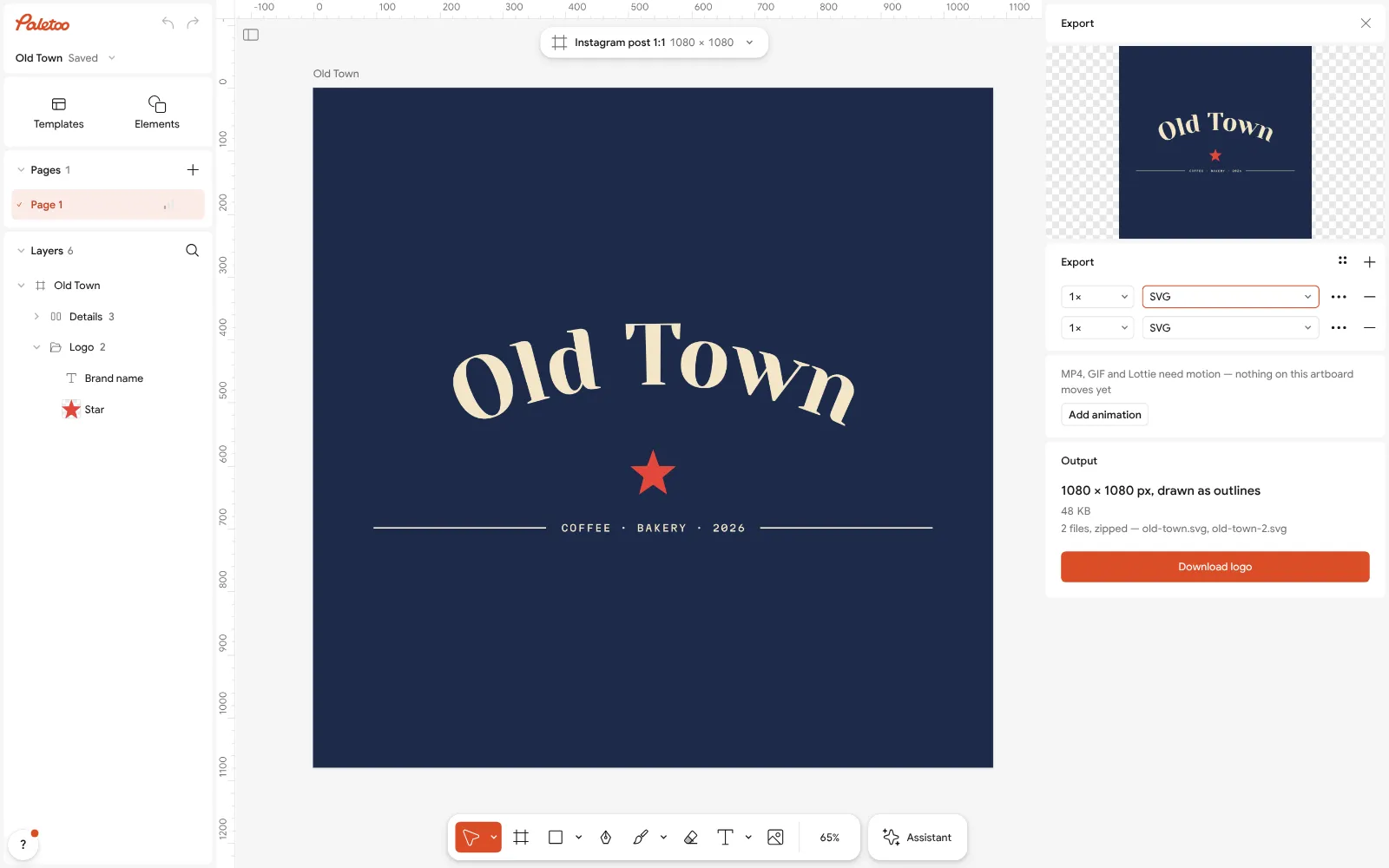
The Export window with SVG chosen, ready for the laser software Select the badge and the cut line and press Export (Ctrl Shift E). With layers selected, Content is Selection, so the navy ground stays out of the file. Choose SVG and tick Outline text: the letters become shapes, and the laser software needs no fonts.
Import the SVG into LightBurn, xTool Creative Space or the Glowforge app. Check the width, set black to engrave and red to cut, and run a test on scrap at low power before the real piece.
Make it your own
If a traced edge looks jagged, raise Smoothing and trace again; if a thin part breaks up, raise Detail. Turn on Show outlines to see how many points the laser will follow.
Overlapping shapes of one colour make the laser burn the overlap twice. Select them and use Union selection so each area is a single shape with one outline.
For a layered sign, export each colour as its own SVG: select one colour’s shapes, then Export with Content set to Selection. More on cleaning points by hand: edit an SVG online.
Sources
Questions
What file format do laser engravers use?
Vector files — SVG, DXF, AI or PDF — for cutting and scoring, and for crisp engraving of logos and text; PNG, JPG or BMP for photo engraving. SVG is the most widely accepted: LightBurn, xTool Creative Space, the Glowforge app and LaserGRBL all open it.
How do I convert a PNG to an SVG for laser engraving?
Trace it: in the tool on this page drop the PNG, choose a one-colour look and download the SVG, or open it in Paletoo and press Vectorize with Silhouette chosen and Remove background on. Then outline any text and export SVG.
Why does my laser engrave the outline instead of cutting it?
Because the outline is a filled shape or shares the engrave colour. Make the cut line a single path with only a stroke, give it its own colour, and set that colour (or the stroke) to Cut in your laser software.
Why is my SVG the wrong size in LightBurn?
Programs read SVG units differently, so a file can arrive scaled. Check the width after import and type the real size, or design at the real size from the start; lock the aspect ratio when you scale.
Can I engrave a photo from an SVG?
Not well: tracing a photo turns its shading into flat blobs. Engrave photos from the PNG or JPG with your laser software’s dithering, and trace only logos, lettering, silhouettes and drawings.
Is there a free way to make laser files?
Yes. Paletoo traces images, outlines text and exports SVG for free, with no watermark and no sign-up to start; Inkscape is a free desktop option. Your laser’s own software then sets the power and speed.
Make it online
- Image to vector converterTurn a PNG or JPG logo, icon or drawing into a clean SVG in about 30 seconds — free, no sign-up, and your picture never leaves your browser.
- Logo makerType your brand name, pick a logo, try fonts, colours and layouts, then download SVG, PNG and app icons — free, no watermark, no sign-up.
- Make stickers from photosPick a few photos and get a sticker pack: each one cut out with a white rim and a caption, for Telegram, WhatsApp or as PNG files — free, no sign-up.
Free design templates for posts, stories and posters: Brand guidelines templates
Try it on your own design
Paletoo opens in your browser, with no sign-up. Every effect here is live: change the picture or the words and the effect follows.
Open in PaletooOpens this design as your own copy — every layer and effect editable, free.
Read next
- 01
 SVG for Cricut: make a cut file free from a picture or a logoWhat Cricut Design Space needs from an SVG, how to get one from a PNG or from scratch, and the mistakes that make a cut fail.
- 02
 How to turn a logo into a vector — free, no IllustratorFrom a blurry PNG to a logo you can print on a van — in a minute, in the browser, for free.
- 03
 Vectorize an image for free: raster to vector onlineTurn pixels into shapes you can scale, recolour and cut — and know when not to.